
The Windows 11 Upgrade That Left One Laptop Worse Off Than Before
A rushed upgrade can quietly switch off the very updates you were trying to get.
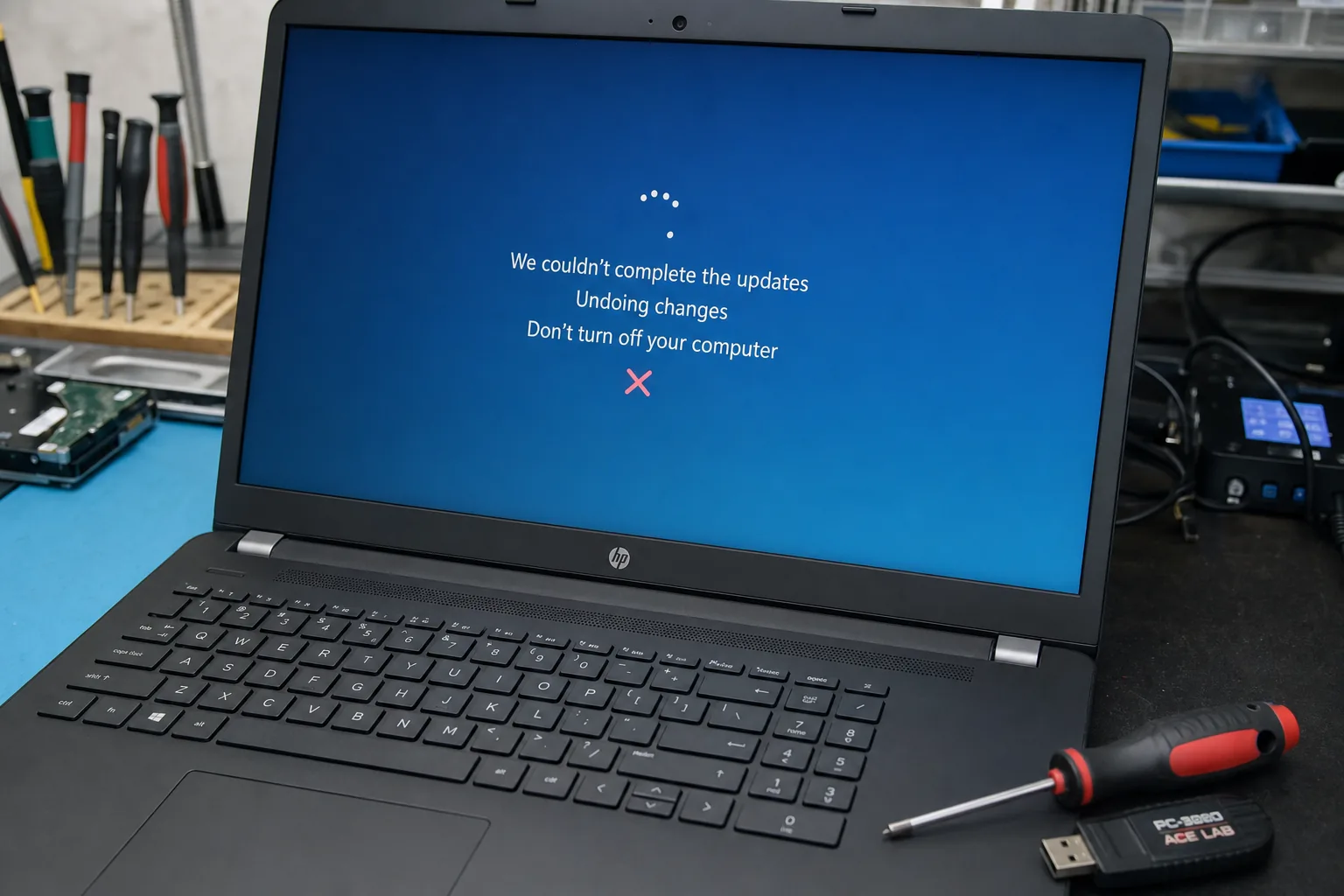

A Dell laptop came in a few weeks ago with a note stuck to the lid: "Won't update, sound doesn't work, please help." The owner had used a third-party tool to force Windows 11 onto it after Windows 10 support ended back in October 2025. The upgrade had "worked" in the sense that Windows 11 was sat on the drive - but the machine was now worse off than before, not better.
What actually went wrong
This laptop's processor was a couple of generations too old for Windows 11, and it had no TPM 2.0 chip. Microsoft's official upgrade path blocks machines like this for good reason, but the various bypass tools floating around don't fix the underlying problem - they just force the install through anyway.
- Missing drivers. The audio and Wi-Fi drivers were written for Windows 10 and never got proper Windows 11 versions from the manufacturer, so both simply stopped working.
- Updates silently blocked. Once Windows 11 detects it's running on unsupported hardware, it can flag the device as ineligible for future feature and security updates. The owner thought they'd solved their end-of-support problem. They'd actually made it worse - now nothing was patching at all.
- No easy way back. Rolling back to Windows 10 after a forced upgrade isn't always straightforward, and by that point Windows 10 itself wasn't receiving free security updates either.
How to check compatibility properly before you touch anything
This takes ten minutes and saves this exact mess.
- Download the PC Health Check app from Microsoft directly. It tells you plainly whether your machine meets the Windows 11 requirements, and if not, exactly which box it's failing on.
- Check for TPM 2.0. Type tpm.msc into the Start menu search box. If it says "no TPM found" or shows an older version, that's usually the sticking point.
- Look up your processor. Search "[your CPU model] Windows 11 supported" - Intel and AMD both publish clear compatibility lists.
If your machine passes, upgrading through Windows Update itself is straightforward and low-risk. If it fails, that's useful information, not bad news - it tells you what your real options are before you've spent an evening on a workaround.
For genuinely unsupported hardware, Microsoft's Extended Security Updates programme is worth a look for a bit more breathing room, whilst you plan a proper replacement rather than a forced upgrade.
The Repair Bench verdict
Before you upgrade from Windows 10: run the official PC Health Check app first - it takes minutes and tells you the truth about your hardware.
If your machine fails the check: don't use a bypass tool to force it through. Look at Extended Security Updates for breathing room, or budget for a replacement instead.
Watch out for: forced installs on unsupported hardware can get flagged as ineligible for future updates, leaving you with missing drivers and no security patches - worse off than before you started.