
The One Time "Off And On Again" Makes Things Properly Worse
The classic fix works nine times out of ten - but there are two situations where it tips a struggling machine over the edge.
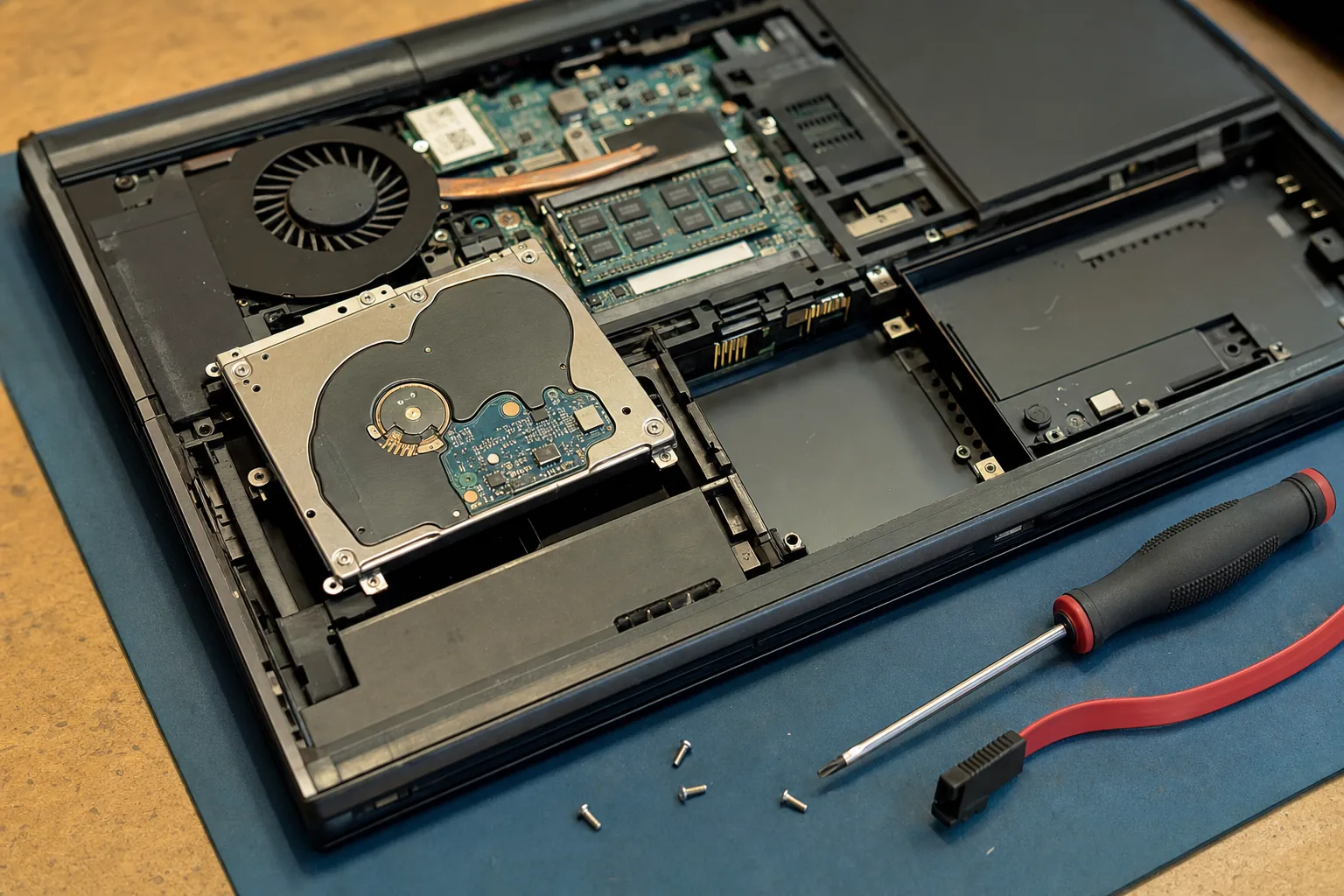

A chap brought me a laptop last month that had frozen whilst he was writing an email. Sensible enough, he held the power button, waited, and switched it back on. It didn't come back. So he tried again. And again. By the time it reached my bench, the drive wouldn't even spin up. "I did what the IT helpdesk always says," he told me, a bit wounded. "Turn it off and on again." This time, that advice finished the job.
When a reboot finishes off a dying drive
Older mechanical hard drives don't fail cleanly. They fail gradually, with the read/write head skating a fraction closer to the platter each time it struggles to find data. A freeze often means the drive is already limping - re-reading the same bad sectors over and over, which is exactly what causes the freeze in the first place.
Power the machine off at that point and the drive has to spin back up from a dead stop, which is one of the most mechanically stressful things it ever does. A drive that was struggling but still readable can simply not come back after that. Doing it two or three times in a row, as most of us do when a machine seems stuck, makes it worse each time.
- The warning signs: a machine that's been getting slower for weeks, occasional clicking or grinding noises, or files that take unusually long to open before a freeze.
- What to do instead: if a machine freezes and you suspect the drive rather than a one-off software hiccup, get anything irreplaceable backed up the moment it's usable again, rather than rebooting repeatedly to "see if it clears".
When it interrupts something mid-write
The other classic is Windows Update. That "Working on updates - don't turn off your PC" screen isn't just a suggestion. Windows is often mid-way through replacing core system files at that point, and forcing a shutdown - by holding the power button because it's "taking forever" - can leave the update half-applied. The result is usually a boot loop, or a machine that starts but with random settings and drivers broken.
Updates genuinely can sit on that screen for twenty or thirty minutes on an older machine, which is longer than most people's patience lasts. The fix, unhelpfully, is just to leave it alone. If it's still stuck after an hour with no progress at all, that's a different problem - but killing the power ten minutes in almost always makes things worse than doing nothing.
- Safe to interrupt: a frozen app, a black screen with no activity, or a machine that's simply unresponsive with no on-screen message.
- Not safe to interrupt: any screen that explicitly says an update or installation is in progress.
The Repair Bench verdict
Rebooting is still the right first move for a frozen app or an unresponsive screen with no on-screen message - it clears far more problems than it causes.
Don't reboot if: the screen says an update is installing, or the machine has been getting slower with odd noises for weeks - that's a drive telling you it's tired, not a glitch to clear.
If in doubt: back up first, reboot second. It costs you nothing and saves the file you can't afford to lose.