
Why Is My Laptop Typing by Itself? The Cause Is Usually Simpler Than You Think
Random letters appearing on screen without you touching the keys is alarming — but nine times out of ten there's a straightforward explanation.
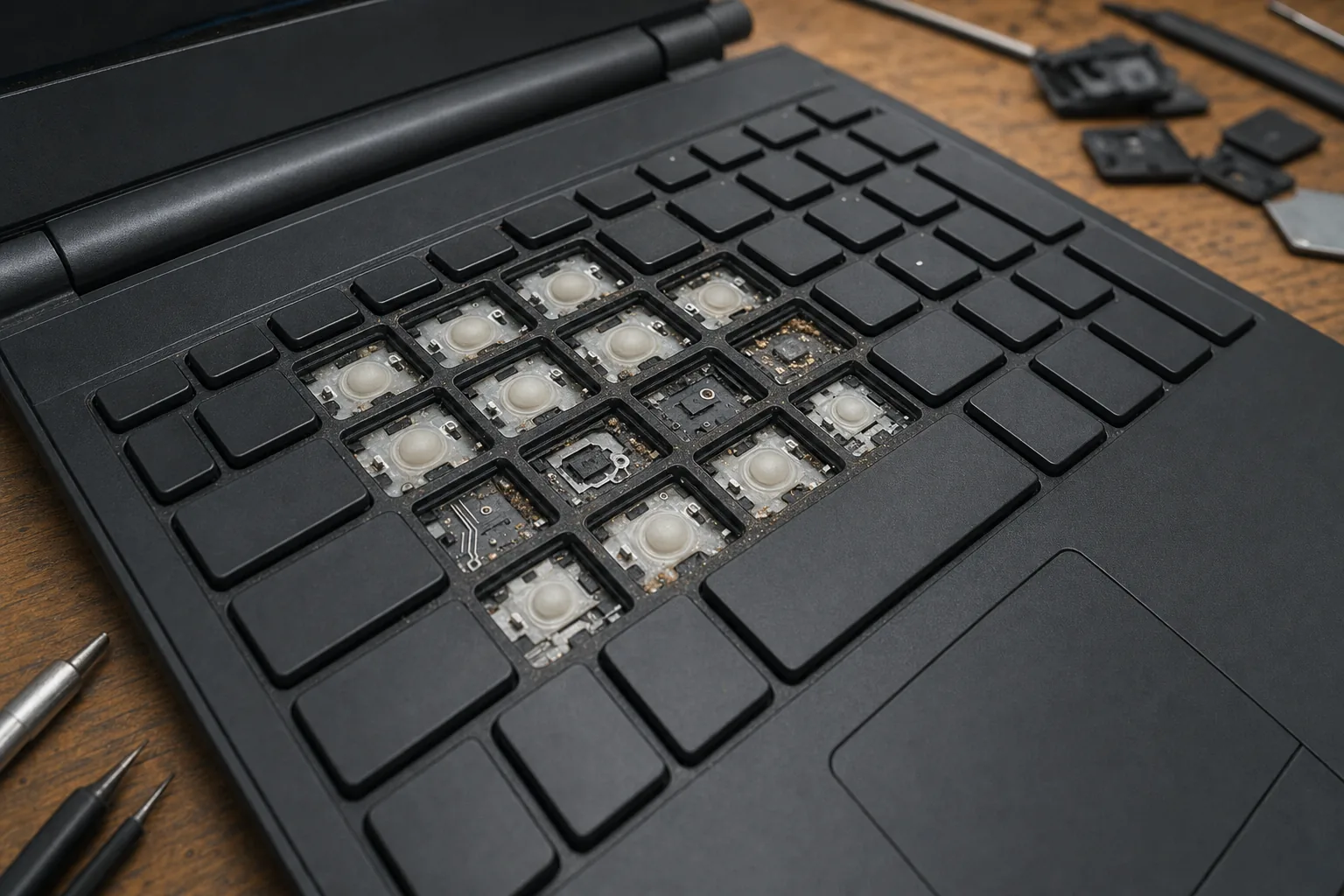

A woman came in last month holding her laptop like it had personally offended her. She'd been typing an email when the machine suddenly started filling the screen with the letter J — on its own, without her touching a thing. She'd tried restarting twice. It kept doing it. She was convinced the laptop had a virus, or was possessed, or both.
It wasn't either. The culprit was a single crumb lodged under the J key, pressing it down just enough to register as a continuous keypress. I popped the cap, fished out what appeared to be part of a biscuit, and sent her on her way in ten minutes. But not every case is that simple, so here's how to work through it properly.
Start with the obvious: something is stuck under a key
Keyboards are remarkably good at catching crumbs, pet hair, dust and the occasional grain of rice. Any of it can wedge beneath a keycap and hold the switch fractionally down. The result is a key that repeats constantly or triggers ghost presses nearby.
- Turn the laptop upside down and give it a gentle shake. You'll be amazed what falls out.
- Use a can of compressed air to blast around the affected key at an angle — not straight down, or you push debris further in.
- Carefully pop the keycap off if you're comfortable doing so. Most laptop keys unclip with a flat spudger or even a fingernail. Clean underneath with a dry cotton bud, then snap it back on.
If the random typing stops after cleaning, you're done. If it carries on, move to the next step.
Check whether it's a software or hardware problem
This is the diagnostic step most people skip, and it matters. Plug in a USB keyboard and see whether the random characters still appear. If they do, the fault almost certainly isn't the physical keyboard — it could be a driver issue, a stuck modifier key in software, or in rare cases malware. If the external keyboard behaves perfectly, the built-in keyboard itself is the problem.
- Open Notepad and watch what appears. Note which letters are repeating — that tells you exactly which area of the keyboard to inspect.
- In Device Manager try uninstalling the keyboard driver and restarting. Windows reinstalls it fresh, and occasionally a corrupted driver is all it was.
- Check for moisture. Even a small spill from days ago can cause intermittent ghost keypresses as residue conducts electricity across the membrane. If there was ever a drink near the machine, this is likely your cause.
Liquid damage is the one scenario where I'd urge you not to keep using the laptop. Switch it off and bring it in — continued use after a spill can spread the damage to the motherboard.
When the keyboard itself needs replacing
If cleaning doesn't fix it and the external keyboard test points firmly at the built-in one, the keyboard ribbon cable or the keyboard membrane has failed. On most laptops a replacement keyboard costs between £15 and £45 for the part, and fitting it takes under an hour. It is almost always worth doing rather than buying a new machine — the rest of the laptop is perfectly fine.
A few ultra-thin models bond the keyboard directly to the chassis, which makes replacement trickier and more expensive, but they're the exception rather than the rule. Worth asking before you assume the worst.
The Repair Bench verdict
First thing to try: compressed air and a thorough clean under the affected keys — it solves the problem more often than you'd expect.
Best diagnostic step: plug in a USB keyboard; if that behaves normally, the fault is definitely in the built-in keyboard, not the software.
Watch out for: any history of liquid near the laptop — switch it off and get it looked at promptly rather than hoping it sorts itself out.