
Refurbished Laptop Buying Guide UK: What to Check Before You Buy
Are refurbished laptops worth it in the UK? Yes - if you know what to check. After years of inspecting hundreds of refurbished machines in our IT workshop, here's the honest, hands-on guide to buying a refurbished laptop that'll last another 4-5 years.
We link to the exact model on Amazon UK. Prices change often, so check the live price before you buy. As an Amazon Associate we earn from qualifying purchases.

ThinkPad E14 Gen 6 on Amazon
Check today's price & availability on Amazon UK
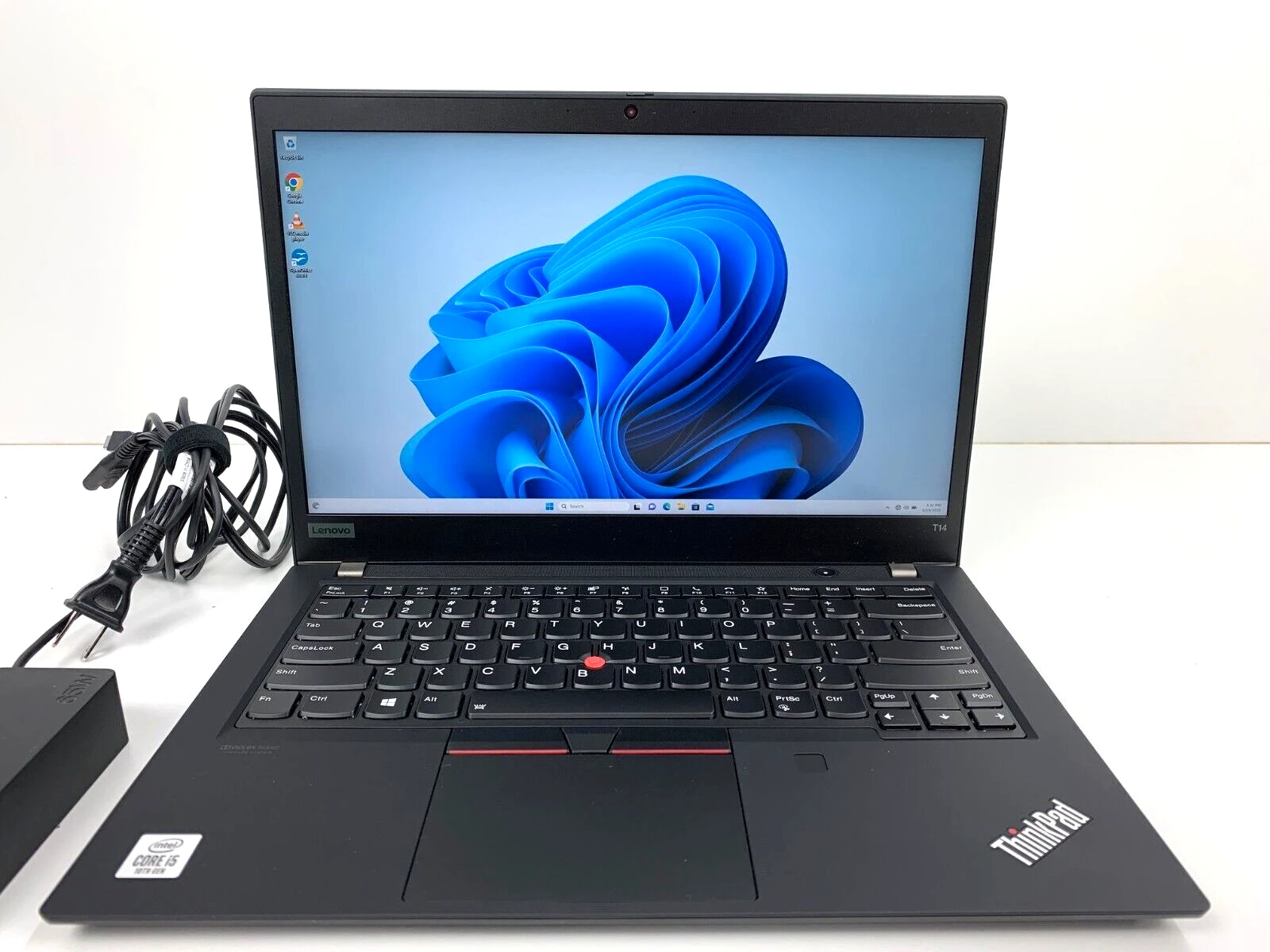
A 'grade A' refurbished business laptop - cosmetically near-new and 30-50% off the original RRP.
1. Why a refurbished laptop is often the smartest UK buy
The refurbished laptop market exists because UK businesses replace their fleets every 3-4 years - usually because of leasing agreements or asset depreciation cycles, almost never because the laptops are worn out. A 2022 ThinkPad T14, EliteBook 845 or Latitude 7440 has been on a desk for three years, looked after, kept dust-free, opened occasionally for a battery service. It comes off lease in pristine mechanical condition. Then it gets refurbished - tested, wiped, reinstalled with Windows 11 Pro, fitted with a fresh SSD if needed, and resold at 40-60% of its original price.
What that means for the buyer in 2026: a properly-refurbished business-grade laptop in the £350-£500 range routinely outperforms a brand-new £600-£700 consumer laptop. The build quality is better, the keyboard is better, the repairability is better, the original spec was higher, and you're getting a machine designed for a 6-7 year service life that's only 3 years in.
The honest pros
- 40-60% off. A £1,500 ThinkPad T14 from new becomes a £450 ThinkPad T14 refurbished.
- Better build than new consumer laptops at the same price. Magnesium chassis, real keyboards, MIL-STD durability.
- Fully repairable. Service manuals public, parts available.
- Environmental upside. Extending a laptop's life by 4 years saves an estimated 80kg of CO2 vs manufacturing a new one.
- Genuine Windows 11 Pro licence transferred onto the device.
The honest cons
- Battery is part-worn. 70-85% of original capacity is typical. Plan for £40-90 battery replacement at some point.
- Cosmetic wear. Lid corner marks, sometimes shiny key letters. Functional but not pristine.
- Generation behind. A 2022 laptop has a 2022 CPU; performance won't match the latest generation.
- Warranty is shorter. Typically 12 months refurb warranty vs 36-month available on new business laptops.
- You need to verify before buying. Hence this article.
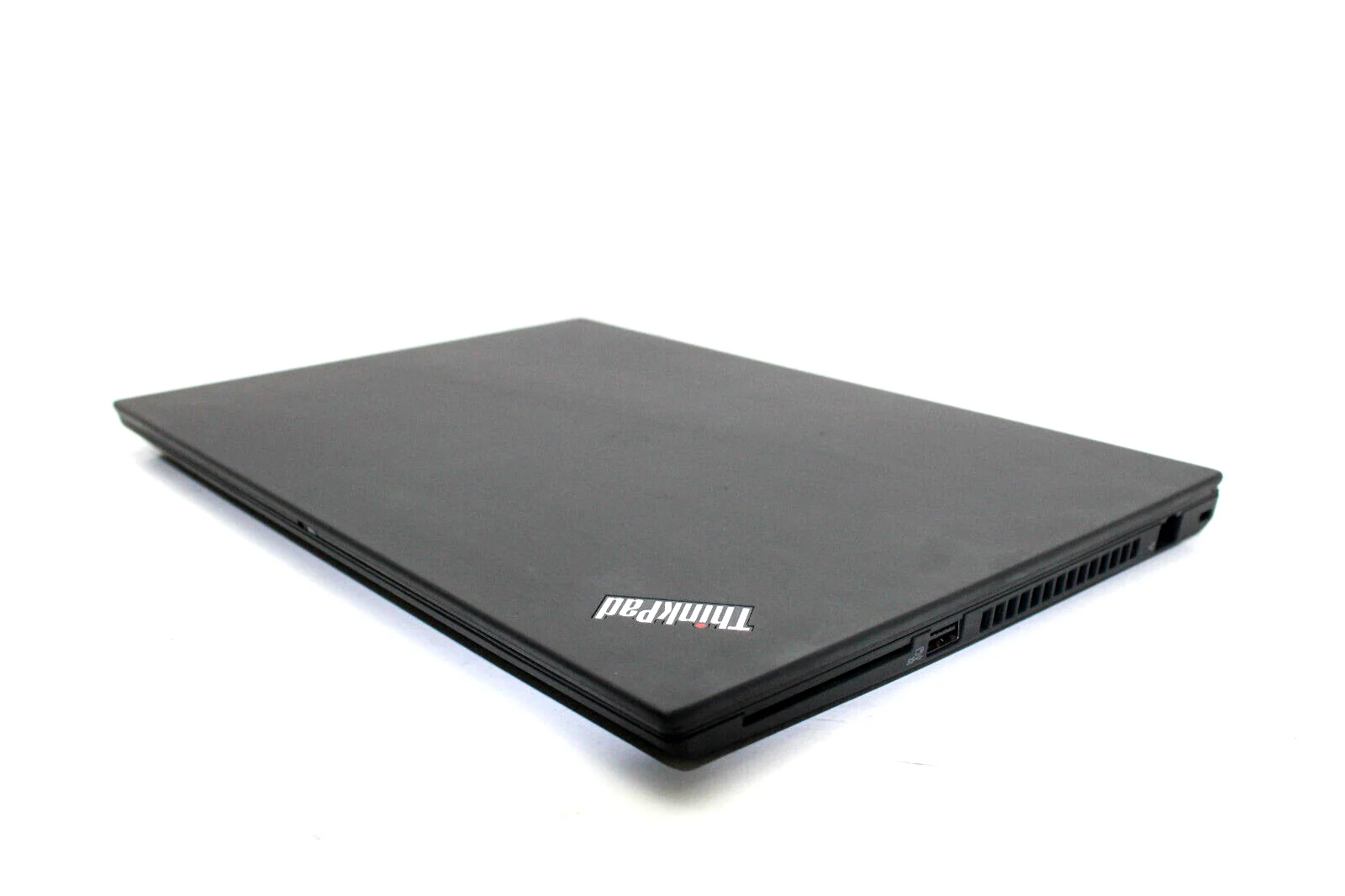
A 3-year-old refurbished ThinkPad T14 alongside a new £600 consumer laptop - the refurb is heavier, more solid, better built, and £100 cheaper.
2. The categories of 'refurbished' - what each one means
Not every laptop sold as 'refurbished' is the same product. The UK market has at least four meaningfully different categories.
Manufacturer-refurbished
Returned new laptops, ex-display models, and end-of-lease returns sent back to the manufacturer (Lenovo Outlet, HP Renew, Dell Outlet). Tested, repaired if needed, sold with a manufacturer warranty. Cosmetically usually almost-new. The safest category and the closest thing to buying new.
Authorised refurbisher (Grade A / Grade B / Grade C)
Independent UK refurbishers who buy ex-lease fleets, professionally test and repackage them. Use a grading system to communicate cosmetic condition:
- Grade A: Near-perfect condition, very minimal cosmetic wear, looks almost new from a metre away.
- Grade B: Visible cosmetic wear (light scratches, faint marks), all functions work perfectly.
- Grade C: Heavier cosmetic wear (deeper scratches, dented corners), still fully functional.
Pricing reflects grade. Grade A is closest to manufacturer-refurbished prices; Grade C is the cheapest. For a working business laptop, Grade B is usually the value sweet spot.
'Refurbished' from individual sellers
The wild west. Someone buys an ex-lease laptop, plugs it in, runs Windows once, calls it 'refurbished', and resells. Quality of testing varies from genuine to absent. Battery condition is usually unknown to them and to you. Warranty is often 'sold as seen' or 14-day return window only. Use only with caution and a thorough hands-on check before paying.
'Renewed' / 'Open Box'
Amazon's terminology. 'Renewed' is broadly equivalent to refurbished - tested and packaged for resale by an Amazon-approved refurbisher. 'Open Box' is usually a customer-returned new item that hasn't been deeply used. Both come with Amazon's standard warranty handling, which is generally good.
Which to pick by buyer type
- First-time refurbished buyer: Manufacturer-refurbished or Amazon Renewed. Highest safety margin.
- Confident buyer wanting best price: Authorised refurbisher (Bargain Hardware, Tier1, ITC Sales) Grade B.
- Tech-savvy bargain hunter: eBay listing from a high-feedback seller, or careful Facebook Marketplace deal with hands-on inspection.
- Avoid: Random sub-£100 listings, Gumtree without inspection, anything marked 'For Parts' that's been re-listed as 'working'.
3. Where to buy refurbished laptops in the UK
Five places we trust, three to avoid, with the reasoning for each.
Trusted UK refurbishers
- Lenovo Outlet (lenovo.com/gb/outlet) - their own refurbished store. ThinkPads at meaningful discount with 12-month manufacturer warranty.
- HP Renew Store - same idea for EliteBook and ProBook.
- Dell Outlet (delloutlet.co.uk) - Latitudes, OptiPlex desktops, Precision workstations refurbished by Dell.
- Bargain Hardware (bargainhardware.co.uk) - established UK B2B-and-consumer refurbisher. Strong on ThinkPad T-series. Fair grading.
- Tier1 Online - similar; UK-based, good warranty.
- ITC Sales - long-running London-based business refurbisher.
- Newegg UK Refurbished - the UK arm of the long-established US tech retailer.
- Amazon Renewed - safest of the marketplaces. Amazon-vetted refurbishers, easy returns.
Useable with caveats
- eBay sellers with 99%+ feedback over 1000+ sales. Read recent feedback for laptop-specific complaints. Avoid sellers without a clear UK-business address.
- BackMarket UK - large refurbished marketplace. Quality varies by individual seller within the platform; check seller ratings carefully.
- CEX.co.uk - High street, easy returns, but pricing is rarely the cheapest. Stock varies wildly by location.
Avoid these UK sources
- Facebook Marketplace 'refurbished' listings without test before pay. Use only when you can inspect physically.
- Gumtree - similar issue. Higher fraud rate than Facebook Marketplace anecdotally.
- 'Tech car boot' style markets - some are legitimate but verification is impossible.
- AliExpress, Banggood, Geekbuying refurbs - imported refurbs without UK warranty cover; battery and licence often dubious.
The 'cash collect from local seller' rule
Buying from a private seller via Facebook or Gumtree can be fine if you treat it like buying a used car. Always:
- Meet in a public place with mains power and Wi-Fi (a coffee shop is ideal).
- Bring a USB stick with the diagnostic tools we'll cover later.
- Be prepared to spend 30 minutes inspecting before paying.
- Pay by PayPal Goods & Services if at all possible (buyer protection); cash second; never bank transfer.
- Walk away if anything feels off - the next listing comes along quickly.
4. The 30-minute pre-purchase inspection checklist
This is the most important section in this article. Even when buying from a reputable refurbisher, run this checklist on arrival. When buying from a private seller, run it before paying. Print it out or save the link on your phone for reference.
External inspection (5 minutes)
- Lid corners - look for impact damage, deep scratches that go through the paint, cracks.
- Hinges - open and close 3-4 times. Listen for crunching, looseness or resistance changes through the arc. Hinges should be firm and quiet.
- Bottom panel - look for warped plastic, missing screws, signs the laptop has been opened repeatedly.
- Screen border - check for cracks at the corners (a common drop point).
- Keyboard surface - run a hand across. Look for missing or loose keys, sticky keys, peeled keycaps.
- Trackpad - press all four corners. Should click evenly. Loose trackpads often signal a previous spillage.
- Ports - inspect each USB, HDMI, headphone jack visually for bent pins, debris or damage.
- Power button - press lightly. Should feel firm, not sticky or wobbly.
Power-on inspection (5 minutes)
- The seller should have it charged before showing it to you. If not, plug in the charger and turn it on.
- BIOS / UEFI access - press F1, F2, F10, or DEL during boot (varies by brand). Verify the laptop is what's listed:
- CPU model (the listing's 'i7' is the real model number)
- RAM amount
- Hard drive / SSD model and size
- Serial number (you can look up warranty status on the manufacturer's website)
- Boot to Windows. Login screen should appear within 30 seconds (faster if SSD).
Operating system checks (10 minutes)
- Windows activation: Settings > Activation. Should say 'Windows is activated with a digital licence' (or similar). If it says 'Activation expired', 'Not activated' or anything ambiguous, the licence is suspect.
- Windows version: Settings > About. Confirm Windows 11 Pro (or whichever version was advertised). Some sellers ship Windows 11 Home but list as Pro.
- Battery report: we'll cover this in detail in the next section.
- SSD health: we'll cover this too.
- Webcam test: open the Camera app, check for image. Look for sensor issues (banding, dead pixels).
- Microphone test: open Voice Recorder, record 5 seconds, play back.
- Speakers: play a YouTube video at 50% volume. Listen for distortion, rattle.
- Wi-Fi: Settings > Network. Connect to the cafe Wi-Fi (or your phone's hotspot). Check signal strength.
- Bluetooth: pair with your phone briefly to verify it works.
- Touch screen if equipped: Test all four corners and the middle.
Stress and quick-test phase (10 minutes)
- Open Task Manager (Ctrl+Shift+Esc). Watch the CPU, RAM and SSD utilisation while you do the tests below. Idle CPU and disk activity should settle low; normal Windows will still use RAM for the OS, services and cache, so RAM should not be near zero.
- Open 5 browser tabs simultaneously. Watch RAM climb to verify advertised RAM amount.
- Play a YouTube video at 1080p for 2-3 minutes. Watch CPU usage; should not spike to 100% on a working business laptop.
- Listen to the fan. Should ramp up under load and ramp down when load drops. A fan that's screaming at idle suggests dust-clogged cooling or a thermal issue.
- Place a hand on the bottom of the laptop. Should be warm but not painfully hot.
Final acceptance tests
- If everything passes, you're good to go.
- If anything fails, point it out to the seller and either renegotiate or walk away.
- Don't accept 'I'll fix that after you've paid' - you have no leverage afterwards.
Bring your toolkit
For private seller meetings, carry: a USB stick with HWiNFO64 Portable, CrystalDiskInfo Portable, and BatteryInfoView. A USB-C multimeter cable to test the charging port. A USB mouse and an HDMI cable to test the ports. The whole inspection takes 30 minutes if you're prepared and 5 minutes of awkward fumbling if you're not.
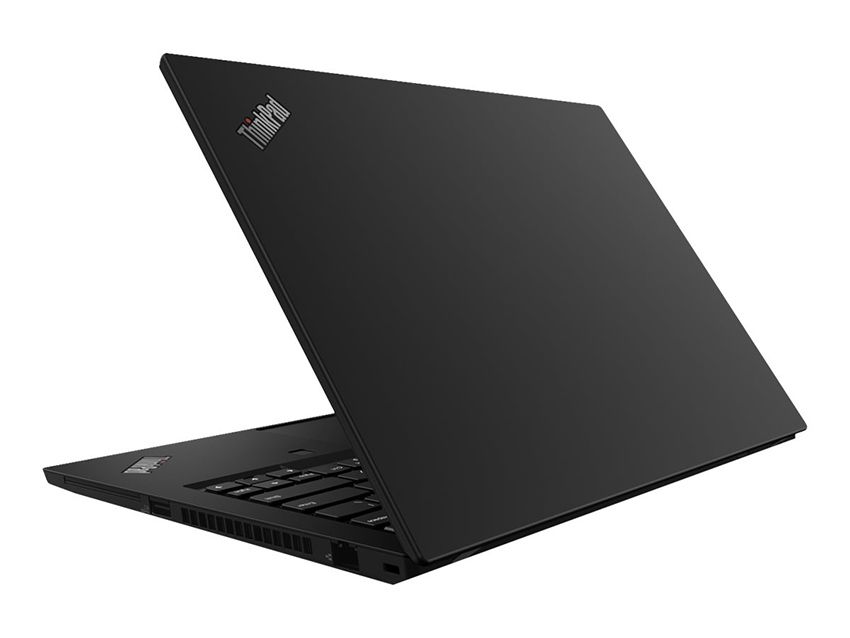
A pre-purchase inspection checklist takes 30 minutes and saves potential months of regret - the most important part of buying refurbished.
5. Battery health - how to check it properly
Battery is the part most likely to be deceptively presented in a refurbished laptop listing. Sellers might say 'battery good' meaning 'it powers up', not 'it holds 80% charge'. You need to verify with real numbers.
The Windows built-in battery report
Every Windows 10 / 11 laptop can generate a detailed battery report from the command line. This is the gold standard:
- Open Command Prompt (right-click the Start button > Terminal or PowerShell).
- Type:
powercfg /batteryreport /output "%USERPROFILE%\Desktop\battery_report.html" - Press Enter.
- A file appears on the Desktop. Double-click to open in a browser.
What to look for in the report
- Design Capacity: The original capacity in mWh (milliwatt-hours). E.g. 60,000 mWh on a ThinkPad T14.
- Full Charge Capacity: The current capacity in mWh.
- Percentage: Full Charge Capacity / Design Capacity = current battery health. E.g. 48,000 / 60,000 = 80%.
- Cycle Count: How many full charge/discharge cycles the battery has had. New = 0; 200-400 is normal mid-life; 600+ is end-of-life territory.
- Battery History graph: Shows capacity over the last 7 days - lets you see actual usage runtime vs claimed.
Acceptable battery health by use case
- 80%+: Excellent for refurbished. Will deliver close to original runtime.
- 70-80%: Acceptable. You'll get 5-7 hours instead of 7-9. Plan for replacement in 12-18 months.
- 60-70%: Noticeable degradation. Should be reflected in the price; budget for a replacement battery.
- Below 60%: Walk away unless the price is dramatically reduced and you're prepared to replace immediately.
Common sleights of hand
- 'Battery brand new' - check cycle count. A genuinely new battery has 0-3 cycles. 'Brand new' that shows 200 cycles is a refurbished or third-party battery from earlier in the laptop's life.
- 'Battery healthy 90%' - check the actual mWh numbers, not just a screenshot. Some sellers screenshot the battery report's first few lines without showing capacity.
- 'Battery hours displayed in Windows' - the Windows estimated runtime is based on current usage; idle on the desktop will show a flattering 8-hour figure even on a degraded battery. Use the report, not the icon.
Third-party tools for deeper checks
- BatteryInfoView (NirSoft, free) - shows the same data plus battery temperature, charge/discharge rate, and manufacturer details.
- HWiNFO64 - more detailed, shows battery wear level explicitly.
If the battery is below 70%
Replacement batteries for popular ThinkPad, EliteBook, Latitude models are widely available in the UK. Original Lenovo, HP, Dell batteries cost £50-90; reputable third-party (BST, Newpower) cost £25-50. We recommend OEM batteries - the cell quality is more consistent and the BMS firmware matches the laptop exactly.
6. SSD health - the tools and what to look for
An SSD that's been heavily written can be on borrowed time. Here's how to check.
The tools
- CrystalDiskInfo (free, Windows) - the standard tool. Reads SMART data from the drive.
- HWiNFO64 - similar information, more comprehensive.
- Manufacturer-specific tools - Samsung Magician, Crucial Storage Executive, WD Dashboard - if the SSD brand matches.
What CrystalDiskInfo tells you
Open the program. The drive's status appears at the top:
- Good (blue): Drive is healthy.
- Caution (yellow): Some SMART parameters are flagged - the drive is approaching its written-data limit or has seen errors. Investigate.
- Bad (red): Significant SMART errors detected. Avoid.
Specific SSD parameters to check
- Power on hours: How long the SSD has been powered. 30,000+ hours is heavy use; 5,000-15,000 is typical for a 3-year-old laptop.
- Total data written (TBW): Total terabytes written to the drive. Each SSD has a manufacturer-rated lifetime TBW (typically 150-600 TBW for consumer drives). Reaching 80% of rated TBW means the drive has used much of its written-endurance allowance, but it is not automatically near failure; interpret the exact model's SMART health, errors and backup risk together.
- Reallocated sectors: Should be 0 or close to it. If non-zero, the drive has had cell failures.
- Pending sectors: Should be 0. Non-zero suggests imminent failure.
- Uncorrectable errors: Should be 0.
How to interpret the numbers
A 3-year-old refurbished business laptop SSD typically shows:
- ~10,000-20,000 power-on hours
- ~5-30 TB total data written (well under typical 300 TBW lifetime)
- 0 reallocated, pending or uncorrectable sectors
- Status: Good
Anything outside these ranges is worth questioning.
Common SSD red flags
- Generic / no-brand SSD: Some refurbishers swap the original SSD for a cheap unbranded one. Look for SK Hynix, Samsung, Micron, WD, Crucial - reputable brands. Do not judge an SSD by brand familiarity alone: TeamGroup is an established vendor. Check the exact model, firmware, SMART health, total writes and warranty.
- Way more written data than the laptop's age explains: A 1-year-old laptop with 100TB written suggests an extreme workload (like running cryptocurrency mining or a database server) - the SSD has lots of mileage and may fail soon.
- SMART status not 'Good': Avoid.
- SSD smaller than advertised: A listing says '512GB SSD' but the drive shows 256GB - the seller swapped it.
The 'fresh SSD' upgrade
If the laptop you want is otherwise great but has a heavily-used SSD, you can replace the SSD for £30-60 (Kingston A2000, Crucial P3, WD Blue SN570 - all good NVMe options). Adds 30 minutes of work plus a clean Windows install. Often the smartest move on a deeply discounted refurb.
7. Screen condition - dead pixels, backlight bleed, hinges
The screen is one of the most expensive components to replace. Even small defects warrant a discount or a walkaway.
Dead and stuck pixels
A dead pixel is permanently black; a stuck pixel is permanently a single colour. Both are visible against contrasting backgrounds.
- Display a fully white screen (open Notepad and maximise; or use deadpixeltest.org). Look for black dots.
- Display a fully black screen (a maximised dark file viewer). Look for bright dots.
- Display red, green, blue and yellow full-screen images. Look for stuck colours.
Acceptable thresholds:
- Zero dead pixels: Standard for refurbished business laptops. Should be the norm.
- 1-2 dead pixels in a corner: Tolerable on a discounted Grade B/C unit if you can't see them in normal use.
- Multiple dead pixels in the centre: Walk away.
Backlight bleed
Look at a fully black screen in a dim room. Some laptops show light leaking from the corners or edges - this is backlight bleed. Common on many laptops; not a defect unless severe. A small amount is acceptable.
Screen scratches and pressure marks
Closely inspect the screen with the laptop off, then with a fully white background. Look for:
- Surface scratches - common on touchscreens, less so on matte business laptops.
- Pressure marks - dim or bright spots where something has pressed against the screen. Often appears as cloudy patches.
- Cracked digitiser (touchscreens) - a hairline crack in the touch layer that's invisible until you press a finger.
Backlight uniformity
On a fully white screen, look for darker patches - often visible toward the edges or in stripes. Slight variation is normal; significant patches reduce usability.
Hinges and screen wobble
With the laptop open, gently shake the screen. There should be a slight, controlled flex - not free wobble. Hinges that flop or are extremely stiff signal wear or damage. Hinge failures are repairable on most ThinkPads, EliteBooks and Latitudes - £80-150 typical - but factor that in.
Webcam shutter and IR camera
Modern business laptops often have a physical webcam shutter (a sliding cover). Verify it works and isn't stuck. If the laptop has Windows Hello IR (face unlock), test it during your inspection - a broken IR sensor still allows webcam use but disables Windows Hello.
8. Keyboard, trackpad and physical wear
Keyboard - test every single key
Open Notepad and type every letter, every number, every symbol, including the key combinations:
- All 26 letters in a row.
- All 10 number keys.
- All Shift+letter combinations (capital letters).
- All Shift+number combinations (symbols).
- Function keys F1-F12.
- Special keys: Tab, Caps Lock, Escape, Enter, Backspace, Delete.
- Modifier keys: Shift (left and right), Ctrl (both), Alt (both), Windows.
- Arrow keys and Page Up/Down/Home/End.
Each key should register a single character with consistent pressure. If any key is sticky, requires double-presses, or sometimes fails - that's a fault.
Common keyboard issues by brand
- ThinkPad TrackPoint - the red 'nipple' should move the cursor smoothly. Drift (cursor moving on its own) usually means a stuck rubber tip; replaceable for under £5.
- HP / Dell laptops with backlit keyboards - check the backlight at all brightness levels. Failed backlights are a board-level fix.
- Spanish / German / French keyboards - check the layout matches what you want. Some refurbished laptops imported from EU have non-UK layouts. Replacement UK keyboards are £20-50 and easy to fit on most ThinkPads.
Keyboard shine and worn keys
On heavily-used 3-4 year old laptops, the E, A, S, T, R, N keys sometimes show a slight shine where typing has worn the matte finish. Cosmetic only - doesn't affect function. If shine is severe, ask for a discount; replacement keyboards are not expensive.
Trackpad wear
- Move the cursor across the trackpad in long strokes. It should track smoothly without jumping or sticking.
- Test multi-finger gestures: two-finger scroll, three-finger swipe, four-finger gestures.
- Press and listen for the 'click' - all four corners should click consistently.
- Check for trackpad surface wear - heavy use can leave a smooth shiny patch where the cursor sits naturally.
Other physical wear to inspect
- Charging port - plug in the charger. The connection should be firm. Loose USB-C charging ports are a known fault on some laptops.
- Hinge end-stops - some laptops have a maximum opening angle. Going past it forces the hinges. Ask the seller about full opening behaviour.
- Speakers - play music. Speakers that rattle or buzz at moderate volume have damaged drivers - cheap to replace, but factor in.
- Bottom rubber feet - missing feet aren't a deal-breaker (replacements are cheap) but signal heavy use.
9. The Windows licence question - is it genuine?
The Windows licence is the easiest thing to fake on a refurbished laptop and the most consequential to get wrong.
Verify activation status
- Settings > System > Activation
- It should say something like 'Windows is activated with a digital licence linked to your Microsoft account' (if it's been linked) or 'Windows is activated with a digital licence' (if not).
- Anything saying 'Activation expired', 'Cannot activate', or showing an exclamation mark is a problem.
The three legitimate refurb licence types
- Original OEM licence transferred: The licence that came with the laptop when it was new. Bound to the motherboard. Survives a clean reinstall on the same laptop.
- Microsoft Authorised Refurbisher (MAR) licence: A genuine Windows licence purchased by an MAR-accredited refurbisher specifically for resale. Listed in MAR documentation and reactivatable through Microsoft.
- Retail licence transferred to the device: Less common but valid. Often has a printed key card.
The illegitimate licence types
- Volume / Enterprise / KMS-activated licence: The seller has used a corporate volume key to activate. Microsoft can detect this and revoke. Common in cheap eBay listings.
- 'Cracked' / 'Loader' activated licence: Software that bypasses activation. Triggers Windows Defender warnings, fails to install Windows updates, and is unambiguously illegal.
- Stolen retail key: A genuine key from a different device, used here. Can be revoked when Microsoft notices.
How to spot trouble
- 'Activation expired' or pop-ups asking you to activate Windows = revoked licence.
- Windows Defender disabled when you check it = malware (sometimes installed alongside cracked activators).
- Windows Update failing repeatedly = activation/version mismatch.
- 'Activate Windows' watermark in the bottom right of the screen = clearly not activated.
- The laptop won't accept your Microsoft account when you try to sign in to OneDrive / Microsoft 365.
What about the laptop already showing 'Activated' but the licence might still be dodgy?
Run this command in PowerShell as administrator:
slmgr /xpr
If it says 'permanently activated', the licence is currently valid. But that doesn't guarantee it'll stay valid - Microsoft revokes illegitimate licences in batches. The best protection is to know the licence type before paying.
The MAR sticker / certificate
Authentically refurbished laptops from MAR-accredited refurbishers will have either a Microsoft Authorised Refurbisher sticker on the chassis or an accompanying Certificate of Authenticity. Lenovo, HP and Dell outlets do this consistently.
If the licence is dodgy
You can always buy a fresh genuine Windows 11 Pro licence separately. Retail keys cost around £100-150 from authorised UK resellers (Microsoft.com, John Lewis, Currys). If the refurbished laptop is otherwise great and dramatically cheap, factor in the cost of a fresh licence and decide if it's still a good deal.
10. Warranty - what's actually included and what to look for
Refurbished laptop warranties vary from 'meaningful' to 'theoretical'. Know what you're getting.
The four common warranty levels
- 12-month return-to-base: The most common refurbished warranty. If something fails within 12 months, you ship the laptop back to the seller, they fix or replace it, and ship it back. You're without the laptop for 1-2 weeks. Typical for established UK refurbishers.
- 30-day money-back: Often offered alongside the 12-month repair warranty. If you don't like the laptop within 30 days, return it for a refund.
- Manufacturer-extended warranty: The original Lenovo/HP/Dell warranty might still be active if the laptop is less than 3 years old. Look up the serial number on the manufacturer's website to check.
- 'Sold as seen' / no warranty: Common on eBay and Facebook Marketplace. Avoid unless price reflects the risk.
What's typically NOT covered
- Battery degradation after the warranty period (since it's expected wear).
- Cosmetic damage - that's what the grading at sale time was for.
- Damage caused by you (drops, spills, voltage incidents).
- Software issues - Windows reinstalls are usually your responsibility.
What about extended warranties from third parties?
Square Trade, Currys Care & Repair, Argos extended warranties sometimes apply to refurbished laptops. Read the small print - some explicitly exclude refurbs. Generally, the established refurbisher's own 12-month warranty plus a fresh battery (if needed) covers the practical risks.
Manufacturer warranty lookup tools
- Lenovo: support.lenovo.com - enter the serial number, get the warranty status. Sometimes ex-lease ThinkPads still have 6-12 months remaining.
- HP: support.hp.com/gb-en/checkwarranty
- Dell: dell.com/support/home/en-uk - their warranty lookup is excellent.
If the original manufacturer warranty is still active and transferable, that's a meaningful bonus on top of the refurbisher's own warranty. Check before buying.
The 'first 30 days' acid test
Use the laptop heavily during the first 30 days after purchase. Run multiple workloads, do all the things you'd do day-to-day, leave it on for long stretches. If anything fails or behaves oddly, you're within the money-back window. After the initial 30-day short-term right to reject, purchases from a trader can still carry Consumer Rights Act remedies such as repair or replacement and, where those fail, a price reduction or final rejection. Private-sale rights are narrower, so identify whether the seller is acting as a trader.
11. eBay and Facebook Marketplace - specific UK red flags
The cheapest refurbished laptops are often on eBay and Facebook Marketplace. Sometimes legitimate, sometimes not. Specific warning signs to spot.
eBay warning signs
- Brand-new seller account with very few sales. Even if the listing looks good, scammers create accounts, run a few cheap-laptop scams, then disappear. Stick with sellers with 1000+ sales over 12+ months.
- Stock photos instead of actual photos. Manufacturer-rendered marketing images are a red flag. The seller should photograph the specific laptop.
- 'Photo as listing' that looks suspiciously professional. If the photos match dozens of other listings, it's a stock photo.
- Description copied from another listing. Compare with other refurb listings - identical wording often signals copy-paste fraud.
- 'Shipping from China' or 'Hong Kong' on a UK listing. Customs charges are likely; warranty service is impossible.
- 'Buy it now' price wildly under market. If a £400 laptop is listed for £150, something is wrong.
- Sellers that demand bank transfer. Always pay via PayPal Goods & Services or eBay's Managed Payments - both have buyer protection.
Facebook Marketplace warning signs
- Profile created in the last few weeks. Click the seller's profile - genuine sellers usually have years of activity.
- 'Cash only' insistence. Some legitimate sellers prefer cash, but the demand to refuse PayPal is suspicious.
- 'Can't meet, will post.' Marketplace is local. If they won't meet, they have something to hide.
- 'No questions' posts. Legitimate sellers welcome questions. 'Don't ask' usually means 'don't notice the issues'.
- 'Was a gift, don't know specs.' Even if true, a buyer should never accept this - the seller can find the spec in 60 seconds with a single button press in BIOS or Windows.
Things people forget to check
- Stolen-laptop database. The Police National Database (Immobilise) and the Lenovo / HP / Dell stolen-device databases let you check serial numbers. If a laptop comes up as reported stolen, walk away immediately and report it.
- Removable BIOS password. Some ex-corporate laptops have a BIOS password set. If the seller doesn't have or won't share it, you can't change boot order, secure boot settings, or reinstall Windows. Walk away unless you can confirm it's removed.
- Bitlocker recovery key. If the SSD is encrypted with Bitlocker and the seller doesn't have the recovery key, you may need to wipe and reinstall - which is fine, but verify the licence reactivates afterwards.
The 'too good to be true' rule
If the listing is significantly cheaper than every other comparable laptop on the market, it's almost certainly not genuine. Selling at a loss isn't a sustainable refurbisher business model. Suspicious pricing usually means: stolen device, untransferable licence, non-functional 'spare parts', or outright scam.
12. Specific business-grade models worth looking for
Some refurbished laptops show up frequently in UK listings and have proven track records. These are the models we'd actively search for.
The ThinkPad shortlist
- ThinkPad T480 / T490 / T490s - the gold-standard refurb pick. Massive supply on the UK market, parts available, repairable, fantastic keyboards.
- ThinkPad T14 Gen 1, 2, 3 - the modern equivalents. Slightly newer, slightly more expensive, equally durable.
- ThinkPad X1 Carbon Gen 8, 9, 10 - the premium ultra-portable. Excellent if you want light weight; expensive even refurbished.
- ThinkPad L14 / L15 - cheaper than T-series, slightly lower-spec, still business-grade build.
- ThinkPad E490 / E14 / E15 - the entry business range. Refurbished prices are excellent.
The HP shortlist
- HP EliteBook 840 G7, G8, G9 / 845 G7, G8, G9 - excellent refurb pick. Premium build.
- HP ProBook 450 / 455 G6, G7, G8 - cheaper alternative, fine condition.
- HP ZBook 14 (older, 2019-2020) - workstation-grade refurbished, often surprisingly cheap.
The Dell shortlist
- Dell Latitude 7400, 7410, 7420, 7430 - the premium business range, excellent refurbished.
- Dell Latitude 5400, 5410, 5420, 5430 - mid-range, reliable, plentiful supply.
- Dell Latitude 3400, 3410 - entry business, cheaper, decent quality.
- Dell Precision 3540 / 3550 / 3560 - workstation refurb, often appears in fleets.
What to avoid in the refurbished market
- Older Microsoft Surface laptops. Repair complexity and Microsoft's centralised repair model make refurb Surfaces problematic. Avoid.
- Apple MacBooks before M-series (Intel-based 2019-2020 MacBook Pro / Air). The keyboards (butterfly mechanism) on these had a notorious failure problem. Skip them.
- Anything with 'Gaming Laptop' in the name. Gaming laptops have hammered cooling systems, are noisier, and worn batteries fail earlier. Refurb gaming laptops have lots of red flags.
- Laptops with proprietary docking that requires Windows 10 specifically. Some older corporate ThinkPads work best with Windows 10; if you want Windows 11, verify driver support.
Our shop's most-reached-for refurb recommendation
Lenovo ThinkPad T480 with i5-8350U, 16GB RAM, 256GB SSD, fresh battery installed. Roughly £350-£450 from a reputable UK refurbisher. We've sold dozens to small business customers, and the return rate after 6 months is essentially zero. The 14-inch Full HD anti-glare display, ThinkPad keyboard and 8th-gen i5 handle every realistic small-business workload comfortably.
13. After you buy - the first hour matters
You've bought the laptop. The next 60 minutes of setup are the most important.
Step 1 - factory reset (recommended)
Even if the seller has reinstalled Windows, doing a fresh factory reset gives you peace of mind:
- Settings > System > Recovery > Reset this PC.
- Choose 'Remove everything' > 'Cloud download' (downloads a fresh Windows 11 image).
- Wait 30-90 minutes. The laptop reinstalls Windows from scratch.
- You now know there's no leftover software, malware, or licensing irregularities from the previous owner.
Step 2 - run Windows Update
Settings > Windows Update > Check for updates. Then again. Repeat until 'You're up to date' is consistent. There may be 6-12 months of updates pending.
Step 3 - update drivers from manufacturer
- Lenovo: Lenovo Vantage app, free from Microsoft Store.
- HP: HP Support Assistant.
- Dell: Dell SupportAssist.
These tools detect your specific laptop model and pull the right drivers. Rebuilding the drivers (especially Intel ME, Wi-Fi, GPU) typically improves stability and battery life over the generic Windows-supplied versions.
Step 4 - check battery reporting safely
Use the laptop normally for several cycles and compare Windows battery-report capacity with observed runtime. Do not schedule monthly or repeated full discharges; lithium-ion batteries age faster at prolonged empty/full extremes. Follow the manufacturer's calibration procedure only when the gauge is demonstrably inaccurate.
Step 5 - install your backup software immediately
OneDrive (with a Microsoft 365 subscription) or Backblaze. The day you set up a new laptop is the day you should configure backup - not 'when I get round to it'.
Step 6 - check Bitlocker / Device Encryption
Settings > Privacy & Security > Device Encryption. On business laptops with TPM and Windows 11 Pro, encryption is enabled by default. Save the recovery key to your Microsoft account or a password manager - if you ever lose access, you'll need it.
Step 7 - configure Windows Hello
Most business laptops have a fingerprint reader, infrared camera or both. Windows Hello fingerprint or face unlock is faster and more secure than typing a password. Spend 5 minutes configuring it.
Step 8 - the 'is it healthy?' baseline
Save fresh battery and SSD reports right after setup. They become your baseline - in 12 months when you wonder if the laptop is degrading, you can compare against the day-one numbers.
Frequently asked questions
Are refurbished laptops worth it in the UK?
Yes, in most cases. A properly-refurbished business-grade laptop (ThinkPad, EliteBook, Latitude) at 40-60% off original price typically outperforms a brand-new consumer laptop at the same price. The trade-offs - part-worn battery, cosmetic wear, shorter warranty - are usually well worth the savings if you buy from a reputable refurbisher.
How can I tell if a laptop has been refurbished properly?
Run the inspection checklist in section 4. Verify Windows activation status, generate a battery report, run CrystalDiskInfo on the SSD, test every key, examine the screen for dead pixels. A reputable refurbisher will encourage you to do this; a dishonest seller will discourage it.
What's the difference between Grade A, B, and C refurbished?
Cosmetic only. Grade A is near-perfect (light scuffs at most), Grade B is visible wear (minor scratches, faint marks) without functional issues, Grade C has heavier wear (deeper scratches, dented corners) but still fully works. Grade B is usually the value sweet spot for working business use - dramatically cheaper than Grade A, only slightly less pretty.
How long should a refurbished laptop last?
A good business-grade refurb (ThinkPad T-series, EliteBook 800-series, Latitude 7000-series) bought at 3 years old can realistically last another 4-5 years. The total service life is similar to a brand-new business laptop's typical 5-7 years; you're just buying in at year 3 instead of year 0.
Should I buy from manufacturer outlets or independent refurbishers?
Manufacturer outlets (Lenovo Outlet, HP Renew, Dell Outlet) are the safest - same warranty as new, professional refurbishment, no licence questions. Independent refurbishers (Bargain Hardware, Tier1, ITC Sales) are often cheaper for similar quality. Both are fine; manufacturer is the lower-risk default.
Can I trust eBay sellers selling refurbished laptops?
Some yes, many no. Look for sellers with 99%+ feedback over 1000+ sales, recent positive reviews mentioning laptops specifically, photographs of the specific item (not stock images), and clear warranty terms. Use eBay's Managed Payments or PayPal for buyer protection. Avoid newly-created accounts and sellers based outside the UK.
What if the refurbished laptop arrives faulty?
Contact the seller immediately. Most reputable UK refurbishers have a 30-day money-back guarantee plus a 12-month repair warranty. Document the fault with photos and screenshots. If the seller refuses, escalate via the platform (eBay Buyer Protection, Amazon A-to-z guarantee, Section 75 Credit Card protection if you paid by credit card).
Is the battery on a refurbished laptop safe?
Yes, in normal terms. The battery is part-worn, not dangerous. UK laptop batteries from reputable manufacturers have multiple safety circuits. The risk of fire is similar to any used laptop. If a battery becomes swollen or excessively hot, replace it immediately - genuine OEM replacements are widely available.
Can I buy a refurbished laptop with a fresh battery installed?
Yes, many UK refurbishers offer this as an upgrade option for £40-90. It's almost always worth paying for - getting a year's worth of battery life back is a meaningful upgrade and avoids the hassle of replacing it yourself later.
Will my refurbished laptop come with Microsoft Office?
Almost never with a paid licence included. Some refurbishers throw in a free trial or a redirect to buy Microsoft 365. Plan to buy your own Microsoft 365 Business subscription separately - the 'free Office' bundles you sometimes see are usually unlicensed or trial versions.
Do refurbished laptops support Windows 11?
Most laptops with Intel 8th-gen / AMD Ryzen 2000 or newer do. Older laptops (Intel 7th-gen, Ryzen 1000-series) may not meet Windows 11 requirements officially. Check the laptop model on Microsoft's compatibility list. If a refurbisher is selling a laptop with Windows 11 already installed, they've usually verified compatibility.
What's the best Windows version for a refurbished business laptop?
Windows 11 Pro for business use - includes BitLocker, Active Directory join, group policy support. Windows 11 Home is fine for most sole-trader use. Windows 10 standard support ended in October 2025, but enrolled consumers can receive ESU security updates through 13 October 2026. Treat ESU as a temporary bridge while planning a supported OS/device.
The honest IT shop owner's verdict
Yes, refurbished laptops are worth it in the UK in 2026 - particularly business-grade models from established refurbishers. A properly-inspected refurbished ThinkPad, EliteBook or Latitude bought at 40-60% off original retail will outperform a brand-new £600 consumer laptop in build, keyboard, repairability and longevity. The annualised cost over a 4-5 year hold is meaningfully lower.
The non-negotiable buying rules:
- Buy from a manufacturer outlet, established UK refurbisher, or Amazon Renewed - in that order of safety.
- Run the inspection checklist before paying (battery report, SSD health, screen check, every key).
- Verify the Windows licence is genuine.
- Get at least a 12-month warranty.
- Walk away if anything feels off - the next listing is along soon.
The shortlist of models we'd actually buy:
- Lenovo ThinkPad T480, T490, T14 (any generation)
- HP EliteBook 840/845 (G7-G9)
- Dell Latitude 7400, 7410, 7420, 7430
- Lenovo ThinkPad E14, E15 (entry)
And the shortlist of places we'd buy from:
- Lenovo Outlet, HP Renew, Dell Outlet (safest)
- Bargain Hardware, Tier1, ITC Sales (best independent refurbishers)
- Amazon Renewed (good marketplace option)
- Established eBay sellers with 1000+ sales (with verification)
Refurbished laptops are one of the rare consumer-tech categories where being an informed buyer dramatically improves outcomes. Spend the 30 minutes on inspection. Pay slightly more for a reputable refurbisher. And you'll end up with a laptop that's better than buying new at the same price - and that lasts another 4-5 years without drama.
ThinkPad E14 Gen 6 on Amazon
Check today's price & availability on Amazon UK
- ThinkPad E14 Gen 6View on Amazon
 Logitech MX Anywhere 3SView on Amazon