
Ultrawide vs Dual Monitors: Which Should You Actually Buy?
One continuous canvas or two separate screens. The honest answer depends on whether your work flows sideways or splits cleanly in half — and on several costs that neither camp is keen to mention.
We link to the exact model on Amazon UK. Prices change often, so check the live price before you buy. As an Amazon Associate we earn from qualifying purchases.
The internet's answer to this question is embarrassingly thin. Ultrawide is "immersive", dual is "productive", buy whichever feels right, here is a link. That is not advice. The decision turns on how your work is shaped, how often you put your screen in front of other people, and on costs — bandwidth, ports, desk depth, mounting — that only surface once the box is open.
So let us do it properly: the structural answer, the arithmetic behind it, and the specific reasons each option becomes annoying. Everything here is measured, quoted from a manufacturer, or worked out from geometry anyone can check; calculated figures say so. There is also a third option most articles skip.
The short version, and why the usual answer is wrong
The structural answer is this. An ultrawide wins when your work is continuous and horizontal: video and audio timelines, spreadsheets that run out to column BR, CAD, DAWs, long code diffs, and games that genuinely extend the field of view. It also wins on desk tidiness.
Dual monitors win when your work is separable: a document beside a reference, a build log beside an editor, a meeting on one screen and notes on the other. They win decisively for anything you want full-screen, because a maximised window on a 34-inch ultrawide wastes about a third of the panel, and they win on value per pixel by a wider margin than most people expect.
Where the vendor blogs go wrong is treating this as a taste question. It is not. Three tests settle it.
One: do you ever share your screen? If you are in Teams, Zoom or Meet daily, an ultrawide taxes every call. Sharing one panel of two is trivial and looks right at the other end; sharing a 21:9 or 32:9 desktop produces a letterboxed sliver colleagues squint at.
Two: does your software have a full-screen mode you actually use? Photoshop, Premiere, Excel and most IDEs happily fill a 3440-pixel canvas. A web app, a PDF, a Word document and a video call do not, and if most of your day is spent in those you are paying for width a window manager has to rescue.
Three: what is behind your desk? One ultrawide is one panel, one arm and — with the right model — one cable to your laptop. Two panels are two of everything, plus a dual arm and, on many GPUs, a higher idle draw.
Ultrawide vs dual monitors at a glance
Pixel counts below are simple multiplication. Dimensions are calculated from each panel's diagonal and aspect ratio, so they describe the active glass, not the bezel or stand.
| Configuration | 34-inch ultrawide | Two 27-inch 1440p | 49-inch super-ultrawide | One 32-inch 4K |
|---|---|---|---|---|
| Resolution | 3440 × 1440 | 2560 × 1440 each | 5120 × 1440 | 3840 × 2160 |
| Total pixels | 4,953,600 | 7,372,800 | 7,372,800 | 8,294,400 |
| Panel width | 797mm | 598mm each; about 1,220mm paired with bezels | 1,198mm | 697mm |
| Panel height | 334mm | 336mm | 337mm | 392mm |
| Full-screen apps at once | One, awkwardly | Two, properly | One, very awkwardly | One, properly |
| Screen sharing on calls | Poor | Excellent | Bad | Good |
The pixel maths nobody puts in the vendor blog
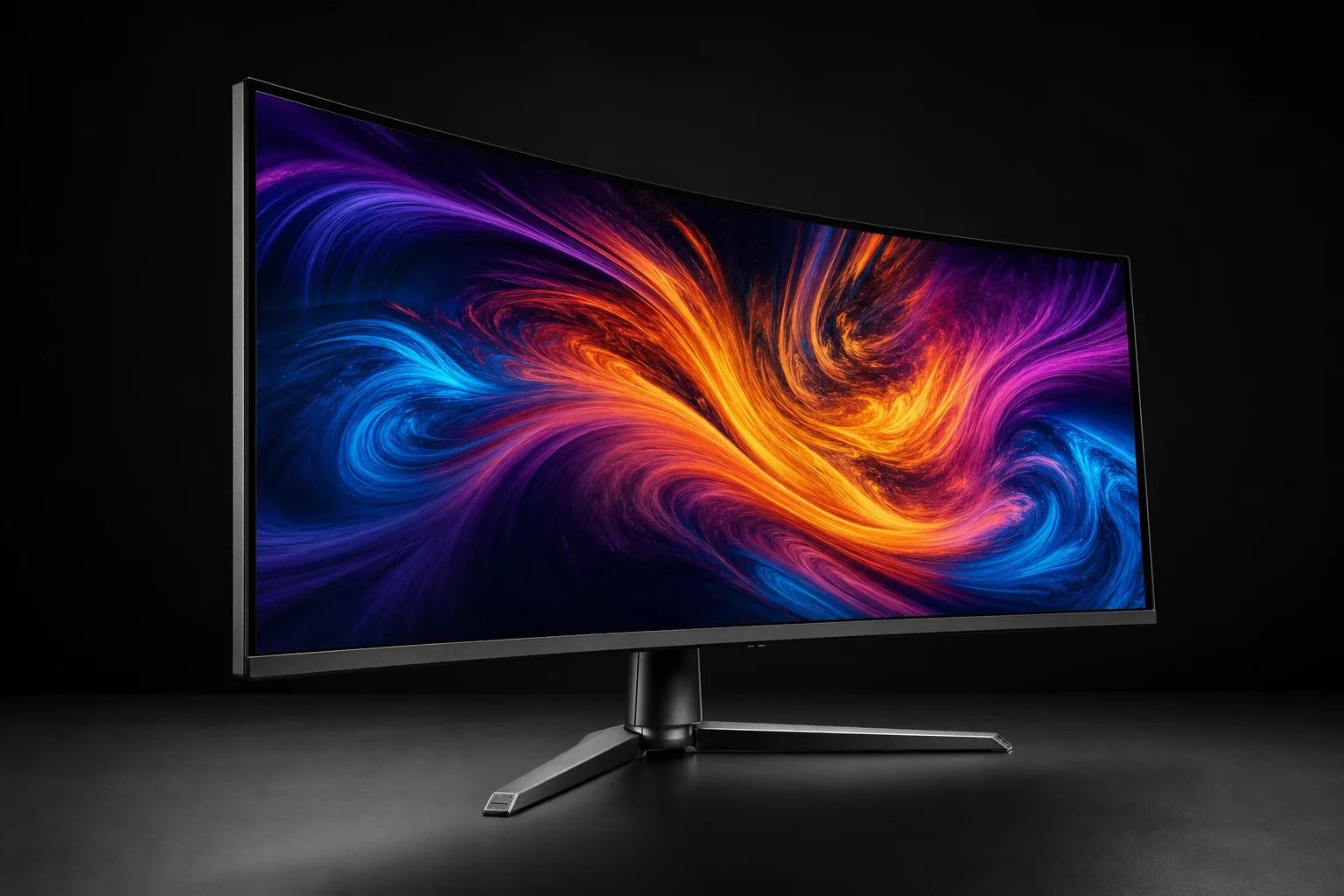
This is where "an ultrawide replaces two monitors" falls apart. A 34-inch ultrawide at 3440 × 1440 draws 4,953,600 pixels. Two 27-inch panels at 2560 × 1440 draw 3,686,400 each, so 7,372,800 between them — 48.8% more. That is the difference between three comfortable columns of work and four.
Put it the other way and it is less flattering still. The ultrawide is 3440 pixels wide; two 1440p panels are 5120. It is not two monitors in one, it is roughly one and a third — exactly 1.34× a single 1440p screen, which is also why your graphics card runs about a third slower on it.
Now the interesting number. A 49-inch 32:9 panel at 5120 × 1440 draws 7,372,800 pixels: precisely the same total as two 27-inch 1440p monitors. Not approximately. Identically. Work the dimensions from the diagonal and aspect ratio and it is about 1,198mm wide and 337mm tall, while two 27-inch panels side by side come to roughly 1,220mm including bezels, at 336mm tall.
So a super-ultrawide is, to within about two centimetres, two 27-inch monitors with the join removed. That explains both its appeal and its price: you are paying purely to delete a bezel.
The height nobody talks about
Every configuration here is about 335mm tall except one: a 34-inch ultrawide, a 49-inch super-ultrawide and a 27-inch 1440p panel are all within 3mm of each other. A 32-inch 16:9 panel is about 392mm — roughly 17% taller. If your frustration is not seeing enough of a document or a code file at once, going wider does not help. Going taller does.
Pixel density lands in nearly the same place across the three wide options: about 110ppi on a 34-inch ultrawide, 109 on a 27-inch 1440p panel, 108 on a 49-inch 32:9, all comfortable at 100% scaling in Windows. A 32-inch 4K panel is about 140ppi — sharper, but in the awkward zone where 100% is too small and 150% throws the advantage away. Most people settle on 125%.
Window management: what actually happens on each
This is the biggest practical difference and it is barely covered anywhere. A dual setup manages itself: two panels are two natural containers, and every operating system understands "maximise on this screen". An ultrawide is one enormous rectangle, and without help your windows are either too small or far too wide.
Microsoft's developer documentation states the ceiling plainly: "Snap layouts are tailored to the current screen size and orientation, including support for three side-by-side windows on large landscape screens." Three. On a 5120-pixel panel that is roughly 1,700 pixels per column — wider than an entire 1080p monitor each, which sounds generous until you try to use one for Slack.
The fix is FancyZones, a free open-source module of Microsoft PowerToys. On an ultrawide it is not optional — treat it as part of the purchase. It replaces Snap with zones you define yourself, as a Grid you split and merge or a Canvas you draw freely. The features that matter are the ones people never find:
Per-monitor layouts with instant switching
Assign a custom layout a number in the editor and Win+Ctrl+Alt+[number] applies it: a four-column writing layout in the morning, two columns plus a sidebar for editing.
Keyboard control that replaces Windows Snap
Turn on "Override Windows Snap hotkeys" and Win+arrow moves windows between your zones instead of halves. Win+PgUp/PgDn cycles windows stacked in one zone.
Windows that remember where they live
"Move newly created windows to the last known zone" is what makes an ultrawide feel organised rather than chaotic. Apps reopen where you left them.
FancyZones publishes an incompatibility list, and some entries will matter to somebody: Citrix Workspace, VMware Workstation Player, Hyper-V Connection, Parsec and RemoteApp cannot be zoned, and elevated apps such as Task Manager need PowerToys running as administrator. If your workday lives inside a remote-desktop session, read that list first.
macOS is the weaker platform. Window Tiling improved in Sequoia and carried into Tahoe — hold Option over the traffic-light buttons for halves and quarters — but quarters on a 3440-pixel display are still 1,720 pixels wide and there is no native four-column option, so Mac ultrawide users generally buy Magnet, Rectangle or Moom.
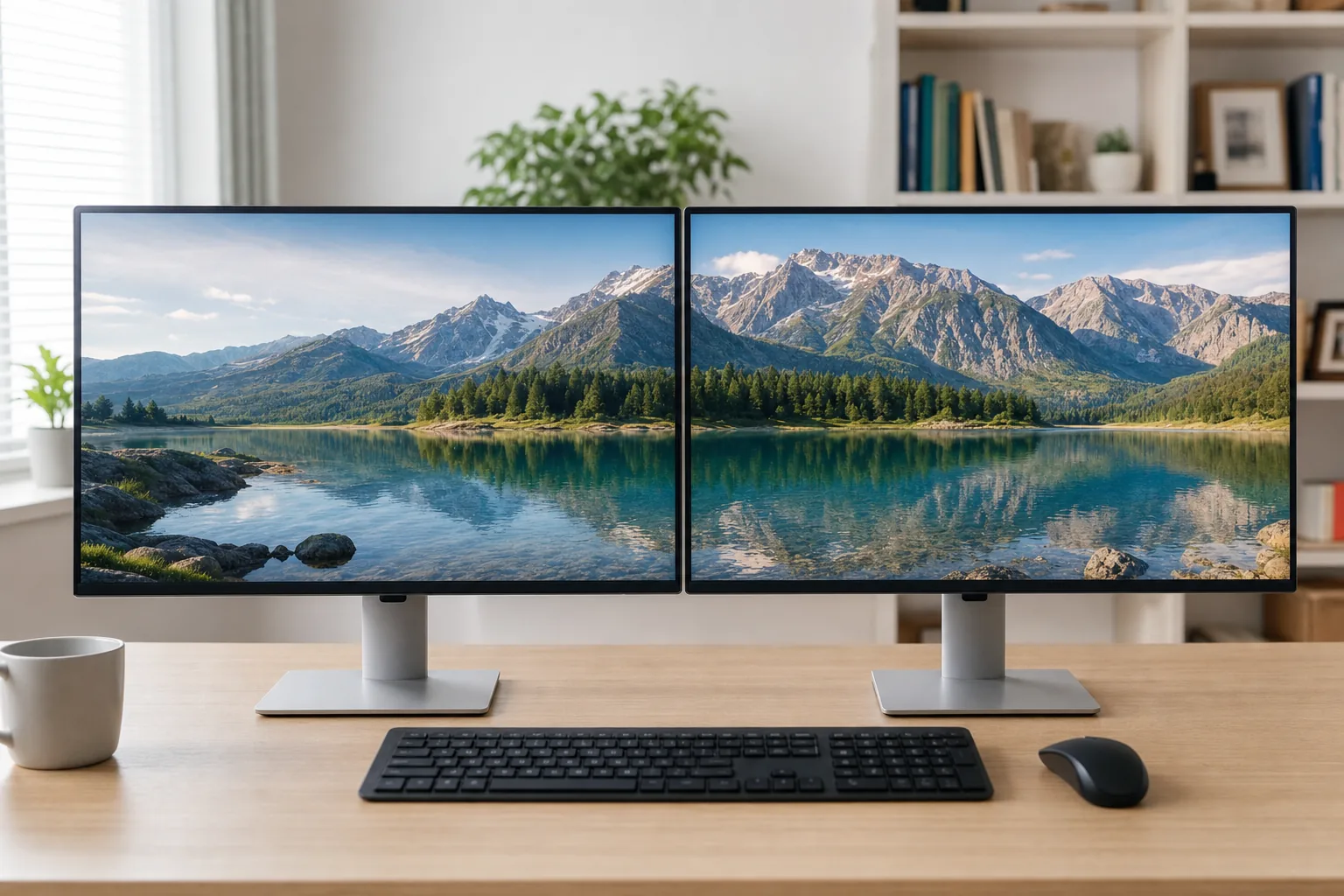
Dual monitors sidestep all of this: Win+Shift+arrow throws a window to the next display, Win+arrow halves it, and that is enough. If you are setting a pair up for the first time, our guide to setting up dual monitors on a laptop covers the arrangement and scaling traps.
Video calls and screen sharing: the daily tax on going wide
Nobody puts this in a monitor review because reviewers do not sit in four meetings a day. It is the most under-reported downside of ultrawide ownership. When you share your whole screen in Teams, Zoom or Meet, the client scales your desktop to fit the viewer's window, commonly around 1,920 pixels wide. Share 16:9 and it lands roughly one to one. Share a 5120 × 1440 super-ultrawide and it arrives at about 37.5% of its original size, letterboxed into a thin strip, and text you set at a comfortable size becomes hard to read on a colleague's 13-inch laptop. At 3440 wide it is less severe, but the shrink and the letterbox remain.
With two monitors the problem does not exist. You share one screen, it is 16:9, everyone sees it full size, and your notes, chat and browser stay on the other panel — which is also the safest way to avoid broadcasting a notification you would rather not.
If you already own an ultrawide, share a window rather than a screen. Resize the app to roughly half the panel width so it approximates 16:9, then use "Share window". It works, but you must remember every time, and it breaks the moment you need two applications at once. Third-party region-capture tools exist; plenty of organisations block them.
Gaming: aspect-ratio support is good, but not universal
Ultrawide gaming support in 2026 is far better than it was five years ago: most large single-player releases handle 21:9 natively. But "most" is the operative word, and the exceptions cluster in exactly the genre people buy fast OLED ultrawides for. There are three ways a game can respond to a 21:9 panel, and only one is what you wanted:
- Horizontal expansion (Hor+). Vertical field of view is preserved and you see more to each side. The correct behaviour, and the entire reason to buy one.
- Vertical cropping (Vert−). The game shaves off the top and bottom instead. You gain nothing and lose sky and floor.
- Letterboxing. The game renders 16:9 with black pillars each side. You paid for 3440 pixels and are using 2560.
Competitive shooters are where this bites. Riot gives Valorant no native ultrawide support, on the stated grounds that a wider field of view would be a competitive advantage, so fullscreen 21:9 gives you black bars. Overwatch 2 displays 21:9 without bars, but Blizzard restricts the field of view above 16:9 so you see no more of the map — and 32:9 is unsupported entirely. A £899 ultrawide is, in those titles, an awkward 16:9 monitor.
Cutscenes are the other recurring irritation: plenty of games that play beautifully at 21:9 switch to 16:9 pre-rendered video for story sequences, so the picture snaps in and out of pillarboxing. Dual monitors, meanwhile, are irrelevant to gaming — you play on one and leave a map or Discord on the other. If gaming is the driver and you want the best panel rather than the widest, our roundup of budget OLED gaming monitors covers the 16:9 alternatives at similar money.
Check before you buy, not after
List the five games you play most and check each one's ultrawide behaviour on PCGamingWiki or the WSGF database. If three of them letterbox or crop, buy a 16:9 panel and spend the difference on the graphics card. Ten minutes, and it prevents an expensive shrug.
Ergonomics: the bezel problem versus the neck-travel problem
Both configurations carry a posture cost, and the research is more useful than the forum consensus. The dual-monitor complaint is the bezel: set two identical screens up symmetrically and the seam lands on your centre line, so your primary task sits off to one side and you spend the day slightly rotated. This is measurable. A study in IIE Transactions on Occupational Ergonomics and Human Factors (Szeto and colleagues, 2012) found dual monitors increased head–neck rotation by 9.0° against a single screen, with more asymmetric postures and higher anterior neck muscle activation. Nine degrees sounds trivial; sustained all day it is what physiotherapists get paid for.
The ultrawide complaint is travel. There is no seam, but on a 1,198mm super-ultrawide the corners sit outside comfortable eye-movement range, so you turn your head rather than your eyes. Curvature is the mitigation, and the numbers are geometry rather than marketing: a 1000R curve has a one-metre radius, 1800R is 1.8 metres, 3800R is 3.8. The tighter the curve, the closer you sit for the whole panel to be roughly equidistant — which is why a tightly curved 49-inch monitor wants a desk around 75–80cm deep.
Here is the recommendation almost nobody makes: do not arrange your two screens symmetrically. Put the primary squarely in front of you and angle the secondary in from one side, at roughly 30 degrees. Your main task then sits on your centre line, and the second screen becomes a reference surface you glance at rather than a co-equal you keep rotating towards.
There is evidence for this. A 2023 study in Work by Fang, Huo and Feng put twenty participants through 30 minutes of reading, typing and searching in a symmetrical V-shaped layout and an asymmetric L-shaped one, recording neck and shoulder EMG. Cervical erector spinae and upper trapezius were significantly more activated in the V-shape, and reported visual strain was worse too. The asymmetric layout was the kinder one.
The practical version: match the panels for size and ideally model, align their tops at or just below eye level, sit an arm's length away at 60–70cm, then push one screen dead centre and swing the other in. It costs nothing, but it needs a monitor arm: factory stands lack the swivel range.
The hidden costs of each
Graphics card and rendering load
A 34-inch ultrawide asks for 4,953,600 pixels per frame instead of 3,686,400 — about 34% more work than 1440p, and far less than the roughly 125% jump to 4K. A 49-inch 32:9 panel exactly doubles 1440p, which is why a cheap super-ultrawide can be a false economy.
Ports and bandwidth
High-refresh ultrawides are demanding links. Running 3440 × 1440 at 280Hz or more over one DisplayPort 1.4 connection — 32.4Gbps raw, about 25.92Gbps after overhead — leans on Display Stream Compression. Budget panels hide a subtler trap: the AOC CU34G2XPD is a 180Hz monitor, but its HDMI 2.0 ports cap at 100Hz at full resolution. Use DisplayPort or you have quietly bought a 100Hz screen.
The one-cable question
This is where dual setups can beat ultrawides outright. A well-chosen pair of Thunderbolt monitors will charge your laptop, carry the network, run your peripherals and daisy-chain the second panel from the first, so one cable drives everything. The Dell UltraSharp U2724DE does exactly that: Thunderbolt 4 upstream at 90W, a Thunderbolt 4 downstream port for the chain, 2.5-gigabit Ethernet and a KVM.
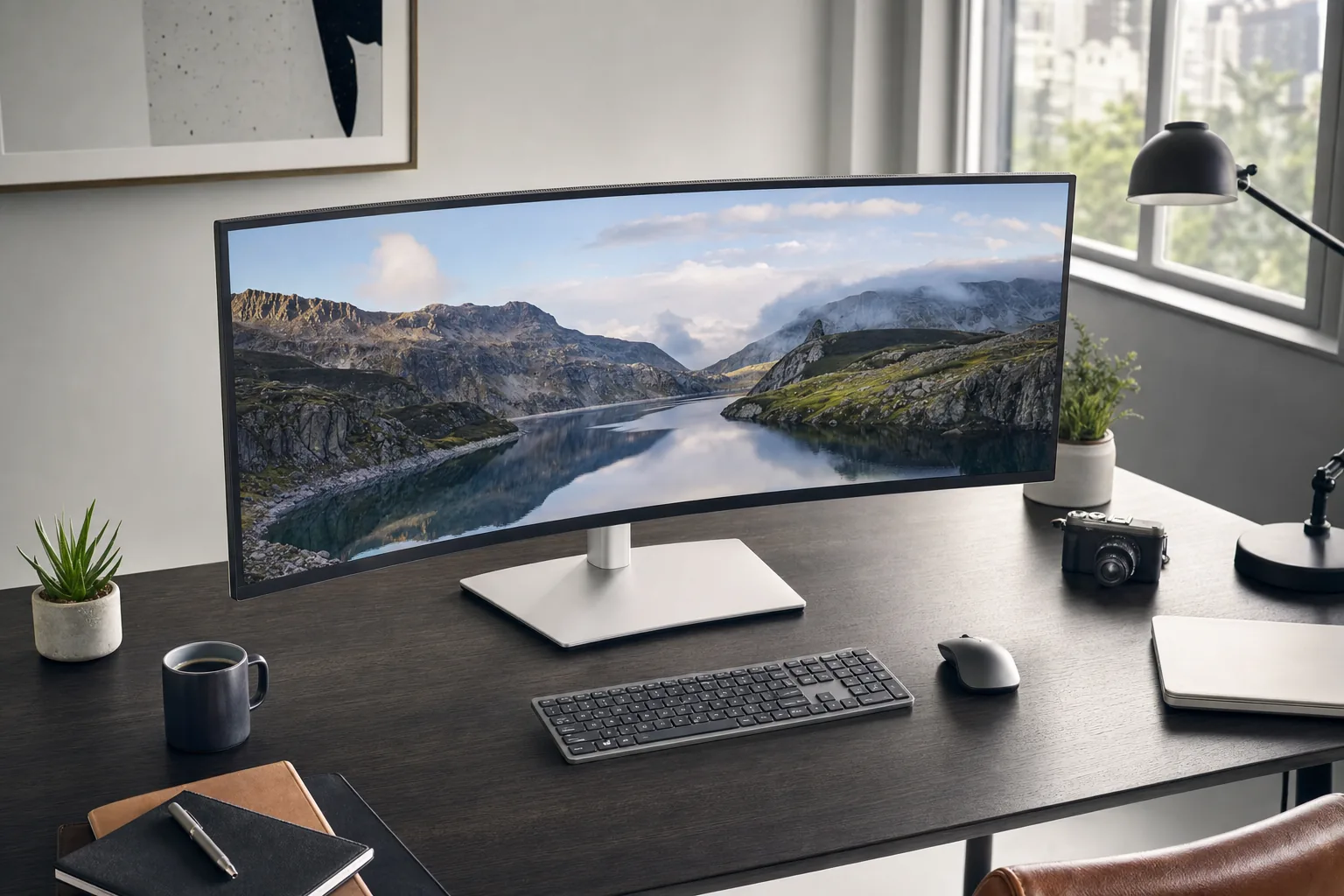
Most gaming ultrawides cannot do any of it. Alienware's QD-OLED panels put a 15W downstream USB-C port on the back with no DisplayPort Alt Mode, so they take no video over USB-C and charge nothing. If single-cable docking matters, look at productivity ultrawides such as the Dell U3425WE, or read our guide to USB-C monitors that charge your laptop from one cable.
Idle power and mixed refresh rates
A long-standing quirk on both Nvidia and AMD cards: with two displays attached, particularly at different refresh rates or above roughly 120Hz, the GPU's memory clocks often refuse to drop to idle, and owners report far higher desktop power draw than with one screen. Matching the panels' refresh rates frequently fixes it — another argument for buying two of the same monitor.
Mounting and desk depth
Dual setups nearly always want a dual arm: budget gas-spring models start around £45–65, an Ergotron LX Pro dual side-by-side from about £259. A single ultrawide usually lives happily on its factory stand. For the wide options, depth matters more than width — around 75–80cm for a 49-inch curved panel, or you sit inside the curve rather than at its centre.
The third option: one very good 32-inch 4K
Almost every article on this subject presents a binary, and for a large group neither side is right. If your work is mixed — documents, browser tabs, spreadsheets, calls, a bit of photo editing — the best answer is frequently a single 32-inch 4K 16:9 panel. It has more pixels than either wide option at 8,294,400 — 12.5% more than a super-ultrawide, 67% more than a 34-inch ultrawide. It is about 392mm tall, roughly 17% more vertical space than anything else here, and vertical space is what running out of room usually feels like. It shares to a meeting perfectly because it is 16:9, every game supports it, and Windows Snap handles it without third-party help — quarters on a 32-inch 4K panel are each about the size of a 1080p screen.
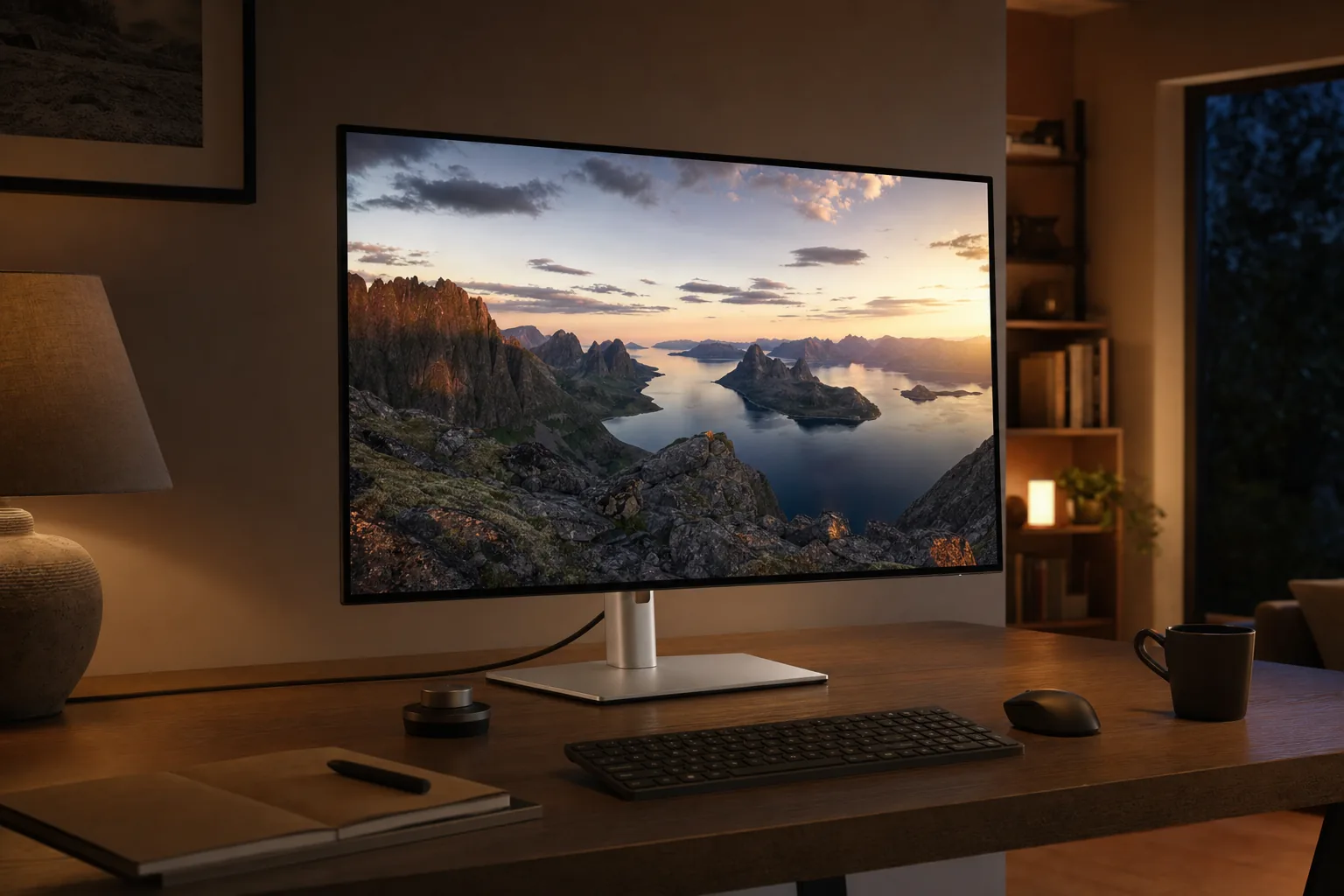
The trade-off is scaling: at 140ppi you will run 125% or 150% in Windows, which claws back some of the resolution advantage, and it cannot show two documents side by side as comfortably as a true ultrawide. Our roundup of 4K monitors for working from home in the UK covers the field; the Dell UltraSharp U3225QE at about £679 is the one to beat, pairing a 3000:1 IPS Black panel at 120Hz with a Thunderbolt 4 dock. On cost per pixel it is comfortably the best value premium option here.

See Dell UltraSharp U3225QE on Amazon UK
Check today's price & availability on Amazon UK
UK prices, checked 6 August 2026
Prices were checked on 6 August 2026 against Amazon UK listings and, where noted, manufacturer stores. Monitor pricing moves constantly, particularly on OLED, so treat these as the position on the day rather than a promise.
| Model | What it is | UK price checked |
|---|---|---|
| MSI MPG 341CQR QD-OLED X36 | 34-inch 3440×1440 QD-OLED, 360Hz | £899 |
| Alienware AW3425DW | 34-inch 3440×1440 QD-OLED, 240Hz | £723 (£729 at Dell UK) |
| Alienware AW3426DW | 34-inch 3440×1440 QD-OLED, 280Hz | £709 at Dell UK; not on Amazon UK |
| Dell UltraSharp U3425WE | 34-inch 3440×1440 IPS Black, 120Hz, Thunderbolt 4 | £670 (£768 at Dell UK) |
| AOC CU34G2XPD | 34-inch 3440×1440 Fast VA, 180Hz | £279.99 |
| Samsung Odyssey OLED G9 (LS49DG912SUXXU) | 49-inch 5120×1440 QD-OLED, 144Hz | £999 |
| Samsung Odyssey G9 49-inch, VA panel | 49-inch 5120×1440 VA, 240Hz | £982.87 |
| Dell UltraSharp U2724DE | 27-inch 2560×1440 IPS Black, 120Hz, Thunderbolt 4 | £374.99 each (£439.20 at Dell UK) |
| Dell S2725DC | 27-inch 2560×1440 IPS, 144Hz, 65W USB-C | £207.40 each |
| Dell UltraSharp U3225QE | 32-inch 3840×2160 IPS Black, 120Hz, Thunderbolt 4 | £679 (£853.20 at Dell UK) |
Two warnings from that table. Dell's newer AW3426DW is the better panel and is cheaper than the AW3425DW on Dell's own site, but it has not reached Amazon UK, so buying there means choosing between the older Alienware and the MSI. And the VA-panel 49-inch Odyssey G9 costs £982.87 while the QD-OLED version is £999. At £16 there is no argument: buy the OLED.
The picks
1. MSI MPG 341CQR QD-OLED X36 — best 34-inch ultrawide
See MSI MPG 341CQR QD-OLED X36 on Amazon UK
Check today's price & availability on Amazon UK
This is the ultrawide to buy, and the reason is not the 360Hz refresh rate. It is the subpixels. The X36 uses Samsung Display's fifth-generation QD-OLED panel with an RGB-stripe subpixel layout. Every QD-OLED before this generation used a triangular arrangement Windows font rendering was never designed for, which is why earlier ultrawides showed faint colour fringing around text. TFTCentral's verdict on the new layout, tested on a sibling panel, is that text "looks the same now as an equivalent pixel density LCD panel". On a screen you will do spreadsheets on, that is the headline feature.
The rest is strong: 3440 × 1440 at 360Hz, the fastest 21:9 OLED yet, with MSI claiming up to 1,300 nits in HDR and 300 in SDR, a 0.03ms rated response and a new coating that removes the magenta tinting older QD-OLEDs showed in bright rooms. MSI's stated UK RRP was £999; it is £899 now.
Pros
- Fifth-gen RGB-stripe QD-OLED is finally good for text as well as games.
- The fastest 21:9 OLED available, with a 0.03ms rated response.
- Up to 1,300 nits in HDR, a clear step up from earlier QD-OLEDs.
- New coating removes the magenta tint older panels showed in bright rooms.
Cons
- £899 buys 49% fewer pixels than a pair of 1440p panels.
- 300 nits full-screen is unremarkable in a bright room.
- OLED still means care over static content.
- Dell's AW3426DW has the same panel generation for £709, but only direct.
If you want the Alienware instead
The Alienware AW3426DW is the same fifth-generation Penta Tandem QD-OLED idea at 280Hz for £709, with TFTCentral measuring 327 nits maximum in SDR, 0.49ms average response and 0.86ms total display lag, and a three-year warranty that covers burn-in. Excellent value — but a Dell-direct purchase, not an Amazon one. The Dell Alienware AW3425DW at £723 is the Alienware you can buy on Amazon UK today; it is 240Hz on the older triangular subpixel layout, so text is noticeably less clean. Buy the MSI, or go direct to Dell.
2. Dell UltraSharp U3425WE — best ultrawide for work

See Dell UltraSharp U3425WE on Amazon UK
Check today's price & availability on Amazon UK
If the ultrawide is for a job rather than a game, this is the more sensible object: a 34-inch 3440 × 1440 IPS Black panel at 120Hz, 2000:1 typical contrast, a gentle 1900R curve and dock hardware built in — Thunderbolt 4 upstream at 90W, 2.5-gigabit Ethernet, a KVM for two machines and daisy-chain support. One cable runs display, network, peripherals and charging.
At about £670 it undercuts the OLED options while removing every OLED worry, and IPS Black holds up far better under office lighting.
Pros
- Single-cable docking: Thunderbolt 4 at 90W, plus 2.5GbE and KVM.
- IPS Black at 2000:1 is the best contrast without OLED risk.
- 120Hz scrolling is noticeably smoother than 60Hz rivals.
- No burn-in and no panel-refresh cycles.
Cons
- 120Hz IPS response times suit work, not competitive gaming.
- Black levels cannot approach the QD-OLED alternatives.
- The 1900R curve is subtle enough to seem pointless.
- Still 4.95 million pixels: the dual pairing below beats it on workspace.
3. AOC CU34G2XPD — the cheap way to find out if you like ultrawide

See AOC CU34G2XPD on Amazon UK
Check today's price & availability on Amazon UK
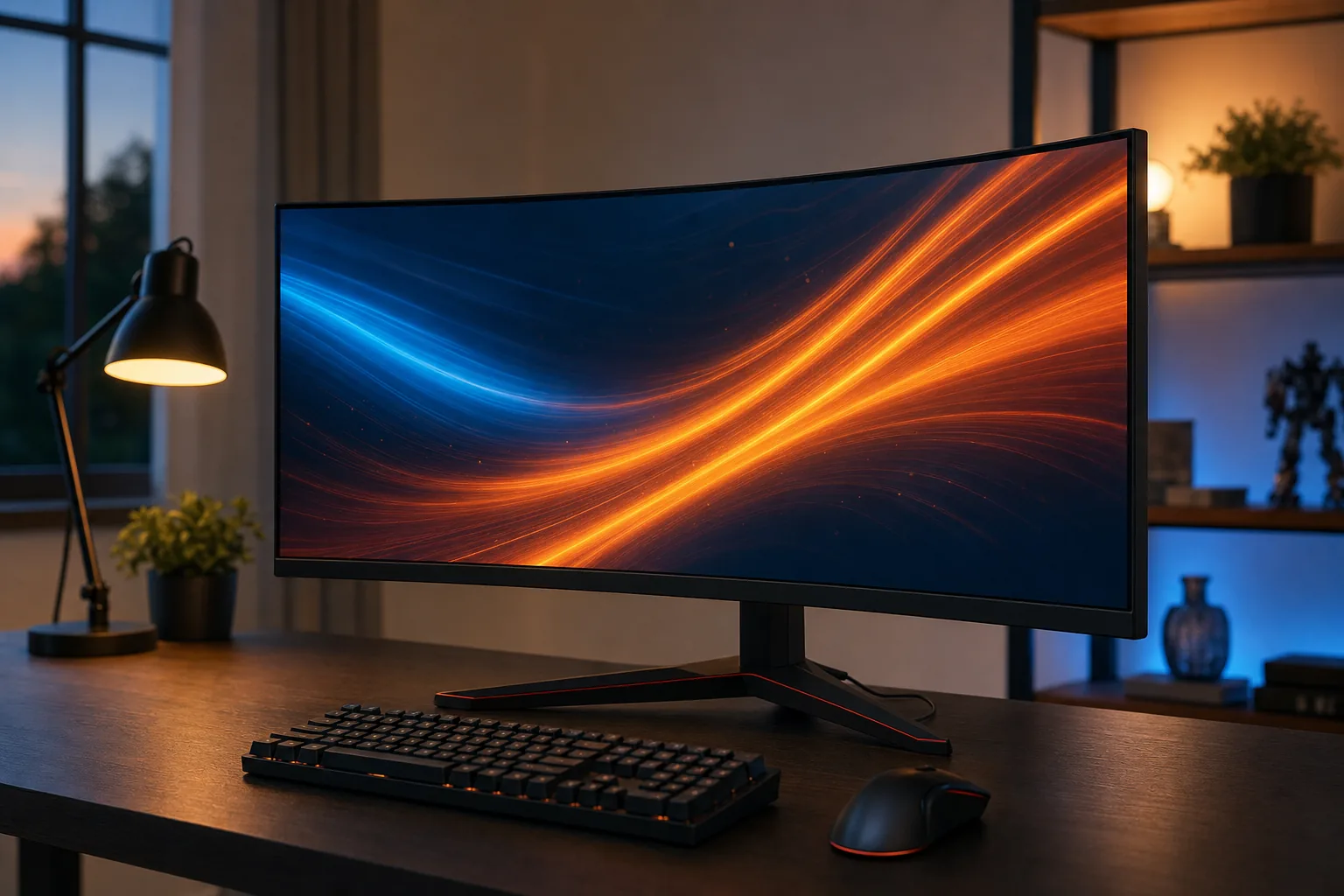
At £279.99 this buys a 34-inch 3440 × 1440 Fast VA panel with an 1800R curve and 180Hz — a remarkable amount of screen, and the correct purchase for anyone who suspects they want an ultrawide but is not certain enough to spend £899 finding out.
Be clear-eyed about it. AOC quotes 1ms using the MPRT measurement; real grey-to-grey response is nearer 4ms, so expect the dark-scene smearing VA panels are prone to. And you must use DisplayPort: the HDMI 2.0 ports cap at 100Hz at full resolution, so connect it wrong and you have a 100Hz monitor you paid 180Hz money for.
Pros
- Full 3440×1440 for under a third of the OLED price.
- 180Hz over DisplayPort with FreeSync Premium support.
- Includes a two-port USB-A hub.
- Cheap enough to treat as an experiment.
Cons
- Real grey-to-grey response is about 4ms despite the 1ms MPRT claim.
- HDMI 2.0 caps at 100Hz, so DisplayPort is mandatory.
- VA black smearing is visible in dark games.
- No USB-C, so no single-cable laptop docking.
4. Samsung Odyssey OLED G9 — best super-ultrawide

See Samsung Odyssey OLED G9 LS49DG912SUXXU on Amazon UK
Check today's price & availability on Amazon UK
The 49-inch 32:9 category is Samsung's, and at £999 the QD-OLED version is the one to buy: 5120 × 1440 at 144Hz on a curved QD-OLED panel, the same pixel count as two 27-inch 1440p monitors with the bezel deleted.
The pricing makes it an easy call. Samsung's own UK listing for the flagship G95SD variant showed £2,399 and out of stock when we checked, and price history for the older S49CG954 has swung between £965 and £1,607 over three months. Meanwhile the VA-panel 49-inch Odyssey G9 sits at £982.87 — £16 less. That is not a reason to accept VA black smearing.
One warning for the category: this is about 1,198mm of glass on a tight curve. It wants a desk around 75–80cm deep and you seated centrally. On a shallow desk it is an uncomfortable object, not a luxurious one.
Pros
- Exactly two 27-inch 1440p panels' worth of pixels, with no bezel.
- 144Hz QD-OLED at 5120×1440 for £999 is historically a good price.
- Only £16 more than the VA version, which it makes pointless.
- The tight curve genuinely helps at this width.
Cons
- Worst case for screen sharing: about 37.5% size for viewers.
- Needs a desk around 75–80cm deep.
- Doubles the GPU load of 1440p, so cheap cards are out.
- 32:9 game support is far worse than 21:9, and absent in Overwatch 2.
5. Two Dell UltraSharp U2724DE — best dual pairing

See Dell UltraSharp U2724DE on Amazon UK
Check today's price & availability on Amazon UK
This is the setup I would recommend to most readers, and it is why the quick answer says what it does. Two 27-inch IPS Black panels at 2560 × 1440 and 120Hz, £374.99 each, £749.98 the pair: 7,372,800 pixels, 48.8% more than any 34-inch ultrawide, for £149 less than the MSI.
What makes it a proper recommendation rather than arithmetic is the connectivity. Each panel has Thunderbolt 4 upstream at 90W, a Thunderbolt 4 downstream port for daisy-chaining, 2.5-gigabit Ethernet and a KVM. Plug the laptop into the first monitor, chain the second from it, and one connection carries two screens, network, peripherals and charging — the trick ultrawides are supposed to be good at, done better.
Stand adjustment is the quiet advantage: 150mm of height range plus tilt, swivel and pivot on each, which is what lets you build the asymmetric layout the research supports, or rotate the secondary into portrait. Our guide to good monitors for a dual setup covers matching and arrangement.
Pros
- 7.37 million pixels, nearly 49% more than a 34-inch ultrawide, for less.
- Thunderbolt 4 at 90W with daisy-chaining: one cable runs both.
- Identical panels means matched refresh rates and no idle-clock quirk.
- 150mm height range, swivel and pivot on both.
Cons
- £749.98 the pair before you add an arm.
- There is a bezel in the middle, and no arrangement removes it.
- Two power bricks and a busier desk.
- 120Hz IPS is not a gaming panel.
6. Two Dell S2725DC — best budget pairing
See Dell S2725DC on Amazon UK
Check today's price & availability on Amazon UK
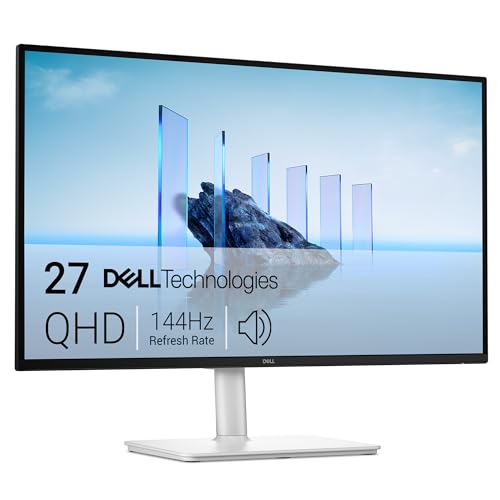
At £207.40 each, £414.80 the pair, this is the value answer and a genuinely good monitor rather than a compromise: 27-inch 2560 × 1440 IPS at 144Hz with 99% sRGB, 65W USB-C upstream, DisplayPort 1.4, HDMI and a two-port USB-A hub, on a stand with 110mm of height adjustment, ±90° pivot, 30° swivel each way and tilt.
Two of these cost less than half the MSI and deliver almost 50% more pixels. There is no daisy-chain output, so you run one cable to each panel — the main reason to spend more on the U2724DE. But 65W keeps most thin-and-light laptops charged, and 144Hz at this price is unusual.
Pros
- £414.80 the pair for 7.37 million pixels: the best value here.
- 144Hz IPS with 99% sRGB at a productivity price.
- 65W USB-C upstream charges most ultraportables.
- Full height, pivot, swivel and tilt on both panels.
Cons
- No DisplayPort out, so two cables to the laptop.
- No Ethernet and no KVM.
- Standard IPS contrast, not the deeper IPS Black of the UltraSharps.
- 65W will not sustain a 16-inch workstation laptop under load.
Total cost: ultrawide versus two panels and an arm
The comparison that matters is finished desk against finished desk. Each ultrawide is costed on its factory stand; each dual setup includes a dual arm, because the asymmetric layout that makes two screens comfortable is not achievable on factory stands.
| Setup | Panels | Mounting | Total | Pixels | Per million pixels |
|---|---|---|---|---|---|
| Budget ultrawide | AOC CU34G2XPD, £279.99 | Factory stand | £279.99 | 4.95M | About £57 |
| Budget dual | 2 × Dell S2725DC, £414.80 | Budget dual arm, about £55 | About £470 | 7.37M | About £64 |
| Single 32-inch 4K | Dell U3225QE, £679 | Factory stand | £679 | 8.29M | About £82 |
| Work ultrawide | Dell U3425WE, £670 | Factory stand | £670 | 4.95M | About £135 |
| Super-ultrawide | Samsung Odyssey OLED G9, £999 | Factory stand | £999 | 7.37M | About £136 |
| Premium dual | 2 × Dell U2724DE, £749.98 | Ergotron LX Pro dual, from £259 | About £1,009 | 7.37M | About £137 |
| OLED ultrawide | MSI MPG 341CQR QD-OLED X36, £899 | Factory stand | £899 | 4.95M | About £182 |
Three things fall out of that. The cheapest route to a lot of pixels is a budget ultrawide, but only because you accept a VA panel with real weaknesses. The 32-inch 4K panel is by some distance the best value of the premium options. And the OLED ultrawide is the most expensive way to buy a pixel here: you are paying for panel technology and refresh rate, not workspace.
Arm prices are indicative UK figures: budget gas-spring dual arms from around £45, an Ergotron LX Pro dual side-by-side from about £259.
Who should buy which
Two matched 27-inch 1440p panels
Nearly 49% more pixels than a 34-inch ultrawide, painless screen sharing, no window manager needed. U2724DE for docking, S2725DC for value.
34-inch ultrawide
Editing, DAWs, CAD, trading charts and spreadsheets that run out sideways. The continuous canvas earns its money when work has no natural split point.
MSI MPG 341CQR QD-OLED X36
360Hz fifth-gen QD-OLED with RGB-stripe subpixels: fast for games, clean for text. Check your most-played games expand the field of view at 21:9 first.
49-inch super-ultrawide
Two panels' worth of pixels with the seam removed, if you have a desk about 75–80cm deep, a capable graphics card and no daily presenting.
One 32-inch 4K
The most pixels here, 17% more vertical space than the wide panels, and it shares to a meeting correctly. The quiet right answer for hybrid workers.
Thunderbolt 4 panels, either shape
The U3425WE alone, or a chained pair of U2724DEs. Both give one cable carrying video, 90W charging, Ethernet and peripherals.
Ultrawide vs dual monitors FAQ
The right answer is rarely the widest one. It is the shape that matches how your work is actually divided.
Final verdict: shape first, size second
Buy two matched 27-inch 1440p monitors unless you have a specific reason not to. Nearly 49% more pixels than a 34-inch ultrawide, painless screen sharing, no window-management software, and two applications properly full-screen. Two Dell S2725DCs at £414.80 the pair is the value pick; two U2724DEs at £749.98 add Thunderbolt 4 daisy-chaining so one cable drives everything — and still cost less than a single OLED ultrawide.
Buy a 34-inch ultrawide if your work is continuous and horizontal — timelines, wide spreadsheets, CAD, DAWs, long diffs — or if you play single-player games that genuinely expand the field of view. The MSI MPG 341CQR QD-OLED X36 at £899 is the one to get, and its fifth-generation RGB-stripe panel is the first that is honestly good at text as well as games. Choose the Dell U3425WE at about £670 if it is a work machine and you want Thunderbolt docking without burn-in risk.
Buy a 49-inch super-ultrawide only if you have the desk for it. Same pixel count and nearly the same footprint as two 27-inch panels with the bezel deleted, but it wants 75–80cm of depth, a strong graphics card and a job without daily screen sharing. And if none of that describes you, consider the option nobody offers: one very good 32-inch 4K panel, which has more pixels than any of them, is 17% taller, and is the best value per pixel here.
- Dell UltraSharp U2724DEView on Amazon
- MSI MPG 341CQR QD-OLED X36View on Amazon
- Samsung Odyssey OLED G9 LS49DG912SUXXUView on Amazon
- Dell S2725DCView on Amazon
- Dell UltraSharp U3225QEView on Amazon
- Dell UltraSharp U3425WEView on Amazon