
The Best Monitors for a Dual Setup
From 4K USB-C powerhouses to budget IPS panels that genuinely punch above their weight — here's what to pair side by side this year.
We link to the exact model on Amazon UK. Prices change often, so check the live price before you buy. As an Amazon Associate we earn from qualifying purchases.
A well-matched dual monitor setup transforms productivity, creative work and gaming alike.
What we'll cover
- Why dual monitors require a different buying mindset
- The premium tier: Dell U2725QE, BenQ PD2730S, Dell U2723QE
- The mid-range sweet spot with the Dell S2725QC
- Budget winners under £200
- Gaming-focused dual setups
- How to match two monitors successfully
- FAQ and our final verdict
Why Buying for a Dual Setup Is Different
Here's the bit most buyer's guides skip past: buying two monitors isn't just buying one monitor twice. The variables compound. A panel that looks gorgeous on its own can become a nightmare in pairs if its bezels are chunky, its stand is wobbly, its colour profile is wildly different from a second unit, or — and this catches a lot of people out — if it can't share connectivity sensibly with a sibling.
The best dual-setup monitors share a handful of traits. Slim, three-side virtually borderless designs minimise the visual seam between panels. Height-adjustable stands let you line up the top edges precisely (or stack them vertically). USB-C with decent power delivery lets one cable feed both your laptop charge and a video signal, while a daisy-chain or KVM feature can be genuinely transformative when you're cycling between work and personal machines.
The other thing worth saying loudly: you don't have to buy identical pairs. Plenty of people pair a 4K primary with a vertically-oriented secondary for reading documents, or run a curved ultrawide alongside a standard 27-inch panel. The "matched twin" approach is tidy but it's not the only valid setup.
The Premium Pick: Dell U2725QE
If you'd asked me eighteen months ago which monitor I'd recommend for a serious dual setup, I'd have hummed and hawed. Today there's a clear leader — Dell's U2725QE, which RTINGS rate as the best dual-setup monitor they've tested. It's a 27-inch 4K panel with a refresh rate of 120Hz, but the headline feature isn't really resolution at all. It's the IPS Black panel, which is the world's first enhanced IPS Black at a 3000:1 contrast ratio. That's three times the contrast of a typical IPS display, which means deeper blacks, punchier text and noticeably less of that washed-out look you get on standard office monitors.
Generic monitor-workspace illustration. The U2725QE specifications discussed in the text are not visually verified by this image.
The connectivity is where things get really compelling for dual users. The U2725QE includes Thunderbolt 4 with up to 140W power delivery — enough to charge a high-end laptop without breaking sweat — alongside a USB 3.2 Gen 2 hub and, crucially, a built-in KVM switch. That last feature means you can plug a keyboard and mouse into the monitor and seamlessly switch their control between two computers connected to it. In a dual-monitor configuration this is enormously useful: chain the U2725QE to a second panel and you've effectively built a one-cable docking station.
The ergonomics are exactly what you want for paired use. There's 150mm of height adjustment, which is plenty for matching to any second panel, and the stand supports a full 90-degree pivot into portrait mode — perfect if you want one screen rotated for code, scripts or long-form reading. Dell launched the U2725QE globally on 25 February 2025 following its CES 2025 unveiling, so it's still very much current-generation.
Pro Tip: Buying Two U2725QEs
The U2725QE supports DisplayPort daisy-chaining via Thunderbolt 4, meaning a single cable from your laptop can drive both monitors when you buy them as a matched pair. Combined with the 140W power delivery, that's literally one cable to your laptop for two 4K screens, a USB hub, and charging. It's the cleanest dual setup money can buy right now.

See Dell UltraSharp U2725QE (27" 4K 120Hz Thunderbolt Hub) on Amazon UK
Check today's price & availability on Amazon UK
For the Creative Pros: BenQ PD2730S
TechRadar's top overall pick takes a different approach. The BenQ PD2730S pushes resolution rather than refresh rate, delivering 5K resolution on a single panel. For creative professionals — photographers, video editors, designers working in 4K timelines who need pixel-for-pixel previews with UI overhead, or anyone who simply wants ludicrous desktop real estate — 5K is transformative. Two of them side by side gives you an extraordinary canvas.
The PD2730S is built for colour-critical work, which is where it earns its place over the U2725QE for designers and editors. If your dual setup is feeding a Mac for video work, this is the panel I'd reach for first. The trade-off is straightforward: it's a more expensive monitor, and the higher resolution means you'll want serious GPU horsepower if you're planning to game on it.

See BenQ PD2730S (27" 5K Thunderbolt 4) on Amazon UK
Check today's price & availability on Amazon UK
The Excellent Runner-Up: Dell U2723QE
The U2723QE is the previous-generation sibling of the U2725QE and remains TechRadar's close second overall. It's a 4K, 27-inch panel with strong USB-C hub connectivity, and if you can find it at a discount as stocks transition, it represents brilliant value. You lose the enhanced IPS Black contrast and the bumped refresh rate of the newer model, but the core "one cable does everything" experience is intact. For anyone building a dual setup who doesn't need the absolute latest, the U2723QE is a savvy buy.

See Dell UltraSharp U2723QE (27" 4K USB-C Hub) on Amazon UK
Check today's price & availability on Amazon UK
The Mid-Range Sweet Spot: Dell S2725QC
Not everyone needs Thunderbolt 4 and IPS Black contrast. Plenty of people want a clean, capable 4K dual setup at a more reasonable outlay, and that's exactly the gap the Dell S2725QC fills — which is why Siemens-Mobile gave it their Editor's Choice. It's a 27-inch 4K IPS panel with a 120Hz refresh rate, AMD FreeSync Premium for tear-free motion, and the magic feature: single-cable USB-C laptop docking with 65W power delivery.
Generic monitor-workspace illustration; it is not verified as a Dell S2725QC product image.
Single-Cable Docking
USB-C with 65W power delivery means one cable from your laptop handles video, USB peripherals and charging — even with two of these chained up.
Pop-Out USB Hub
Three USB-A ports tuck away into a discrete pop-out hub, keeping the front of your desk clean whilst staying instantly accessible for thumb drives and dongles.
Built-In Speakers
Not audiophile-grade, but more than adequate for video calls — handy when you're swapping between meeting room and home office.
FreeSync Premium
Variable refresh rate support means the S2725QC pulls double duty for after-hours gaming without screen tearing.
RTINGS measured the S2725QC's contrast at around 1300:1 post-calibration, slightly under its 1500:1 spec but still solid for an IPS panel. Colour coverage hits 99% sRGB, which is fine for general productivity, web work and consumer-grade content creation. The one notable omission is the lack of a DisplayPort — Dell traded that for the USB-C connectivity on the lower-priced sibling, which is a fair compromise given how this monitor is likely to be used.
For most home-office dual setups, two S2725QCs is the answer I'd give friends and family members. You get genuine 4K sharpness, a high refresh rate that makes scrolling feel buttery, and the single-cable cleanliness that makes a dual setup feel premium rather than cluttered.

See Dell S2725QC (27" 4K 120Hz USB-C) on Amazon UK
Check today's price & availability on Amazon UK
Budget Champions: Acer KB272 Series
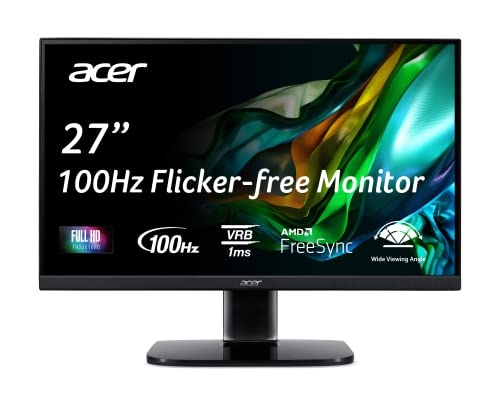
Right, let's talk money. Buying two monitors hurts twice as much as buying one, and not everyone needs — or can justify — 4K panels with Thunderbolt hubs. This is where the Acer KB272 series shines. Reviewed in June 2025, the KB272 (in both EBI and G0bi variants) is the best budget pick for dual setups, with the G0bi version slightly newer and slightly faster.
You're getting a 27-inch IPS panel at 1080p with either 100Hz (EBI) or 120Hz (G0bi) refresh. AMD FreeSync support helps with light gaming over HDMI. The colour coverage is a genuinely surprising 99% sRGB on the G0bi, peak brightness sits at 250 nits, and contrast is the standard IPS 1000:1. There's PiP and PbP, a refresh rate tracker, six-axis hue and saturation controls, and flicker-free backlighting that's gentle on the eyes during long sessions.
The compromises are honest. The stand is tilt-only on both variants, which makes height-matching a dual pair tricky — you'll likely want to invest in a pair of cheap monitor arms or a desk shelf. The G0bi is VESA 100×100mm compatible (the EBI is 75×75mm), so mounting is straightforward. Ports are limited: one HDMI 1.4 and one VGA on the G0bi, with no DisplayPort, which rules out NVIDIA G-Sync. If you're on an AMD GPU and predominantly using your dual setup for productivity, none of this matters. If you're trying to drive twin 1080p panels at 120Hz from a current NVIDIA card, it's workable but inelegant.
See Acer KB272 EBI (27" IPS FHD) on Amazon UK
Check today's price & availability on Amazon UK
The Gaming Dual Setup: LG 27GS50F-B
Some people want a dual setup that's primarily for gaming, perhaps with a secondary screen for Discord, OBS, stream chat or a browser. The LG 27GS50F-B is a sharp budget-to-mid gaming pick that suits this use case beautifully. It's a 27-inch 1080p IPS panel with a 180Hz refresh rate and 1ms MBR response time, AMD FreeSync, HDR10 support, and a three-side virtually borderless design — that last detail is genuinely important when you're stacking two side by side, because the seam between panels becomes almost invisible.

Generic monitor-workspace illustration; it is not verified as an LG 27GS50F-B product image.
For competitive shooters, the 180Hz refresh rate gives a tangible edge, and the 1ms MBR keeps motion crisp. Two of these stacked horizontally make for an extremely compelling gaming-and-streaming rig at a fraction of the cost of premium 4K alternatives. The connectivity is straightforward — HDMI and DisplayPort — which means it'll happily talk to current-gen GPUs and consoles alike.

See LG UltraGear 27GS50F (27" 1080p 180Hz) on Amazon UK
Check today's price & availability on Amazon UK
Premium Gaming Option: Samsung Odyssey OLED G8
For those with deeper pockets who want the absolute best gaming experience across a dual setup, the Samsung Odyssey OLED G8 (the G80SD and G81SF variants) is a stunning 32-inch QD-OLED panel running at 4K resolution and 240Hz. The blacks are properly black — OLED-black, not "IPS pretending" black — and motion clarity is exceptional thanks to the near-instant pixel response. The honest caveat is that buying two 32-inch OLEDs at this spec is a serious financial commitment, and most desks won't comfortably accommodate the footprint either. For a single primary panel paired with a more modest secondary, though, it's spectacular.
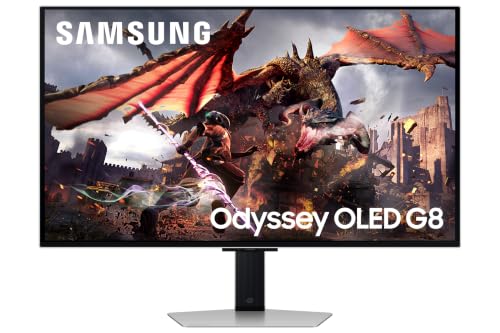
See Samsung Odyssey OLED G8 32" 4K 240Hz on Amazon UK
Check today's price & availability on Amazon UK
Head-to-Head: How They Compare
| Feature | Dell U2725QE | Dell S2725QC | Acer KB272 G0bi |
|---|---|---|---|
| Panel Type | IPS Black | IPS | IPS |
| Size | 27" | 27" | 27" |
| Resolution | 4K UHD | 4K UHD | 1080p FHD |
| Refresh Rate | 120Hz | 120Hz | 120Hz |
| Contrast Ratio | 3000:1 | 1500:1 spec | 1000:1 |
| Peak Brightness | 600 nits | 350 nits typical | 250 nits |
| Colour Gamut | 99% DCI-P3 | 99% sRGB | 99% sRGB |
| USB-C PD | 140W (TB4) | 65W | 65W USB-C Power Delivery |
| Built-in KVM | Yes | No | No |
| Height Adjust | 150mm | 110mm height adjustment | Tilt only |
| Portrait Pivot | Yes (90°) | Yes | — |
| Buy | Check price | Check price | |
| Buy | Check price | Check price | Check price |
What this table makes plain is that the price-to-feature curve is steep but rational. The U2725QE gives you everything; the S2725QC gives you the headline 4K experience at a lower price with single-cable docking; the KB272 G0bi gives you the basics in a competent IPS package. Choosing between them comes down honestly to budget and what you'll actually do at your desk.
The Honest Pros and Cons
Why Go Dual
- Massive productivity boost — research consistently shows multi-monitor users complete tasks faster
- Modern USB-C and Thunderbolt monitors make cabling genuinely tidy
- You can mix orientations (one landscape, one portrait) for code and document work
- Premium panels like the U2725QE include KVM and daisy-chain features that simplify multi-PC setups
- Borderless designs mean the visual seam is almost gone
- Even budget IPS panels now hit 99% sRGB and 100–120Hz
Things to Be Aware Of
- Twin 4K panels need a competent GPU and a laptop with proper Thunderbolt 4 or DisplayPort Alt Mode
- Tilt-only stands (like the KB272) make height matching awkward without monitor arms
- Desks under 140cm wide will feel cramped with two 27-inch panels
- Two 32-inch OLEDs is overkill for almost everyone, and expensive
- Mismatched panels can have noticeable colour and brightness differences
- Some budget panels lack DisplayPort, limiting variable refresh rate to AMD GPUs
How to Match Two Monitors Successfully
A few hard-earned tips from years of fiddling with dual setups:
Match panel sizes and resolutions where possible. Two 27-inch 4Ks side by side gives consistent pixel density and a cohesive feel. Pairing a 27-inch 4K with a 24-inch 1080p, by contrast, means windows physically resize as you drag them across — usable, but jarring.
Calibrate both panels. Even two units of the same model rolling off the same production line will have subtle colour and brightness differences. If you can spare the budget, a colourimeter pays for itself. If not, the OSD's brightness, contrast and colour temperature controls will get you 90% of the way there with patience.
Invest in a monitor arm or two. Almost every dual setup benefits from arms. They free up desk space, let you fine-tune alignment to the millimetre, and let you tilt or swivel panels for collaborative viewing. They're particularly useful with tilt-only stands like the Acer KB272's.
Think about your input device routing. One of the joys of the Dell U2725QE is its built-in KVM. With cheaper panels, you'll want to either use a wireless keyboard/mouse that you can pair to multiple devices, or invest in a small external KVM switch.
If you're driving two 4K monitors from a laptop, check that your machine supports DisplayPort 1.4 or Thunderbolt 4 over USB-C — older USB-C ports with DP 1.2 will struggle to push two 4K signals at 60Hz, let alone 120Hz.
Our Overall Pick Scored
If I had to pick one model from this lineup as the all-round best for a dual setup, it's the Dell U2725QE. Here's how it scores across the key dimensions that matter for paired use:
Which Monitor Is Right for You?
The Power Professional
Buy two Dell U2725QEs. The IPS Black contrast, Thunderbolt 4 daisy chain and built-in KVM will pay for themselves in cable tidiness and productivity within months.
The Creative
The BenQ PD2730S at 5K resolution is the canvas you've been waiting for. Pair one with a smaller secondary for tool palettes and reference work.
The Home Worker
Two Dell S2725QCs give you 4K at 120Hz with single-cable USB-C docking — the cleanest mainstream dual setup you can build.
The Budget Builder
Two Acer KB272 G0bi panels give you 27-inch 1080p IPS at 120Hz for a fraction of the premium options. Add a pair of cheap monitor arms.
The Gamer
The LG 27GS50F-B at 180Hz with three-side borderless design pairs beautifully for gaming and streaming dual setups.
The Enthusiast
One Samsung Odyssey OLED G8 at 4K 240Hz QD-OLED as the centrepiece, with a secondary panel for chat and tools. Sublime.
A genuine dual setup matters more for productivity than monitor size — two matched 27-inch panels beat one wide ultrawide for window management.
Frequently Asked Questions
The Verdict
Final Word
If money is no object, the Dell U2725QE is the dual-setup monitor I'd buy tomorrow — and I'd buy two of them. The combination of IPS Black contrast at 3000:1, 4K at 120Hz, Thunderbolt 4 with 140W power delivery and a built-in KVM is genuinely best-in-class for paired use, and the daisy-chain capability means a properly clean cable run.
For the majority of buyers, though, two Dell S2725QCs hit the sweet spot. You get the same 27-inch 4K 120Hz experience, single-cable USB-C docking with 65W power delivery, and AMD FreeSync Premium for after-hours gaming — at a much friendlier price point. The pop-out USB hub is a lovely touch, and the built-in speakers cover video calls without needing a separate dock.
And if budget is tight, don't overlook the Acer KB272 G0bi. Two 27-inch IPS panels at 120Hz with 99% sRGB coverage will transform your desk for a small fraction of premium pricing. Add a pair of inexpensive monitor arms to compensate for the tilt-only stand, and you've got a genuinely capable dual setup.
Whichever route you take, the leap from one screen to two is one of the most worthwhile upgrades you can make to a desk. Pick the panels that match your work, line them up properly, and don't look back.
Some images in this article are illustrative scenes generated by AI for editorial context. Photos of named products are real product photography. The brands and models discussed are unaffiliated with the imagery.
- Acer KB272View on Amazon
- Dell S2725QCView on Amazon
- Dell UltraSharp U2725QE (27" 4K 120Hz Thunderbolt Hub)View on Amazon
- BenQ PD2730S (27" 5K Thunderbolt 4)View on Amazon
- Dell UltraSharp U2723QE (27" 4K USB-C Hub)View on Amazon
- LG UltraGear 27GS50F (27" 1080p 180Hz)View on Amazon