
Your Wi-Fi Keeps Dropping — But Is It Actually Your Laptop's Fault?
Before you blame the network, let me show you the three things I check first — and why the fix is usually free.
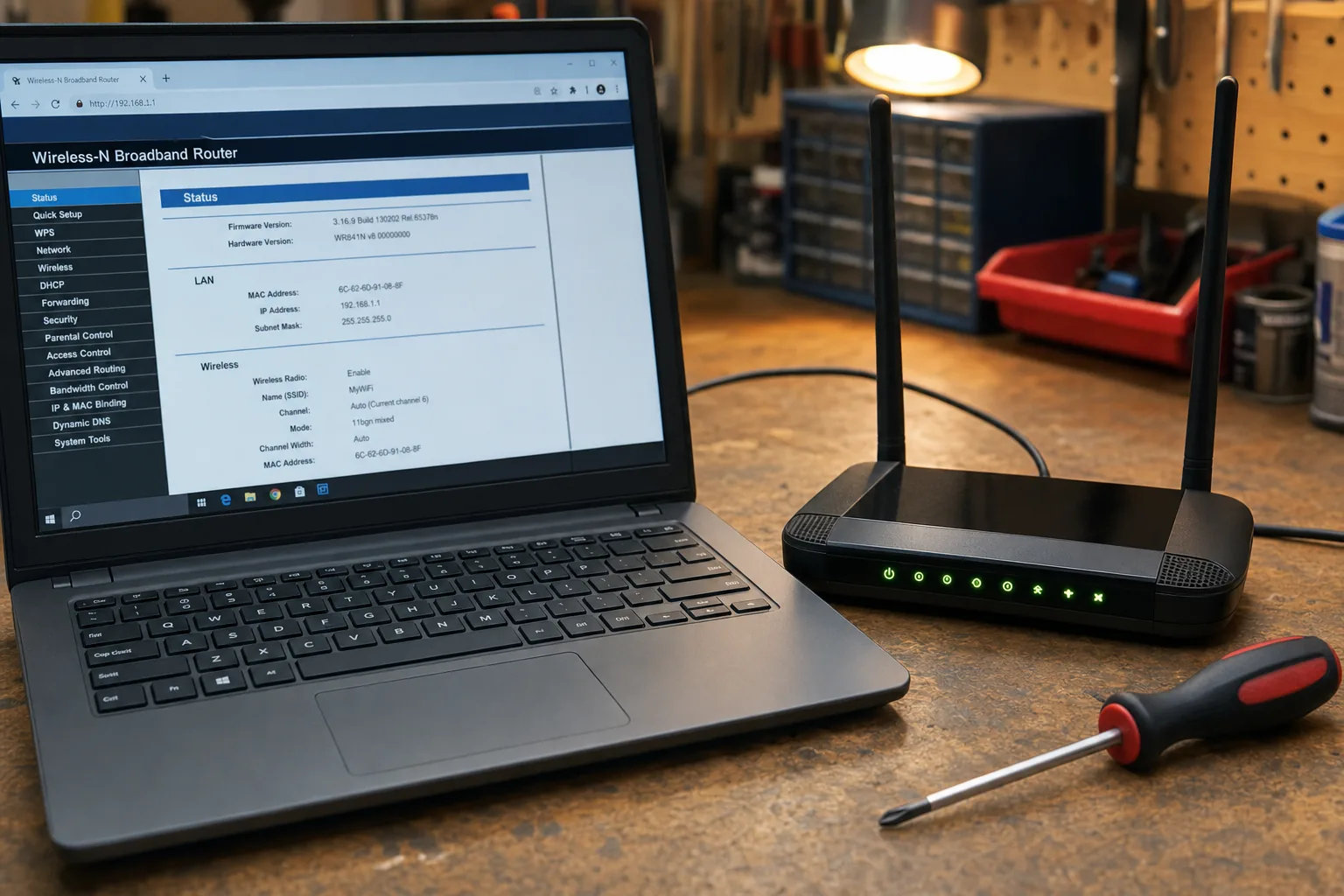

A woman came in last month convinced her laptop's Wi-Fi card had died. It kept dropping the connection every twenty minutes, sometimes refusing to reconnect at all. She'd already bought a USB Wi-Fi dongle as a workaround. I had the real problem sorted in about half an hour — and I didn't touch the Wi-Fi card once.
This is one of the most misdiagnosed faults I see. People assume a flaky wireless connection means faulty hardware, but nine times out of ten it comes down to one of three things: the router, an outdated driver, or plain old signal range. Get these ruled out in order and you'll save yourself time, money, and a trip to the shops.
Step one: suspect the router before anything else
The simplest test I do is connect a second device — a phone, usually — to the same network. If that drops off too, the laptop is innocent. The fault lives in the router or the broadband line itself.
- Restart the router properly. Switch it off at the wall, wait a full thirty seconds, then switch it back on. Not a button press — a proper power cycle. You'd be surprised how often that's all it takes.
- Check whether the router is overheating. Routers shoved in a cupboard or behind the telly run warm and drop connections. Give it some breathing room.
- Ask your ISP when you last had a firmware update. Most routers update automatically, but not all. Stale firmware causes exactly this kind of intermittent grief.
Step two: update or roll back the Wi-Fi driver
If the second device stays connected and only the laptop drops, my next stop is Device Manager. Wireless adapter drivers go stale, and Windows Update doesn't always fetch the best version — it fetches a version.
- Open Device Manager (right-click the Start button), expand Network adapters, and find your wireless adapter. Right-click it and choose Update driver, then search automatically.
- If it got worse after a recent Windows update, roll the driver back instead. The same right-click menu has a Properties option — look for the Driver tab and the Roll Back button.
- Go straight to the manufacturer's site for the most reliable driver. Search for your laptop model plus "Wi-Fi driver" — Intel, Realtek, and Qualcomm all publish them directly.
The woman I mentioned earlier had a Realtek driver that Windows had quietly "updated" to a version that didn't get along with her router's frequency band. Rolling it back to the previous version fixed her completely.
Step three: think about where you're actually sitting
Modern routers broadcast on both 2.4 GHz and 5 GHz bands. The 5 GHz band is faster but has a shorter range and struggles through thick walls. If you're two rooms away from the router, your laptop may be clinging to a 5 GHz signal it can barely reach — dropping and reconnecting constantly.
- Check which band you're connected to in your router's app or admin page. Try switching to the 2.4 GHz network and see whether the drops stop.
- Move closer to the router as a test. If the connection becomes rock-solid, it's a range issue, not a hardware fault.
- A powerline adapter or a mesh Wi-Fi node in the room where you work is a far cheaper solution than replacing a laptop.
The Repair Bench verdict
Before you blame the laptop: test another device on the same network first — if that drops too, the router is the culprit, not your machine.
Most common fix I find: a rolled-back or freshly downloaded Wi-Fi driver from the manufacturer's website sorts the majority of laptop-only connection problems.
Watch out for: a 5 GHz signal dropping at range — switch to the 2.4 GHz band or move the router before spending anything on new hardware.