
The Phone That Was 'Backed Up To iCloud' But Actually Wasn't
I see this a few times a year, and it never gets any easier to explain to the person sitting across my bench.
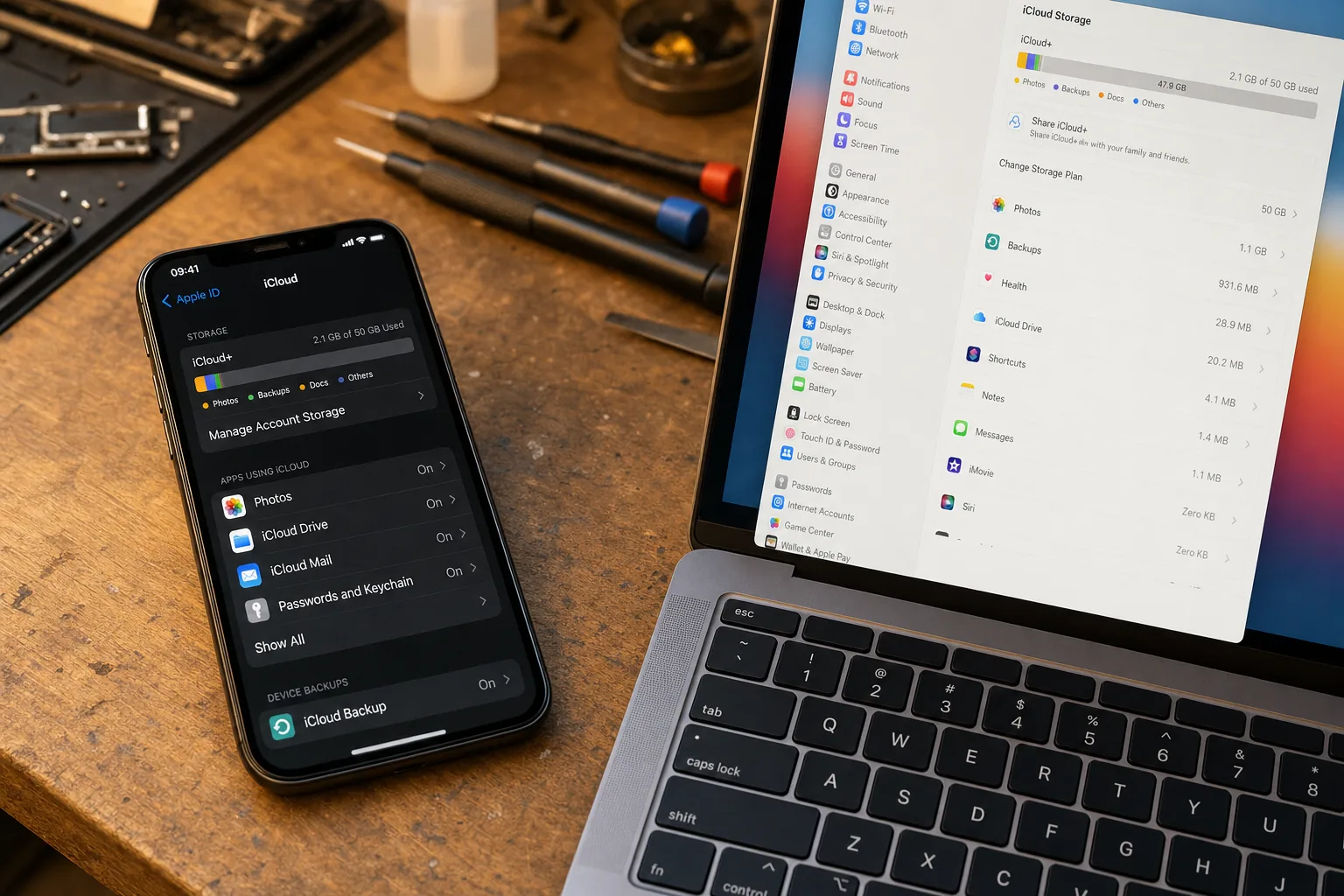

A woman came in last month absolutely certain her photos were safe. Her iPhone had stopped working — charging port had given up — and she wanted a repair. "Don't worry," she said before I'd even picked it up, "it's all backed up to iCloud." It wasn't. The last successful backup was fourteen months ago, and somewhere in those fourteen months were her daughter's first birthday, a family holiday, and about three hundred other photos she was never getting back.
I've had this conversation more times than I'd like. The misunderstanding is always the same: the phone once showed a message about iCloud backup, the customer tapped OK, and they've assumed it's been quietly doing its job ever since. Sometimes it has. Often it hasn't.
Why iCloud backup silently stops working
There are three reasons I see over and over again on my bench.
- iCloud storage is full. Apple gives you 5 GB free. A modern iPhone can chew through that with a handful of videos. Once the storage is full, backups stop — but the phone doesn't shout about it. You might get a quiet notification once, which is easy to dismiss and forget.
- The phone stopped connecting on Wi-Fi overnight. iCloud backup only runs automatically when the phone is plugged in, locked, and on Wi-Fi. If your Wi-Fi password changed, or you've been sleeping with the phone in another room unplugged, weeks can pass without a backup completing.
- The Apple ID password was changed and the phone logged out. A password reset, a new phone setup, a family sharing hiccup — any of these can silently sign the backup out without making much fuss about it.
How to check right now — before something goes wrong
This takes about thirty seconds and is worth doing today.
- Go to Settings, tap your name at the top, then iCloud, then iCloud Backup. You'll see whether backup is switched on and — crucially — the date and time of the last successful backup.
- If that date is more than a week ago, something has gone wrong. Don't just tap Back Up Now and assume it'll finish — watch it. It should complete within a few minutes on a decent Wi-Fi connection.
- Check your available iCloud storage on the same screen. If you're at or near your limit, the backup either failed silently or backed up almost nothing useful. You'll need to either buy more storage or prune what iCloud is keeping.
- Check that you're still signed in to the right Apple ID. It sounds obvious, but I've seen phones quietly sitting signed out for months.
What I tell every customer who hands me a phone
I always do this check before I start any repair, and I tell the customer what I find. If the last backup is recent, great — we're in good shape. If it's months old or missing entirely, we talk about whether there's anything irreplaceable on the device before I touch a thing. Sometimes there is a way to recover photos locally by connecting to a computer first. Sometimes there isn't.
The uncomfortable truth is that iCloud backup is genuinely good when it works — but it requires occasional human attention to keep it working. It is not a set-and-forget system, however much Apple's marketing might suggest otherwise.
The Repair Bench verdict
Check your last backup date now: Settings → your name → iCloud → iCloud Backup. If it's more than a week ago, find out why before something forces the issue.
The most common culprit: a full 5 GB free iCloud tier. Upgrading to 50 GB costs 79p a month and removes the most frequent cause of silent backup failure.
Never assume: seeing the words "iCloud Backup: On" does not mean a recent backup exists. Only the date underneath that line tells you the truth.