
Your Files Are in OneDrive — But Are They Actually Safe?
I see it every week: someone loses data they were certain OneDrive had saved, and it turns out it never backed up that folder at all.
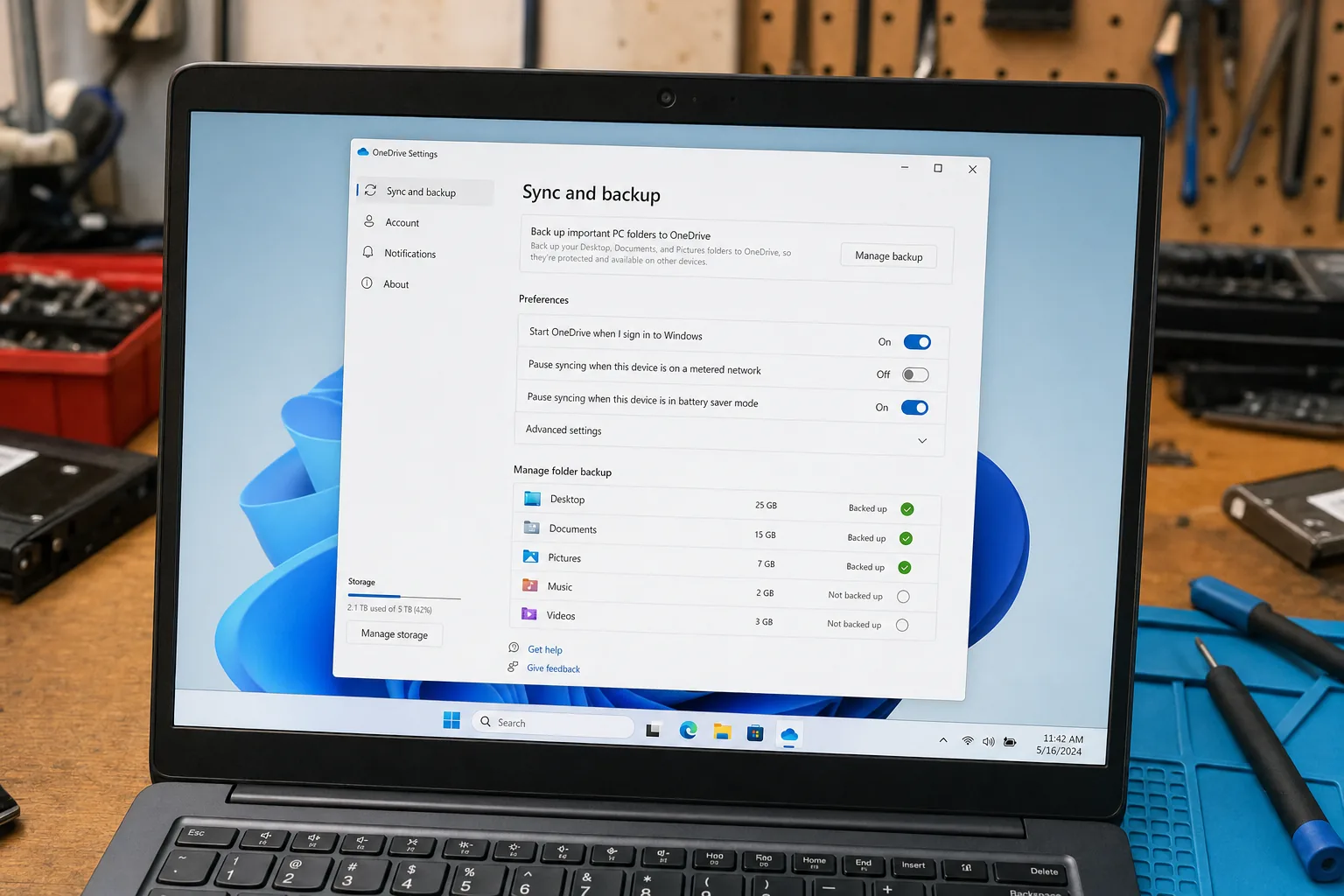

A woman came in last month with a dead laptop and a look I've seen too many times. Hard drive had given up completely. First thing she said: "It's fine, everything's in OneDrive." We recovered almost nothing. Her Documents folder had never been connected to OneDrive at all — she'd just assumed it was.
This is the version of data loss I find hardest to explain to people, because the mistake is so understandable. OneDrive is built into Windows, it shows a little cloud icon in the taskbar, and Microsoft's marketing strongly implies your stuff is safe. But OneDrive only backs up what you've explicitly told it to back up — and the default setup has some gaps that catch people badly.
What OneDrive actually backs up by default
When you first set up OneDrive on a Windows 10 or 11 machine, it will offer to protect your Desktop, Documents and Pictures folders. Most people click through without reading, and here's the problem: if you didn't turn that on during setup, those folders are not syncing. OneDrive is running, the icon is green, everything looks fine — but your files are sitting locally with no copy anywhere.
- Check right now: click the OneDrive cloud icon in your taskbar, then the cog, then Settings. Go to Sync and backup and hit Manage backup. You'll see exactly which folders are being protected. If the toggle next to Documents is grey, it is not backed up.
- Watch for the difference between a folder that's in your OneDrive folder and one that's merely been shared to OneDrive. They're not the same thing.
- Free storage runs out. OneDrive gives you 5GB free. If your account is full, syncing stops silently. Check your storage usage in the same settings panel.
The other thing people miss — online-only files
Even when OneDrive is syncing correctly, there's a second trap. Windows uses a feature called Files On-Demand, which means some files show up in your folder as if they're there, but they're actually only in the cloud. You can spot them by a small cloud icon on the file thumbnail rather than a green tick.
This matters because if your internet goes down, or you hand the laptop in for repair, those files won't open. And if the drive fails before they've been downloaded locally, recovery becomes much harder. It's not a flaw exactly — it saves space — but it surprises people constantly.
- To download a file locally: right-click it and choose Always keep on this device. It'll then have a green tick and exist properly on your hard drive.
- To see what's local and what isn't: in File Explorer, look at the Status column. If you can't see it, right-click the column headers and add it.
What I tell every customer before a repair
Before I wipe or replace anything, I always ask a customer to log into OneDrive on a second machine and actually open a few of the files they care about. Not just check the folder exists — actually open a document, a photo, something recent. Twice in the past year that test has revealed the sync had silently stopped weeks earlier.
OneDrive is genuinely useful when it's set up properly. The trouble is it requires you to know what you're doing, and Windows doesn't shout loudly enough when something's wrong.
The Repair Bench verdict
Don't assume OneDrive is working: open Settings, go to Sync and backup, and confirm your Documents, Desktop and Pictures folders all show as active. If they're grey, turn them on now.
Check your storage quota: a full OneDrive account stops syncing without any obvious warning — five minutes checking this could save you a very bad day.
Before any repair or wipe: log into OneDrive on another device and open a few recent files to confirm they're actually there. That thirty-second check is worth more than any amount of reassurance.