
The First Thing Most People Do After A Virus — And Why It Often Makes Things Worse
A factory reset sounds like a clean start, but half the time it isn't the fix the problem actually needs.
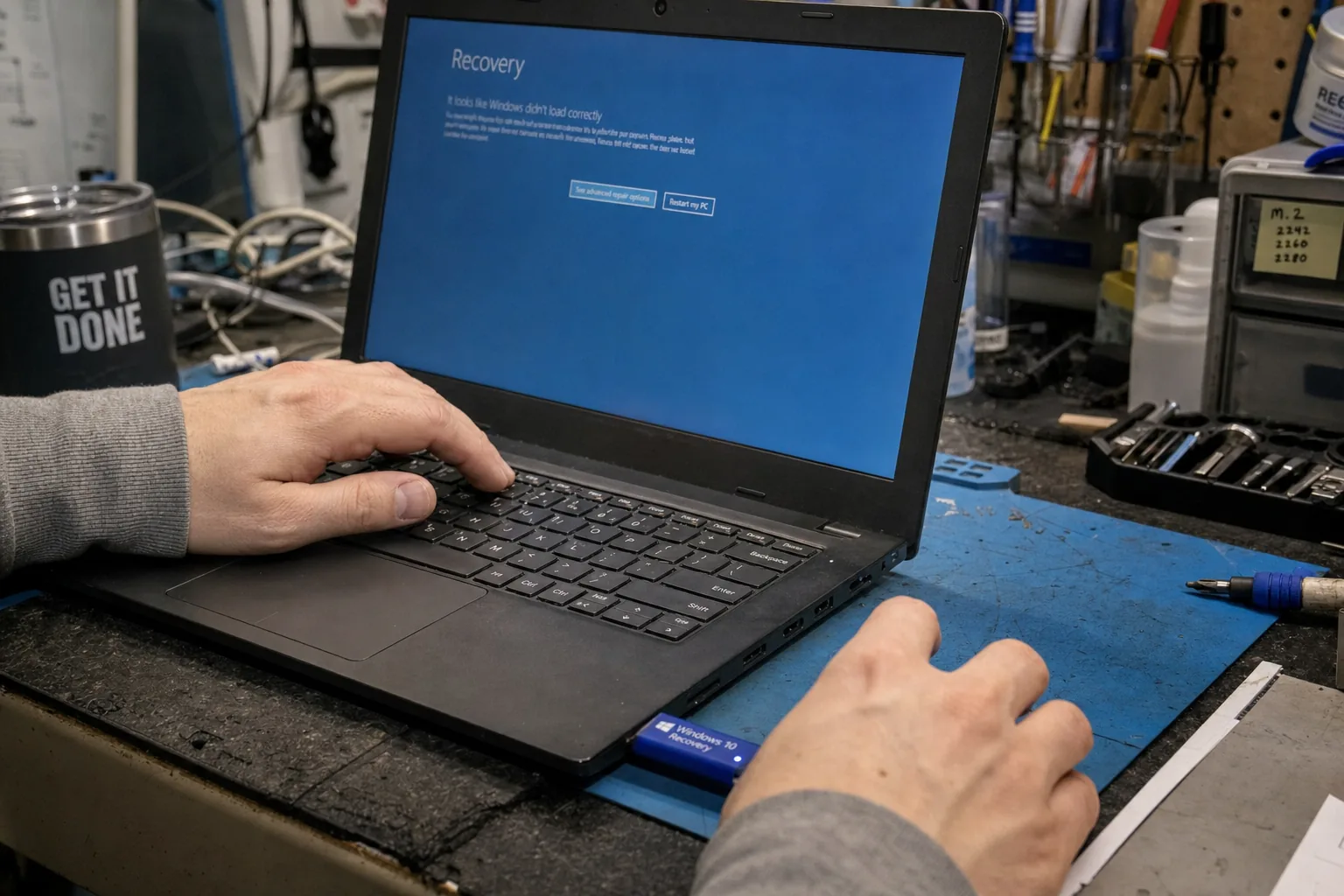

A customer brought in her laptop last month, looked me straight in the eye and said, "I've already done a factory reset — twice — and it's still doing it." The problem was random freezes and a browser that kept crashing. She'd wiped the machine twice in a fortnight, spent hours reinstalling everything, and the fault was sitting there waiting for her both times. The culprit turned out to be a failing RAM stick. No reset in the world was ever going to touch it.
That sort of thing happens more than you'd think. The factory reset has become the go-to answer for almost any Windows trouble, and I understand why — it sounds thorough, it's free, and Microsoft practically signposts it in the recovery menu. But it only fixes software problems, and an awful lot of what walks through my door isn't a software problem at all.
What a factory reset actually does — and doesn't do
All a reset does is put Windows back to a clean state. It removes your installed programmes, wipes your personal files if you choose the full option, and gets rid of any software nastiness that might have crept in. That's genuinely useful in the right situation. But it does absolutely nothing for:
- Failing hardware — a dying hard drive, a dodgy RAM module, or an overheating processor will misbehave just as badly on a fresh Windows install as on a cluttered old one.
- Driver conflicts after a Windows update — the reset often reinstalls the same problematic driver automatically the moment you reconnect to the internet.
- A machine that runs slowly because of old, slow hardware — a spinning hard drive doesn't spin faster because you've reinstalled Windows on top of it.
If the problem is hardware, you've just put yourself through hours of pain for nothing and you're back where you started, minus all your files if you weren't careful.
How to check before you commit to a reset
Spend ten minutes on these steps first. It could save you a whole afternoon of reinstalling software.
- Run Windows Memory Diagnostic. Type it into the Start menu, let it run overnight, and check the result in the morning. Faulty RAM causes crashes and freezes that look exactly like software trouble.
- Check the drive health. Download the free version of CrystalDiskInfo. If your drive shows a status other than Good — particularly any reallocated sectors — no reset will help you. The drive needs replacing.
- Watch the temperatures. HWMonitor (also free) shows your CPU temperature in real time. If it's regularly over 90°C under normal use, the machine is throttling itself to survive. Again, not a software issue.
- Ask yourself when the problem started. Did it begin right after a Windows Update? That's a driver or update issue, and a targeted rollback or driver fix is far less disruptive than a full reset.
Only if all of those come back clean — no hardware warnings, sensible temperatures, no recent update that lines up with the trouble — does a factory reset start to make sense as the next step.
When a reset genuinely is the right call
I'm not saying never do it. If a machine is heavily infected with malware and the antivirus can't shift it cleanly, a reset is often the quickest route to a trustworthy system. Likewise if someone has spent years installing and uninstalling software until Windows is a tangled mess — a clean start is sometimes the sanest option. The point is to rule out hardware first, so you're not doing it blind.
The Repair Bench verdict
Before you reset: run Windows Memory Diagnostic and CrystalDiskInfo to rule out failing RAM and a dying drive — a reset won't fix either, and you'll be right back where you started.
Reset makes sense when: hardware checks out healthy, temperatures are normal, and the problem is clearly software — stubborn malware or a badly corrupted Windows installation.
Watch out for: losing your files unnecessarily — always back up first, and always check the hardware before you assume it's a software problem.