
Why Is My Smart Home So Slow to Respond? Common Fixes
A practical way to find out whether your laggy lights are blaming the cloud, a badly placed hub, or a Wi-Fi network that has quietly become a traffic jam.
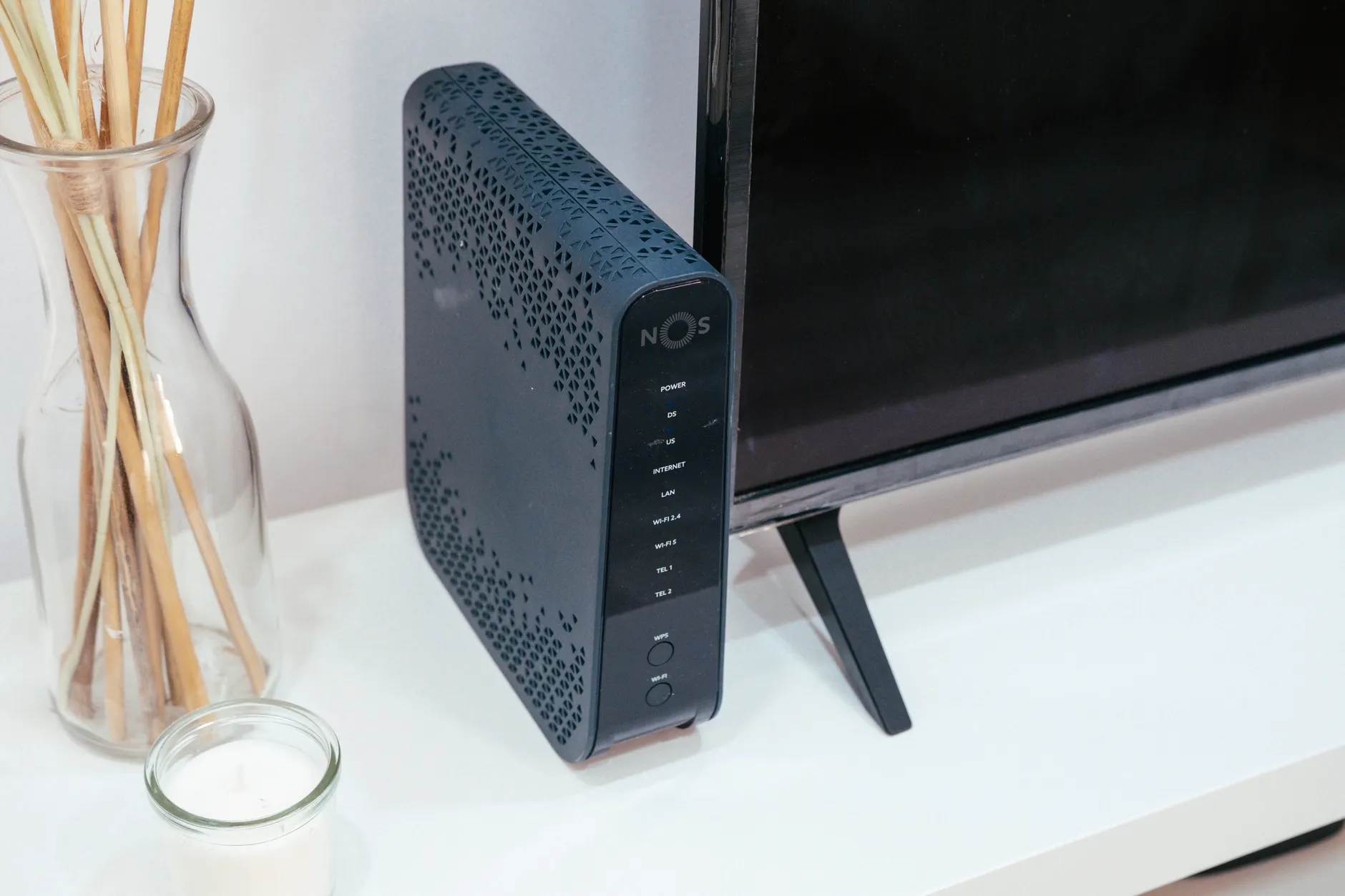
A responsive smart home should feel immediate. When commands pause, fail, then suddenly all happen at once, the delay usually has a very specific cause.
You ask Alexa to turn off the bedroom light. Nothing happens. You wait three seconds, mutter the command again, and then both requests arrive together like a tiny theatrical finale. The light goes off, on, then off again. Brilliant. Your house has developed comic timing.
Smart-home lag is one of those frustrations that feels random until you look at how the system is actually stitched together. A slow response is rarely the bulb being "a bit rubbish" in isolation. It is usually a delay somewhere along the route between you giving a command and the device receiving it. The useful bit is that the route can be diagnosed. You do not need to start factory-resetting everything in a fit of righteous annoyance.
There are three usual culprits: commands that take a long cloud journey before they reach your home; hubs and mesh networks that are in the wrong place or have weak links; and an overloaded Wi-Fi network trying to keep too many chatty devices happy at once. More than one can be true. In fact, that is often the irritating part.
 By Hayley Hillyer · Smart Home & Lifestyle Editor · Updated July 13, 2026
Why Does My Smart Home Feel Dumb? Understanding the Lag Problem
First, a little perspective. Smart-home response time is not about shaving milliseconds off a gaming mouse. It is about whether a light feels like it obeyed you, or whether it feels like it went away to think about it. There is a huge difference between pressing a button and seeing a lamp react immediately, and pressing it then having enough time to glance at the kettle.
Locally controlled devices can respond in under 100 milliseconds. In normal human terms, that is close enough to instant. You do not perceive a pause; you simply see the result. A typical command sent through a cloud assistant architecture, meanwhile, can fluctuate between one and five seconds depending on server load. That is not always a fault in your broadband, and it is not necessarily a fault in the device either. It is the cost of asking several systems, potentially a long way from your sofa, to agree that yes, the lamp should now turn blue.
Cloud-routed smart-bulb response has been observed to take as long as 6.8 seconds. That is long enough for people to repeat a command, which creates a second problem: duplicate requests. If an action is a toggle rather than a clear instruction such as "turn on", two delayed toggles can cancel one another out. Suddenly the system looks haunted when it is merely late.
The key clue is consistency
If a device nearly always takes a similar, noticeable pause, start by suspecting its control route. If it is fast one moment and dreadful the next, look harder at Wi-Fi congestion, mesh reach, interference, or a controller that is struggling to reach a particular device.
I find it useful to stop thinking of "the smart home" as one thing. It is a chain: your voice assistant or app; the service interpreting the request; the controller or hub if there is one; the radio network; and finally the light, plug, sensor, or switch. A fault in any link can make the entire experience feel sluggish. The good news is that you can test one link at a time.
The Three Villains Behind Your Laggy Lights: A Quick Diagnostic Map
Before moving things around or replacing a single plug, give yourself a simple map. It will save you from doing the classic smart-home troubleshooting routine: changing six settings, rebooting three things, and then having no earthly clue which bit helped.
1. Cloud routing
Your request leaves the home, reaches a cloud service, may be passed to another cloud service, and eventually returns as a command for the device. It can work perfectly well, but it adds dependency and delay.
2. Hub location and mesh health
Your hub or controller needs a dependable radio path to the devices it manages. A mesh can make that path cleverer, but it cannot defy a poor location, awkward building materials, or missing repeaters.
3. Wi-Fi congestion
Wi-Fi devices share airtime and router attention. When the network is busy, commands can arrive late, devices may briefly disappear, and the app starts looking guilty even when it is only reporting the mess.
These villains stack. A cloud-controlled light may already have a one-to-five-second journey built into its normal behaviour. Put it on a busy Wi-Fi network and that delay can become inconsistent. Add a poorly positioned hub for the devices that do use a separate mesh, and you have two different types of slow response in the same room. It feels like one big system problem, but it is actually several small ones politely taking turns ruining your evening.
Use the pattern, not just the symptom. Consistent two-to-five-second lag points towards cloud routing. Intermittent lag, especially when it changes during the day, points towards congestion or a weak radio path. Devices in one distant room being worse than the rest point towards placement and mesh coverage.
Start your testing with one device that is reliably slow and one device that is normally fine. Use the manufacturer's app first, then your voice assistant, if you use one. That comparison tells you a surprising amount. If the app is quick but voice control is slow, the extra voice-assistant route is the prime suspect. If both are slow, look closer to home: router, hub, device connection, or the local radio network.
Keep a note for a day or two. Not an elaborate spreadsheet unless that brings you joy, but a few useful observations: what you asked for, which room it happened in, whether it was app or voice, and roughly how long it took. You are looking for a repeatable pattern. Smart-home faults are much easier to cure once they stop being anecdotes.
Testing the same device from its own app and from a voice assistant helps separate an extra cloud-service delay from a problem inside the home.
Villain #1: Cloud Control and the Long Way Round
Cloud control is the most misunderstood source of smart-home lag because it sounds abstract. The device is in your room. Your phone is in your hand. Surely telling the bulb to turn on should involve roughly half a metre of air and a tiny bit of Wi-Fi? In many setups, no. The command can travel far beyond your front door before it ever gets back to the lamp beside you.
A typical cloud-controlled chain goes something like this: you speak to a voice assistant or tap an app; that request is interpreted by the relevant online service; it is passed to the device maker's cloud service; and a command is then pushed back towards your home and the device. Every hand-off needs an internet connection and a responsive service. If one part takes its time, the lamp takes its time.
There is nothing inherently absurd about cloud control. It enables remote access, account-based setup, and connections between different services. It is often convenient. But convenience has a trade-off: your light may depend on internet and remote servers even when you are standing right next to it. That is why a short broadband outage can sometimes turn a perfectly powered light into an extremely ordinary light.
The practical benchmark matters here. Cloud-assistant commands can vary from one to five seconds depending on server load. That range is why cloud lag feels particularly irritating: it is not merely slow, it is variable. Sometimes a command is accepted in what feels like a beat. Sometimes you have mentally moved on to another task before the room changes colour.
The bars are not a universal laboratory ranking. They are a useful reality check. Under 100 milliseconds feels direct. A five-second response does not. And a 6.8-second response is long enough to make almost anyone repeat themselves. That repeated command can then arrive after the first one, causing the familiar double-action mess.
There are a few cloud-lag clues worth watching for. Does the device work quickly from a physical switch but slowly from the app? That does not prove cloud involvement, but it confirms the lamp itself is capable of reacting immediately. Does it work more slowly through a voice assistant than via its own app? Again, that points at an added service layer. Does everything become slow at once, including devices in different rooms? Your internet connection or an online service is more likely than a single weak mesh node.
Avoid the accidental double command
When testing a slow device, issue one clear command and wait. Do not repeat it halfway through unless you are deliberately checking reliability. A late duplicate command can make a system look less reliable than it really is, particularly where a control behaves like a toggle.
It is also worth separating "slow" from "unavailable". A cloud route might eventually respond after a pause. A genuine connectivity failure may leave the command spinning, show the device as offline, or do nothing at all. The remedies overlap a little, but a consistently slow cloud service is not necessarily cured by moving a hub two metres to the left.
One final cloud reality check: a fast local setup can still feel slow if you always issue commands through a cloud-dependent interface. That does not mean voice control is bad; it means you should decide which automations genuinely need to be instant. A hallway motion-triggered light is a poor place to tolerate a leisurely online round trip. A decorative lamp you switch on from the sofa is less dramatic.
Fixing Cloud Lag Without Replacing Everything
You do not need to throw every smart device in a drawer and begin again. The sensible approach is to move the important actions towards local control where your existing setup supports it, and to stop making cloud journeys do jobs that ought to be immediate. Think evolution, not a Saturday spent angrily pairing thirty devices.
Step 1: Make an honest device inventory
Write down every smart device, the room it is in, the app you use for it, and whether it joins Wi-Fi directly or talks through a hub. Check the packaging, the device settings, or the app rather than guessing. Zigbee and Z-Wave devices commonly use a hub, which is a useful sign that local control may be possible within the home rather than through a direct Wi-Fi-to-cloud path.
Do not forget the invisible bits: smart speakers, bridges, hubs, routers, and Wi-Fi access points. They may not turn a lamp on themselves, but they can be the road the command travels along. A one-page inventory is enough. You are not applying for planning permission.
Step 2: Test the shortest available control path
For each slow device, compare the manufacturer's app with the voice assistant. If the device responds noticeably faster from its own app, use that result as evidence that the voice service is adding time. If the app itself is slow, test whether the device works locally when your internet connection is unavailable, only if doing so is safe and practical for your household. The aim is not to break your setup; it is to learn whether it is designed to stay useful inside your home when the outside connection is absent.
Some ecosystems provide local-control options or local interfaces. Look in the app's settings, integration information, and documentation for language such as "local control", "local API", "hub control", "LAN", or "works without internet". The exact wording varies. The important question is simple: can a command travel between your controller and device inside the home, or must it visit an external server first?
Step 3: Prioritise the automations that must feel instant
Not every device deserves the same treatment. Start with the routines that expose lag most brutally: entrance lighting, motion-triggered lights, bedside controls, bathroom fans, and anything that is meant to react while you are physically standing there. If your smart home has an automation engine or hub, look for ways to run those automations on the controller rather than relying on a remote service for every event.
Think "local first" for reactions, cloud for convenience
Remote access is useful. Voice control is useful. But the closer a command is to a real-time reaction in your home, the more it benefits from staying local. Use the cloud for the things it is good at; do not make it the only route for the light you need on when carrying laundry upstairs.
Step 4: Simplify duplicated automations
It is very easy to build two rules that both think they are in charge: one in the bulb's own app, another in a voice-assistant routine, perhaps a third in a hub. If they all react to the same sensor or time, the outcome can look like lag, flickering, or random reversals. Review your automations and remove overlap where possible. One clear owner for a routine is usually better than three enthusiastic ones.
Step 5: Re-test with a stopwatch mentality
You do not need specialist equipment. Make the same request five times from the same place, leaving enough time between commands that you are not measuring a queue of earlier instructions. Note whether the response is stable. Then try the alternate control method. You are looking for a clear winner, not trying to prove a difference of a few fractions of a second.
What local-first control improves
- It can remove the long cloud round trip for everyday actions.
- Response can feel immediate when local devices react in under 100 milliseconds.
- Important in-home routines are less dependent on remote-service delays.
What it does not magically fix
- A local command still needs a working hub, radio path, or Wi-Fi connection.
- Weak mesh coverage can make locally controlled devices slow or unreliable.
- Remote control still depends on an internet route when you are away from home.
An inventory of hubs, bridges, Wi-Fi devices and apps turns a vague "everything is slow" complaint into a set of testable control paths.
Villain #2: Hub Placement, the Quiet Performance Killer
Hubs are often treated like a modem from 2007: plug it in near the router, hide it behind a cabinet, and never think about it again. Unfortunately, the radio network underneath your smart home may care rather a lot where that hub lives.
Instability often comes from overloaded controllers, poor placement, or fragmented networks rather than a fundamental problem with the protocol itself. In plain English: the technology may be perfectly capable, but your hub is sitting behind a television, under the stairs, beside a mass of wiring, or in a kitchen corner surrounded by things that are not ideal radio neighbours.
Zigbee and Z-Wave systems use mesh networking. Rather than every device needing a pristine direct path to the hub, compatible devices can help relay signals across the home. This is useful in a typical British house, where walls, floors, awkward extensions, and an alarming amount of old brickwork can get involved.
There is an important distinction, though. Mains-powered devices can act as repeaters in a mesh. Battery-powered sensors are generally end devices. They conserve battery by sleeping most of the time rather than volunteering to relay everybody else's messages. So a house full of battery sensors does not automatically become a stronger mesh. It can become a house full of sensors politely waiting for a good route that does not exist.
Mains power matters in a mesh. Powered devices can help form relay paths. Battery sensors are usually there to report their own status, not to carry traffic for devices elsewhere in the home.
Hub position determines how the mesh begins. Put the controller centrally and nearby powered devices can establish strong first links in several directions. Put it at the far edge of the house, then put the troublesome devices at the other far edge, and you are asking the mesh to make a difficult journey from the start. It may manage it. It may not manage it consistently.
Specific rooms being slower is your biggest clue. If the kitchen lights are instant but the upstairs landing sensor takes a moment, do not begin by blaming the whole internet. Check the physical route. Does the slow room sit at the end of the house? Is it separated by thick walls, appliances, utility cupboards, or structural materials? Does it only contain battery devices, with no powered device helping to carry the mesh onwards?
Do not get hung up on line-of-sight as though your home were an airport runway. Radio can travel through ordinary domestic obstacles, and mesh is designed to find indirect routes. But every obstacle and hop adds opportunity for a poor connection. A central, open-ish position beats a hidden corner almost every time.
Your hub is part of the décor now
You do not need to put it on a pedestal in the middle of the lounge. But treat it as active radio equipment, not clutter. A cupboard, metal enclosure, or crowded tangle of electronics is rarely its happiest place.
Fixing Hub Lag: Placement, Mesh Strength and Channel Management
This is where you can often make the biggest improvement without changing a single automation. Work methodically. Move one thing, allow the system time to settle, and re-test the same troublesome device. If you move the hub, then reset every sensor, then alter your Wi-Fi all in one afternoon, you will have created a wonderful mystery for future you.
Step 1: Move the hub towards the centre of the home
The best starting point is a central location, ideally on the same floor as most of the devices it controls. In a typical UK terraced house, that often means a hallway or living room rather than a home office at one extreme or a kitchen corner at the other. The right position is not necessarily the geometric centre of the building; it is the place that gives the broadest, least awkward path to your busiest devices.
Try to avoid hiding the hub behind a television, inside a cabinet, or beside large metal appliances. Also avoid placing it in a dense pile of networking hardware if you have an alternative. You are not chasing perfection. You are removing obvious disadvantages.
Step 2: Strengthen the weak side of the mesh
Once the hub is sensibly located, identify the direction in which the system becomes unreliable. If the back bedroom sensor is unreliable, the answer may be a mains-powered Zigbee or Z-Wave device placed between the hub and that room. A powered plug or other powered device can become a useful stepping stone for the mesh.
The placement matters more than simply adding lots of devices. Put a repeater where it bridges a genuine gap, not beside the hub where it has nothing useful to do. Think of it as putting a lamp along a dark path rather than installing three lamps in the porch and hoping the garden becomes brighter by association.
Step 3: Check for network fragmentation
A fragmented mesh is one where some devices have a happy route and others are hanging on by a thread. You may see that as a sensor which updates late, a plug that occasionally ignores a command, or a room that only works after a second try. Do not assume a single failing device is defective before checking its neighbours. A device at the edge of coverage may simply be the first one honest enough to show you the weakness.
If you have moved a hub or added a powered device, give the network a little breathing room before you decide it made no difference. Mesh networks can take time to settle on better paths. Then test the previously slow device at several times of day. You want better consistency, not one lucky response at 11:43 on a Tuesday.
Step 4: Be deliberate with radio channels
Radio channels and segmentation matter because smart-home radios do not exist in a vacuum. A crowded wireless environment can make even well-positioned equipment behave poorly. If your hub or controller provides channel-management tools, document the current setting before changing anything. Avoid changing channels casually just because a forum post told you that one number is "best". The best choice depends on what else is active in your home.
The practical approach is to make one considered change at a time and then test the same rooms. If a channel change makes one area better and another worse, revert rather than layering more adjustments on top. Reliability beats novelty.
A centrally placed hub and a few well-positioned mains-powered mesh devices can create a much cleaner path to distant sensors and switches.
Villain #3: Wi-Fi Congestion and the Chatty Device Problem
Wi-Fi is brilliant because it is everywhere. It is also the reason many smart homes end up with a small army of devices all wanting a slice of the same wireless attention. Phones, tablets, laptops, televisions, cameras, speakers, printers, plugs, bulbs, vacuums, appliances and mysterious things you forgot existed can all be active at once.
Cheap Wi-Fi plugs are a common pain point because they add another direct client to the router for every socket you automate. One or two is no drama. A household that has gradually added them to lamps, fans, seasonal decorations, coffee machines, heaters, and whatever else seemed amusing in the sale aisle can end up asking the router to babysit a surprisingly large collection of tiny computers.
That does not mean every Wi-Fi device is bad, or that every plug must be replaced. It means Wi-Fi is often the wrong place to build a very large, latency-sensitive control network if your router and wireless layout are already busy. Dedicated mesh protocols such as Zigbee or Z-Wave move that device traffic away from the main Wi-Fi network and use their own mesh approach instead.
The most obvious congestion symptom is inconsistency. Everything can appear fine one minute, then commands stall when the household is streaming, working, gaming, backing up photos, or simply all present at home with devices in their pockets. A light may work instantly at breakfast and hesitate during the evening. That pattern is a much stronger Wi-Fi clue than a device that is slow with almost metronomic consistency every time.
Do not mistake a crowded Wi-Fi network for a faulty bulb. If several direct Wi-Fi devices become sluggish together, especially at busier times, investigate the router and wireless layout before replacing individual accessories.
Another clue is how broadly the trouble appears. If one Wi-Fi plug at the far end of the house is unreliable while nearby Wi-Fi devices are fine, signal coverage may be the issue. If Wi-Fi smart devices throughout the house start acting tardy together, congestion or router workload is more plausible. If only one brand's devices are slow through one app, return to the cloud-control investigation.
There is a less glamorous element here too: restarts. Rebooting a router can clear a temporary problem, but it is not a diagnosis. If a reboot cures the issue for a few hours or days then it returns as more devices become active, that is useful information. Your network may be under sustained pressure, not suffering a one-off sulk.
Those timings are not a direct Wi-Fi benchmark, but they explain why congestion makes a cloud setup feel especially bad. A cloud route already has a meaningful delay budget. Add a busy local network before the request leaves the house or when the command returns, and the pauses become far more obvious.
Practical Wi-Fi Fixes Before You Buy Anything
Start with the boring checks because boring checks fix an astonishing number of smart-home problems. Confirm the router is in a sensible, open position rather than in a cupboard, behind a television, or wedged next to dense equipment. Check whether the devices that are slow are all in a low-coverage part of the home. Then review the device list in your router or network app, if it provides one. You may be surprised by how many direct Wi-Fi clients are active.
Step 1: Separate "one weak room" from "everywhere is busy"
Walk around with your phone and test the relevant smart-device app in the good room and the bad room. If the poor room is consistently worse, solve coverage first. If the issue happens across the house at the same time, treat the network as a shared resource that may be congested or overworked.
Step 2: Reduce unnecessary direct Wi-Fi load
Look for low-priority devices that are permanently connected but rarely useful. Be ruthless with novelty gadgets that have become digital ornaments. If you have built up a large collection of inexpensive Wi-Fi plugs, consider whether some roles would be better served by a hub-based mesh device in future. You do not need to purge everything overnight. Replace the least reliable or least important items first, and avoid adding more direct Wi-Fi clients merely because they are easy to set up.
Step 3: Keep your network layout understandable
Give devices clear names in the router or app where possible. "Plug 17" is not a useful troubleshooting label when you are trying to identify the culprit behind a slow bedroom routine. Name things by location and function. It sounds fussy until something stops responding and you can find it in seconds rather than wandering around turning lamps on by hand like it is 1998.
Step 4: Re-test after changing device count or placement
After removing, relocating, or changing a group of Wi-Fi devices, repeat the same tests you used at the start. Test a direct Wi-Fi device, a hub-based device, and a voice command if that is how you normally use the house. This tells you whether the improvement was broad or confined to one control path.
The aim is fewer bottlenecks, not more apps
A good smart home is not the one with the greatest number of integrations. It is the one where the important devices have a clear, dependable route to react. Simplifying a setup is often a performance upgrade in disguise.
A crowded Wi-Fi network can make smart-home delays come and go. Testing at different times helps reveal whether the problem follows household network activity.
A 30-Minute Troubleshooting Routine That Actually Narrows It Down
Here is the process I would follow before changing hardware. It is deliberately simple. The goal is not to become your own network engineer; it is to collect enough evidence that the next step is obvious.
- Choose one consistently slow device. Pick a light or plug you can see clearly. Avoid a device that is only occasionally awkward unless that is the only symptom you have.
- Test it from its own app five times. Leave a pause between commands. Note whether the delay is steady or variable.
- Test the same action through your voice assistant five times. If this is much slower, the voice-assistant cloud route is a useful suspect.
- Test a device in another room using the same method. A room-specific difference suggests hub placement, mesh reach, or local Wi-Fi coverage.
- Test at a different time of day. If the result changes when the home is busier, congestion becomes more likely.
- Check which devices share the problem. Several Wi-Fi devices together is one story. A far-away mesh sensor on its own is another.
- Make one change only. Reposition a hub, remove a non-essential Wi-Fi device, or adjust an automation. Then repeat the same tests.
Use clear commands whilst testing. "Turn bedroom lamp on" is better than a vague routine name that might activate several things. You want to know when the command reaches one endpoint, not whether a chain of five actions has finished in a pleasingly synchronised manner.
Also test physical controls where relevant. If a smart switch or button triggers a local action instantly but the app takes several seconds, you have learned that the device and local path may be fine. Conversely, if the physical smart control is sluggish too, the issue may live in the hub, mesh, or device connection rather than the cloud service alone.
| Response route | Typical latency evidence | What it feels like | Most useful next check |
|---|---|---|---|
| Locally controlled devices | Under 100 milliseconds | Effectively immediate | Check mesh strength or local connectivity if it is not behaving that way |
| Cloud assistant architecture | 1–5 seconds | A noticeable pause that can vary | Compare the device app with the voice-assistant route |
| Cloud smart-bulb response | Up to 6.8 seconds | Long enough to encourage duplicate commands | Issue one command at a time and investigate local-control options |
The point of this table is not to promise that every locally controlled device will always respond instantly, or that every cloud device will always be slow. It is to give you a sensible baseline. When a device takes several seconds, that is a meaningful delay worth investigating. When it reacts in under 100 milliseconds, that is the kind of response you are aiming for in the routines that matter most.
Build a Faster Smart Home in the Right Order
If you are planning improvements, do them in an order that produces the biggest practical gain. The temptation is to buy a new gadget because buying a new gadget is fun. I am not immune. But the sensible fix is usually architectural: shorten control paths, place the hub better, strengthen the mesh, and stop making the Wi-Fi router carry jobs that another network could handle more gracefully.
Best first fix for a tight budget
Audit and simplify. Identify which commands are cloud-routed, remove duplicated automations, and reduce unnecessary direct Wi-Fi clients before changing hardware.
Best all-rounder route
Central hub plus stronger mesh. Move the controller to a sensible central position, then add mains-powered mesh coverage only where a weak area genuinely exists.
Best for instant-feeling lighting
Local-first control. Prioritise local paths and locally run automations for entryways, bedrooms, and motion-triggered lighting.
Best for a Wi-Fi-heavy household
Move future expansion off Wi-Fi. Keep essential direct Wi-Fi gear, but consider dedicated Zigbee or Z-Wave mesh devices as the smart-home estate grows.
Start with the hub if room-specific mesh devices are slow. Start with the router and device count if Wi-Fi accessories all degrade together. Start with cloud-vs-local testing if the delay feels broadly consistent and happens through voice control. That order prevents you from solving a Wi-Fi problem with a mesh plug, or trying to fix a cloud round trip by moving a hub that was never involved.
When adding anything new, ask one question before you press Buy: what route will this command take? If the answer is "phone, cloud service, another cloud service, router, device", expect convenience but accept the possibility of pauses. If the answer is "controller, local mesh, device", you are much closer to the instant response that makes smart-home tech feel properly useful.
The fastest route is usually the simplest one: a local controller, a healthy mesh, and a device that does not need to make an unnecessary trip through the cloud.
Habits That Keep a Smart Home Fast After You Fix It
Once the system is responding well, resist the urge to turn it into a giant tower of integrations held together by optimism. The boring maintenance habits are what keep a setup dependable.
- Document the essentials. Keep a simple note of which hub controls what, where it is located, and which devices use Wi-Fi versus a mesh protocol.
- Name devices properly. Clear location-and-purpose names make troubleshooting and automation reviews much easier.
- Add devices with intent. Before adding another Wi-Fi accessory, decide whether it truly needs direct Wi-Fi or whether a dedicated mesh is a better fit.
- Review automations occasionally. Remove routines you no longer use and look for duplicate triggers that can make devices appear unpredictable.
- Re-test after major changes. A new router location, a furniture reshuffle, or several added devices can change wireless behaviour more than you expect.
There is also value in leaving well enough alone. If a device is local, reliable, and fast, do not replace it purely because a newer ecosystem has more badges on the box. Smart-home performance is cumulative. A stable, boringly responsive setup is far more satisfying than a flashy one that takes five seconds to remember where the kitchen is.
Frequently Asked Questions
A reliable smart home is not necessarily the one with the most gadgets; it is the one with short control paths, sensible hub placement and room to breathe on the network.
The Bottom Line
When your smart home is slow, do not blame the nearest bulb first. Work backwards from the delay pattern. A steady one-to-five-second wait usually points towards cloud routing; an instant-or-awful experience points towards congestion or an unreliable local path; and one persistently bad room points towards hub placement and mesh coverage. Put the hub somewhere sensible, use mains-powered mesh devices to bridge genuine dead spots, stop overloading Wi-Fi with unnecessary direct clients, and reserve cloud routes for the jobs where a slight pause does not matter. Do that, and your home stops feeling like it is waiting for permission from the internet to turn a light on.