
Why Your Computer Keeps Freezing (And It's Not What You'd Expect)
When a PC locks up every few minutes, most people blame Windows — but after twenty years on the bench, my first suspect is almost always the hard drive.
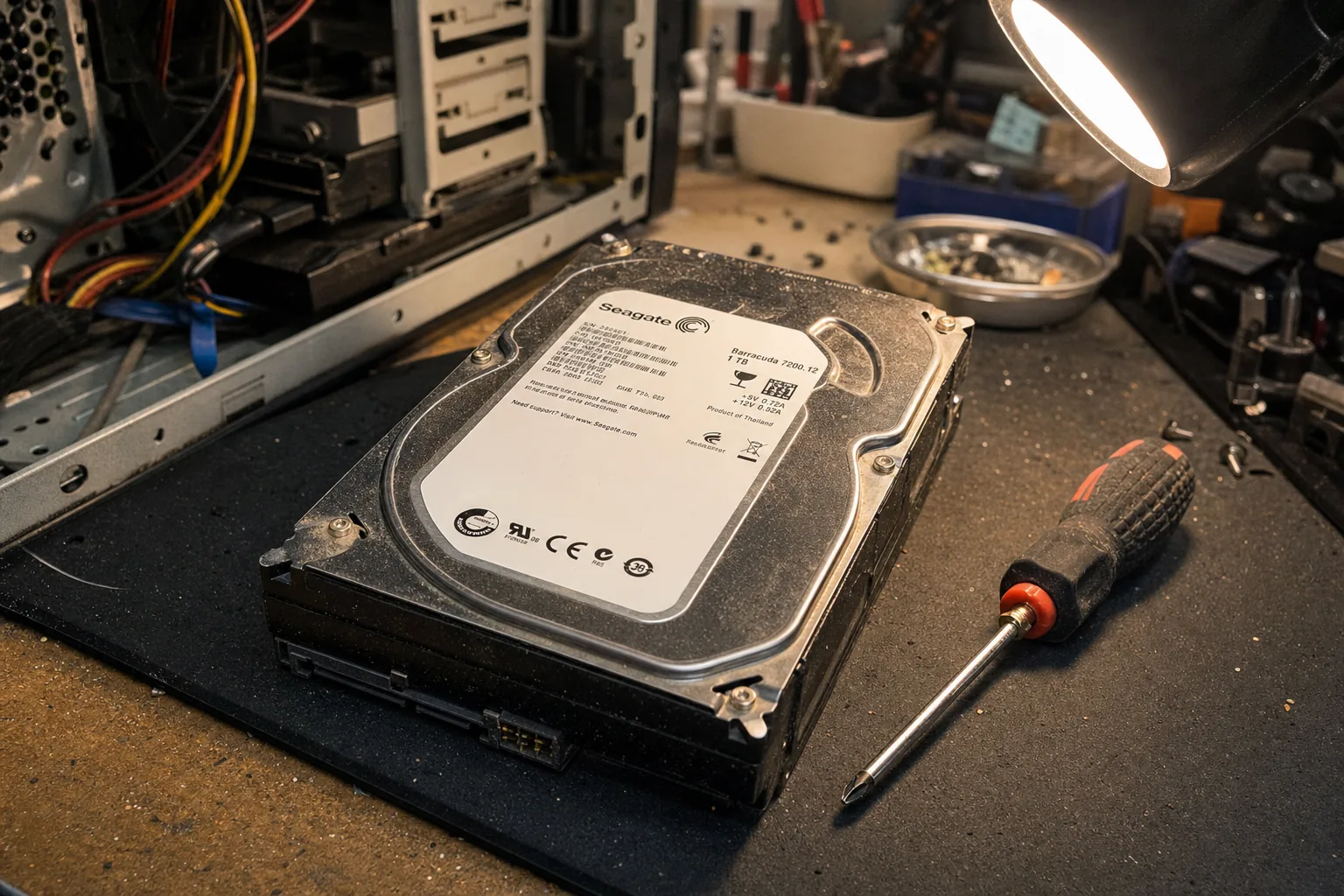

A customer brought in a desktop last month with a simple complaint: "It just freezes. Completely locks up, sometimes for a minute, sometimes forever." She'd already had someone tell her the motherboard was gone and that it wasn't worth fixing. I had a different hunch. Twenty minutes later I'd confirmed the motherboard was absolutely fine — and the hard drive was on its last legs.
See the Crucial MX500 on Amazon UK
This is one of the most common misdiagnoses I see. A dying hard drive doesn't always announce itself dramatically. It doesn't always make a clicking noise or refuse to boot outright. Often it just freezes. The machine sits there, cursor stuck, disk thrashing away, while Windows desperately waits for data that the drive is struggling to hand over. To the owner, it looks like a crashed computer. To me, it looks like a drive with bad sectors working its way towards failure.
The other thing worth saying plainly: when a hard drive is at this stage, your data is at risk. If your machine is freezing like this, stop using it casually and get the drive checked. I've seen people carry on for weeks and lose everything.
How to spot a dying drive
- Task Manager is your first stop. Press Ctrl + Shift + Esc, click the Performance tab, then Disk. A healthy drive should idle well under 10% most of the time. A drive in trouble will spike to 100% and stay there, even when you're doing nothing.
- Listen for the noise. A grinding, clicking, or repetitive clunking sound is serious. Get your data off immediately and don't switch the machine back on without advice.
- Run a SMART check. SMART is a self-monitoring system built into every hard drive. Download a free tool like CrystalDiskInfo — it reads the drive's own health data and flags problems in plain language. A result showing "Caution" or "Bad" is confirmation the drive is failing.
- Check how old the drive is. Mechanical hard drives typically last five to ten years. If yours is older and you've never replaced it, it's living on borrowed time regardless of symptoms.
What I do next on the bench
Once I've confirmed the drive is the problem, I clone it before anything else. Cloning copies everything — Windows, programmes, files — sector by sector onto a new drive. If the old drive is too far gone to clone cleanly, I recover what I can and do a fresh install. Either way, the replacement drive is almost always an SSD.
Swapping a failing mechanical hard drive for a solid-state drive does two things at once: it fixes the freezing and it transforms how the machine feels to use. The computer that was locking up every few minutes suddenly boots in fifteen seconds and opens programmes without hesitation. It's not magic — it's just that SSDs have no moving parts to wear out and no read-head that has to physically seek across a spinning platter.
For most desktops and older laptops with a 2.5-inch or 3.5-inch bay, a SATA SSD fits straight in. No case modifications, no fuss. For newer machines, check whether you need an M.2 drive instead — the slot looks like a small circuit-board slot on the motherboard rather than a bay with a cable.
The Repair Bench verdict
If your computer freezes randomly: check Task Manager for a disk pinned at 100%, run CrystalDiskInfo to read the drive's health status, and back up your data immediately — don't wait until it's fully dead.
Best fix for most desktops and older laptops: a 1TB SATA SSD such as the Crucial MX500 — reliable, widely compatible, and it gives the machine a new lease of life at a fraction of the cost of a replacement.
Watch out for: if the drive is already clicking or the SMART status shows serious errors, clone or recover the data first before the window of opportunity closes.
As an Amazon Associate we may earn from qualifying purchases, at no extra cost to you. We only recommend kit we would actually use.