
Why Your Desktop Keeps Shutting Down (And It's Not a Failing Hard Drive)
If your desktop is randomly switching off or throttling itself to a crawl, the answer is probably sitting inside the case right now — and it's free to fix.
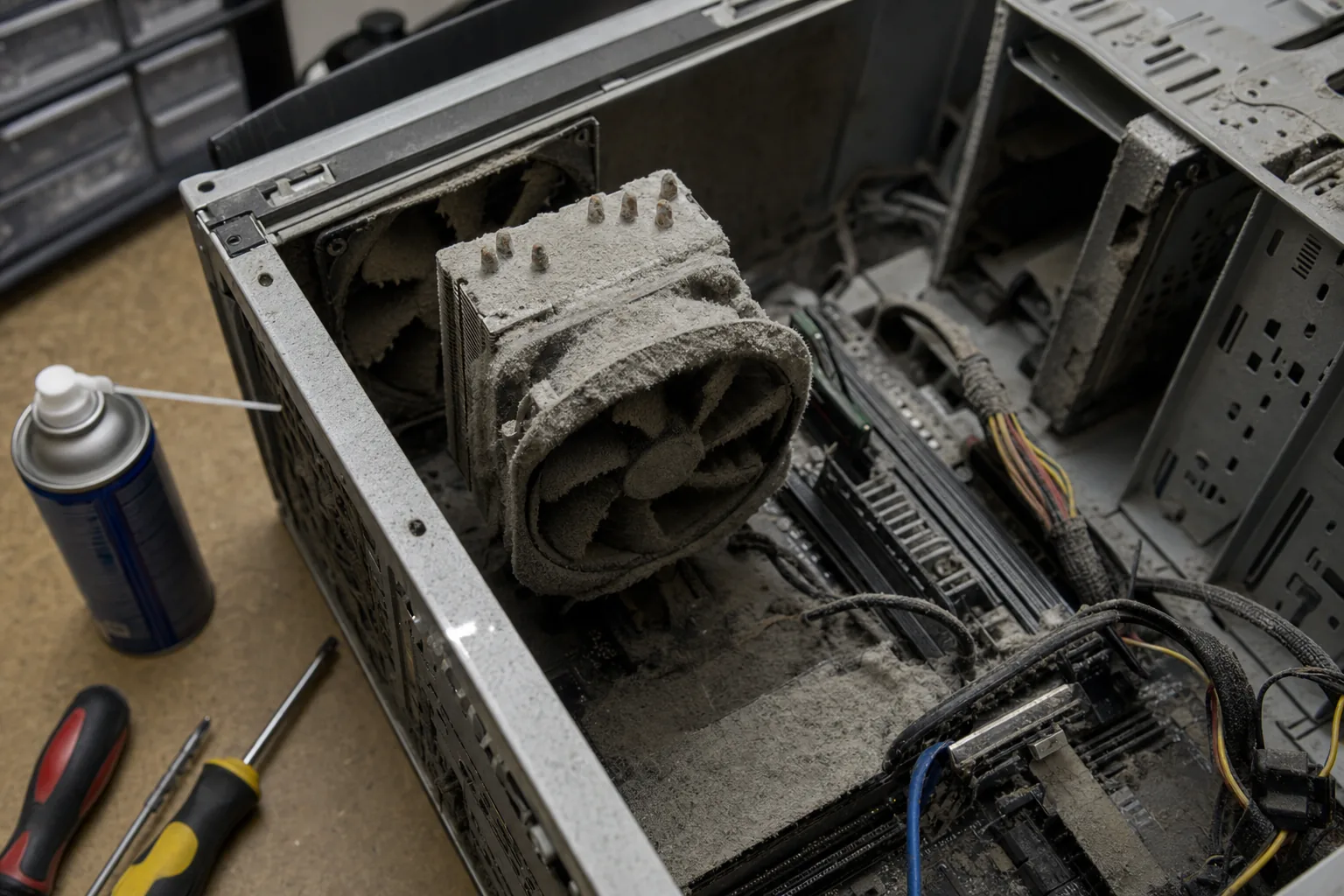

A customer brought in a mid-tower desktop last week with a familiar story: "It just turns itself off. Sometimes after ten minutes, sometimes after an hour." She'd already started browsing new machines. I took the side panel off, shone a torch inside, and nearly laughed — the CPU heatsink was so clogged with grey fluff it looked like a small animal had moved in. Forty minutes and a can of compressed air later, the machine ran perfectly.
This is one of the most common things I see on desktop computers that are more than three or four years old, especially those that live on carpet or under a desk. Dust accumulates on every fan and heatsink inside the case. Once there's enough of it, heat can't escape. The processor gets too hot, the system throttles itself to slow down and generate less heat, and if it gets bad enough the machine triggers a thermal shutdown to protect itself. The owner assumes the worst. Usually it's just dust.
How to tell if this is your machine
- It shuts off without warning, especially under load — gaming, video calls, rendering. That sudden cut-out is a classic thermal shutdown.
- The fans are screaming. If the machine sounds like a hairdryer at idle, the fans are working flat out trying to shift heat through a blocked heatsink.
- Download HWMonitor or HWiNFO and watch your CPU temperatures. Hitting 90°C or above at idle or light use is a clear sign something is wrong with cooling.
- Performance drops mid-task. If the machine starts something fine and then slows dramatically, that's thermal throttling — the processor cutting its own speed to cool down.
What I do on the bench
First, I open the case and take a look. Often that's all I need — the evidence is right there. I use a can of compressed air to blow dust out of the heatsink fins, the case fans, the power supply vents, and any intake grilles. I do this with the machine unplugged and ideally taken outside or to a well-ventilated space, because the dust that comes out is considerable. For particularly bad cases I'll remove the CPU cooler entirely, clean the old thermal paste off both the processor and the cooler base, and apply a fresh pea-sized blob of new compound. Thermal paste dries out and cracks over time, and replacing it can drop temperatures by ten degrees or more on its own.
After reassembly I run HWMonitor again and watch temperatures under load. A healthy mid-range desktop CPU should sit comfortably below 80°C even when pushed hard. Most of the machines I clean come back well within that range.
Can you do this yourself?
Yes, if you're comfortable opening a desktop case. It's far more forgiving than a laptop — components are bigger, more accessible, and nothing is glued in. A can of compressed air costs a few pounds. If you're not confident touching the CPU cooler, the blow-out alone often makes a meaningful difference. If temperatures are still high after cleaning, that's when I'd recommend bringing it in to have the thermal paste replaced properly.
The Repair Bench verdict
Before you replace an overheating desktop: open the case and look inside — if it's full of dust, a thorough clean and fresh thermal paste will very likely solve the problem entirely.
Best first step: a can of compressed air like the Falcon Dust-Off, blown through all the heatsinks, fans and vents with the machine unplugged.
Watch out for: if cleaning doesn't bring temperatures down, the thermal paste needs replacing — or in older machines, the CPU fan itself may have seized and need swapping out.