
Why Your PC Takes Forever to Start (And It's Not What You Think)
If your computer spends ten minutes waking up every morning, the hard drive probably isn't to blame — your startup list is.
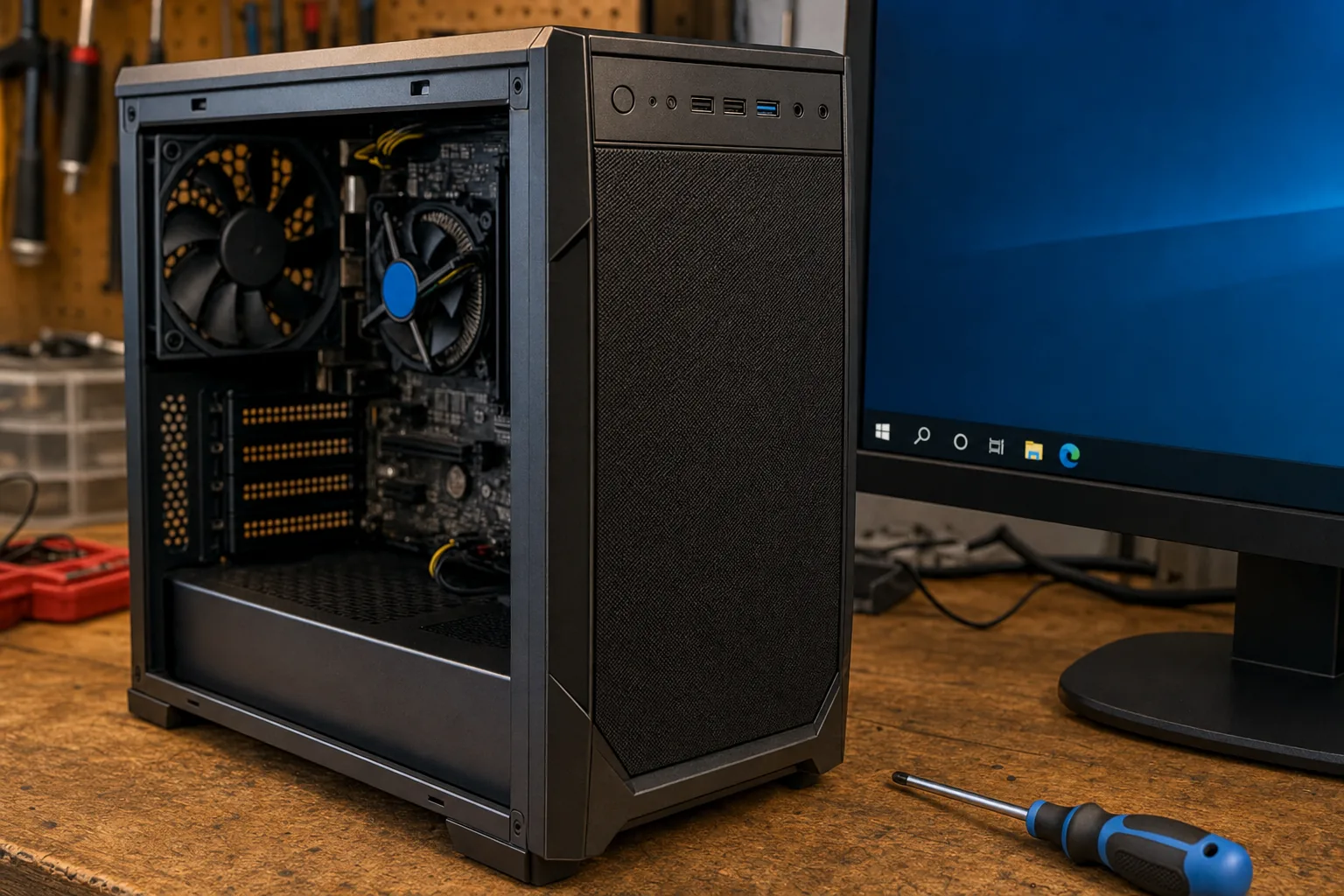

A customer brought in her desktop a few months back, absolutely convinced the machine was dying. "It takes ten minutes every morning before I can do anything," she told me. She'd already priced up replacements. I plugged it in, timed the boot, and watched the little spinning circle go round and round. The hard drive light was flickering like mad. I opened Task Manager and the culprit was obvious within thirty seconds — nothing whatsoever was wrong with the hardware.
What was wrong was the startup list. Over several years of installing software, she'd quietly accumulated over forty programmes set to launch the moment Windows started. Every single one was elbowing its way in at the same time, hammering the processor and the disk, and the whole lot gridlocked. The machine wasn't broken. It was just doing far too much, all at once, before she'd even touched the keyboard.
How to see what's actually happening
The first thing I do with any slow-to-start machine is open Task Manager straight after boot and leave it watching. You can get there by pressing Ctrl + Shift + Esc. Click the Startup apps tab (in Windows 11) or the Startup tab (Windows 10) and you'll see every programme that launches automatically, along with Windows' own rating of how much impact each one has.
- Look for "High" impact entries. These are the ones doing the most damage to your boot time and are the first candidates for switching off.
- Check the CPU and Disk columns on the Processes tab whilst everything's still loading. If either is sitting at 90–100% for several minutes, you've confirmed the bottleneck.
- Count how many entries there are. Anything above about fifteen to twenty is worth scrutinising carefully.
What to disable and what to leave alone
Right-clicking any entry in the Startup tab lets you disable it. Disabling doesn't uninstall the programme — it just stops it launching automatically. You can still open it yourself whenever you actually need it.
- Safe to disable: Spotify, Steam, Discord, Teams (if you don't use it for work), OneDrive (if you don't rely on it), Zoom, any printer or camera software that came bundled with hardware.
- Leave these alone: your antivirus, Windows Security, anything with "Intel," "AMD," or "Realtek" in the name — these are drivers your hardware needs.
- When in doubt: search the programme name online before disabling. A quick look tells you whether it's essential or just pushy software that added itself uninvited.
On my customer's machine I disabled twenty-three entries. Her boot time dropped from just over nine minutes to under ninety seconds. Same computer. Free fix. She cancelled the order for the new one.
One more thing worth checking
If you've trimmed the startup list and the machine is still sluggish once it gets going, it's worth checking in Task Manager whether Windows Search or any antivirus scan is running a heavy background job shortly after boot. These are legitimate processes, but they can make the first few minutes feel miserable. They do settle down — the trick is knowing that's what's happening rather than assuming the worst.
The Repair Bench verdict
Before you panic: open Task Manager, go to the Startup tab, and count how many programmes are set to launch automatically — you may be surprised.
Quick win: disable high-impact entries you recognise as non-essential; most people recover several minutes of boot time without touching a single setting they shouldn't.
Watch out for: a startup list that keeps filling up again — some programmes quietly re-enable themselves after an update, so it's worth a check every few months.