
The Reason Your "Backup" Drive Could Let You Down One Day
I've had to break bad news to more than a few people who thought their external hard drive was a permanent archive — it isn't.
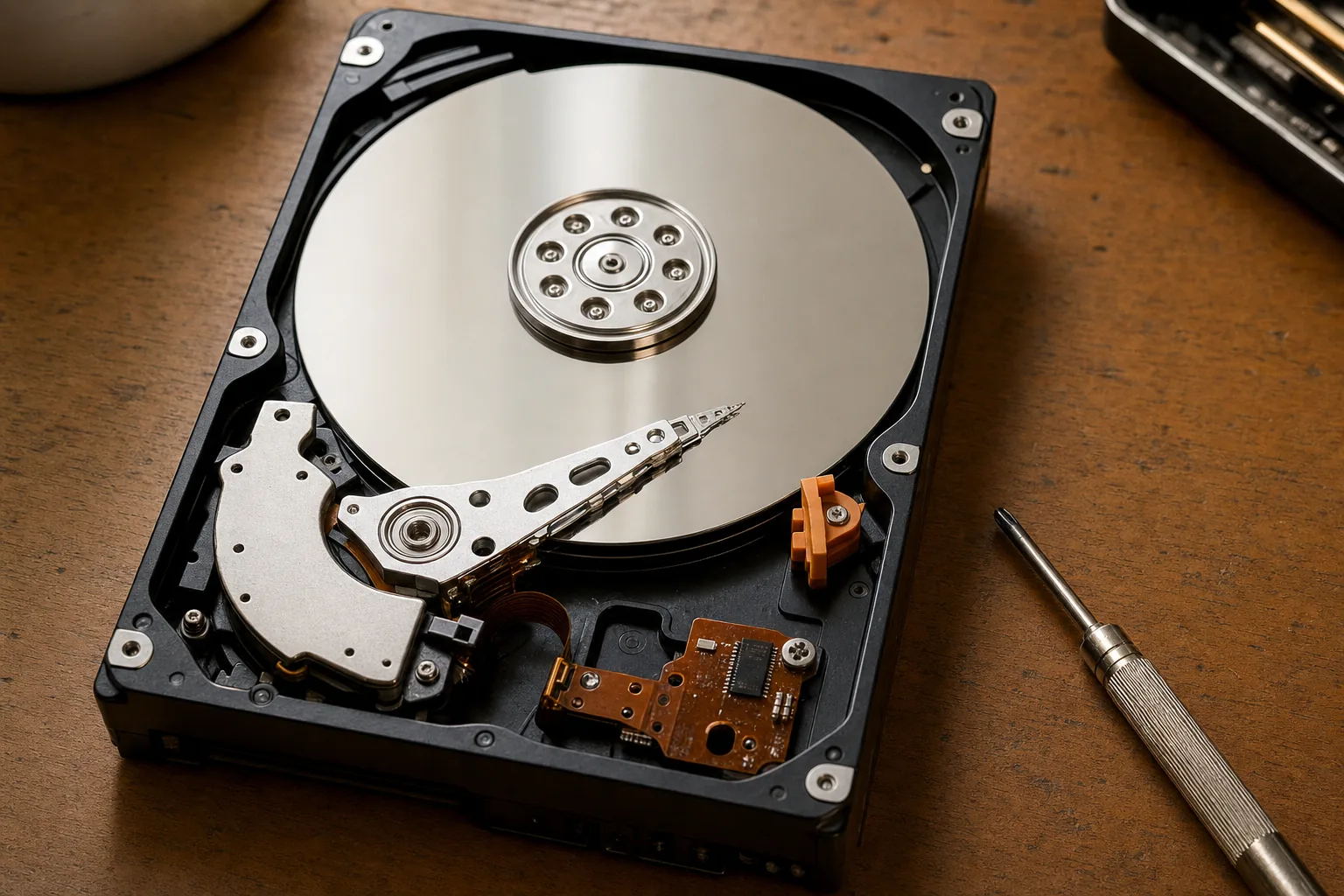

A woman came in last autumn clutching a portable hard drive and looking close to tears. It had lived in her bedside drawer for three years — never dropped, never abused — and now her laptop wasn't recognising it. On that drive: every photo from her children's first decade of life, completely unbacked up anywhere else. She'd assumed the drive was the backup. I hear some version of this story at least once a month.
I want to be clear before anything else: we recovered her files. It took a few hours and some careful work, and she left relieved. But she was lucky. Plenty of people aren't, and the tragedy is always the same — they trusted the drive implicitly because nothing had ever gone wrong with it.
External hard drives are brilliant, useful things. I'm not here to tell you to throw yours away. I'm here to tell you what they actually are: a temporary copy of your data, not a permanent home for it.
Why external drives fail quietly
A spinning hard drive — the kind inside the vast majority of portable drives on the market — stores data on magnetic platters that physically rotate thousands of times a minute when in use. Even sitting idle in a drawer, the magnetic coating degrades over time. The general industry estimate is five to ten years before reliability starts to drop, but I've seen drives fail at three years and others limp along past fifteen. There's no reliable way to predict which camp yours is in.
- Idle degradation is real. A drive you haven't plugged in for a year may struggle to read data it wrote perfectly well twelve months ago.
- Clicks and clunks are a warning. If your drive makes a rhythmic clicking noise when you plug it in, stop using it immediately and get it looked at.
- Slow transfers on a previously quick drive are worth paying attention to — it can mean the drive is working harder than it should to read its own data.
- Partial visibility is a sign of trouble. If your computer sees the drive but some folders are missing or show as empty, the drive may already be failing.
What you should actually do with your external drive
The golden rule in data protection is the 3-2-1 approach: three copies of your data, on two different types of media, with one copy stored somewhere physically separate. Your external drive counts as one of those copies — a good and useful one — but it should never be the only one.
- Plug your backup drive in every few months even if you're not adding new files. Spinning the platters up occasionally and running a quick check keeps you aware of its health.
- Add a cloud backup alongside it. Services like Backblaze or even a modest OneDrive or Google Photos subscription give you that offsite copy without much effort or expense.
- Check the drive's age. If you can't remember when you bought it, check the label on the underside — there's usually a manufacture date. Anything approaching seven or eight years old deserves to be replaced, not trusted with irreplaceable files.
- Don't store it next to magnets, heat sources, or in a damp environment. A bedside drawer is usually fine; a garage shelf is not.
What I tell every customer who walks in with one of these drives
I tell them exactly what I'm telling you: the drive has done nothing wrong, and it may well keep working for years yet. But the moment it becomes the sole guardian of your family photos, your financial records, or anything else you genuinely can't replace, it's carrying too much responsibility for what it is — a mechanical device with a finite life. Spread the risk. It costs almost nothing to do so, and the alternative, as that woman in October nearly found out, can be devastating.
The Repair Bench verdict
Don't rely on a single external drive: it's a useful copy, not a permanent archive — mechanical drives degrade over time whether you use them or not.
Do this today: plug your backup drive in, check everything is readable, then set up a second copy using cloud storage or a second drive kept elsewhere.
Watch out for: clicking noises, slow transfers, or folders that appear empty — any of these mean the drive needs attention before you lose access to your files.