
The Backup Device That Looks Like It's Working Until the Day You Need It
I've seen customers lose years of photos trusting a cheap USB stick — here's what actually goes wrong, and what to do instead.
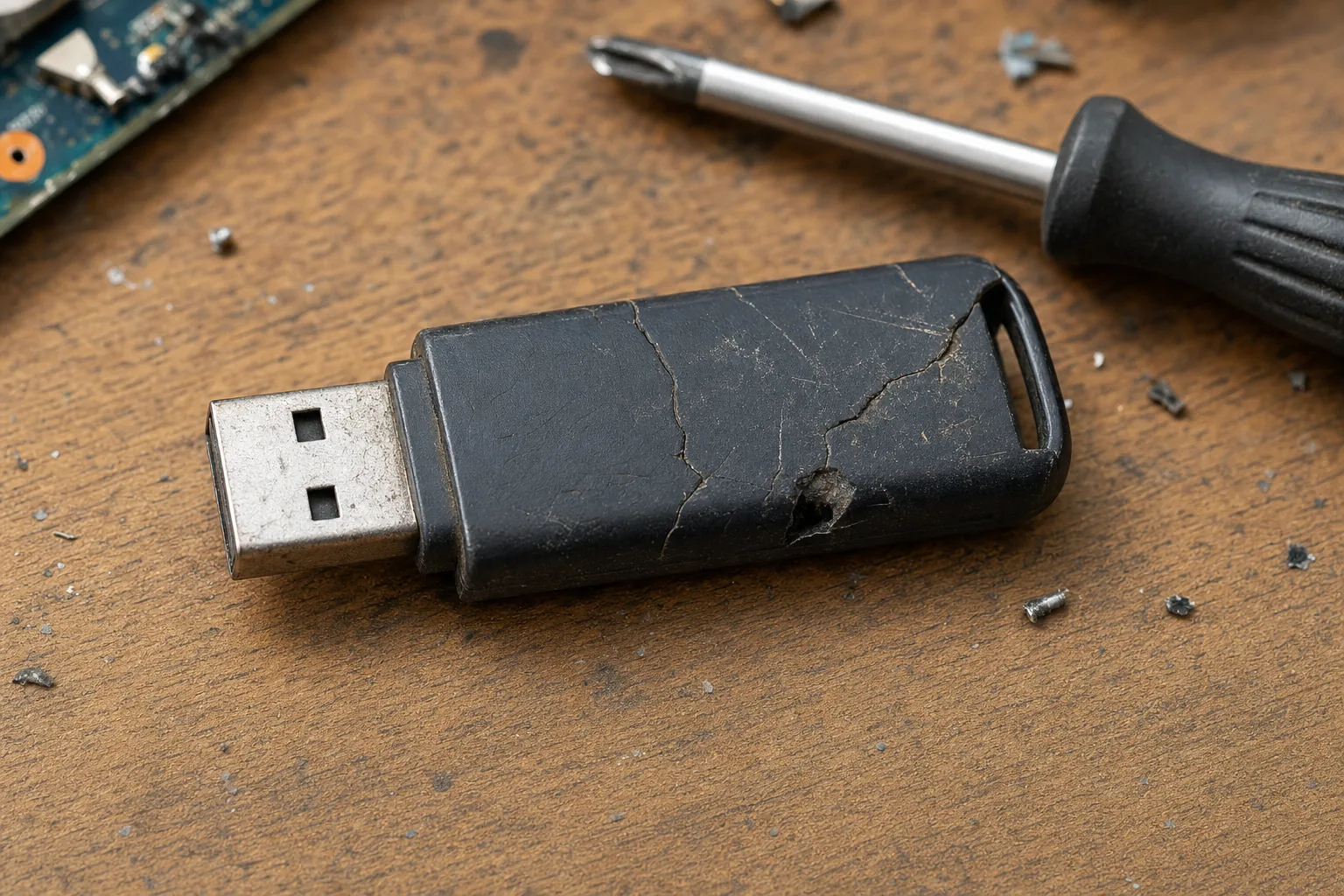

A woman came in last spring with a freezer bag full of USB sticks. She'd been backing up her photos onto them for years — birthdays, holidays, her kids growing up — rotating through four or five of the things like she'd read somewhere you should. Smart approach, sensible habit. The problem was that when her laptop died and she plugged in her sticks, two were completely unreadable, one had corrupted files, and one had somehow been formatted empty. Only one worked. Years of memories, gone. She was in tears at my bench, and I had to tell her there was very little I could do.
This is not a rare story. I see some version of it several times a year. The USB stick is probably the single most over-trusted piece of technology in the average home, and it quietly lets people down all the time.
Why USB sticks fail so often
Cheap flash memory is graded. The best quality chips go into professional SSDs and industrial storage. The lower grades — sometimes outright rejected chips — end up in budget USB sticks. Manufacturers aren't lying to you exactly, but they're not telling you the full story either.
- Flash memory has a finite write cycle. Every time you save something, you use up a little of its lifespan. Cheap sticks have far fewer reliable cycles than decent drives.
- They degrade sitting in a drawer. Flash cells leak charge over time, especially in warm environments. A stick you haven't used in two years may have already lost data silently.
- The controller chips are minimal. Better drives have error-correction built in. Many cheap sticks barely manage the basics, so corruption can spread without warning.
- They're physically fragile. The connector takes a battering every time you plug it in, and the casing on cheap ones offers almost no protection to the board inside.
The really insidious part is that a failing USB stick usually looks fine. It shows up in Windows, you can see your files listed, everything appears normal — right up until you try to open something and it errors, or you discover the files are there but won't copy.
What a proper backup actually looks like
I'm not going to tell you to subscribe to some cloud service if you don't want to. But I will say this: if you're serious about keeping something safe, it needs to live in at least two places, and neither of those places should be a £6 stick from a supermarket checkout.
- Use a named-brand portable SSD rather than a USB stick for anything you genuinely care about. They're more robust, faster, and built with proper flash memory.
- Keep a second copy somewhere else — a family member's house, or a cloud service like OneDrive or Google Photos. A fire or theft takes out everything in the same room.
- Check your backups occasionally. Plug it in every few months, open a few files. Don't just assume it's fine because it was fine last time.
- Label and date your drives. Flash storage older than five years should be treated with suspicion, regardless of how little it's been used.
If you've already been relying on a cheap USB stick and you're worried, bring it in. Sometimes I can recover what's there before it gets worse. But the time to act is before you need the backup, not after.
The Repair Bench verdict
The core problem: cheap USB sticks use low-grade flash memory that degrades silently — they look fine right up until they don't, and by then it's often too late.
What to use instead: a portable SSD from a reputable brand like the Samsung T7 — it's compact, robust, and built to a completely different standard than a budget stick.
The golden rule: two copies, two locations, and check them once in a while. A backup you've never tested is just a backup you haven't lost yet.