
The Hidden Cost of Letting Everyone Use the Same Windows Account
I see this every week — a family PC that's become everyone's problem because nobody set it up properly in the first place.
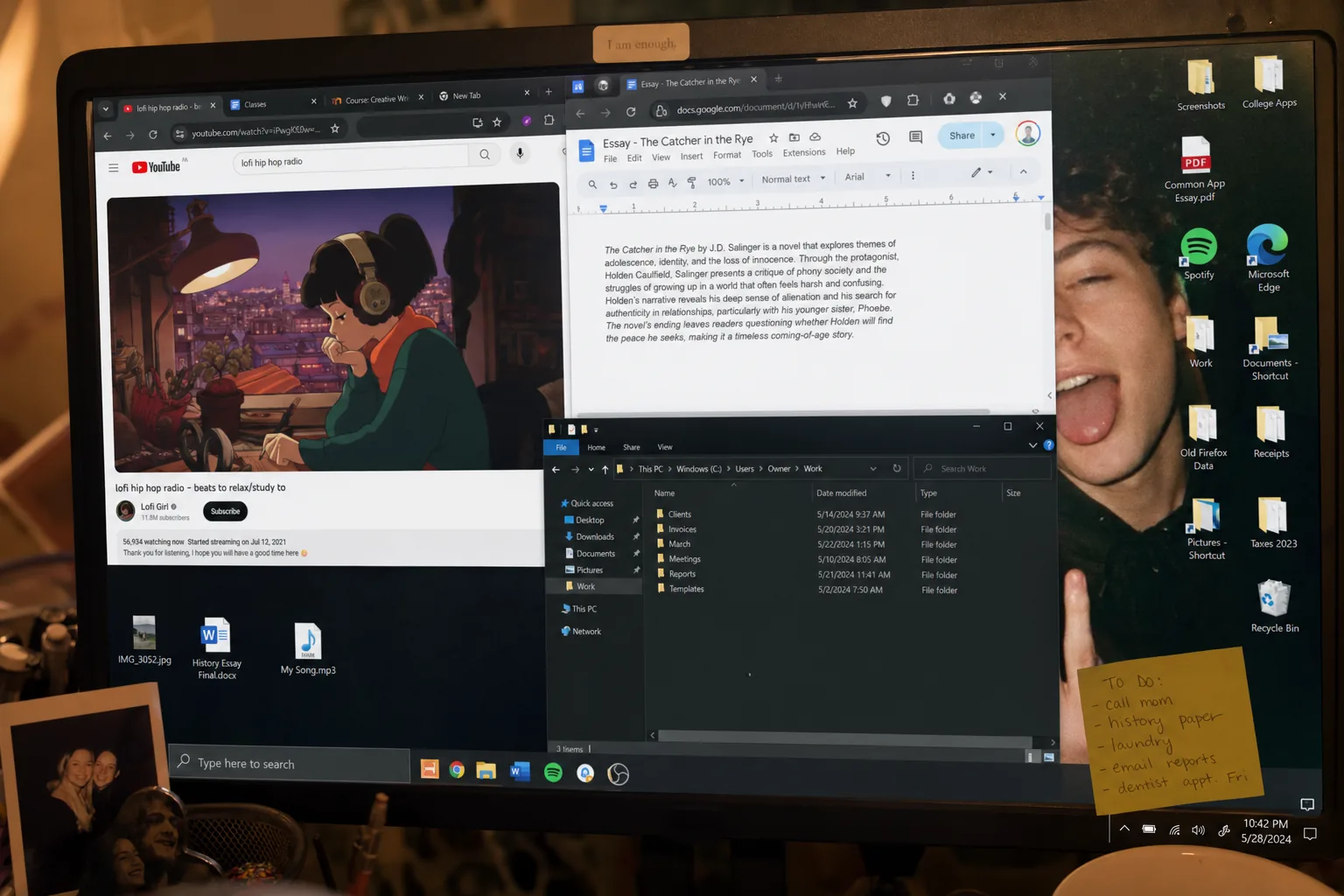

A father brought in a family desktop a few weeks ago, completely baffled. His wife's work documents had vanished, his teenage son's gaming software had somehow uninstalled itself, and the browser kept opening on a children's homework website. Nobody had done anything wrong, he insisted. And honestly, he was right. The problem wasn't behaviour — it was that all three of them had been sharing a single Windows account for years.
It's one of the most common setups I see, and it causes more grief than people realise. When a PC gets handed down or set up in a hurry, whoever switches it on first creates one account, and everyone just uses that. It feels fine for a while. Then it really doesn't.
What actually goes wrong
- Settings fight each other. One person moves the taskbar, another changes the default browser, someone installs a new screensaver. Every user's preferences overwrite everyone else's because there's only one set of preferences to overwrite.
- Files get mixed up or lost. The Desktop and Documents folders become a dumping ground for everyone. Somebody deletes what looks like junk — it wasn't.
- Browsers become a mess. Saved passwords, autofill data and browsing history all sit in one profile. A child can accidentally see a parent's banking site. A parent can accidentally save over a child's school project bookmark folder.
- Software installations interfere. A game that needs a certain runtime, or a tool that changes a file association, can quietly break something another user depends on — and nobody knows why.
- There's no privacy whatsoever. One account means one email client, one set of saved passwords, one browsing history. That's fine for one person. It's a headache for three.
The fix is simpler than most people expect
Windows has had proper multi-user support built in for a very long time. Each person gets their own account, their own Desktop, their own Documents folder, their own browser profile. Changes one person makes don't touch anyone else's setup.
Setting it up takes about ten minutes. Go to Settings > Accounts > Family & other users and add a new account for each person. For children, a Microsoft Family account gives you some parental controls too, which is worth knowing about. The existing account stays exactly as it is — you're just adding alongside it, not replacing anything.
- Give the main adult account administrator rights and set the others as Standard Users. That stops software being installed without your say-so.
- Move files before you start. Spend five minutes sorting out what's currently on the shared Desktop so nothing gets stranded.
- Set a PIN or password on each account. Even a simple one. Without it, separate accounts are just a courtesy knock with no door.
One thing I see go wrong at this stage
People sometimes switch to separate accounts and then find their browser bookmarks and saved passwords are stuck in the old profile. The easiest solution is to use a browser that syncs to an account — Chrome, Edge and Firefox all do this. Each person signs into the browser with their own credentials, and their bookmarks and passwords follow them regardless of which Windows account they're on.
It takes a little thought to set up properly, but once it's done, the family PC stops being a source of arguments and starts working the way it should have from day one.
The Repair Bench verdict
The core problem: one Windows account shared between multiple people causes settings conflicts, lost files and zero privacy — and it's entirely avoidable.
The fix: add a separate Standard User account for each person via Settings > Accounts > Family & other users; keep one Administrator account for the main adult.
Don't forget: sort files out of the shared Desktop first, set a PIN on every account, and have each person sign into their browser with their own profile so bookmarks and passwords travel with them.