
Best USB-C Hubs and Docks for MacBook and Windows Laptops
From pocket-sized travel hubs to flagship Thunderbolt 5 docks — matched to your laptop, with the display and charging caveats nobody else explains clearly.

We link to the exact model on Amazon UK. Prices change often, so check the live price before you buy. As an Amazon Associate we earn from qualifying purchases.
Modern laptops are gorgeously thin, but that minimalism leaves you reaching for a hub the moment you need a monitor and a wired keyboard.
Here's the uncomfortable truth about owning a beautiful, slim laptop in 2026: the moment you sit down at a desk, you're hunting for ports that simply aren't there. Even premium machines from Apple, Dell and Lenovo ship with just two to four USB-C or Thunderbolt ports — and that's your lot. If you want an external monitor, a wired keyboard, a USB-A flash drive, an SD card reader and an Ethernet cable all working at once, you need a hub or a dock. I've spent a long time living with these accessories, and the difference between the right one and the wrong one for your specific laptop is enormous.

See Anker 8-in-1 USB-C Hub on Amazon UK
Check today's price & availability on Amazon UK
This guide is built around one idea that most round-ups skip entirely: matching the hub to the laptop. A base MacBook Air has very different display capabilities to a 16-inch MacBook Pro, and a Windows ultrabook behaves differently again. Buy the wrong device and you'll spend an afternoon wondering why your second monitor refuses to wake up. So we'll go tier by tier, call out the display limitations honestly, and explain the charging passthrough maths that decides whether your laptop actually stays topped up.
What we'll cover
- Adapter vs hub vs dock — the jargon
- The MacBook display trap explained
- Charging passthrough maths
- Tier 1: Budget & portable hubs
- Tier 2: Mid-range desk docks
- Tier 3: Premium Thunderbolt docks
- Head-to-head comparison
- Who should buy what
- Our verdict
- FAQs
Adapter, Hub or Dock? Getting the Jargon Right
Before we spend any money, let's get the terminology straight, because manufacturers use these words loosely and it leads to disappointment. In broad terms, an adapter works with a single port — think a simple USB-C to Ethernet dongle, or a USB-C to USB-A converter. A hub gives you multiple ports from one connection, and a docking station (or "dock") gives you even more, typically with higher-end connectivity.
The most practical difference for your wallet and your desk tidiness comes down to power. Docks usually come with their own power supply — a chunky brick that plugs into the wall — which means they can deliver serious charging wattage to your laptop and power lots of bus-hungry peripherals at once. Hubs, by contrast, are generally bus-powered and rely on you plugging a separate USB-C charger into them if you want to pass power through to the laptop. Keep that distinction in your head; it explains nearly every "why won't this charge?" complaint you'll ever read.
Adapter
Single-purpose, single-port. Cheap, pocketable, limited. Great for one job done well.
Hub
Multiple ports from one USB-C connection, usually bus-powered. Add a charger for passthrough.
Dock
Maximum ports, its own power supply, high charging wattage, often Thunderbolt. The desk anchor.
The MacBook Display Trap (Read This Before Buying)
This is the single most important section in the whole guide for Mac owners, and it's the bit that trips up more people than anything else. Apple's silicon has very specific external display limits that depend entirely on which chip you have.
The base M1, M2 and M3 MacBook chips natively support only one external monitor. That's it. If you want to run dual or triple monitors from one of these machines, a normal HDMI hub won't help you — you need a hub with DisplayLink (a software-driven display technology) to push beyond Apple's single-display ceiling. The plain M3 MacBooks can drive two displays, but only if you close the laptop's lid, which is a frustrating compromise if you wanted to use the built-in screen too.
The good news is that the smarter M4 and M5 chips, along with all the Pro and Max variants (M1 Pro/Max through M5 Pro/Max), support multiple displays properly without these gymnastics. So before you buy a dual-HDMI hub for a MacBook, check your chip — otherwise that second HDMI port will only ever mirror your first display rather than extend it.
Windows users, breathe easy. This is almost entirely a Mac problem. Most Windows laptops happily drive multiple external displays from a single USB-C connection, often via MST (Multi-Stream Transport), which Apple silicon doesn't support in the same way.
Dual-monitor setups look simple — but on a base M-series MacBook, you'll need DisplayLink to make the second screen extend rather than mirror.
Charging Passthrough: Do The Maths First
The other place people get caught out is charging. A hub with "100W passthrough" sounds generous, but you need to know your laptop's actual charging requirement to judge whether it'll keep up under load. Here are the figures worth memorising for the MacBook range:
The practical takeaway: a 30W MacBook Air will stay charged off almost any decent hub. A 67W machine needs a hub rated at 85W or so to genuinely keep up whilst peripherals are drawing power. And if you own a 16-inch MacBook Pro, you really want a dock delivering 140W, because anything less means the battery slowly drains under heavy workloads even while "charging". Remember too that the rated passthrough figure is always higher than what reaches the laptop, because the hub itself skims off power to run its own ports.
Tier 1: Budget & Portable Hubs
This is where most people should start, and frankly where most people will be perfectly happy. Budget hubs have become remarkably capable — models under £40 now routinely offer 4K 60Hz HDMI, 100W power delivery and Gigabit Ethernet. Let's look at the standouts.
Anker 8-in-1 USB-C Hub — the best all-rounder
See Anker 8-in-1 USB-C Hub on Amazon UK
Check today's price & availability on Amazon UK
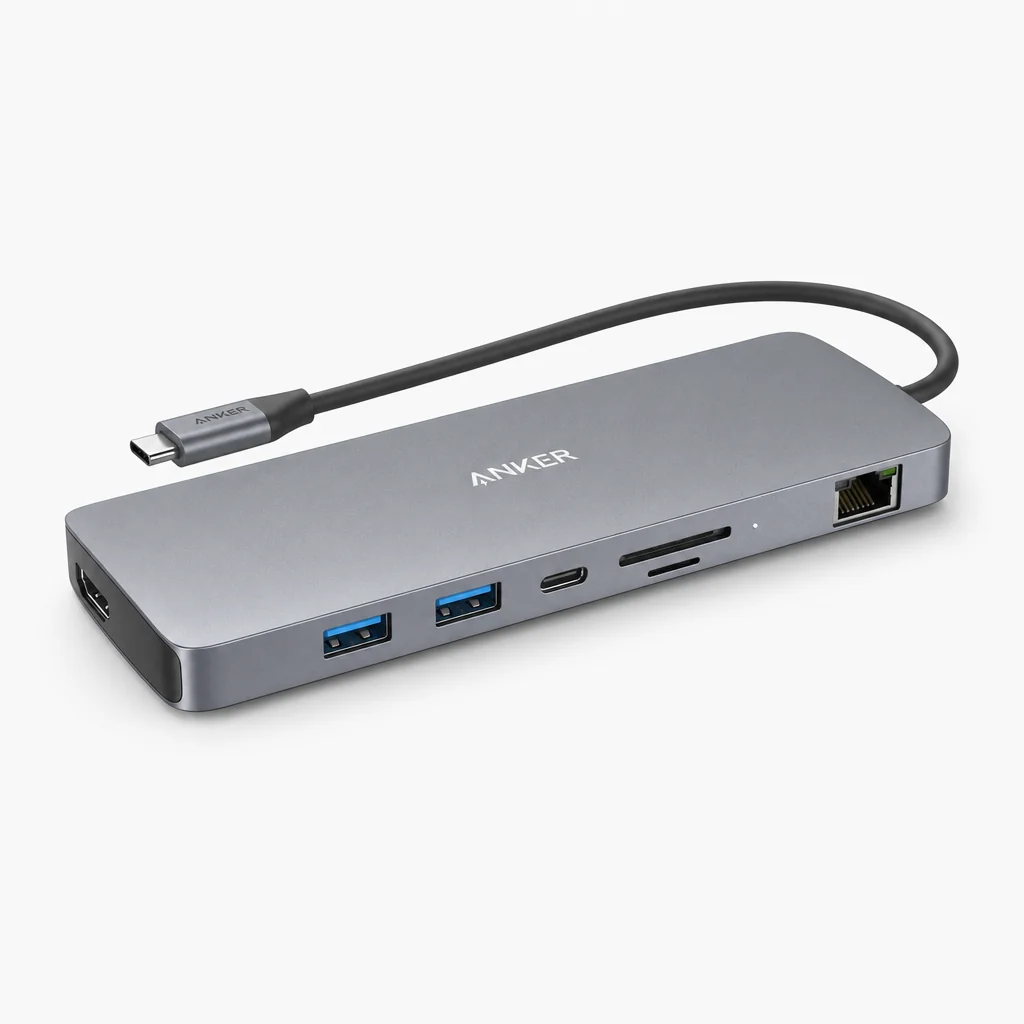
If you asked me to recommend a single hub to a friend with no further questions, the Anker 555 would be my reflexive answer. It's an 8-in-1 built around a single USB-C connection (USB 3.2, not Thunderbolt), and it crams in a USB-C PD input that charges your laptop at 85W, two USB-A 3.0 ports, an SD card reader, a microSD reader, a Gigabit Ethernet port and — unusually — two full HDMI outputs. The aluminium body feels properly premium too.
In testing, the 4K 60Hz HDMI output proved clean and stable, and every data port pushed a genuine 10Gbps — which is faster than a lot of pricier rivals manage. The 85W passthrough kept both a MacBook Pro 14 and a Dell XPS charged whilst simultaneously driving a monitor and peripherals, which is exactly the real-world scenario you care about. One review noted the SD reader hits full UHS-II speeds, which would be a lovely bonus for photographers if it holds true for your unit.
Mac owners, note the dual HDMI
Those two HDMI ports are brilliant on a Windows laptop or a Pro/Max MacBook. But on a base M1/M2 MacBook, the second HDMI will only mirror the first display, not extend it. A base M3 MacBook Air or Pro can drive a second external display with the lid closed on current macOS — because the Anker 555 has no DisplayLink. If you need genuine dual extended monitors on base Apple silicon, jump down to the Belkin further on.
Pros
- Clean, stable 4K@60Hz HDMI output
- Genuine 10Gbps on every data port
- 85W passthrough keeps mainstream laptops charged under load
- Premium aluminium build
- Two HDMI outputs — rare at this price
Cons
- No DisplayLink — second display only mirrors on base MacBooks
- USB 3.2, not Thunderbolt — not for heavy NVMe/8K work
- 85W is shy of what a 16" MacBook Pro really wants
The Anker 555's aluminium shell and dual-HDMI layout make it the hub I keep recommending for mainstream MacBook and Windows setups.
UGREEN Revodok Pro 109 (9-in-1) — a step up
See UGREEN Revodok Pro 109 (9-in-1) on Amazon UK
For around fifteen pounds more than the Anker, the UGREEN Revodok Pro 109 adds a ninth port — an extra USB-A — and a noticeably longer attached cable, which is the kind of small quality-of-life win you appreciate every single day when your laptop sits a little further from the hub. It's also a USB-C 3.2 device, offering the familiar mix of SD slots, USB-A ports, an Ethernet connection and a 4K HDMI hookup. The build quality is genuinely premium and it feels like the more considered, slightly more grown-up sibling to the Anker.
Satechi On the Go 7-in-1 — the traveller's choice

See Satechi On the Go 7-in-1 on Amazon UK
Check today's price & availability on Amazon UK
See Satechi On the Go 7-in-1 on Amazon UK
If you live out of a bag, the Satechi On the Go is the one to covet. It's a puck-form hub with a MagSafe attachment so it can cling to the back of a compatible phone or sit neatly alongside your laptop, and it offers 100W power delivery (with 80W reaching the laptop). For a MacBook Air or a 13/14-inch Pro that's plenty, and the travel-friendly form factor is a real selling point when desk space and bag space are both at a premium.
Plugable USB-C 7-in-1 — the budget caveat

See Plugable USB-C 7-in-1 on Amazon UK
Check today's price & availability on Amazon UK
I'll be honest here, because that's the point of this guide. The Plugable 7-in-1 is a genuinely cheap entry point with a rated 87W passthrough, but that passthrough has been noted as unreliable in testing, and crucially its HDMI is only version 1.4 — meaning 4K caps out at a juddery 30Hz rather than the smooth 60Hz you'll get from the Anker or UGREEN. For occasional, low-stakes use it's fine; for a daily driver with a 4K monitor, I'd spend a little more.
Belkin Connect Universal 8-in-1 — the base-MacBook dual-display fix

See Belkin Connect Universal 8-in-1 on Amazon UK
Check today's price & availability on Amazon UK
This is the hub that solves the MacBook display trap. The Belkin Connect Universal 8-in-1 uses SiliconMotion-enabled technology to drive dual extended displays even on a base M-series MacBook — exactly the scenario where the Anker would only mirror. If you've got a plain M1, M2 or M3 MacBook and you genuinely need two separate desktops across two monitors, this is the premium hub built for your situation.
Ready to pick a portable hub?
Check the latest price and any current bundles on Amazon.
Tier 2: Mid-Range Desk Hubs & Docks
Step up a tier and you move from "convenient travel companion" to "permanent desk anchor". These devices generally want a fixed spot on your desk, deliver more charging headroom, and in some cases introduce Thunderbolt or dual-display ambitions that the budget hubs can't match.
CalDigit Thunderbolt 5 Element 5 Hub
This one needs explaining because it's deliberately not a do-everything dock. The Element 5 is a pure Thunderbolt port expander: there's no built-in HDMI or Ethernet. Instead you get four Thunderbolt 5 ports and five USB ports, which makes it ideal for a MacBook Pro user who already has Thunderbolt monitors and wants to fan out maximum high-bandwidth connectivity rather than legacy ports. If your peripherals are modern and Thunderbolt-native, the simplicity is the appeal; if you still rely on HDMI and a wired network jack, look elsewhere.
UGREEN Revodok Max 213

See UGREEN Revodok Max 213 on Amazon UK
Check today's price & availability on Amazon UK
At around £299, the Revodok Max 213 is a proper Thunderbolt 4 dock that drives dual 4K displays and offers 90W charging. That 90W comfortably covers a 13/14-inch MacBook Pro or a 15-inch Air, and the dual-4K capability makes it a sensible mid-range desk solution for anyone whose laptop supports multiple displays natively.
Targus USB-C Dual 4K HDMI Docking Station
The Targus is the pragmatist's pick: 100W power delivery and dual HDMI 2.0 outputs running at 4K@60Hz, all in a compact form factor. If your priority is two crisp 4K screens plus enough power to keep a mainstream laptop charged, without paying Thunderbolt prices, it ticks the boxes neatly.
Kensington SD1650P Portable Docking Station
Kensington's SD1650P bridges the gap between hub and dock beautifully. It's a highly compatible portable dock with 100W PD that, crucially, works without wall power — so it behaves like a hub when you're travelling and like a dock when you're plugged in. That flexibility is genuinely rare and makes it a smart one-bag-fits-all option.
Monoprice 13-in-1 Dual-HDMI + DP MST Dock
For sheer port density, the Monoprice 13-in-1 is the headline grabber. It runs two 4K displays (one at 60Hz, one at 30Hz) using DSC compression and MST, and bundles in a generous spread of connectivity. The MST dependency means it's at its happiest on a Windows laptop, where multi-stream transport works as intended — another reminder that the right dock depends entirely on the machine you're plugging into.
Spot the pattern: dual-display docks that rely on MST (like the Monoprice) lean towards Windows, whilst Thunderbolt docks (like the UGREEN Max 213) play nicely with capable MacBooks. Always match the technology to your laptop's silicon.
Tier 3: Premium Thunderbolt Docks
Now we reach the serious end of the market — the docks that become the literal centre of your desk, with their own power bricks, a wall of ports, and the bandwidth to drive multiple high-resolution displays and fast storage simultaneously. Thunderbolt 5 has arrived properly in 2026, bringing 120 Gbps of bandwidth capable of running dual 8K displays and multiple high-speed NVMe drives at once. CalDigit dominates this conversation, and deservedly so.
Premium Thunderbolt docks like the CalDigit family turn a single laptop cable into a full desktop's worth of connectivity.
CalDigit TS4 — the Thunderbolt 4 benchmark

See CalDigit TS4 on Amazon UK
Check today's price & availability on Amazon UK
The TS4 has been the dock everyone else is measured against, and for good reason. It packs an astonishing 18 ports, 98W charging and 2.5 Gigabit Ethernet. If you want the most comprehensive Thunderbolt 4 dock available and you don't need Thunderbolt 5's extra bandwidth, the TS4 remains the gold standard — a single device that genuinely replaces a tangle of separate accessories.
CalDigit TS5 — the Thunderbolt 5 successor

See CalDigit TS5 on Amazon UK
Check today's price & availability on Amazon UK
Released in mid-2025, the TS5 brings Thunderbolt 5 to the family with 15 ports, a meatier 140W charging output, four Thunderbolt 5 ports and 2.5GbE. That 140W is the headline for 16-inch MacBook Pro owners — it's exactly the wattage Apple's biggest laptop prefers, so the battery genuinely stays topped up even under sustained load. It's the natural choice if you're future-proofing around Thunderbolt 5 peripherals.
CalDigit TS5 Plus — the flagship

See CalDigit TS5 Plus on Amazon UK
Check today's price & availability on Amazon UK
The TS5 Plus is the no-compromise option. Priced at around £499–£500, it offers a colossal 20 ports, 10 Gigabit Ethernet, dual USB controllers and the same 140W charging. The 10GbE and dual-controller design mark it out for power users — creative professionals shifting enormous files across a fast network, or anyone whose desk is genuinely a workstation rather than just a laptop dropping point.
Wavlink Thunderbolt 5 Thunderlight — the value TB5 pick
Shop Wavlink Thunderbolt 5 Thunderlight on Amazon UK
If you want into Thunderbolt 5 without CalDigit money, the Wavlink Thunderlight is the value champion. It offers four Thunderbolt 5 ports, 2.5GbE and 140W charging. The catch is that there's no built-in video port — you'll be running displays off the Thunderbolt ports themselves — so it suits someone with modern Thunderbolt or USB-C monitors rather than older HDMI screens. For the price, the bandwidth and charging on offer are hard to argue with.
Our composite rating for the premium Thunderbolt dock category — superb capability, with value the only natural compromise at the flagship end.
Head-to-Head: Picking Across the Tiers
Numbers in a table sometimes make the choice obvious in a way prose can't. Here's how the headline options stack up across the features that actually decide purchases.
| Feature | Anker 555 (Budget) | UGREEN Revodok Max 213 (Mid) | CalDigit TS5 Plus (Premium) |
|---|---|---|---|
| Interface | USB-C 3.2 | Thunderbolt 4 | Thunderbolt 5 |
| Ports | 8 | 13 ports total | 20 |
| Display | Dual HDMI 4K@60Hz | Dual 4K | Thunderbolt-driven |
| Charging | 85W | 90W | 140W |
| Ethernet | Gigabit | 1x Gigabit Ethernet | 10GbE |
| Data speed | 10Gbps per port | Thunderbolt 4 | Thunderbolt 5 |
| Power source | Bus-powered | Own PSU | Own PSU |
| Best for | Mainstream daily use | Dual-4K desk setup | Workstation power user |
| Buy | Check price | ||
| Buy | Check price | Check price |
How the charging output compares
Since charging is the quiet deal-breaker, here's a visual on the passthrough/charging wattage of the headline devices — and remember to map these against the MacBook requirements from earlier.
Who Should Buy What
The MacBook Air traveller
A 30W Air stays charged off almost anything. The Satechi On the Go's puck form and 80W-to-laptop output is perfect for life out of a bag.
The mainstream desk worker
The Anker 555 is the sweet spot: 4K@60Hz, 85W, Gigabit Ethernet and 10Gbps ports for sensible money. The UGREEN Revodok Pro 109 if you want a longer cable and an extra USB-A.
The base-MacBook dual-screener
Got a plain M1/M2, or an M3 that must stay open, and need two extended displays? The Belkin Connect Universal 8-in-1 with SiliconMotion is built precisely for you.
The Windows multi-monitor user
The Monoprice 13-in-1's MST dual-display approach shines on Windows, giving you two 4K screens and a wall of ports.
The MacBook Pro power user
The CalDigit TS5's 140W charging matches the 16-inch Pro's preference exactly, with four TB5 ports for high-bandwidth gear.
The workstation professional
The CalDigit TS5 Plus — 20 ports, 10GbE, dual controllers — is the no-compromise hub of a serious creative desk.
The Verdict
Our Final Take
There's no single "best" USB-C hub or dock — there's only the best one for your laptop and your desk, which is exactly why we structured this guide around matching rather than ranking. But if you want clear recommendations, here they are.
For most people, the Anker 555 is the hub to buy: stable 4K@60Hz HDMI, genuine 10Gbps data, 85W passthrough that keeps mainstream MacBooks and Windows ultrabooks charged, and a premium aluminium build, all for budget-tier money. It's the recommendation I'd give nine times out of ten.
If you own a base M1/M2/M3 MacBook and need two real desktops, the Belkin Connect Universal 8-in-1 with its SiliconMotion dual-display trick is the only one of the budget set that can do it. For a tidy dual-4K desk on a capable laptop, the UGREEN Revodok Max 213 or Targus Dual 4K are the value mid-rangers.
And at the top, CalDigit simply owns the category. The TS4 remains the Thunderbolt 4 benchmark, the TS5 brings 140W and Thunderbolt 5 to the masses, and the TS5 Plus is the flagship for anyone whose desk is really a workstation. The Wavlink Thunderlight is the clever value route into Thunderbolt 5 if you can live without a built-in video port. Match the wattage to your laptop, check your chip's display limits, and you genuinely can't go far wrong.
Match the dock to the laptop, mind the charging wattage and check your chip's display limits — get those three right and the rest takes care of itself.
Frequently Asked Questions
- Anker 8-in-1 USB-C HubView on Amazon
- Plugable USB-C 7-in-1View on Amazon
- Satechi On the Go 7-in-1View on Amazon
- Belkin Connect Universal 8-in-1View on Amazon
- UGREEN Revodok Max 213View on Amazon
- CalDigit TS5View on Amazon