
Logitech MX Master 4 Review: Does Haptic Feedback Change the Best Mouse?
Logitech's flagship productivity mouse gained vibrations, an Actions Ring and a tougher new skin. The important question is whether any of that makes the daily desk grind genuinely better.
We link to the exact model on Amazon UK. Prices change often, so check the live price before you buy. As an Amazon Associate we earn from qualifying purchases.
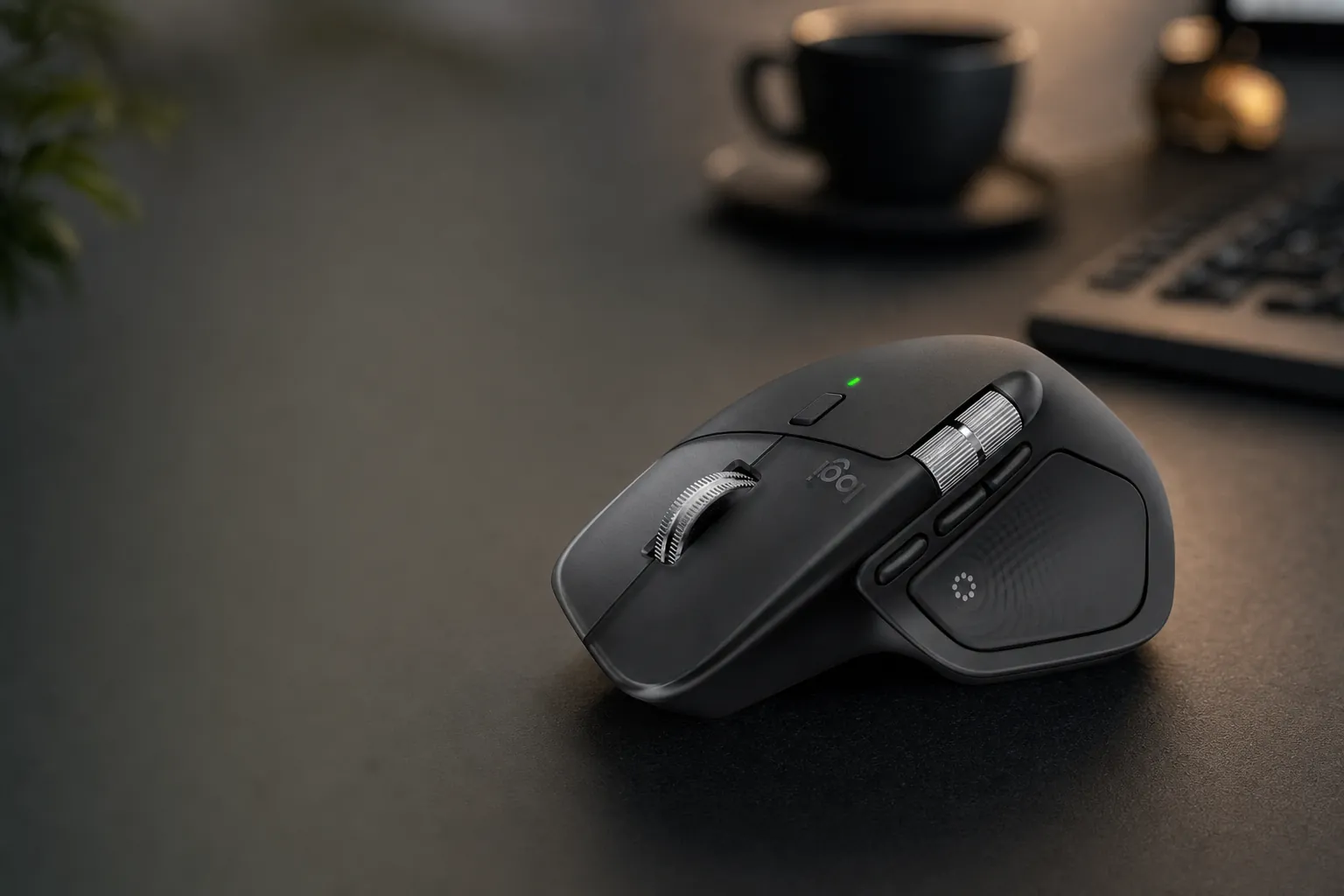
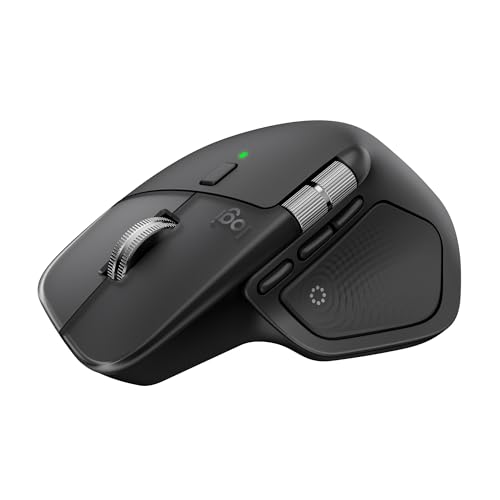
The MX Master 4 remains an unapologetically substantial right-handed mouse: this is a desk tool for long sessions, not a featherweight gaming accessory.
The MX Master formula had been difficult to improve because it already got the fundamentals right: a supportive shape, a brilliant scroll wheel, a genuinely useful thumbwheel and sensible multi-device switching. The MX Master 4 did not tear that up. It added haptics and software-led shortcuts to an already familiar workhorse. Sensible, perhaps. Exciting? That depended entirely on your workflow.
The haptic gamble: what has actually changed?
Premium productivity mice are not normally thrilling. They are meant to disappear into the working day: moving through sprawling spreadsheets, nudging clips around a timeline, switching between a laptop and a desktop, and making hundreds of tiny decisions feel a fraction less fiddly. Logitech's MX Master line had become one of the default answers for that sort of work, so the MX Master 4 had a difficult job. It needed to evolve without breaking the muscle memory people had spent years building.
The headline addition was the Haptic Sense Panel. Rather than making the scroll wheel buzz or turning every click into a tiny earthquake, Logitech placed haptic feedback around the thumb area and linked it to the Actions Ring, app-specific controls and system reminders. It is a confirmation layer: a small physical acknowledgement that a command registered, a connection changed or a shortcut was reached.
That is a more useful ambition than haptics for their own sake. Anyone who has used a phone with enthusiastic vibration knows the danger. Feedback is helpful until it becomes a needy little tap on the shoulder every few seconds. Here, the best use is quiet reassurance that saves you looking away from the task in front of you.
The audience is clear. This is for writers, analysts, developers, designers and office professionals who care more about comfort, customisation and moving between devices than twitchy gaming response. If your day begins with Slack, ends in Excel and somehow includes a browser with 47 tabs, you are very much the target market. If your day begins with ranked Counter-Strike, you should keep walking.
The short version
Haptics did not reinvent the MX Master. They made most sense as tactile confirmation for shortcuts and repeated commands. The real reasons to buy this mouse remained its comfort, MagSpeed scrolling, thumbwheel and three-device workflow.
There were three configurations. The standard MX Master 4 and MX Master 4 for Mac shared model number MR0118 and the same core hardware. The MX Master 4 for Business used part number 910-007617 and added management tools for IT departments.
Three flavours of the same flagship
Logitech sensibly avoided turning the MX Master 4 range into a confusing hardware ladder. The standard model, Mac version and Business edition were fundamentally the same mouse in the hand. There was no secret faster sensor hiding in the Mac box, no lightweight Business special, and no artificial downgrade designed to punish people for choosing the wrong colour.
The standard MX Master 4 was the straightforward choice for mixed Windows and macOS desks. It came in Graphite and Pale Grey, included a USB-C Logi Bolt receiver and also supported Bluetooth Low Energy. That receiver choice was a welcome update for newer laptops and docks, although it was less convenient for an older desktop with USB-A ports only. In that case, a hub or adapter became part of the story.
The MX Master 4 for Mac was the styling-led option. It came in White Silver and Space Black, and Logitech listed the same 150 g weight, 200–8,000 DPI Darkfield sensor, 650 mAh battery, up-to-70-day battery rating and 125 Hz report rate as the ordinary version. In other words, buy it because it suits your Apple desk rather than because you expect extra speed or a different ergonomic fit.
The Business model was the one an IT team could actually deploy without losing sight of it afterwards. Alongside Bluetooth Low Energy and a USB-C Logi Bolt receiver, it supported Logi Tune and Logitech Sync for deployment, monitoring and configuration. It also carried Zoom, Works With Chromebook and Intel vPro accessory certifications. For a lone freelancer, that is mostly background noise. For a company fitting out a hybrid office, it is the difference between "nice mouse" and "approved procurement line item".
Logitech MX Master 4
Standard UK retail price, with USB-C Logi Bolt receiver and Bluetooth Low Energy support.
MX Master 4 for Mac
Space Black was listed at this price by Argos; the core hardware matched the standard model.
MX Master 4 for Business
Including VAT from a UK business reseller, with enterprise management features.
Standard MX Master 4
The best fit for professionals moving between Windows, macOS and multiple personal devices, particularly if the bundled USB-C receiver suits your laptop or dock.
MX Master 4 for Mac
A Mac-oriented finish and retail configuration, not a performance upgrade. The physical specifications and core capability were the same.
MX Master 4 for Business
The practical pick for managed fleets, adding Logitech Sync visibility, Logi Tune support and a confirmed two-year limited hardware warranty.
The standard and Mac versions shared the same fundamental body and internals; the decision was mainly about finish, bundle preference and the devices on your desk.
A substantial shape built for eight-hour days
The MX Master 4 was not trying to be invisible in a laptop bag. At 128.15 mm deep, 88.35 mm wide and 50.8 mm high, it occupied a serious amount of desk real estate. At 150 g, it was also heavier than the MX Master 3S, which weighed 141 g. This is the sort of mouse that sits planted under your hand rather than skating around the mat.
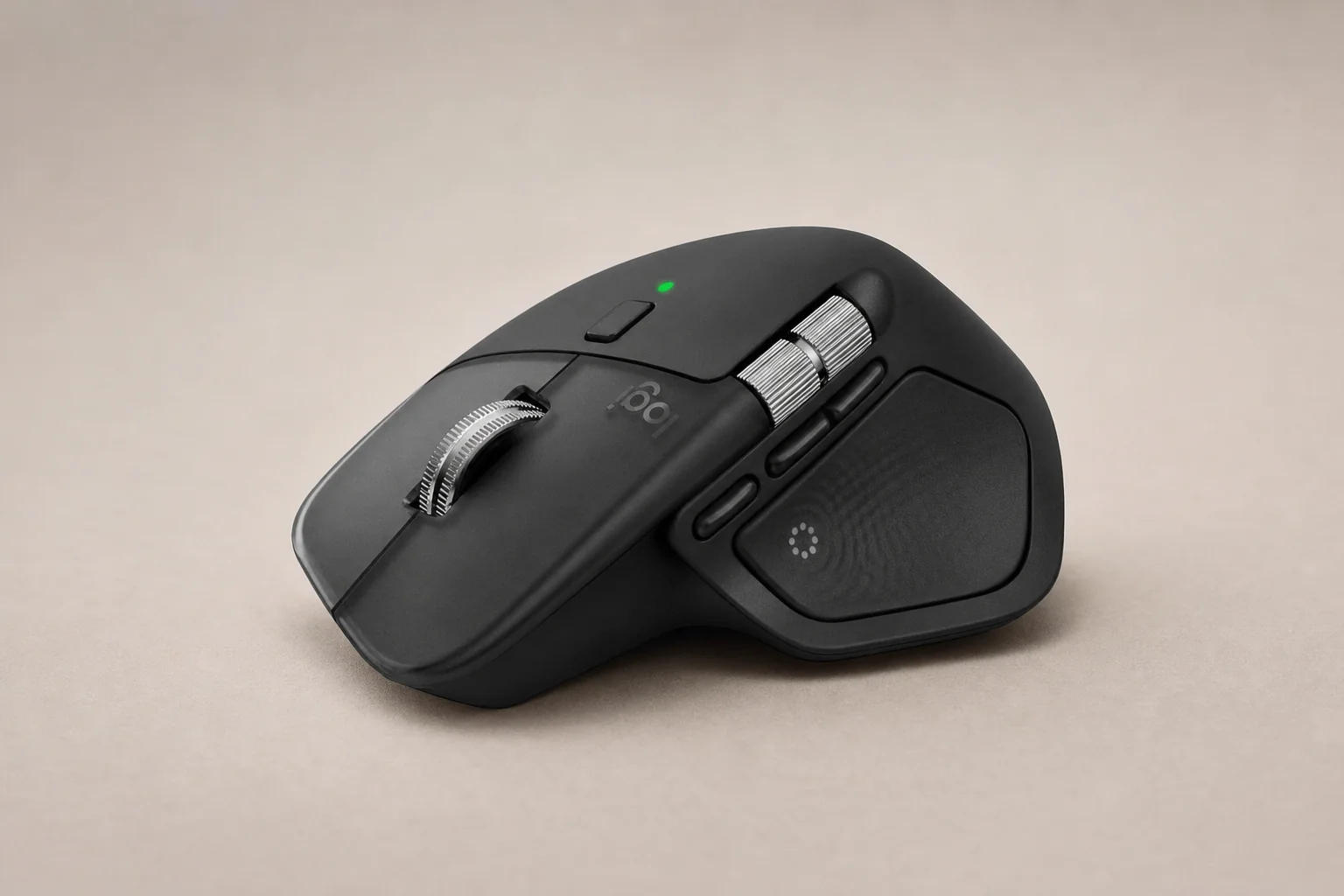
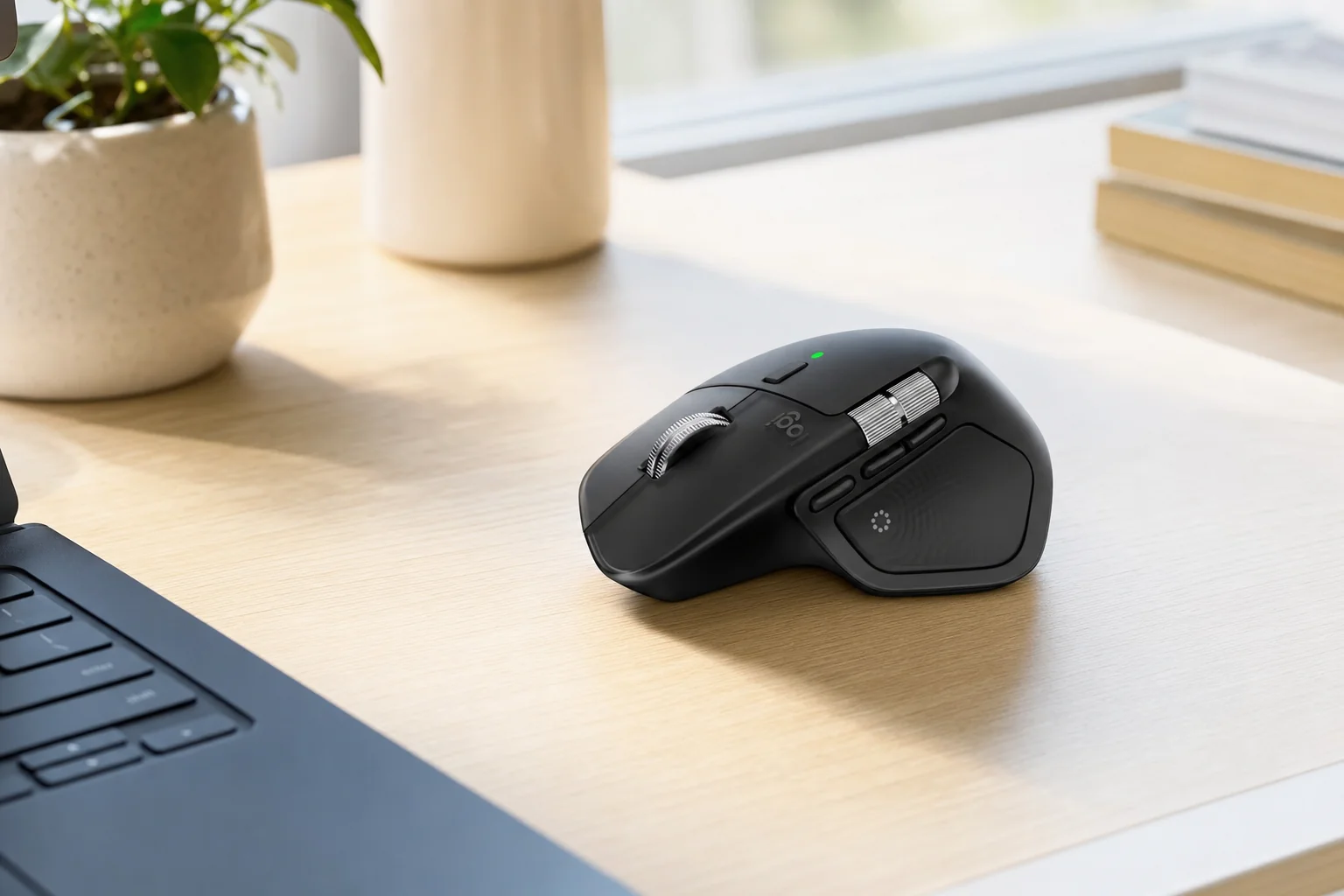
For medium-to-large right hands, the shape was the main attraction. The broad rear supported the palm, the angled silhouette encouraged a relaxed wrist position and the thumb rest gave your hand somewhere natural to settle. It did not force an exaggerated handshake posture in the way a vertical mouse can, but it was far less flat and tense than a basic travel mouse. That makes a difference after a long afternoon of editing documents or cleaning up a complicated spreadsheet.
There is a trade-off, naturally. The same generous body that feels luxurious for a larger hand can feel bulky for a smaller one. Reaching the forward control, thumbwheel and Haptic Sense Panel requires more thumb travel than on a compact mouse, and the tall rear can make fingertip-heavy grips feel less natural. Logitech had designed this for a relaxed palm grip, not for darting about with your fingertips. It is comfortable within that lane. Outside it, the size becomes something you notice.
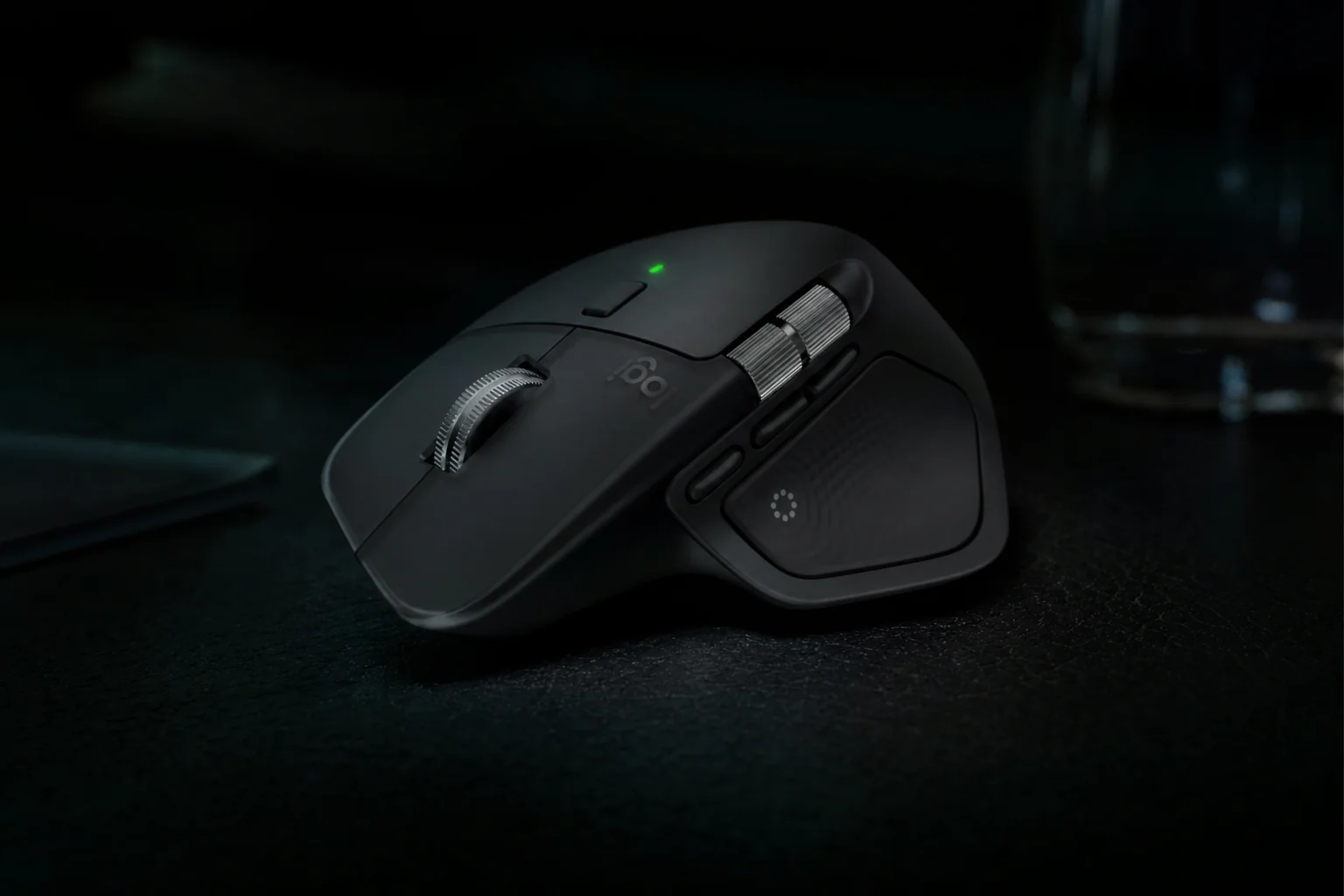
The revised surface treatment was one of the quieter but more meaningful changes. Logitech moved away from much of the MX Master 3S's soft-touch rubberised exterior and used harder plastic with dense silicone or rubberised grip areas instead. That may sound like a downgrade if you equate soft-touch coating with luxury, but it was a sensible durability play. The older coating could become sticky or deteriorate with age. A mouse that costs this much should survive years of coffee-adjacent work without eventually feeling like a neglected car dashboard.
There were eight controls in total: left and right click, middle click, back, forward, gesture control, wheel mode-shift and the Haptic Sense Panel. The main buttons were pleasingly quiet, in keeping with Logitech's Quiet Click approach. Logitech claimed a 90% reduction in click noise compared with the MX Master 3, although in practical use reviewers did not find it appreciably quieter than the already subdued MX Master 3S. That is not a criticism. "Not louder than the excellent quiet one" is a perfectly respectable outcome.
The important controls were placed where productivity users actually need them. The back and forward buttons sat by the thumb, the thumbwheel handled horizontal movement, and the gesture/Haptic area added a programmable command layer without crowding the main top surface. The shape was busy but not bewildering. After a few days, the controls became muscle memory; before then, your thumb might do the occasional exploratory press. Consider it an onboarding ritual.
Fit matters more than the specification sheet
If you have smaller hands or prefer a compact fingertip grip, do not assume the MX Master name guarantees comfort. The 150 g body and broad thumb wing reward a relaxed palm grip and plenty of hand room.
Haptics in practice: helpful signal or desk decoration?
Haptic feedback was the MX Master 4's entire party trick, so it deserved a closer look than a quick "it vibrates" verdict. The Haptic Sense Panel produced feedback through the thumb area, with the behaviour tied to Logitech's software, Actions Ring controls and supported plugins. It was not a vibrating scroll wheel, and it did not make the entire body hum like a gaming controller.
That placement was important. A cue delivered through the thumb was easier to interpret as a command confirmation than a general vibration coming from nowhere in particular. In a well-configured workflow, it could tell you that an Actions Ring selection had landed, that a particular shortcut had been activated, or that the mouse had a battery or connection event to flag. The idea was not to add sensation to every interaction. It was to reduce the tiny moments of visual checking that interrupt a task.
Logi Options+ offered four haptic intensity levels: Subtle, Low, Medium and High. The sensible setting depended less on personality than on the job. Subtle was for people who wanted feedback without thinking about feedback. Low gave a clearer nudge while staying unobtrusive. Medium made more sense if your desk was busy and you wanted distinct confirmation. High was the setting for anyone who genuinely wanted to feel the system responding, rather than merely know it had done so.
My advice is to start low. Haptics work best when they remain below the threshold of annoyance. If you notice every pulse, the implementation is probably louder than it needs to be. The mouse is already full of tactile cues: the wheel has a character, the buttons have travel, and the thumbwheel has a physical relationship to horizontal movement. The haptic layer should complement those things, not audition for lead role.
Shortcut confirmation
The strongest use of haptics was confirming an Actions Ring selection or a configured command without making you pause to check the screen.
Status reminders
Haptic reminders for battery and connection events were practical because they surfaced something worth noticing without becoming another pop-up.
App-specific commands
Supported apps and plugins could turn repeated actions into a more tactile workflow, though the usefulness depended on your software and setup habits.
The Actions Ring was the other half of the story. Activated from the Haptic Sense Panel, it brought up an on-screen radial shortcut menu that could be configured around the applications and commands you use most. Logitech's own Ergo Lab study claimed up to 63% less mouse movement for tested desktop actions among 37 MX Master users. Treat that as an illustration of the intended benefit, not an independent universal benchmark. It is plausible that a radial command menu reduces travel. It is not a guarantee that every workflow suddenly becomes 63% more efficient.
For people who repeat the same actions all day, though, there was a real argument. A video editor could use it for application commands. A spreadsheet-heavy analyst could build shortcuts around navigation or formatting. A developer might use it for window management, clipboard actions or workspace controls. It only pays off if you take the time to configure it. Out of the box, it is clever. After a little setup, it can be genuinely useful. That is the difference between a feature and a workflow.
The advanced haptic and gesture experience leaned heavily on Logi Options+ and supported plugins. That is fine on a permanent desk setup, but it is less elegant when moving between machines because customised settings were not stored in onboard memory.
The Haptic Sense Panel sits where the thumb naturally rests, making feedback most useful as a quick confirmation layer for shortcuts and status events.
MagSpeed, Darkfield and the limits of 125 Hz
Haptics might have made the headlines, but the MagSpeed wheel remained the MX Master 4's best feature. Logitech's electromagnetic vertical scroll system could switch between ratcheted precision and free-spin speed, giving you a neat mechanical-feeling wheel for line-by-line document work and a friction-light spinner for racing through huge pages, timelines or long spreadsheets.
It is one of those things that is easy to underestimate until you go back to a normal office mouse. A regular wheel is adequate. MagSpeed is enjoyable. You can feel the difference when moving through a report, navigating a giant browser page or finding a point in a long document. The separate thumbwheel was just as important for some users. Wide spreadsheets, video timelines and horizontally sprawling interfaces are all unpleasant with a standard mouse; the thumbwheel turns them into something far more civilised.
The Darkfield high-precision sensor covered a 200–8,000 DPI range, with 1,000 DPI as the nominal setting. That was more than enough for office work, high-resolution displays, design applications and multi-monitor setups. The 8,000 DPI figure should not be mistaken for a gaming pitch. Its practical benefit was flexibility: enough sensitivity to suit different screen sizes and desk layouts, rather than an invitation to fling a cursor through a first-person shooter at ludicrous speed.
Darkfield tracking had long been aimed at difficult surfaces, including glass. That remains handy if you work from meeting rooms, kitchen tables or a desk that is more style statement than mouse-pad habitat. Even so, this is a 150 g productivity device and the sensor experience should be understood in that context. It felt accurate for pointing, selecting, editing and navigating. It was not designed to compete with specialist gaming hardware.
The limiting figure was the fixed 125 Hz report rate, equivalent to an 8 ms report interval over Bluetooth and the receiver. On a conventional office display, that is perfectly workable. On a fast high-refresh monitor, it feels old-fashioned beside modern gaming and high-performance productivity mice. RTINGS found click and sensor latency adequate for casual gaming but unsuitable for competitive play, and that assessment was right on the money.
| Specification | Logitech MX Master 4 | Logitech MX Master 3S | Razer Pro Click V2 | Keychron M6 8K |
|---|---|---|---|---|
| UK price | £119.99 | About £68.99–£77 | £99.00 | £74.99 |
| Weight | 150 g | 141 g | About 110 g | About 86 g |
| Sensor resolution | 200–8,000 DPI | 200–8,000 DPI | Up to 30,000 DPI | 100–30,000 DPI |
| Multi-device support | Up to 3 devices | Up to 3 devices | Up to 5 devices | Bluetooth, 2.4 GHz and wired |
| Battery claim | Up to 70 days | Up to 70 days | Up to 3.5 months | Up to 120 hours |
| Buy | Check price | Check price |
Pros
- MagSpeed remains exceptional for both precise and fast scrolling.
- The separate thumbwheel is superb for wide spreadsheets and timelines.
- Darkfield tracking and 8,000 DPI offer plenty of flexibility for professional desks.
- Quiet main buttons suit shared offices and late-night work.
Cons
- The fixed 125 Hz report rate looks dated beside faster modern mice.
- At 150 g, it is too heavy for rapid competitive gaming.
- Click and sensor latency are fine for casual play, not esports.
- Right-handed ergonomics exclude left-handed users entirely.
MagSpeed's ratchet and free-spin modes remain a genuinely useful productivity advantage, especially when a normal wheel would turn long documents into a thumb workout.
One mouse, three computers, fewer interruptions
For many professionals, the killer MX feature was not the sensor or even the scroll wheel. It was the ability to manage up to three devices from one mouse. That can mean a Windows desktop and MacBook on the same desk, a work laptop beside a personal machine, or a tablet joining the party when you are reviewing notes. This is where the MX Master 4 felt built for modern hybrid work rather than simply premium desk aesthetics.
Easy-Switch handled the fundamental device hopping, while Bluetooth Low Energy and Logi Bolt gave you two routes to connect. Bluetooth was convenient for avoiding receiver clutter and particularly useful with tablets, modern laptops and temporary workstations. The USB-C Logi Bolt receiver was the tidier option where you wanted a dedicated connection and had an appropriate port available.
Logitech rated wireless range at up to 10 m. In a normal desk setup, you should never be anywhere near that limit, but range figures are less useful than connection confidence. The important point is that the MX Master 4 was designed for a busy desk full of monitors, laptops and docks. Logitech also claimed stronger connectivity than the MX Master 3S for Business through a new radio chip and revised antenna placement.
The small complication is physical port choice. USB-C was the right direction for current ultrabooks and newer docking stations, but it can be awkward on an older desktop or laptop that only has USB-A. Bluetooth solves that if it is available and reliable on your machine. If not, you will want a USB-C adapter or hub. It is not a deal-breaker, but it is worth checking before spending flagship-mouse money.
Easy-Switch for up to three devices
Made the most sense for people with permanent multi-device desks, where swapping between work and personal systems is a normal part of the day.
Bluetooth Low Energy
Convenient for laptops, tablets and clean desks where you would rather not occupy a port with a receiver.
USB-C Logi Bolt receiver
A practical fit for current hardware and docks, while older USB-A-only computers may need an adapter or hub.
The Business version was the only configuration aimed at fleet management. Logitech Sync, Logi Tune and remote device visibility mattered to IT teams, but did not change the core pointer, scroll or haptic experience for an individual user.
The 70-day promise versus real desk life
Battery life was one of the MX Master 4's quieter strengths. Logitech fitted a 650 mAh rechargeable Li-Po battery, rated it for up to 70 days and said one minute of charging could provide up to three hours of use. Those are the kind of figures that make a mouse feel like an appliance rather than another gadget you need to manage.
As ever, the headline maximum needs context. Haptics cost power, and real use varies wildly depending on how many hours you work, how heavily you use shortcuts and whether the mouse doubles as an occasional gaming device. Independent observations painted a sensible rather than magical picture: WIRED used approximately 60% of the battery over a month, TechRadar saw more than 20 hours before the indicator moved from 100% to 95%, and Tom's Guide reported two solid working weeks under substantial use or three to four weeks with lighter daily use.
That is still excellent. Even the more conservative reports put the MX Master 4 comfortably beyond the point where battery anxiety becomes a routine part of the week. Logitech's full 70-day figure looked plausible as a light-use maximum, rather than the realistic result of ten-hour days with haptics enabled and a lot of active switching.
USB-C charging was exactly what this class of mouse needed. The standard consumer announcement said a charging cable was not included, which is a rather stingy omission at £119.99, although many buyers will already have one on their desk. The mouse could be used while connected to power according to WIRED, so an unexpectedly flat battery did not bring work to a halt. It simply turned a wireless mouse into a temporary wired one. Not glamorous, but very practical.
Daily-use wins
- Excellent endurance even when real-world use falls short of the 70-day maximum.
- A one-minute top-up for up to three hours is extremely useful before a meeting.
- USB-C charging is easier to live with than older proprietary solutions.
Battery caveats
- Haptics increase consumption compared with the MX Master 3S.
- Heavy mixed use can reduce runtime to around one and a half weeks.
- The consumer package did not include a charging cable.
USB-C charging and a claimed one-minute top-up for up to three hours make a low battery an inconvenience rather than a work-stopping emergency.
Does £119.99 still make sense?
At £119.99, the MX Master 4 sat firmly in premium territory. You are not paying for gaming-grade speed, an ultralight shell or RGB theatrics. You are paying for a large ergonomic body, Darkfield tracking, a superb vertical wheel, horizontal thumbwheel, three-device capability, quiet clicks, software customisation and the new haptic layer. That is a coherent package, but it is also a package with a direct internal rival.
The MX Master 3S was the awkward comparison because it preserved much of the core experience at a substantially lower current street price of around £68.99–£77. It was lighter at 141 g, still offered 200–8,000 DPI tracking, up-to-70-day battery life, MagSpeed scrolling, a thumbwheel and three-device connectivity. It did not have haptics, the Actions Ring or the USB-C receiver, but it remained very close to the new model where everyday comfort and scrolling were concerned.
The Razer Pro Click V2 showed another route. At £99, it was around 110 g, offered up to 30,000 DPI, nine programmable controls, five-way multi-device connectivity and up to 3.5 months of battery life. It was the more versatile choice for someone who wants one mouse for work and more serious games, although Logitech's thumbwheel-led workflow and MagSpeed experience remained more distinctive for spreadsheet and timeline work.
Then there was the Keychron M6 8K. At £74.99, it was considerably cheaper and much lighter at approximately 86 g, while offering a 30,000 DPI PixArt PAW3950 sensor and up to 8,000 Hz polling over 2.4 GHz or wired. It was the obvious specification-led alternative for someone annoyed by the MX Master 4's 125 Hz ceiling. The catch was that Logitech's software ecosystem and mature productivity workflow remained stronger reasons to choose the MX.
| Buyer priority |
|---|
| Best premium productivity workflow |
| Best value for existing MX fans |
| Best work-and-gaming compromise |
| Best for speed-focused buyers |
The MX Master 4 therefore made most sense for someone buying into the workflow as a whole. If haptics, Actions Ring, revised materials and the USB-C receiver sound useful, the premium is defensible. If your favourite MX feature is simply the shape and MagSpeed wheel, the older MX Master 3S remained the value champion.
The scorecard: where the Master 4 earns its crown
A productivity mouse should be judged by whether it improves the working day, not by whether it wins a sensor arms race. Against that brief, the MX Master 4 did very well. Its ergonomics were excellent for the right hand size, its wheel system remained class-leading, and its multi-device features were genuinely useful rather than just something to mention on the box.
The lower marks came from limitations that Logitech did not really need to accept at this price. A fixed 125 Hz report rate is unambitious in 2026, even if the target user is not an esports competitor. The 150 g weight also makes it a slow mover beside modern alternatives. And whilst the haptic system is well judged, it is not a must-have upgrade for everyone, particularly if you already own an MX Master 3S and are happy with it.
Gadget Scout rating: 8.5/10
The MX Master 4 is a superb desk mouse for professionals who will use its controls and multi-device skills. It is less compelling as a replacement for an MX Master 3S, and it is emphatically not the mouse to buy for competitive gaming.
The MX Master 4 makes most sense on a permanent, multi-device desk where its scrolling controls, shortcuts and comfortable shape can earn their keep every day.
The right tool for the right kind of professional
It is easy to call the MX Master 4 "the best mouse" and leave it there. That is not quite right. It is one of the best premium productivity mice for a particular kind of user: right-handed, desk-based, comfort-focused and likely to use more than one computer. Put it in the right hands and it feels like a very good investment. Put it in the wrong ones and it is simply a large, expensive, slightly heavy mouse with a vibrating thumb rest.
Logitech MX Master 4
See Logitech MX Master 4 on Amazon UK
Check today's price & availability on Amazon UK
Quiet buttons, long-session comfort and rapid document scrolling make it a lovely companion for people who live in browsers, documents and reference material.
Logitech MX Master 4
The horizontal thumbwheel and MagSpeed vertical wheel are the standout tools for wide sheets, long reports and creative timelines.
Logitech MX Master 3S

See Logitech MX Master 3S on Amazon UK
Check today's price & availability on Amazon UK
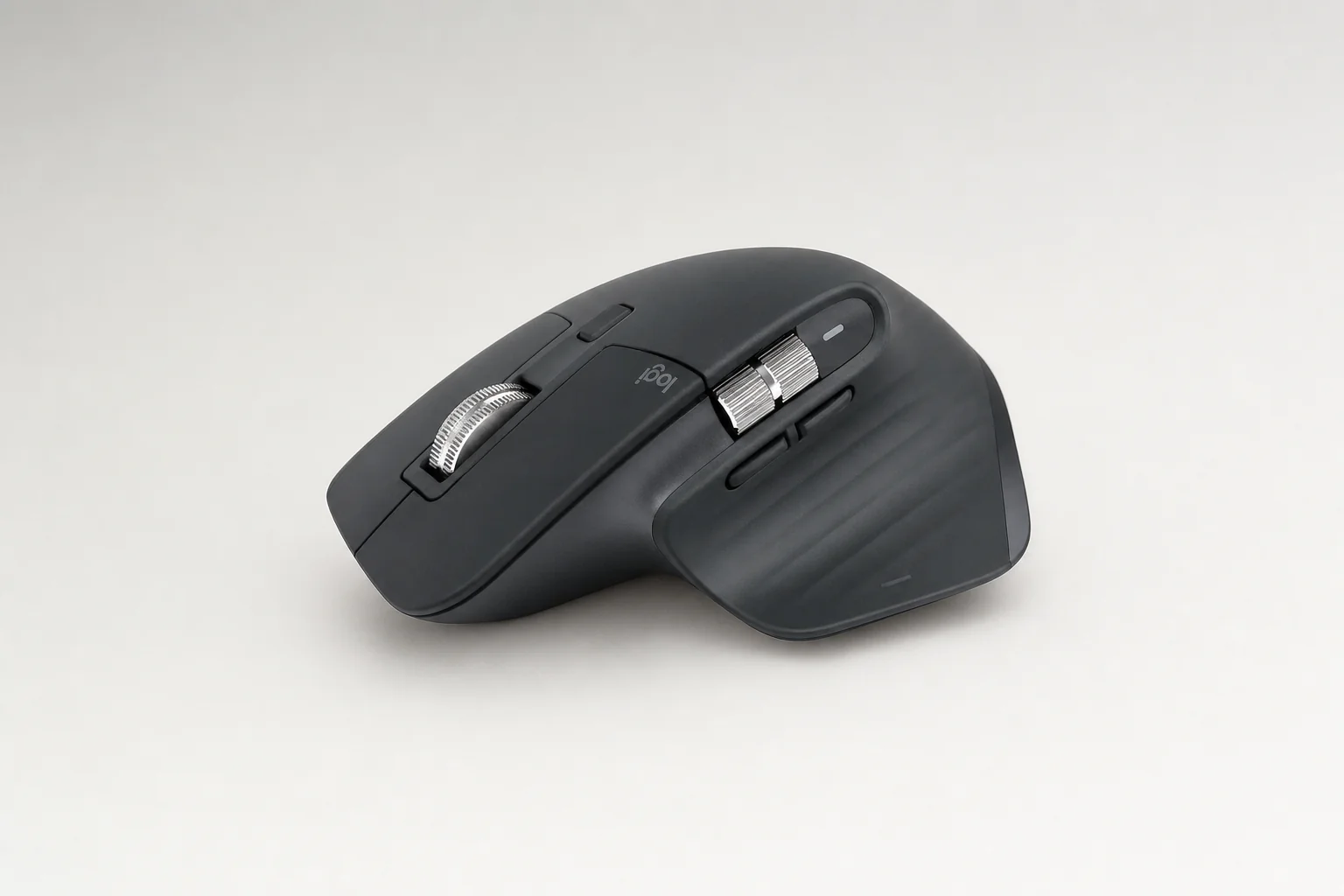
Choose it if the haptic panel and Actions Ring do not matter to you. It preserved most of the core MX experience for much less money.
Razer Pro Click V2
See Razer Pro Click V2 on Amazon UK
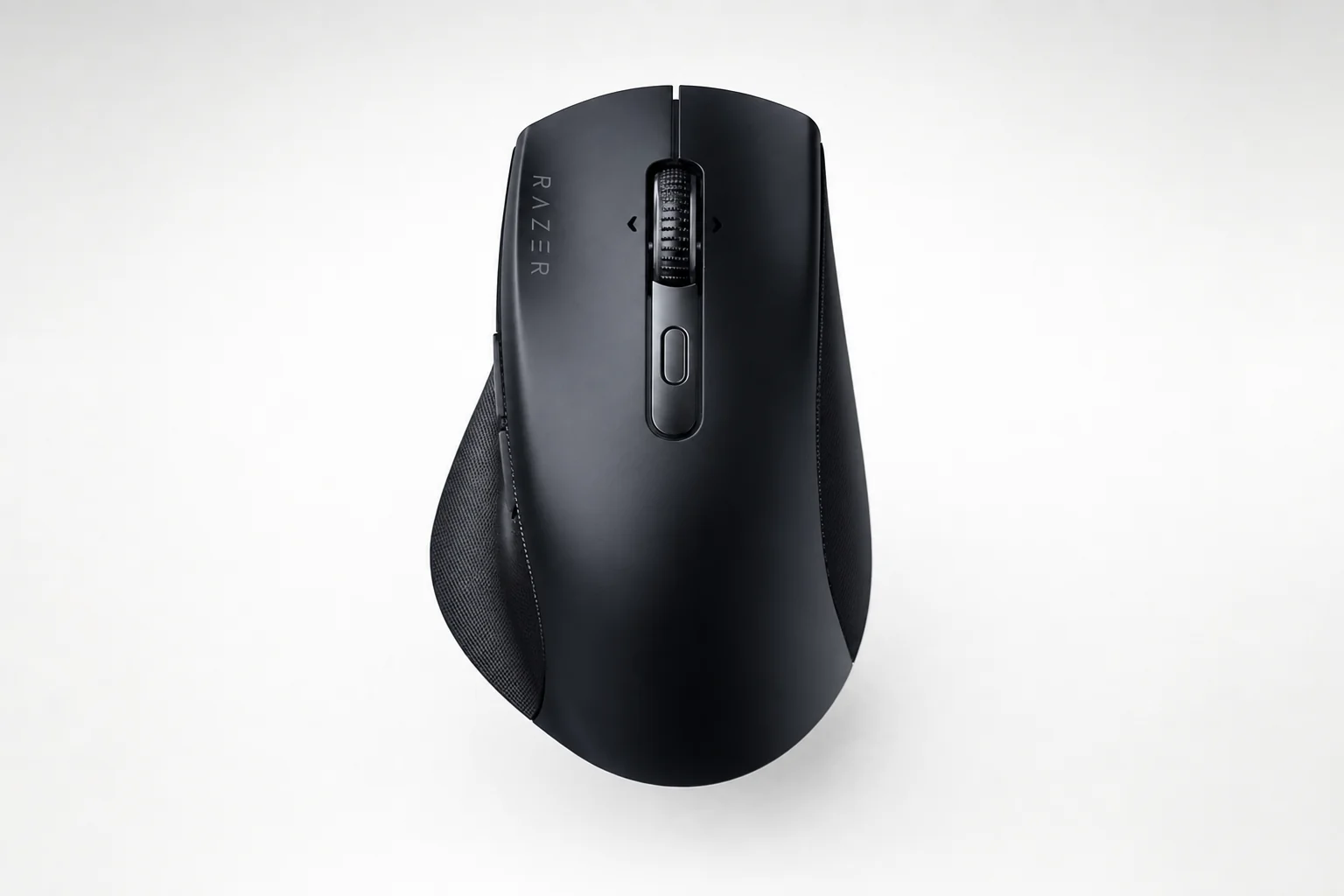
A lighter, higher-spec option for someone who wants productivity ergonomics without giving up stronger gaming credentials.
Office professionals, analysts, developers and writers are the clearest MX Master 4 audience. Creative users will also appreciate the thumbwheel and programmable control options, especially when their favourite applications support the workflow. The Mac edition is worth choosing if White Silver or Space Black suits your setup; it did not sacrifice the standard model's core figures to get there.
I would steer smaller-handed buyers towards trying one before committing, and I would steer competitive players elsewhere altogether. The Keychron M6 8K and Razer Pro Click V2 make much more sense if low weight, rapid polling and gaming flexibility matter alongside work.
Answers before you add it to your desk
The MX Master 4 is at its best when haptics stay subtle and the mouse's long-established strengths — comfort, scrolling and shortcuts — do the heavy lifting.
Verdict: a smarter Master, not a revolution
Buy it for the workflow, not the vibration
The Logitech MX Master 4 answered its own headline question in a slightly unexpected way. Haptic feedback changed the mouse, but it did not define it. Used as a confirmation layer for Actions Ring commands, app shortcuts and status events, it was thoughtful and occasionally excellent. Used simply because it was there, it could feel like a feature in search of a job.
The bigger wins were the ones that had made this family so popular in the first place: excellent long-session comfort for medium-to-large right hands, genuinely superb MagSpeed scrolling, a very useful horizontal thumbwheel, quiet main buttons, three-device switching and flexible Darkfield tracking. Add solid battery life and USB-C charging, and you have a dependable professional tool that earns its space on a serious desk.
The limitations are equally clear. It is expensive at £119.99, heavy at 150 g, right-handed only and fixed at a leisurely 125 Hz report rate. Its cleverest features depend on Logi Options+ running in the background, and settings do not have confirmed onboard memory for effortless portability. The missing consumer charging cable is also a slightly miserly touch on a flagship mouse.
For a first-time buyer who wants the most complete Logitech productivity mouse, the MX Master 4 is the one to get. For an MX Master 3S owner, it is a more selective upgrade: worthwhile if shortcuts and haptic confirmation appeal, unnecessary if you simply want the same famously good shape and wheel. It is a smarter Master, then, rather than a revolution. Frankly, that was probably the right call.
- Logitech MX Master 4View on Amazon
- Logitech MX Master 3SView on Amazon