
Stream Decks and Macro Pads: Are They Worth It for Productivity?
Forget the streaming hype for a moment. I've spent weeks living with these little button boxes on my desk — here's whether a macro pad genuinely earns its keep in an ordinary working day.
We link to the exact model on Amazon UK. Prices change often, so check the live price before you buy. As an Amazon Associate we earn from qualifying purchases.
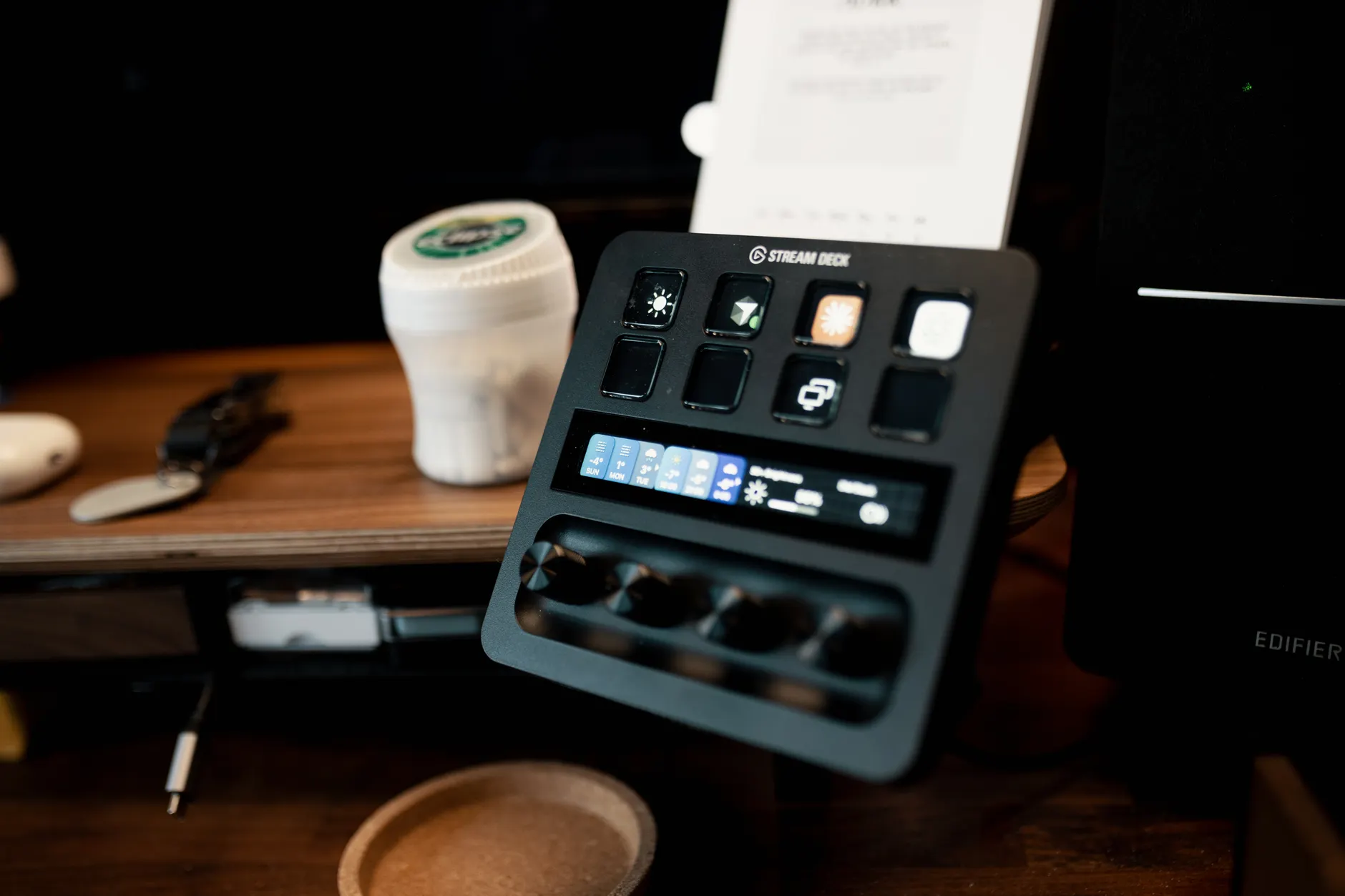
A row of programmable LCD keys on the desk — the gateway drug to a tidier, faster workflow.
If you've only ever seen a Stream Deck mid-Twitch-broadcast, flipping between scenes and triggering soundboards, you'd be forgiven for filing it under "gamer toy". But here's the thing I've come to appreciate after using one daily for everyday office graft: the streaming use-case is almost a distraction. The real magic is in the dull stuff — launching apps, pasting boilerplate, muting calls, nudging a brush size, jumping between project folders. This is a long, honest look at whether a deck or macro pad belongs on a productivity desk, which models actually make sense, and where they fall flat.
What Exactly Is a Macro Pad — And Why Should a Non-Streamer Care?
At its simplest, a macro pad is a small grid of programmable buttons that sits beside your keyboard. Each key can fire off a "macro" — a single action or a whole chain of them — when you tap it. The Elgato Stream Deck range is the best-known family, but it's far from the only one. The defining feature of the premium models is that each button is its own tiny LCD screen, so the key face changes to show whatever icon or label you've assigned. Set a key to mute your microphone and it can literally show a microphone icon that switches to a red, crossed-out version when you're muted.
Why does that matter for productivity rather than streaming? Because the bottleneck in most desk work isn't typing speed — it's context switching. Every time you reach for the mouse, hunt through a menu, recall a keyboard shortcut you half-remember, or alt-tab to find the right window, you're paying a small tax in attention. A macro pad collapses dozens of those little frictions into a single, glanceable, muscle-memory tap. In my experience that's where the time genuinely goes back into your day.
The Core Insight
A macro pad doesn't make you type faster — it removes the decisions and hunting between tasks. The productivity win is mental load, not words-per-minute. That's why it suits writers, coders, editors, and admin-heavy roles just as much as streamers.
The Elgato Range at a Glance
Elgato has carved its line-up into clear tiers, and understanding them upfront saves a lot of confusion. The family runs from a tiny six-button Mini all the way up to a sprawling large-format flagship. Here's how the key models stack up by sheer button count and control type, which is really the first decision you need to make.
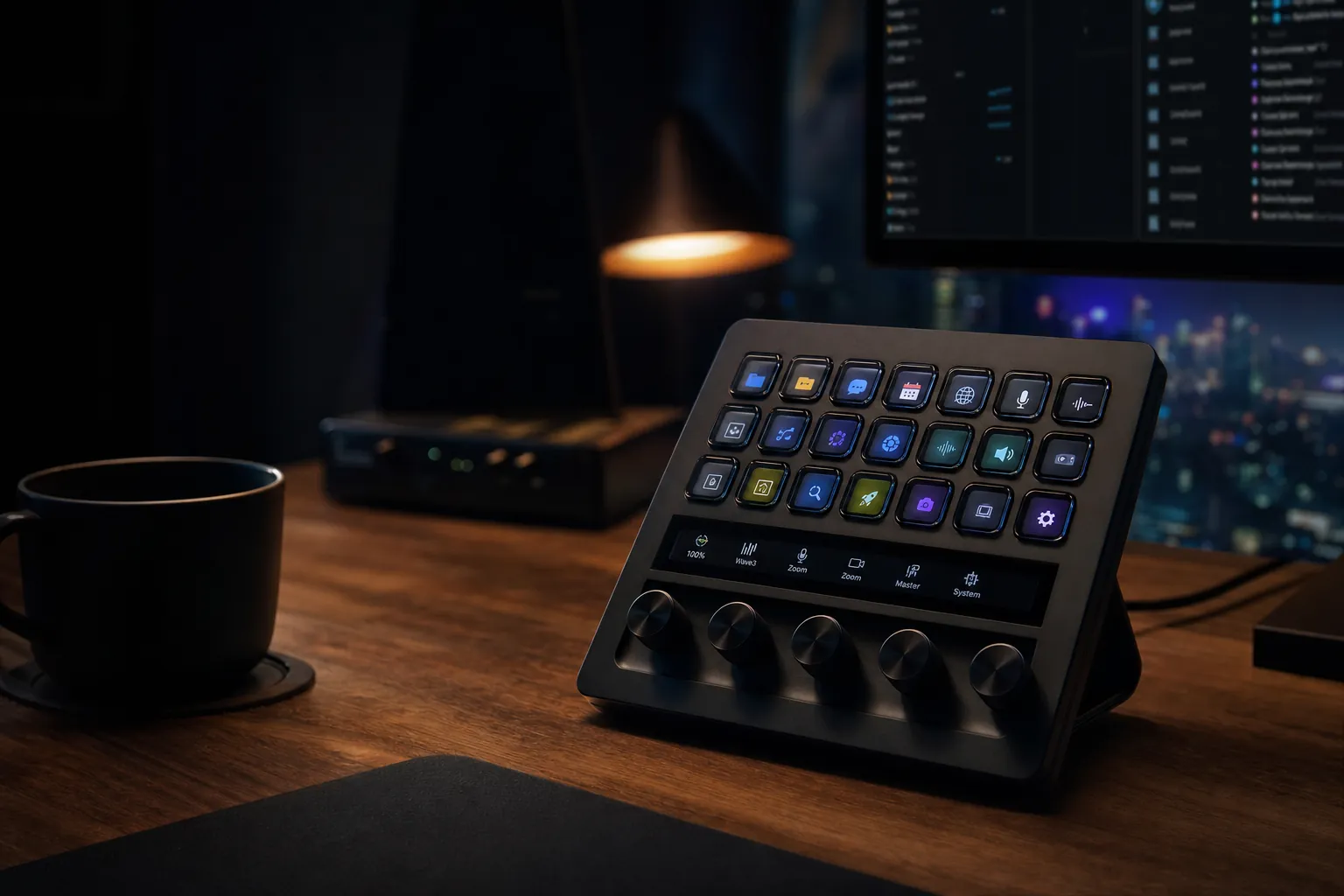
The newest addition is the Stream Deck + XL, which expands to 36 customisable buttons and introduces multiple new control options including a touch strip and six dials. It effectively takes the dial-and-touch concept pioneered on the Stream Deck+ and grafts it onto the large-format body, giving you the most physical controls of any model in the range. For most desk workers, though, the sweet spot tends to sit lower down the range — and I'll explain why as we go.
From six-key Mini to the 36-key flagship — the range scales to almost any desk and budget.
The Models in Detail
Let's go through the four models I'd actually recommend considering for productivity, with the specifics that matter. I've left out the entry-level Mini detail-heavy breakdown simply because, for serious workflow use, you'll outgrow six keys within a fortnight.
Stream Deck Neo — The Budget Entry Point

See Stream Deck Neo on Amazon UK
Check today's price & availability on Amazon UK
The Neo is the model I'd hand to anyone curious but unwilling to splash out. It measures 107 mm wide by 78 mm deep and stands 26 mm high when laid flat, with a built-in two-position stand that raises it to 63.5 mm in the lower setting and just under 76.2 mm in the higher one. It weighs 210 g (7.41 ounces) and uses a non-detachable braided USB-C cable, so there's no fussing with separate leads.
You get eight programmable keys with LCDs that change appearance based on your configuration, plus two touch sensors and a digital info bar screen across the bottom. One important caveat worth knowing before you buy: those touch-sensitive buttons aren't customisable. They exist purely to scroll through pages of LCD keys, so don't go in expecting ten programmable inputs. Eight is your working number, and the touch strips are navigation only.
The Neo's built-in stand and fixed cable make it the tidiest model out of the box — there's genuinely nothing to assemble or lose. That's a quiet advantage if you move it between a home and office desk.
Stream Deck MK.2 — The 15-Key Workhorse

See Stream Deck MK.2 on Amazon UK
Check today's price & availability on Amazon UK
If there's a "default" recommendation in the range, it's the MK.2. Fifteen customisable LCD keys gives you enough room for a couple of meaningful profiles without ever feeling cramped. It measures 118 x 84 x 25 mm without the stand, weighing 145 g on its own or 270 g with the stand attached. It connects over USB 2.0 and now ships with a USB-C to USB-C cable, updated from the older USB-C to USB-A lead.
Two newer touches make the MK.2 feel current. There's a scissor-key option with shorter travel shipping as a variant, which gives the keys a crisper, more laptop-like press if you prefer that over the standard squishier feel. And the faceplate is interchangeable, so you can swap the bezel colour or pop a printed plate in without buying a whole new unit. On the software side it runs on Windows 10 (64-bit) or newer and macOS 10.15 Catalina or newer, which covers virtually any machine still in active use.
Stream Deck+ — Buttons Plus Dials

See Stream Deck+ on Amazon UK
Check today's price & availability on Amazon UK
This is the model that converted me from "neat gadget" to "genuinely useful tool". The Stream Deck+ pairs eight customisable LCD keys, arranged in two rows of four, with four 360° encoders that also click in (Elgato calls them Multifunction Dials), sitting below an LCD touch panel. It measures roughly 140 x 138 x 110 mm and weighs in around 465 grams — appreciably chunkier and heavier than the flat models because of the dial bank.
It's powered over a USB-C port, and that same port can take a separately sold XLR Dock or USB Hub if you want to expand its connectivity. The dials are the headline feature for productivity. Three encoders handling volume, brush size and timeline zoom simultaneously is genuinely a productivity powerhouse for editors and coders — being able to scrub a value smoothly with a twist, rather than dragging a slider with the mouse, changes how fluid certain tasks feel.
The Stream Deck+ adds four clickable dials beneath the keys — the single biggest workflow upgrade in the range for editors.
Stream Deck XL — Maximum Real Estate
See Stream Deck XL on Amazon UK
Check today's price & availability on Amazon UK
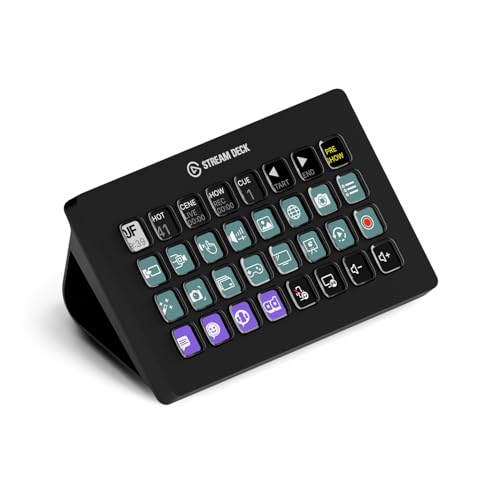
The XL is for power users who want everything visible at once. Its 8x4 grid provides 32 LCD keys, each with crisp resolution and fluid playback, so you can run an enormous control surface without paging through folders. It measures 182 x 112 x 34 mm and weighs 410 g (14.46 oz) without the stand, connecting over the faster USB 3.0 interface. Like the MK.2 it needs Windows 10 (64-bit) or newer, or macOS 10.15 Catalina or newer.
Thirty-two keys sounds glorious, but be honest with yourself: most people don't have 32 distinct actions they reach for constantly. The XL shines if you live in one demanding application — a DAW, a video editor, a broadcast suite — where a dense, always-on panel beats nested menus. For general office work it can be overkill, and the larger footprint eats more desk than you'd think.
Do They Actually Save Time? The Real-World Numbers
This is the question that matters, and I wanted to look past marketing claims. The most striking figure from hands-on testing is that macro pads with knobs cut editing time by nearly 20%. That's not a rounding error — for anyone doing repetitive editing work day in, day out, a fifth of your time back is transformative. The dials are doing the heavy lifting there: smooth, tactile control over continuous values is where the gains concentrate.
On reliability, Elgato Stream Deck devices consistently performed well in scene-based macro execution, supported by extensive plugin integration. That plugin ecosystem is, I'd argue, the quiet killer feature. A button is only as useful as what it can trigger, and the breadth of official and community plugins means you can wire a key to almost anything — from controlling smart lights to inserting text snippets to nudging a specific setting in a creative app.
One practical note from testing: wired connections remain more stable under sustained workloads compared to wireless. Since every Stream Deck is USB-powered and wired anyway, you sidestep the flakiness that can plague wireless macro gadgets — there's no pairing to drop, no battery to die mid-task. It's a boring virtue, but a genuinely reassuring one when a deck becomes load-bearing in your routine.
Pro Tip: Start With Your Five Most-Repeated Actions
Don't try to programme all 15 or 32 keys on day one. Spend a day noting the five things you do most — perhaps muting calls, pasting a standard email reply, opening a project folder, toggling do-not-disturb, and launching your editor. Map those first. The 20% time saving comes from nailing the high-frequency actions, not from filling every key.
How It Compares to the Competition
Elgato dominates the conversation, but it isn't alone. A few rivals approach the same problem from different angles, and the right pick depends heavily on what you do. Logitech's MX Creative Console is squarely aimed at editing and desktop work, while the Loupedeck Live is a touchscreen-based device with native editing software integration. The Mountain Display Pad offers 12 customisable tactile display keys as a more direct Elgato-style alternative, and at the gaming end the Razer Tartarus V2 brings 32 programmable keys plus an 8-way directional thumbpad.
| Model | Inputs | Best For | Stand-out Trait |
|---|---|---|---|
| Stream Deck+ | 8 keys, 4 dials, touch panel | Editors & coders | Dials for continuous values |
| Stream Deck XL | 32 LCD keys | Power users in one app | Everything visible at once |
| Logitech MX Creative Console | Keys + dial control | Editing / desktop work | Creative-app focus |
| Loupedeck Live | Touchscreen-based | Creative editing | Native software integration |
| Mountain Display Pad | 12 display keys | Elgato alternative | Tactile display keys |
| Razer Tartarus V2 | 32 keys + thumbpad | Gaming-leaning users | 8-way directional pad |
The Mountain Display Pad is the most interesting cross-shop for budget-conscious buyers, undercutting Elgato whilst offering 12 display keys. It's priced at USD $109.99 / CAD $149.99 / €109.99 / £99.99, which lands it neatly between the entry and mid Elgato models. The Loupedeck and Logitech options lean harder into creative editing with their native software hooks, so if your day is 90% video or photo work they're worth a serious look. For broad, mixed productivity, though, Elgato's sheer plugin breadth and the polish of its software keep it ahead in my testing.
If you primarily edit video or photos in one application, a creative-focused rival like the Logitech MX Creative Console or Loupedeck Live may integrate more deeply than a general-purpose deck. For mixed daily tasks across many apps, Elgato's plugin ecosystem is the safer all-rounder.
The Productivity Use-Cases That Actually Stick
After living with these on my desk, a handful of use-cases proved durable — the ones I still use weeks later rather than abandoning. These are the workflows I'd point a sceptical colleague towards.
One-Tap Call Controls
Mute, unmute and toggle camera with a single labelled key — and crucially, the LCD shows your current state at a glance. No more "you're on mute" pauses or hunting for the right button in a meeting window.
Text & Snippet Insertion
Map keys to paste boilerplate — standard email replies, code snippets, your address, signatures. For admin-heavy roles this alone can justify the device.
App & Folder Launching
One key opens your editor; another jumps straight to a project folder. It collapses the alt-tab-and-hunt ritual into a single press, and the icons make each destination instantly recognisable.
Continuous Control via Dials
On the Stream Deck+ and + XL, dials handle volume, brush size, timeline zoom and similar values with smooth tactile precision — the source of that near-20% editing time saving.
Profiles That Follow Your App
The software can switch the entire key layout automatically depending on which application is in focus, so the same hardware becomes a bespoke control surface for each program you use.
Per-app profiles mean the same 15 keys can be a writing console, then an editing console, then a calls console — automatically.
The Honest Pros and Cons
No gadget is all upside, and a macro pad is a genuine "your mileage may vary" purchase. Here's where I've landed after the honeymoon period wore off.
Pros
- Dials cut editing time by nearly 20% in hands-on testing
- LCD keys show live state (mute, toggles) at a glance
- Extensive plugin integration triggers almost anything
- Per-app profiles reconfigure the whole layout automatically
- Wired and USB-powered — no battery to die, no pairing to drop
- Strong reliability in scene-based macro execution
- Range scales from 6 keys to 36 keys plus dials
Cons
- Real benefit only appears once you invest time configuring it
- Neo's touch sensors are navigation-only, not programmable
- Larger XL models can be overkill and eat desk space
- Stream Deck+ is notably heavier (≈465 g) due to the dial bank
- Creative-focused rivals may integrate more deeply in single apps
- Easy to over-buy on key count you'll never fully use
Who Should Actually Buy One?
The "is it worth it" answer hinges almost entirely on your role and how repetitive your day is. Here's how I'd steer different people, because the wrong model for the wrong person is where buyer's remorse creeps in.
Video & Photo Editors
Go for the Stream Deck+ or + XL. The dials handling timeline zoom, brush size and similar continuous values are exactly where the ~20% time saving lives. This is the strongest case in the whole range.
Developers & Coders
The Stream Deck+ again — encoders for scrolling and zoom, plus keys for build commands and snippet insertion. A 15-key MK.2 also works well if you don't need dials.
Admin & Office Workers
The MK.2 or Neo. Call controls, boilerplate pasting and app launching deliver the everyday wins without overspending on keys you won't fill.
Curious First-Timers
Start with the eight-key Neo. Its built-in stand and fixed cable make it foolproof, and eight keys is plenty to discover whether the workflow clicks for you.
Single-App Power Users
If you live in one demanding application all day, the 32-key XL gives you an always-on control surface with no paging through folders.
Budget Hunters
Worth cross-shopping the Mountain Display Pad with its 12 tactile display keys at £99.99 — a credible Elgato alternative if you want display keys for less.
What About the Price?
Pricing on these devices shifts with bundles, retailer promotions and the occasional faceplate or stand variant, so the figure you see today may not be the figure next month. Rather than quote something that drifts out of date, the most sensible approach is to check the current listing directly before you commit — particularly because the range spans several models and the gap between them can be the deciding factor in which one you pick.
Ready to Buy?
Check the latest price and any current bundles on Amazon.
A Note on Value
When weighing the cost, frame it against time rather than features. If a macro pad shaves even a few minutes off your repetitive tasks each day, the maths tends to favour the mid-range models within weeks of consistent use — provided you actually invest the setup time to configure it properly.
My Overall Rating
Taking the range as a whole, and judging it strictly as a productivity tool rather than a streaming accessory, here's where I land. The hardware is reliable, the software is mature, and the time savings are real — but the score is held back slightly by the configuration effort required and the temptation to over-buy.
Judged purely on everyday productivity, a well-configured deck earns its desk space — once you've put the setup hours in.
Frequently Asked Questions
The Verdict
So — are Stream Decks and macro pads worth it for productivity? My honest answer is a confident "yes, with conditions". The time savings are real and measurable: dials cut editing time by nearly 20% in testing, and Elgato's devices consistently performed well in macro execution backed by extensive plugin integration. As wired, USB-powered tools, they're reassuringly stable under sustained workloads, with none of the battery-and-pairing flakiness of wireless gadgets.
The condition is effort. A deck is only as good as the thought you put into configuring it, and the temptation to over-buy on key count is real. For most desk workers the 15-key MK.2 or the dial-equipped Stream Deck+ hit the sweet spot, with the Neo as a low-risk first taste and the XL reserved for single-app power users. Buy the smallest model that covers your genuine, high-frequency actions, invest an afternoon mapping them properly, and a macro pad stops being a streaming novelty and becomes one of the quietest, most consistent productivity upgrades on your desk.
If you've been on the fence, my advice is simple: start small, map your five most-repeated tasks first, and let the device prove itself. In my experience, that's the point where the little button box stops being a gadget and starts being indispensable.
 Stream Deck + XLView on Amazon
- Stream Deck NeoView on Amazon
- Stream Deck MK.2View on Amazon
- Stream Deck+View on Amazon
- Stream Deck XLView on Amazon