
Why Your Computer Suddenly Can't Find Anything to Boot From
That "No Boot Device Found" screen looks catastrophic — but half the time it isn't.
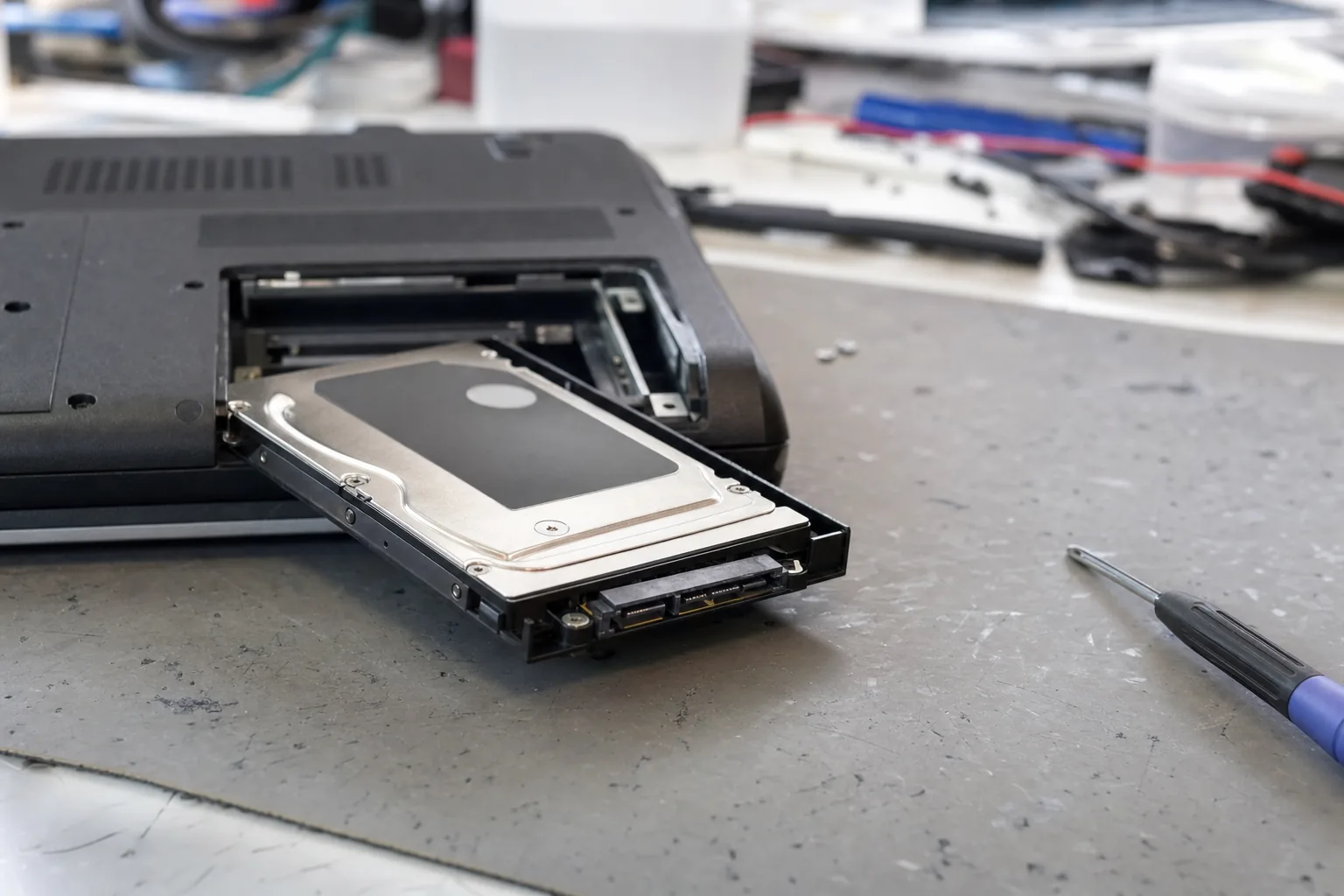

A panicked customer rang me last month — her computer had switched itself off during a Windows update, and when it came back on it showed nothing but a black screen saying "No Boot Device Found." She was convinced she'd lost everything and already had half a tab open on Currys. I asked her to bring it in before spending anything.
See the Crucial MX500 on Amazon UK
That error message is one of the most alarming things a computer can show you, and it lands on my bench regularly. What it actually means is simple: the machine turned on, looked for its operating system, and couldn't find it. The reasons why range from trivial to serious, and you can usually narrow it down in about ten minutes without any specialist tools.
Start with the obvious stuff
- Check for a USB stick or DVD left in the machine. This is the cause more often than you'd think. The computer tries to boot from the wrong device, fails, and throws that error. Eject it, restart, and there's a good chance you're done.
- Listen as the machine starts up. A clicking or grinding noise from inside suggests the drive itself is failing mechanically. That's a different conversation — data recovery first, replacement second.
- If it's a desktop, check the cables. A SATA data cable can work loose, especially if the machine has been moved. Reseating it takes thirty seconds and occasionally solves everything.
What's usually going on inside
If the easy checks don't clear it, the most common culprit I see is the boot configuration — the small set of instructions that tells Windows where to find itself. A failed or interrupted update, a sudden power cut, or an ageing drive developing bad sectors can all corrupt it. The drive is physically fine, but Windows has lost its footing.
In those cases I boot the machine from a Windows installation USB, go into Repair mode rather than reinstalling, and run the Startup Repair tool. It scans, fixes the boot record, and nine times out of ten the machine comes back without touching a single file. The customer whose story I opened with? That's exactly what happened. Forty minutes on the bench, no data lost, no new laptop needed.
Where it gets more serious is when the BIOS — the firmware that runs before Windows even loads — simply doesn't see the drive at all. That points to either a hardware fault on the drive or, occasionally, a failed connection on the motherboard. At that point, if the drive is a traditional spinning hard disk and it's several years old, I'll usually recommend replacing it with an SSD whilst I'm in there anyway. You sort the immediate problem and the machine runs noticeably better for it.
What to do if it happens to you
- Don't reinstall Windows as your first move. Startup Repair is there for a reason and it's far less drastic.
- Don't keep restarting it repeatedly. If there's a mechanical issue with the drive, hammering the power button makes data recovery harder.
- Back up before anything else if you can still get into the machine at all — even intermittently.
- If the BIOS can't see the drive, take it to someone who can run a proper diagnostic before you assume the worst.
The error looks like a death sentence. Usually it isn't. But it does mean something needs attention, and the sooner you get it looked at, the better the odds of a clean outcome.
The Repair Bench verdict
First thing to try: remove any USB drives or discs, restart, and see if it boots normally — this clears it more often than it should.
Most likely fix: Startup Repair via a Windows USB — it rebuilds the boot configuration without wiping your files, and it works the majority of the time.
Watch out for: clicking noises or a BIOS that can't detect the drive at all; at that point the drive itself may be failing, and a replacement SSD like the Crucial MX500 is often the sensible next step.
As an Amazon Associate we may earn from qualifying purchases, at no extra cost to you. We only recommend kit we would actually use.