
My Customer's PC Turned On Fine — So Why Was The Screen Completely Dead?
A blank screen doesn't always mean a broken computer — here's how I find the real culprit in under ten minutes.
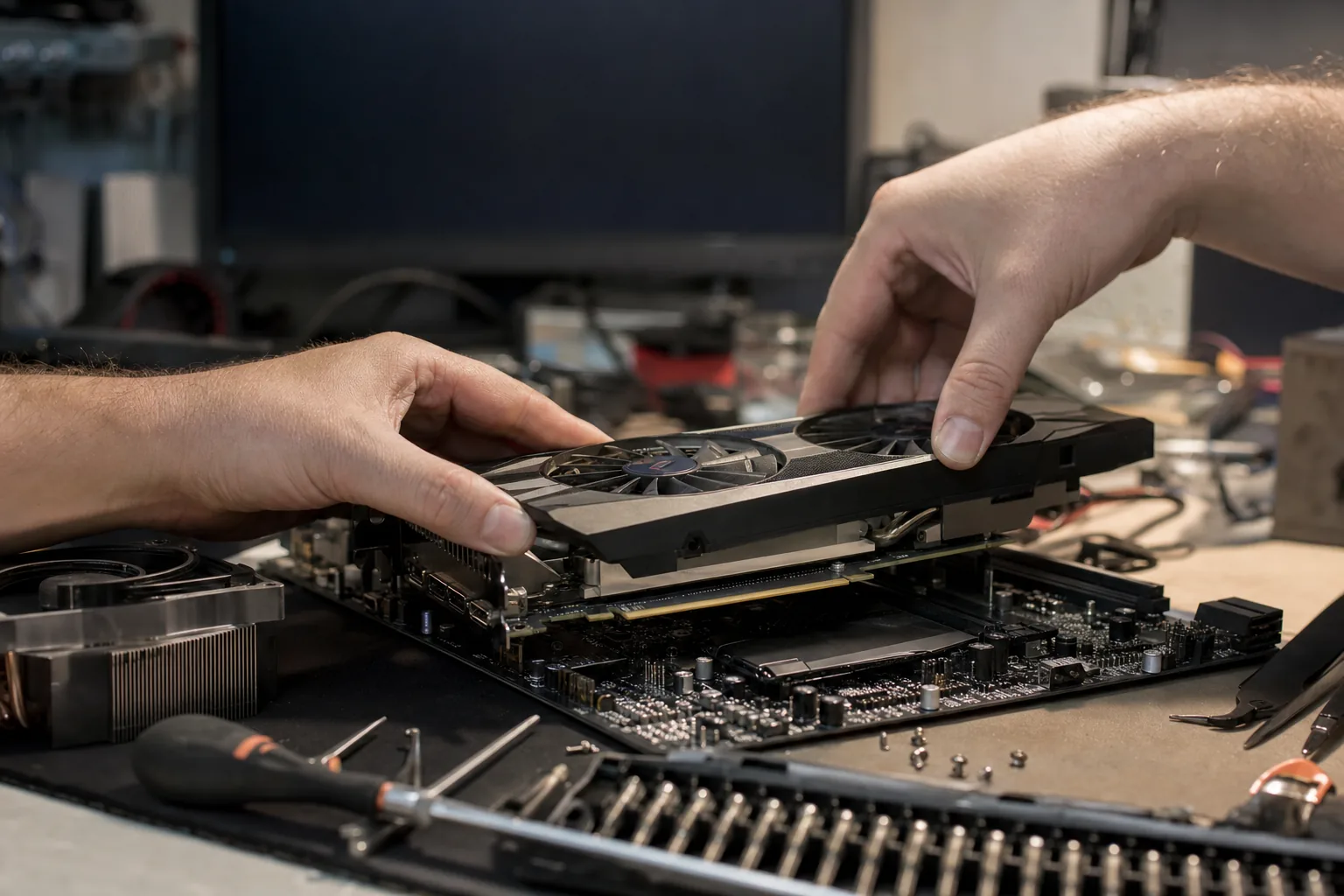

A customer brought in a desktop tower last month convinced the machine had died overnight. It powered on — fans spinning, lights blinking — but the screen stayed completely black. He'd already been shopping for a replacement. I had it fixed in twenty minutes, and the fault cost him nothing to sort. The culprit wasn't the PC at all.
This is one of the most common calls I get, and it almost always sounds worse than it is. A blank screen with a running machine means something in the chain between the computer and the display has failed — but that chain has quite a few links, and most of them are easy to check before you panic.
Start with the obvious stuff first
I know it sounds daft, but I always work through the simple checks before opening anything up. You'd be surprised how often one of these is the answer.
- Check the monitor itself. Plug it into a different device — a laptop, a games console, anything. If it shows an image, the monitor is fine. If it doesn't, you've found your fault before even touching the PC.
- Check the cable. DisplayPort and HDMI cables can fail, and they can work loose without looking it. Swap it for a known-good cable if you have one.
- Check which port you're plugged into. If your PC has a dedicated graphics card, make sure the cable goes into that card's ports, not the ones on the motherboard. Plugging into the wrong socket is more common than people admit, and it produces exactly this symptom.
- Try a different input on the monitor. If your screen has both HDMI and DisplayPort inputs, it might simply be waiting on the wrong one.
If the simple stuff checks out, look inside
In the customer's case above, the cable and monitor were both fine. The issue was a graphics card that had worked itself slightly loose — probably shifted during a house move. Reseating it took two minutes.
- Reseat the graphics card. Power everything down, unplug from the wall, remove the card completely, and push it firmly back into the slot until the retaining clip clicks. This fixes a surprising number of blank-screen calls.
- Reseat the RAM. Loose memory can also prevent the machine posting a picture to screen. Remove each stick, clean the contacts gently with a dry cloth, and push them back in firmly.
- Listen for beep codes. Some motherboards beep on startup to signal a fault. A single beep usually means the system posted correctly; a pattern of beeps points toward RAM or GPU trouble. Check your motherboard manual for what the pattern means.
- Test with the bare minimum. If you're confident taking things apart, try booting with just one stick of RAM and no add-in cards, using the motherboard's own video output if it has one. If you get a picture, add components back one at a time.
When it genuinely is something serious
Occasionally the blank screen does point to a real hardware failure — a dead graphics card, a failing motherboard, or a CPU issue. These are much rarer than a loose connection or a wrongly selected input, but they do happen. If you've worked through everything above and still have nothing on screen, that's when it's worth bringing it in rather than guessing.
The honest truth is that roughly two thirds of the blank-screen PCs I see are sorted with a reseated component or a replaced cable. Don't write the machine off until you've ruled those out.
The Repair Bench verdict
Before you assume the worst: test the monitor on another device, swap the cable, and make sure you're plugged into the graphics card's output rather than the motherboard's.
Most likely fix: open the case, reseat the graphics card and RAM — both can work loose over time and produce exactly this symptom.
Worth a visit to the bench when: you've checked everything above and still have no picture; at that point it could be a failing GPU or motherboard that needs proper diagnosis.