
My Customer's Laptop Was Fine — Until Windows Update Got Hold of It
A routine overnight update turned a perfectly good machine into a doorstop, and the fix wasn't what either of us expected.
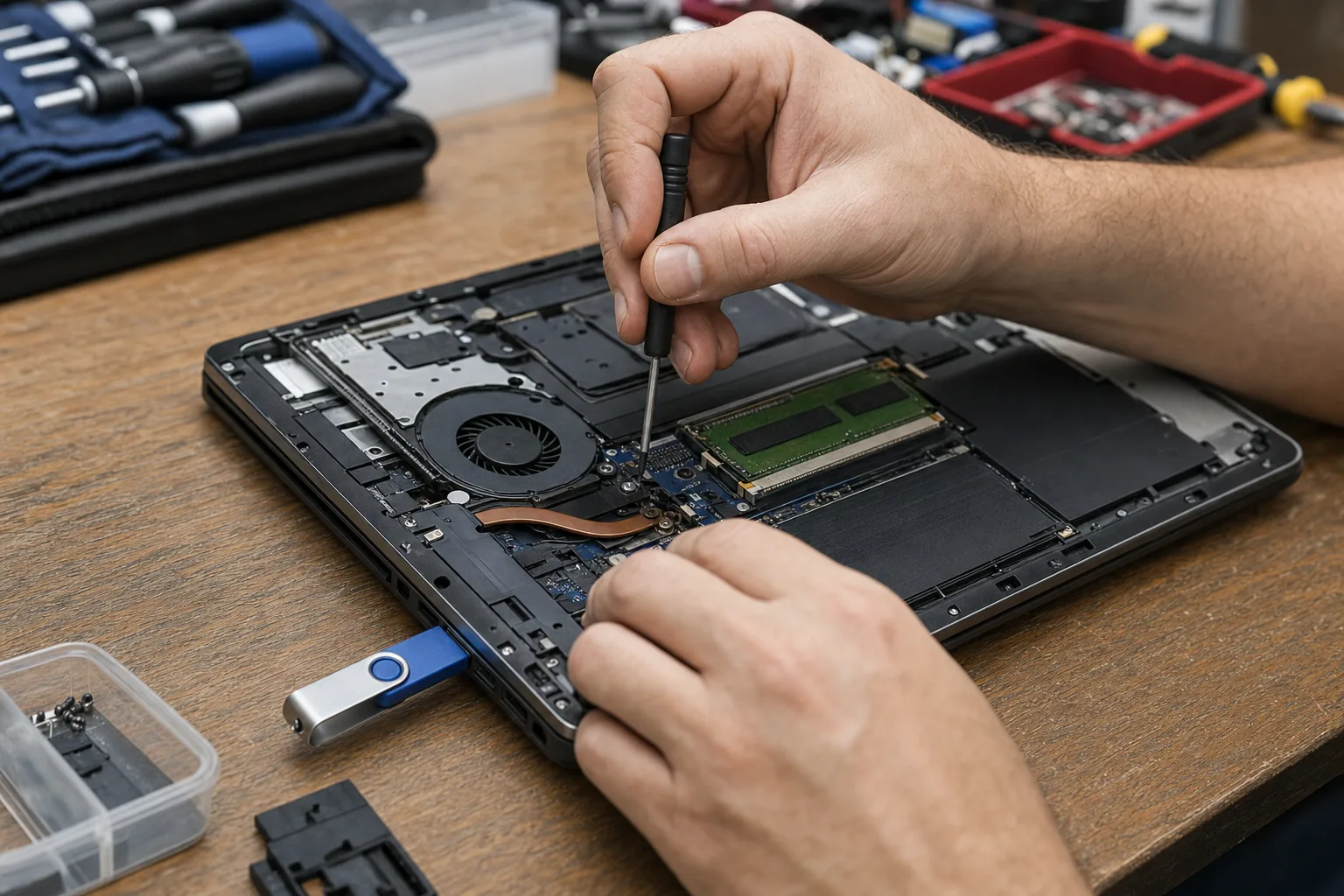

A customer rang me on a Tuesday morning, baffled and a bit panicked. Her laptop had been absolutely fine the evening before. She'd left it on the kitchen table, gone to bed, and come back to find it stuck on a black screen with a spinning circle — going nowhere. The culprit, as far as she could tell, was the Windows update it had decided to install overnight. She was right. And getting it sorted took me the better part of an afternoon.
This is happening more than it used to. Windows 11 updates in particular have a habit of landing on older hardware and causing genuine grief — boot loops, missing drivers, or a rollback that stalls halfway and leaves the machine in no-man's-land. It doesn't mean the laptop is broken, but it can certainly feel that way.
What I check first when an update goes wrong
- Does it get anywhere at all? If the manufacturer's logo appears and then disappears, Windows is at least trying. A completely black screen with no activity points elsewhere.
- Force a startup repair. Hold the power button until the machine shuts off. Do that three times in a row and Windows will usually drop into the Automatic Repair environment on its own. From there I can run Startup Repair, which clears up a surprising number of failed updates.
- Check the update history. If Startup Repair gets you back in, go to Settings, Windows Update, Update History, and look for anything that shows as Failed or installed on the date the trouble started. That's your likely culprit.
- Roll it back. From the same Advanced Options menu in the recovery environment, Uninstall Updates lets you strip out the most recent quality or feature update. It's saved me a full reinstall more than once.
When the rollback won't finish either
This was the situation I was actually dealing with. The rollback had started automatically, got to about 64%, and then stopped dead. In these cases I boot from a USB recovery drive — I keep one made with the official Microsoft Media Creation Tool — and use it to access the repair options without relying on the damaged Windows installation to load itself.
From there, System Restore is often the quickest route if restore points exist. If they don't, a repair install — sometimes called an in-place upgrade — reinstalls Windows over the top of itself without wiping personal files. It's fiddlier than people think, but it's far less drastic than starting from scratch, and it sorted this particular laptop completely.
The one thing that made all of this harder was the drive being nearly full. Windows needs breathing room to stage updates and roll them back. This laptop had about 4GB free on a 128GB drive. Tight storage and Windows updates are a genuinely bad combination, so it's worth keeping at least 15–20GB clear if you can.
The Repair Bench verdict
If a Windows update has left your laptop stuck: try forcing the Automatic Repair environment first — three hard shutdowns in a row usually gets you there, and Uninstall Updates often resolves it without any data loss.
If the rollback itself fails: a USB recovery drive made with Microsoft's Media Creation Tool gives you proper access to repair options, including a repair install that keeps your files intact.
Watch out for: a nearly-full drive — low storage is one of the most common reasons updates fail or get stuck mid-rollback, so keep some headroom on your C: drive.