
How to Set Up a Home VPN to Access Your Stuff From Anywhere
Build your own self-hosted VPN on a router or NAS and reach your files, media and home network securely — wherever you happen to be.
We link to the exact model on Amazon UK. Prices change often, so check the live price before you buy. As an Amazon Associate we earn from qualifying purchases.
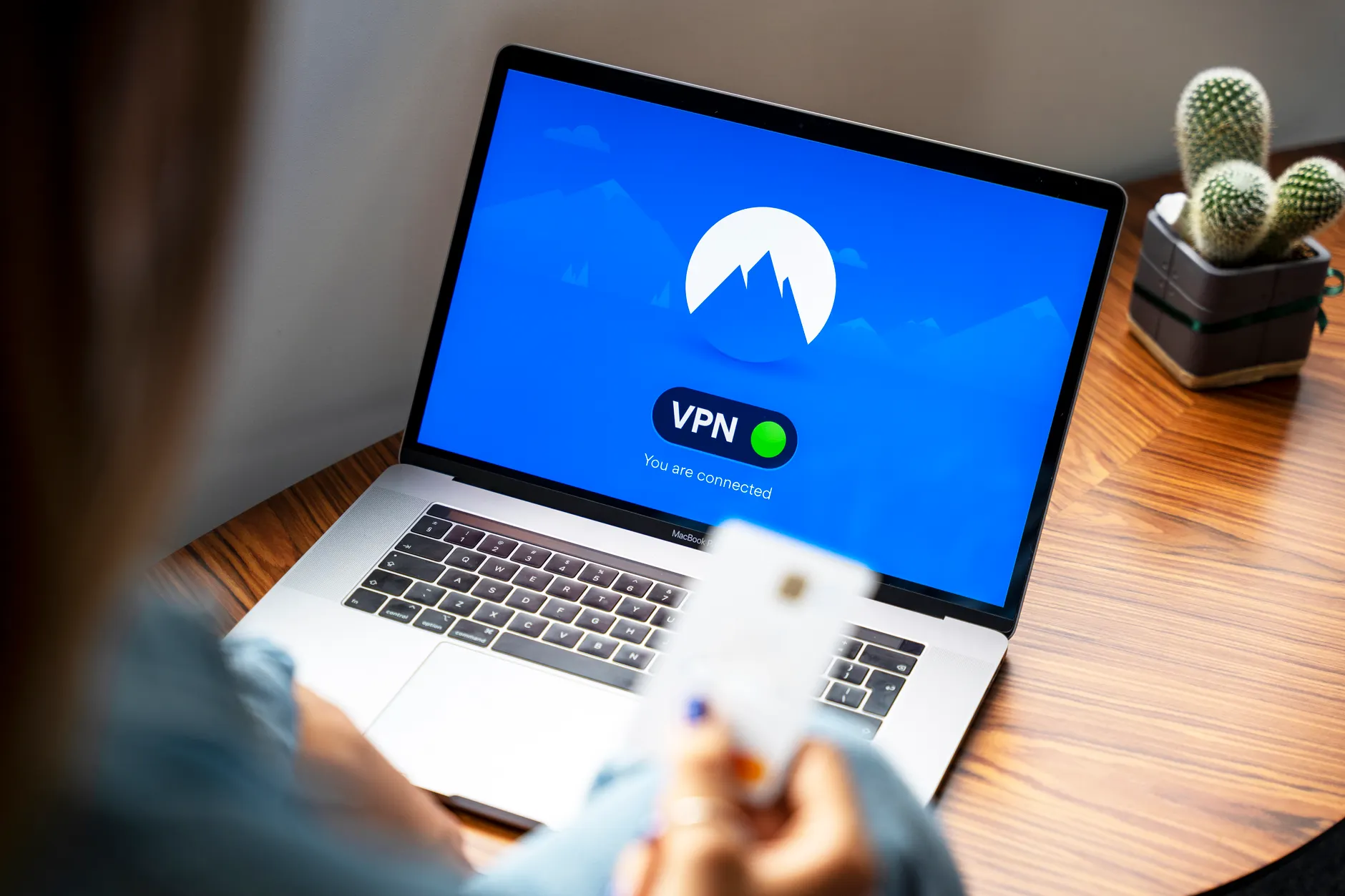
A self-hosted home VPN turns your existing router or NAS into a secure private doorway back to your network.
There's a particular kind of frustration that comes with being away from home and realising the file you need, the photo library you want to scroll, or the media server you've spent years curating is all sitting safely on your home network — and completely out of reach. A self-hosted home VPN fixes that. Instead of paying a subscription to a commercial VPN service that routes your traffic through someone else's data centre, you turn your own kit into the server. The result is a private, encrypted tunnel straight back to your house, giving you the same access you'd have from your sofa, no matter where in the world you're sitting.

See GL.iNet Flint 2 (GL-MT6000) on Amazon UK
Check today's price & availability on Amazon UK
I want to be clear from the outset: this is a completely different beast to the "best VPN service" guides you'll see plastered everywhere. Those are about privacy and unblocking streaming catalogues. This is about remote access — pulling your own stuff out of your own home. The good news is that the hardware you need is, in many cases, kit you might already own or were thinking of buying anyway. Modern NAS boxes and a growing number of routers ship with VPN server software baked in, and once you understand the moving parts, the setup is far less intimidating than the acronym soup of OpenVPN, WireGuard and L2TP/IPSec makes it sound.
Over the next few thousand words I'll walk you through exactly how this works, which hardware categories suit which households, the protocol decisions that genuinely matter for speed, and the step-by-step thinking behind getting a tunnel up and running. I'll be honest about the limitations too — because a home VPN is brilliant, but it isn't magic, and there are a few gotchas worth knowing before you start.
What a Home VPN Actually Is (and Isn't)
Let's strip away the jargon. A VPN — virtual private network — is an encrypted tunnel between two points on the internet. A self-hosted home VPN places one end of that tunnel inside your house, running on a device you control. When you're out and about, your phone or laptop connects to that device across the public internet, and from the moment the tunnel is established, your device behaves as though it's sitting on your home network. Your NAS, your media server, your network printer, your security cameras — all of it becomes reachable, but only through that encrypted channel.
The crucial distinction is the direction of travel. A commercial VPN service exists to send your traffic out through a remote server so the wider internet can't see what you're doing. A home VPN brings you back in to your own network. They use overlapping technology — the same protocols, even — but the goal is opposite.
One thing a home VPN won't do well: it won't place you in an arbitrary country of your choosing. It will make websites see your home broadband's public IP and home country while you are travelling, which is often exactly what people want — but you cannot pick a third country you have no exit node in. It won't speed up your connection either. Your remote speed is always capped by your home's upload bandwidth, because everything you pull down is being uploaded by your house first.
NAS Devices: The All-in-One Approach
If you already own — or are considering — a network-attached storage box, you're sitting on the single most convenient home VPN platform there is. Many popular NAS systems, especially those from Synology and QNAP, include built-in VPN server support, which means the same device storing your files can also be the device that lets you reach them remotely. No separate hardware, no extra power draw, one box doing both jobs.
Synology and the DSM Approach
Synology's DSM operating system includes a dedicated VPN Server package that turns your Synology NAS into a VPN server, allowing users to remotely and securely access resources shared within the local area network. It's genuinely one of the friendliest implementations I've come across — you install the package from the package centre, tick which protocols you want, create user accounts, and you're most of the way there. VPN Server integrates OpenVPN and L2TP/IPsec, plus legacy PPTP that should not be used for secure remote access, so you can match the protocol to whatever your client devices support best.
For households building a home lab or wanting a capable all-rounder, the Synology DS923+ stands out as one of the most well-rounded NAS choices. It's powered by an AMD Ryzen R1600 dual-core processor clocked at 2.6GHz with a 3.1GHz boost, paired with 4GB of ECC DDR4 RAM that is expandable to 32GB. It supports four 3.5-inch or 2.5-inch SATA drives natively, which gives you plenty of room for a proper media library alongside file storage. That ECC memory and the expandability are what make it feel like a long-term investment rather than a stopgap.
A four-bay NAS like the Synology DS923+ can host your files, your media and your VPN server simultaneously.
QNAP and QVPN
QNAP's QTS platform takes a slightly different tack with its QVPN Service. You can set up QNAP devices with the QVPN Service and connect to a remote VPN server for secure data access, and that connection can even be set as the QNAP device's default gateway. The QVPN Device Client enables VPN connections directly to your QNAP devices via protocols including Qbelt, QNAP's own proprietary protocol. Helpfully, QVPN Service also integrates popular OpenVPN services including ExpressVPN, NordVPN, Surfshark and Astrill — so if you ever want to combine remote access with an outbound commercial tunnel, the framework is already there.
Pro Tip
The DS923+ has no integrated GPU, so do not choose it specifically for hardware Plex transcoding; use direct play or a server with supported hardware acceleration.
Built-in, no extra hardware
The VPN server runs on the same box that already holds your data, so there's nothing else to buy, power or maintain.
Per-user accounts
Both DSM and QTS let you create individual VPN logins, so each family member gets their own credentials rather than sharing one.
Multiple protocols at once
Synology's VPN Server supports PPTP, OpenVPN and L2TP/IPSec simultaneously, letting awkward client devices connect however they're able.
VPN-Compatible Routers: The Always-On Gateway
The other natural home for a VPN server is your router — the one device in your house that's already on 24/7 and already sits at the edge of your network where the tunnel needs to terminate. Popular options for this include certain ASUS, GL.iNet and Synology routers, but in my experience the GL.iNet range punches dramatically above its weight here because the company builds its firmware on OpenWrt and ships VPN support as a first-class feature rather than an afterthought.
Routers have one big advantage over a NAS as a VPN host: because the tunnel terminates at the router, everything behind it becomes reachable through one connection — the NAS, the smart home hub, the printer, the lot. With a NAS-hosted VPN you often only reach the NAS itself unless you do extra configuration. Let's run through the GL.iNet models worth knowing about.
GL.iNet Flint 2 (GL-MT6000) — The Home Powerhouse
See GL.iNet Flint 2 (GL-MT6000) on Amazon UK
Check today's price & availability on Amazon UK
A fast Wi-Fi 6 and OpenWrt VPN router delivering 900 Mbps WireGuard speeds with 2.5G ports. For home use, it's a full home router that handles VPN at near-gigabit speeds — which is precisely what you want when you're hosting a server and don't want the tunnel to become the bottleneck for everyone else's browsing.
GL.iNet Flint 3 (GL-BE9300) — The Wi-Fi 7 Flagship

See GL.iNet Flint 3 (GL-BE9300) on Amazon UK
Check today's price & availability on Amazon UK
This is the Wi-Fi 7 option, offering 688 Mbps (2.4GHz) + 2882 Mbps (5GHz) + 5765 Mbps (6GHz) ultra-fast Wi-Fi speeds across five 2.5G network ports. On the VPN side it reaches speeds up to 680 Mbps on both WireGuard and OpenVPN-DCO, and it supports over 30 VPN service providers whilst offering both client and server modes for OpenVPN and WireGuard. The dual server-and-client capability is exactly what a self-hoster needs.
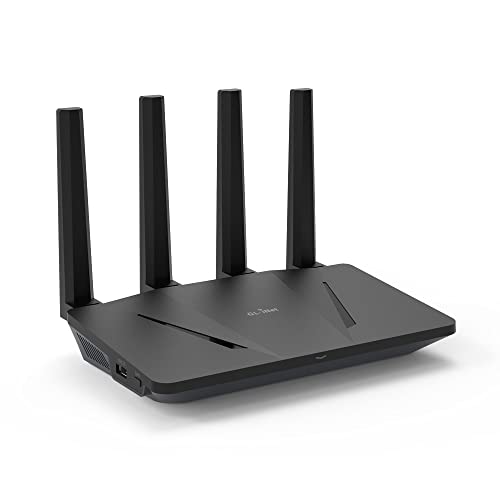
GL.iNet Flint (GL-AX1800) — The Sensible Home Choice
See GL.iNet Flint (GL-AX1800) on Amazon UK
Check today's price & availability on Amazon UK
A dual-band Wi-Fi 6 router with connection speeds of up to 600Mbps (2.4GHz) plus 1200Mbps (5GHz). It can run VPN encryption speeds of up to 667Mbps and host VPN servers, and supports 30+ VPN services on both OpenVPN and WireGuard. For most households with a connection at or below gigabit, this comfortably keeps up.
GL.iNet routers ship with OpenVPN and WireGuard server modes built into their OpenWrt-based firmware.
The Travel Routers: Beryl AX and Slate AX
Two more GL.iNet models deserve a mention, because remote access works at both ends of the tunnel. The GL.iNet Beryl AX (GL-MT3000) comes pre-installed with OpenVPN and WireGuard supporting 30+ VPN services. It automatically encrypts all network traffic within the connected network, can host VPN servers, and supports VPN Cascading. It offers, in plain terms, absurd value for the price — it works at home, it works on the road, it supports WireGuard, and it runs on USB-C power, making it a brilliant little companion to carry with you.
The GL.iNet Slate AX (GL-AXT1800) is a fast Wi-Fi 6 travel router with dual-band wireless, VPN and MU-MIMO for faster wireless speed on travel networks. Its VPN performance is rated at a maximum of 550 Mbps on WireGuard and a maximum of 560 Mbps on OpenVPN with DCO support — seriously quick for a device you can slip into a jacket pocket.
Ready to pick your hardware?
Prices on routers and NAS boxes shift constantly with bundles and seasonal deals. Check the latest price and any current bundles on Amazon.
Mini-PCs and Raspberry Pi: The DIY Routes
If you fancy something more bespoke — or you've outgrown what a consumer router can offer — there are two other roads. The first is a dedicated firewall appliance, and the standout here is the Protectli Vault Pro VP2420-4 Port. It's a fanless mini-appliance built around a 4-core Intel J6412, with four 2.5GbE Intel i225 ports and hardware AES-NI acceleration. It makes a strong mid-tier OPNsense base that stays quiet and sips power whilst handling gigabit-plus routing, as well as fast VPN access. The AES-NI support is the key detail — it offloads encryption work to dedicated silicon, which is exactly what keeps a software firewall's VPN throughput high.
The second road is the hobbyist favourite: a Raspberry Pi. A home VPN server Raspberry Pi setup may work for casual browsing but struggle under heavy load. That's the honest summary. A Pi is cheap, tiny and sips electricity, and for occasionally grabbing a document or checking on your home network it's perfectly adequate. But ask it to encrypt a 4K media stream in real time and it will run out of puff. Know what you're asking of it and it's a lovely little project; expect data-centre performance and you'll be disappointed.
Which route suits you?
NAS owners should use what they have. Most households are best served by a capable VPN router. The DIY appliance and Pi routes are for people who actively want to tinker — they reward effort with flexibility and control, but they ask more of you in setup and maintenance.
WireGuard vs OpenVPN: The Protocol That Decides Your Speed
Here's where the single most important performance decision lives. The protocol you choose has a bigger impact on your remote experience than almost anything else, and the gap between the two main contenders is not subtle.
Benchmark tests consistently show WireGuard delivering 2–4× higher throughput than OpenVPN on the same hardware, and this is especially noticeable on resource-constrained home routers where every CPU cycle counts. WireGuard is newer, leaner and built around modern cryptography, and that efficiency translates directly into speed.
How big is the difference in the real world? On a 1 Gbps connection, WireGuard reaches 940–960 Mbps versus OpenVPN's roughly 480 Mbps over UDP. That's the difference between a tunnel that barely touches your connection and one that halves it before you've done anything. Put bluntly, OpenVPN-only routers lose 60–75% of your speed — which is why so much of the newer hardware leads with WireGuard support.
My recommendation
Unless you have a specific reason not to, host your home VPN on WireGuard. It's faster, it reconnects almost instantly when you move between Wi-Fi and mobile data, and on battery-powered clients it's noticeably gentler. Keep OpenVPN as a fallback for any device that can't run WireGuard — the broad protocol support on Synology's VPN Server and the GL.iNet routers means you don't have to choose just one.
The one place OpenVPN still earns its keep is compatibility and the occasional restrictive network that blocks WireGuard's UDP ports. Several of the newer routers, including the Flint 3, support OpenVPN-DCO — a data-channel offload mode that claws back a good chunk of OpenVPN's traditional speed penalty, reaching up to 680 Mbps where standard OpenVPN would languish. If you must use OpenVPN, look for DCO support.
Setting It Up: The Process, Step by Step
Whichever platform you've chosen, the conceptual flow is the same. Once you understand these stages, the specifics of any given interface become much easier to navigate.
- Enable the VPN server. On a Synology NAS using the official VPN Server package, choose OpenVPN or L2TP/IPsec; WireGuard requires a separately maintained container/community solution. On a GL.iNet router, use its supported VPN Server page.
- Create your client profile. The server produces a configuration file (or a QR code, in WireGuard's case) for each device you want to connect. Treat these like passwords — anyone with the file can connect.
- Sort out your address. Your home connection needs to be findable from outside. If your ISP changes your IP address periodically, a Dynamic DNS hostname gives you a stable name to connect to. Most NAS platforms and routers include a free DDNS service in their settings.
- Open the port. You'll need to forward the VPN's port from your router to the host device. WireGuard and OpenVPN each listen on a specific UDP port, and forwarding it is what lets the incoming tunnel reach your server.
- Install the client and connect. Load the profile onto your phone or laptop, hit connect, and you should be on your home network. From here you map your NAS shares or open your media app exactly as you would at home.
WireGuard's QR-code client profiles make adding a phone to your home VPN a thirty-second job.
The single most common stumbling block is the port forward. If your tunnel refuses to connect from outside but works on your home Wi-Fi, the port forward — or a missing Dynamic DNS hostname — is almost always the culprit. Double-check those before assuming anything more exotic has gone wrong.
NAS vs Router vs Appliance: The Comparison
To make the trade-offs concrete, here's how the three mainstream host types stack up against each other for self-hosted remote access.
| Feature | NAS (e.g. Synology DS923+) | VPN Router (e.g. Flint 2) | Appliance (Protectli VP2420) |
|---|---|---|---|
| Primary strength | Files + media in one box | Whole-home access via one tunnel | Maximum control & throughput |
| Protocols | PPTP, OpenVPN, L2TP/IPSec | WireGuard & OpenVPN | Whatever OPNsense supports |
| Peak VPN speed | Depends on CPU load | 900 Mbps WireGuard | Gigabit-plus with AES-NI |
| Hardware highlight | Ryzen R1600, ECC RAM to 32GB | Wi-Fi 6, 2.5G ports | Intel J6412, 4× 2.5GbE |
| Setup difficulty | Easy — guided package | Easy — built-in UI | Advanced — DIY firewall |
| Power draw | Moderate | Low | Low, fanless |
| Best suited to | Existing NAS owners | Most households | Tinkerers & home labs |
The Honest Pros and Cons
No setup is perfect, and a self-hosted home VPN comes with genuine trade-offs you should weigh before diving in.
Pros
- No monthly subscription — you own the whole stack
- Reaches your actual files and media, not a remote server
- WireGuard delivers near-line-rate speed, up to 960 Mbps on a gigabit connection
- Built-in support on NAS boxes and modern routers means little extra hardware
- Per-user accounts keep family access tidy and revocable
- Travel routers like the Beryl AX let you carry the secure tunnel with you
Cons
- Your speed is capped by your home's upload bandwidth
- OpenVPN-only hardware can lose 60–75% of your throughput
- Requires port forwarding and, often, Dynamic DNS setup
- A Raspberry Pi host may struggle under heavy load
- You become responsible for keeping firmware and keys up to date
- Appliance routes like OPNsense ask for real networking knowledge
Who Should Build One — and Who Shouldn't
The NAS owner
You already have a Synology or QNAP box. Installing the VPN Server package is the lowest-effort, highest-reward upgrade you can make to unlock your files from anywhere.
The whole-home user
You want to reach everything — NAS, cameras, smart home hub — through one connection. A capable VPN router like the Flint 2 is the cleanest answer.
The frequent traveller
You're often on hotel and café Wi-Fi. Pair a home server with a pocketable Beryl AX or Slate AX and carry your encrypted tunnel everywhere.
The tinkerer
You enjoy the build as much as the result. A Protectli appliance running OPNsense, or a Raspberry Pi, rewards the effort with total control.
Overall Assessment
Rather than rating a single product, here's how I'd score the self-hosted home VPN concept as an approach to remote access — based on the experience of living with one.
The scores reflect a genuinely strong proposition let down only slightly by the setup learning curve and the ongoing responsibility of keeping things patched. For value and performance — particularly with WireGuard doing the heavy lifting — it's hard to beat.
Frequently Asked Questions
Once configured, your home VPN reconnects automatically as you move between networks — your files simply follow you.
The Verdict
Setting up a home VPN is one of those projects that sounds far more daunting than it turns out to be — and the payoff is genuinely transformative. The moment you're on a train, in a hotel, or sitting in a café and you tap a single toggle to find your entire home network at your fingertips, the small effort of setup justifies itself instantly.
My advice is simple. If you own a Synology or QNAP NAS, start there — the VPN Server software is right in front of you. If you're buying fresh and want whole-home access at near-gigabit speeds, a WireGuard-capable router like the GL.iNet Flint 2 or the Wi-Fi 7 Flint 3 is the sweet spot for most households. Choose WireGuard wherever you can, keep OpenVPN as a backup, sort your Dynamic DNS and port forward, and you'll have a private, subscription-free doorway back to your own stuff that works from anywhere in the world. It's one of the most satisfying home network upgrades I've ever set up — and once you've lived with it, you'll wonder how you managed without.
- GL.iNet Flint 2 (GL-MT6000)View on Amazon
- GL.iNet Flint 3 (GL-BE9300)View on Amazon
- GL.iNet Flint (GL-AX1800)View on Amazon