
How to Set Up a Plex Server at Home: A Beginner's Walkthrough
Everything you need to know about hardware, storage and remote access to stream your own media library — explained for newcomers, with no jargon left unexplained.
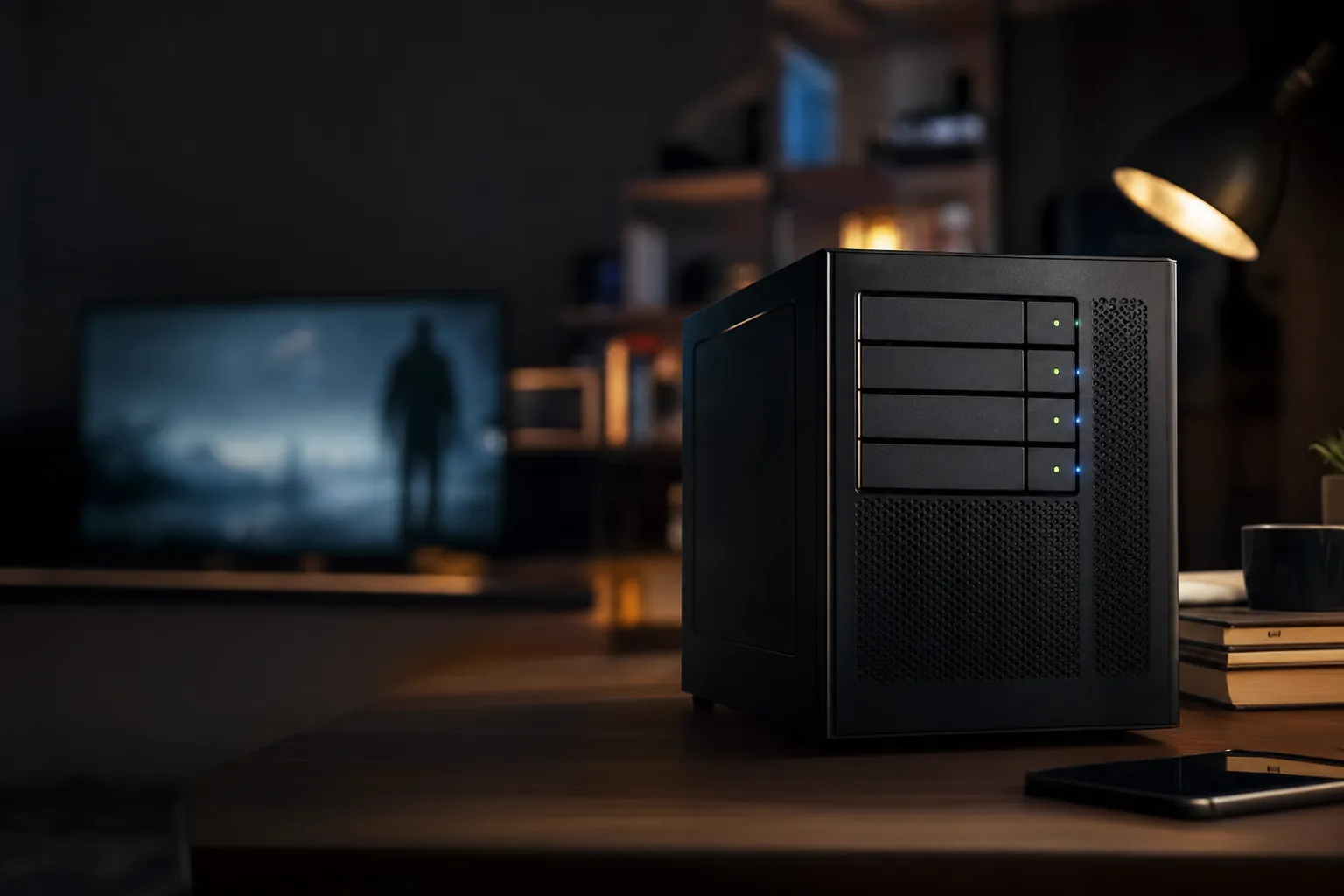
A home Plex setup turns a spare PC, mini-PC or NAS into your own private streaming service.
If you've ever wished you could have a Netflix-style experience built entirely from your own films, telly box sets, music and photos, then Plex is the thing you've been looking for. I've spent a good chunk of time over the past couple of years building, breaking and rebuilding Plex servers on everything from a humble Raspberry Pi to a proper Ryzen-powered home server — and in this walkthrough I'll take you through the whole journey from "what on earth is a media server?" to streaming your library to your phone whilst you're sat on a train miles from home.
Here's the lovely part: the core Plex Media Server software is completely free to download and use. You point it at a folder full of your media, it scans everything, fetches gorgeous cover art and descriptions, and suddenly your scruffy collection of files looks like a polished streaming catalogue. The catch — and there's always a small one — is that you need somewhere to run it, somewhere to store your files, and a bit of know-how to reach it from outside your house. That's exactly what we'll sort out together.
This isn't a guide that assumes you're already a Linux wizard. If you can plug in a hard drive and follow a setup wizard, you can run Plex. I'll flag the bits that trip beginners up, share the mistakes I made so you can skip them, and give you honest opinions on which hardware is genuinely worth your money versus what's overkill. Let's get stuck in.
What Is Plex and How Does It Actually Work?
At its heart, Plex is a two-part system. There's the Plex Media Server, which is the engine that runs quietly on a computer in your home, organising your media and serving it up. Then there are the Plex apps — the front-ends you actually watch and listen on, available for phones, tablets, smart TVs, streaming sticks, games consoles and web browsers. The server does the heavy lifting; the apps just request what they want and play it.
When you add a film to your library, the server identifies it, downloads a poster, a synopsis, cast information and a rating, then files it neatly into your collection. When you press play on your sofa, one of two things happens. If your TV can play that file natively, the server simply streams it across as-is — this is called direct play and it's lovely and efficient. If your device can't handle the file format or the connection is too slow, the server converts it on the fly into something that will play. That conversion is called transcoding, and it's the single biggest factor in deciding how powerful your hardware needs to be. We'll come back to transcoding a lot, because it genuinely shapes every buying decision you'll make.
The Server
Free software you install on a Windows, macOS, Linux or NAS machine. It scans, organises and streams your media.
The Apps
Available on phones, tablets, smart TVs, streaming boxes and the web — these are what you actually watch on.
Transcoding
On-the-fly format conversion when a device can't play a file directly. Hugely important for hardware choice.
Remote Access
The clever bit that lets you stream your home library whilst you're out and about — covered in detail later.
Plex Media Server is compatible with Windows, OS X / macOS, Linux, and many NAS systems. That breadth is one of the reasons it's stayed the go-to choice for home media for so long — whatever spare kit you've got lying around, there's a decent chance Plex will run on it.
Choosing Your Hardware: The Five Platforms
This is where most beginners freeze, staring at a spreadsheet of components and worrying they'll buy the wrong thing. Don't. There are really only a handful of sensible routes, and I'll be candid about which suits which kind of person. Because Plex is just software, you deploy it on hardware you source yourself, and there are five popular categories worth knowing about.
Mini-PCs (Intel NUC)
The Intel NUC is widely regarded as the gold standard for Plex deployments, and I completely agree. These tiny boxes have a small footprint and a power-efficient form factor, which matters enormously when you consider the machine will likely be left running around the clock. You tuck one behind your telly or on a shelf, plug in a drive, and forget it exists. For most people this is the sweet spot between performance, tidiness and electricity bills.
Dedicated Desktops and PCs
If you've got an old tower PC gathering dust, it can make a brilliant Plex server with zero outlay. Custom-built or off-the-shelf machines running Windows, Linux or macOS all work nicely, and a desktop gives you room to add multiple drives down the line. The downside is they're bigger, noisier and thirstier on power than a mini-PC.
NAS Devices
A NAS (Network-Attached Storage) is a purpose-built box that stores your files and can run Plex directly. Plex Media Server is compatible with a broad range of NAS manufacturers, though it's worth noting that not every model from every manufacturer is compatible — so check before you buy. NAS boxes are wonderfully convenient and most are easy to set up, but the cheaper, ARM-based models have limited transcoding muscle.
An Intel NUC-style mini-PC is my go-to recommendation for a tidy, always-on Plex box.
Raspberry Pi
The Raspberry Pi 4 can stream Plex in 4K, which makes it an astonishingly cheap entry point. It's perfect for tinkerers and anyone who wants to dip a toe in without spending much. Just be realistic about its limits — it's brilliant for direct play to a couple of devices, but it'll struggle the moment heavy transcoding is involved.
NVIDIA Shield TV Pro
An often-overlooked option, the NVIDIA Shield TV Pro is a small, cost-effective solution that's genuinely perfect for beginners. It doubles as a superb streaming box for your living room and can run a Plex server at the same time. If you want a single device that handles both watching and serving without any faffing about with a separate computer, this is a lovely shortcut.
My honest beginner recommendation
If you mostly watch on devices that can handle your files directly, almost any of these will delight you. If you're not sure, an Intel NUC with QuickSync (more on that shortly) gives you the most headroom for the least hassle. Start simple — you can always upgrade once you understand your own viewing habits.
CPU, RAM and the Truth About Transcoding
Right, let's tackle the most misunderstood part of building a Plex server. Beginners often massively over-spend on RAM and under-think the CPU, when it should usually be the other way round. Here's what actually matters.
Processor
Plex recommends an Intel Core i3 (or equivalent) or faster as a comfortable baseline. Your requirements scale from "no transcoding at all" right up to single-stream transcoding of demanding 4K files. If you'll never transcode — meaning all your devices can play your files directly — then even an Intel Atom at 1.2GHz is enough, and NAS devices based on ARM processors should manage at least one stream with no transcoding.
The clever way to judge transcoding power is the PassMark score, a standard CPU benchmark. The numbers below are the ones genuinely worth memorising, because they tell you exactly what your processor can cope with.
So a PassMark score of 2000 is enough to transcode a single 1080p file — a fairly modest bar that loads of cheap processors clear. But the moment you start juggling demanding 4K content, the requirements rocket. A full transcode of a 4K SDR file (40Mbps, 8-bit HEVC) needs around 17000 PassMark to handle a 4K HDR (50Mbps, 10-bit HEVC) source transcoded down to 10Mbps 1080p, and 12000 for the 4K SDR equivalent. Those are big numbers, and they explain why hardware acceleration (coming up next) is such a game-changer.
RAM
Here's the bit that saves you money. Plex Media Server doesn't require large amounts of RAM at all. 4GB of RAM is typically more than sufficient, and some installations — particularly Linux-based ones — can run with even less. When it comes to RAM, 2GB should be enough for a basic setup. So please don't go stuffing 32GB into a machine that only needs to serve a couple of streams; spend that money on storage or a better CPU instead.
The single most common beginner mistake I see is buying loads of RAM and a weak CPU. Plex barely touches memory but leans heavily on the processor whenever transcoding kicks in. Prioritise CPU grunt — or hardware acceleration — over big RAM figures every single time.
Hardware Acceleration: The Secret Weapon
This is the feature that turns a modest, power-sipping machine into a transcoding powerhouse, and it's the thing I wish someone had explained to me when I started. Instead of making the main CPU grind away at converting video — which is enormously demanding — hardware acceleration hands that job to dedicated silicon designed specifically for the task.
Intel Quick Sync
Intel Quick Sync is a hardware core dedicated to video encoding and decoding. The neat trick is that it's neither a CPU nor a GPU in the traditional sense — it's a specialised block built into many Intel chips purely for video work. This is exactly why those tiny, efficient Intel NUCs punch so far above their weight: a NUC that would otherwise struggle to transcode a single 4K stream using raw CPU power can handle several at once when QuickSync does the lifting. For a low-power, always-on server, it's brilliant.
Dedicated GPUs
If you'd rather throw graphics horsepower at the problem, high-performance GPUs are excellent options for intensive Plex video transcodes. A GeForce GTX with 6GB of memory or a Quadro P2000 with 5GB are both proven, capable choices that can chew through multiple demanding streams simultaneously. These make most sense in a full desktop or dedicated server where you've got the space and power budget.
One crucial catch
Hardware transcoding requires a Plex Pass. The CPU-based "software" transcoding is free, but to unlock QuickSync or GPU acceleration you'll need the subscription. Given how transformative hardware transcoding is for efficiency, this is one of the strongest arguments for paying for Plex Pass if you transcode regularly.
Intel Quick Sync lets compact, efficient machines transcode multiple streams without breaking a sweat.
Storage: Where Your Media Lives
Once your server's brain is sorted, you need somewhere to keep all those films, episodes and albums. Storage is one of the easier decisions, but there are a couple of habits worth forming early that'll save you grief later.
How Much Space Do You Need?
For most people, a 2TB or 3TB drive is sufficient for a typical media library. That sounds modest, but it'll comfortably hold a healthy collection of films and several seasons of shows. Naturally, if you're hoarding 4K Blu-ray rips your appetite for storage will grow fast — but as a starting point for a beginner, 2TB to 3TB is a sensible, affordable target.
The golden storage rule
Add a separate hard drive (or SSD) just for the operating system and Plex itself — don't store your media and your applications on the same drive. Keeping them apart makes everything tidier, faster and far easier to back up or rebuild if something goes wrong. It's a tiny bit of extra effort up front that pays off enormously.
Local Drives vs NAS
You've essentially got two common approaches to storage. The first is a standalone server with an HDD or SSD inside it — simple, fast and self-contained. The second is to use a NAS as a separate system where your media files are stored and then mapped to the Plex server over your network. A NAS can be wonderfully affordable or surprisingly pricey depending on the model and capacity, but the good news is most are easy to set up and they keep your storage neatly separate from your server hardware.
| Consideration | Local Drive (in server) | NAS Storage |
|---|---|---|
| Setup simplicity | Very simple — plug and go | Easy, but adds a network step |
| Speed | Fast, direct connection | Depends on your network |
| Expandability | Limited by server bays | Often easy to expand |
| Separation of media & apps | Needs a second drive | Naturally separated |
| Cost flexibility | Low entry cost | Affordable to premium |
Step-by-Step: Installing Plex Media Server
Now for the fun part — actually getting it running. I've kept this deliberately platform-agnostic because the broad strokes are the same whether you're on Windows, macOS, Linux or a NAS. Take it one step at a time and you'll be browsing your library within the hour.
- Sort your hardware and storage first. Have your chosen machine ready, with a dedicated drive for the OS and Plex, and a separate drive (or NAS) holding your media files. Organise your media into clear folders — one for Films, one for TV Shows, one for Music — as it makes Plex's job vastly easier.
- Create a free Plex account. Head to the Plex website and sign up. This account ties your server to your apps and is what enables you to reach your library from anywhere.
- Download and install Plex Media Server. Grab the correct version for your operating system. Plex Media Server supports Windows, macOS, Linux and many NAS systems, so pick the matching installer and run through it.
- Sign in and launch the setup wizard. The server opens in your web browser. Sign in with the account you just made and the friendly setup wizard takes over.
- Add your libraries. Tell Plex what kind of content each folder holds and point it at the right directory. It'll then scan your files, match them against its huge online database and pull in artwork, descriptions and metadata. Watching a scruffy folder transform into a glossy catalogue is genuinely satisfying.
- Test on your local network. Open a Plex app on your phone, TV or browser whilst connected to your home Wi-Fi. Streaming on your local network is included for free, so this should just work straight away.
Good folder naming matters more than beginners expect. Naming a film file with its title and year, for example, helps Plex match it to the correct entry first time and avoids the occasional mix-up where it grabs the wrong poster. A few minutes spent tidying names saves a lot of head-scratching later.
Once your libraries scan in, your collection gains posters, summaries and cast details automatically.
Remote Access: Streaming From Anywhere
Local streaming is great, but the real magic of Plex is pulling up your own library on your phone whilst you're on holiday, at a friend's place or stuck on a delayed train. This is the part beginners find most intimidating, so let's demystify it.
The Two Methods
There are two ways to enable remote access, and Plex tries to make it painless. The preferred method is port forwarding, where your router is told to send incoming Plex traffic to your server. The alternative is the built-in relay server, which routes your stream through Plex's own infrastructure when direct connection isn't possible. Helpfully, your server will first attempt to configure the connection automatically through your router using UPnP or NAT-PMP, so for many people remote access "just works" with a single toggle.
Port Forwarding Basics
If automatic setup doesn't cooperate, you'll set up port forwarding manually in your router. The key fact to remember is that forward a chosen external TCP port to the server's internal port 32400 when manual remote access is required; the external port need not also be 32400. You can usually leave the external port as the default too. It sounds technical, but it's genuinely just a couple of fields in your router's admin page once you know what you're aiming for.
The Relay Server's Limit
The relay is a brilliant fallback, but it comes with one important ceiling: relayed connections are limited to a maximum of 2 Mbps for streams. That's fine for music or a lower-quality video, but it's not enough for high-bitrate films. Crucially, this 2 Mbps cap applies to both Plex Pass and Remote Watch Pass subscribers, so if you want full-quality remote streaming, getting a proper direct connection via port forwarding is the way to go.
Automatic (UPnP / NAT-PMP)
The server tries to configure your router itself. Easiest route — try this first.
Port Forwarding (preferred)
Manually route port 32400 (TCP) to your server for full-quality direct connections.
Relay Server (fallback)
Routes through Plex's infrastructure when direct connection fails — capped at 2 Mbps.
The 2025 Remote Playback Change — Read This Carefully
This is the single most important policy update for any new Plex user, and if you skip everything else, don't skip this. In April 2025 Plex changed its remote access policy. Specifically, as of 29 April 2025, Plex requires a paid subscription to stream personal video content remotely. Local streaming over your home network remains free, but reaching your video library from outside your house now needs a subscription.
For remote playback of personal video media since that date, one of the following needs to be true: the admin account that owns the Plex Media Server has an active Plex Pass. The neat aspect here is that if the server's admin holds a Plex Pass, it also allows remote playback for any other user streaming from that server — so one Plex Pass on the owner's account covers the whole household and any friends you share with.
A welcome exception
These remote playback restrictions do not apply to streaming music content to Plexamp, nor to streaming photos to the Plex Photos app. So if your main use is music or photo libraries, you can still enjoy those remotely without the new video requirement getting in the way.
Plex offers a couple of ways to satisfy the requirement, and which you choose depends on how much you want from the platform.
Plex Pass — Monthly
Full feature set including hardware transcoding
Plex Pass — Yearly
Best ongoing value for committed users
Plex Pass — Lifetime
One payment, forever — no renewals
Plex Pass is the full subscriber programme. We have deliberately stopped quoting fixed prices here: Plex changed both its pricing and its access model, and the lifetime pass rose substantially on 1 July 2026, so check plex.tv for the current figures. The important structural point is that local playback of your own media can remain free, while remote playback of personal video needs the appropriate Remote Watch Pass or Plex Pass. It unlocks the complete feature set — including that all-important hardware transcoding — and satisfies the remote video playback requirement for everyone on your server.
The New Remote Watch Pass
If you only want remote streaming and none of the extras, Plex introduced a cheaper, more focused option in April 2025: the Remote Watch Pass. Its monthly plan is $1.99/month for billing cycles before 1 June 2026, after which it renews at the regular list price of $2.99/month. The trade-off is that Remote Watch Pass allows remote streaming on a specific account but does not provide the other Plex Pass features — so no hardware transcoding, for example. And remember, that 2 Mbps relay cap still applies to Remote Watch Pass subscribers too.
Building your server?
Mini-PCs, NAS units and drives all vary in price. Check the latest price and any current bundles on Amazon before you commit to your build.
Two Real-World Build Examples
Theory is all well and good, but nothing beats seeing what an actual working setup looks like. Here are two builds at different ends of the budget, both of which I'd happily recommend to the right person.
Budget Local Build
An Intel NUC 11 with an i3 processor, 8GB of RAM and a 1TB SSD comfortably handles one to two 1080p streams. This is a fantastic starting point for someone watching at home and maybe streaming to one device remotely. It's tiny, quiet, sips power and benefits from Intel's QuickSync for efficient transcoding. For a beginner who isn't drowning in 4K content, this hits the brief beautifully.
Mid-Range Home Server
For something with far more headroom, a Ryzen 5 5600G paired with 16GB of RAM, a 4TB HDD for media and a 512GB SSD for the OS and Plex makes a superb home server. The generous spinning drive gives you ample room for a growing library, whilst the speedy SSD keeps the system itself snappy — and yes, it neatly follows that golden rule of keeping media and applications on separate drives. This is the build to consider if you've got a household of viewers and a bigger collection.
Platform Comparison: NUC vs NAS vs Raspberry Pi
To help you weigh up the three most popular routes for a beginner, here's how the small efficient options stack up against one another. Each has a clear personality.
| Feature | Intel NUC (Mini-PC) | NAS Device | Raspberry Pi 4 |
|---|---|---|---|
| Footprint | Tiny | Small to medium | Tiny |
| Power efficiency | Excellent | Very good | Outstanding |
| Transcoding muscle | Strong (QuickSync) | Varies by model | Limited |
| 4K streaming | Yes | Model-dependent | Yes (direct play) |
| Built-in storage | Add a drive | Yes, often expandable | Add a drive |
| Beginner friendliness | High | High (easy setup) | For tinkerers |
The pattern is clear. The NUC is the all-rounder I'd point most beginners toward thanks to QuickSync. A NAS wins if you want storage and server combined in one tidy box and don't mind checking model compatibility. The Raspberry Pi is the budget hero for direct-play setups and curious tinkerers, provided you accept it won't muscle through heavy transcoding.
Pros and Cons of a Home Plex Server
I always think the fairest way to assess anything is to lay out the genuine upsides alongside the honest niggles. Here's my balanced take after plenty of hands-on time.
Pros
- The core Plex Media Server software is completely free to download and use
- Local network streaming is included at no cost
- Runs on a huge variety of hardware — Windows, macOS, Linux and many NAS systems
- Automatically organises media with beautiful artwork and metadata
- Hardware acceleration (QuickSync, GPUs) transforms efficiency for transcoding
- Modest RAM needs — even 2GB can be enough — keep costs and power down
- Flexible storage, from a single 2–3TB drive to a fully expandable NAS
Cons
- Remote video streaming now needs a paid subscription since 29 April 2025
- Hardware transcoding requires a Plex Pass
- Heavy 4K transcoding demands a powerful CPU (up to 17000 PassMark)
- Relay connections are capped at just 2 Mbps
- Not every NAS model from every manufacturer is compatible
- Port forwarding can feel daunting to absolute beginners
Who Should Build a Plex Server?
Plex isn't a one-size-fits-all proposition. Here's how I'd match the different routes to different kinds of people.
The Curious Beginner
Try a Raspberry Pi 4 or an NVIDIA Shield TV Pro. Both are cheap, small and let you learn the ropes without a big commitment.
The Everyday Household
An Intel NUC with QuickSync is the sweet spot — tidy, efficient and powerful enough for the whole family's viewing.
The Collector
A NAS or a mid-range desktop with a large HDD gives you room to grow and keeps storage neatly separate from the server.
The 4K Enthusiast
Invest in a strong CPU or a GPU like a GTX 6GB or Quadro P2000, plus a Plex Pass for hardware transcoding.
Frequently Asked Questions
How I Rate the Home Plex Experience
The slight knocks against remote access reflect that 2 Mbps relay ceiling and the 2025 move to require a subscription for remote video — minor frustrations in what is otherwise a genuinely brilliant, endlessly flexible platform.
From a single mini-PC, you can build a private streaming service tailored entirely to your tastes.
The Verdict
Setting up a Plex server at home is one of the most rewarding tech projects a beginner can take on. You start with a spare machine and a folder of files, and you end up with a polished, private streaming service that's entirely yours — complete with artwork, descriptions and the ability to watch your collection almost anywhere.
My advice, distilled: don't overthink the hardware. An Intel NUC with Quick Sync is the dream all-rounder, a Raspberry Pi 4 or NVIDIA Shield TV Pro are superb low-cost entries, and a NAS keeps everything tidy if you want storage and server in one. Keep your media and applications on separate drives, start with a 2–3TB drive, and don't waste money on excess RAM when 4GB is usually plenty.
The only real homework is understanding the 2025 changes: remote video streaming now needs a subscription, and hardware transcoding needs a Plex Pass. Weigh those against your habits — A lifetime Plex Pass is still strong value for a committed user, whilst the Remote Watch Pass at the current $2.99/month list price suits those who just want remote viewing. Whatever you choose, the free core experience on your home network costs nothing and delights every time. Go build one — you'll wonder why you waited.