
Samsung DeX Modes and Accessories for Foldables
How to turn a foldable Galaxy setup into a genuinely useful desktop workspace — without mistaking a tangle of accessories for a plan.
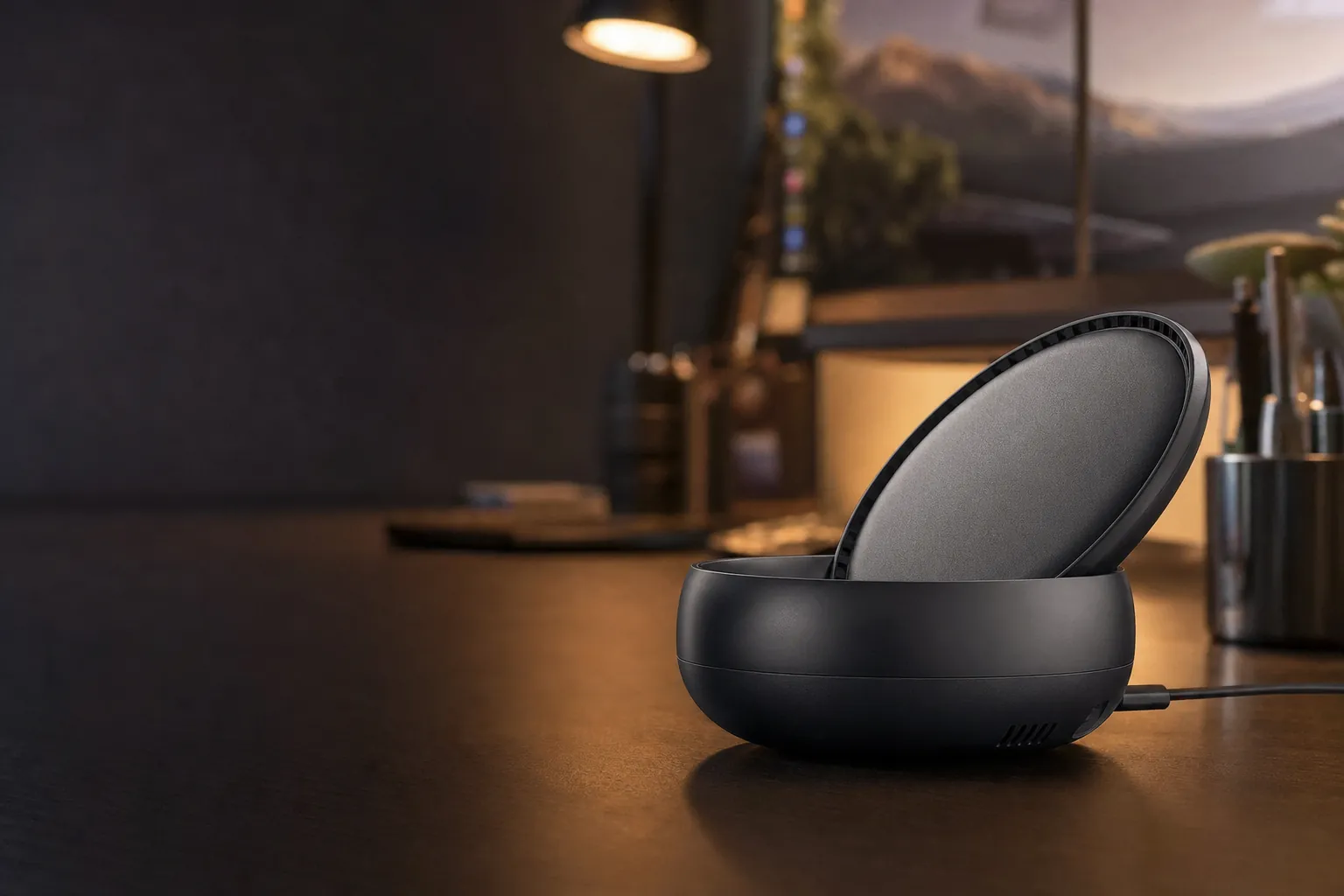
Samsung DeX is one of those features that sounds like a party trick until you give it a proper screen, a sensible desk and a task with more than two browser tabs involved. Then it clicks. Your phone stops being the thing that is getting in the way of work and starts acting rather more like the computer you already had in your pocket.
The key is not simply buying a dock-shaped object and hoping for the best. DeX is a desktop-like experience from a Galaxy mobile device, and Samsung describes it as working with or without a wired connection. That gives you two very different routes to the same destination: a wired setup for a more deliberate desk, or Wireless DeX when speed, simplicity and a lighter bag matter more than building a permanent command centre.
There is an important bit of housekeeping before we begin. A productive DeX workspace is a system, not a single purchase. The screen is where you see the work; keyboard and mouse are how you move through it; the connection is the bridge between the two; and your foldable remains the little computer doing the actual heavy lifting. If one piece is awkward, it tends to spoil the lot. A beautiful display is not much consolation if you are pecking out emails on glass.
The sensible starting point: decide whether you want a fixed desk, a travel desk or a living-room screen that occasionally becomes a work screen. Once you know that, choosing between wired DeX and Wireless DeX becomes far less mysterious.
The shortlist: choose your DeX route first
I have organised this guide around the Samsung DeX experiences that matter when building a foldable workstation. That is deliberate. A dock or hub should serve the way you work, rather than becoming the main event. There is no prize for owning a desk that resembles a small data centre if all you needed was a larger screen for a presentation.
A well-planned DeX desk is about clear roles: the foldable supplies the computing, while the larger display and input devices make that computing comfortable to use.
Ranked picks for building your workspace
1. Samsung DeX — Best for a wired desktop workspace
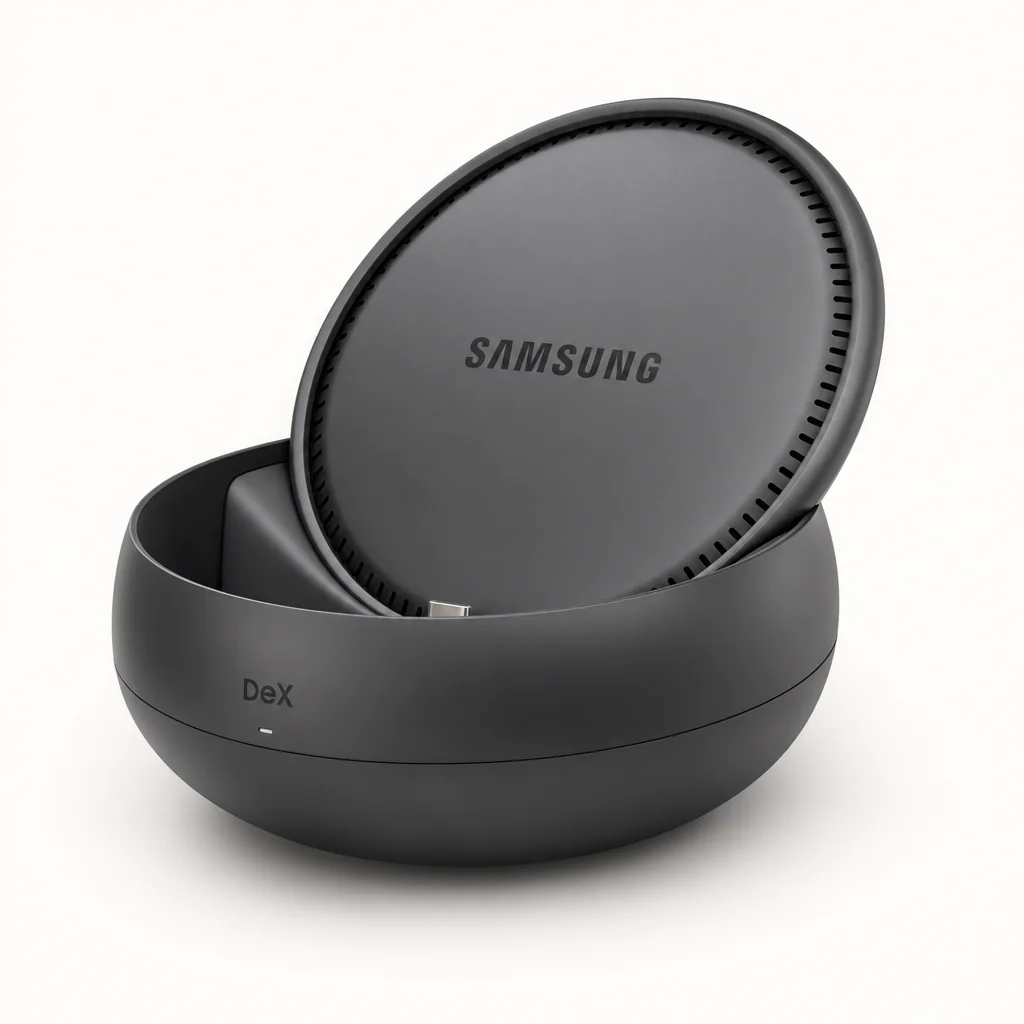
If your foldable productivity ambition involves a monitor that stays on the desk, a keyboard you enjoy typing on and a mouse that does not disappear into a rucksack, wired Samsung DeX is the sensible centrepiece. It is the least romantic answer. It is also usually the one that gets used.
The appeal is straightforward: sit down, connect, work on a larger display, and keep the handset as the compact brain of the operation. That gives tasks such as drafting messages, preparing presentations and juggling several bits of work far more breathing room than a phone-sized canvas. You are no longer treating the inner foldable display as a compromise laptop screen; you are using it as a very capable companion to a proper desk display.
For this route, buy accessories according to roles. A wired display connection is the essential bridge. A keyboard and mouse are the comfort upgrades that turn DeX from "interesting" into "I could answer emails here all afternoon". A stand is useful when you want the foldable visible for authentication, calls, notes or simply keeping an eye on the handset without leaving it flat on the desk like a very expensive coaster.
Strengths
- Built around a deliberate desktop-like experience.
- Suited to longer messages, presentations and multi-window work.
- Lets the larger display do the visual heavy lifting.
Watch-outs
- Needs a physical connection at the desk.
- Less elegant for a quick pop-up workspace.
- The experience depends on choosing comfortable peripherals.
2. Samsung Wireless DeX — Best for cable-light productivity
Browse Samsung DeX docks and adapters on Amazon UK
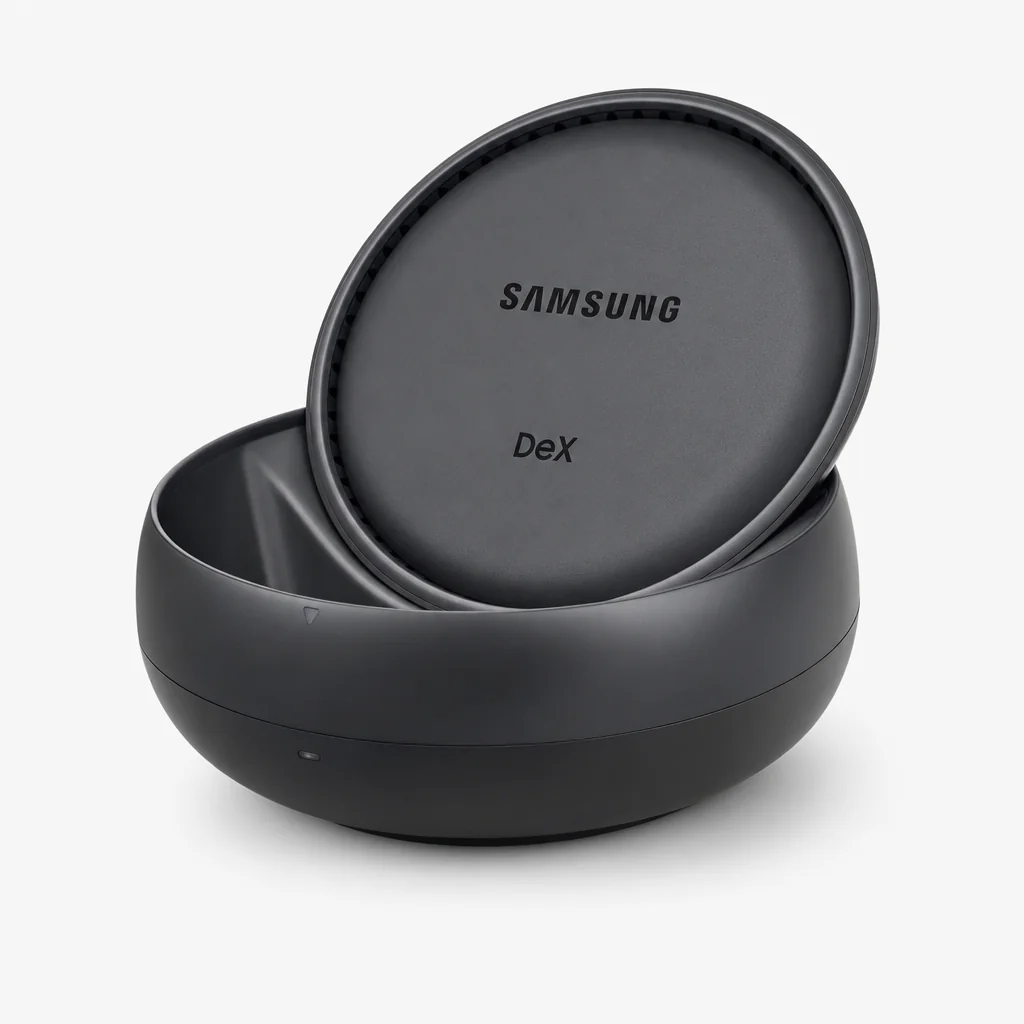
Wireless DeX is the answer for people who want the big-screen benefit without treating every meeting room, hotel television or spare display as an invitation to unpack a cable collection. Samsung explicitly positions DeX as usable without a wired connection, and that matters because convenience has a funny way of becoming productivity. The setup you can begin in moments is often the setup you will actually use.
This is the route I would favour when your foldable is part of a flexible working day rather than the foundation of a fixed home office. A presentation can be prepared while you are still using the phone normally. Messages can sit alongside other work on a larger screen. A film can be watched without making the phone's display carry the whole job. It is not about replicating every convention of a traditional desktop; it is about giving your apps more room when the moment calls for it.
Keep the peripheral plan modest. A compact keyboard and portable mouse make the experience feel much more intentional, whilst a foldable stand prevents the handset from becoming an afterthought. Do not feel obliged to recreate your entire home desk in a coffee shop. That way lies a backpack full of cables and a very stern expression at airport security.
Strengths
- Uses the confirmed wireless DeX option.
- Ideal when a quick, lower-clutter setup matters.
- Useful for large-screen multitasking away from a fixed desk.
Watch-outs
- Still benefits enormously from keyboard and mouse input.
- Not the most natural choice for a cable-managed permanent desk.
- Requires a suitable larger screen in the place you are working.
Wireless DeX makes the most sense when the screen is already there and you need a faster route from pocket device to larger working canvas.
3. Samsung New DeX mode — Best for retaining a tablet-style workflow
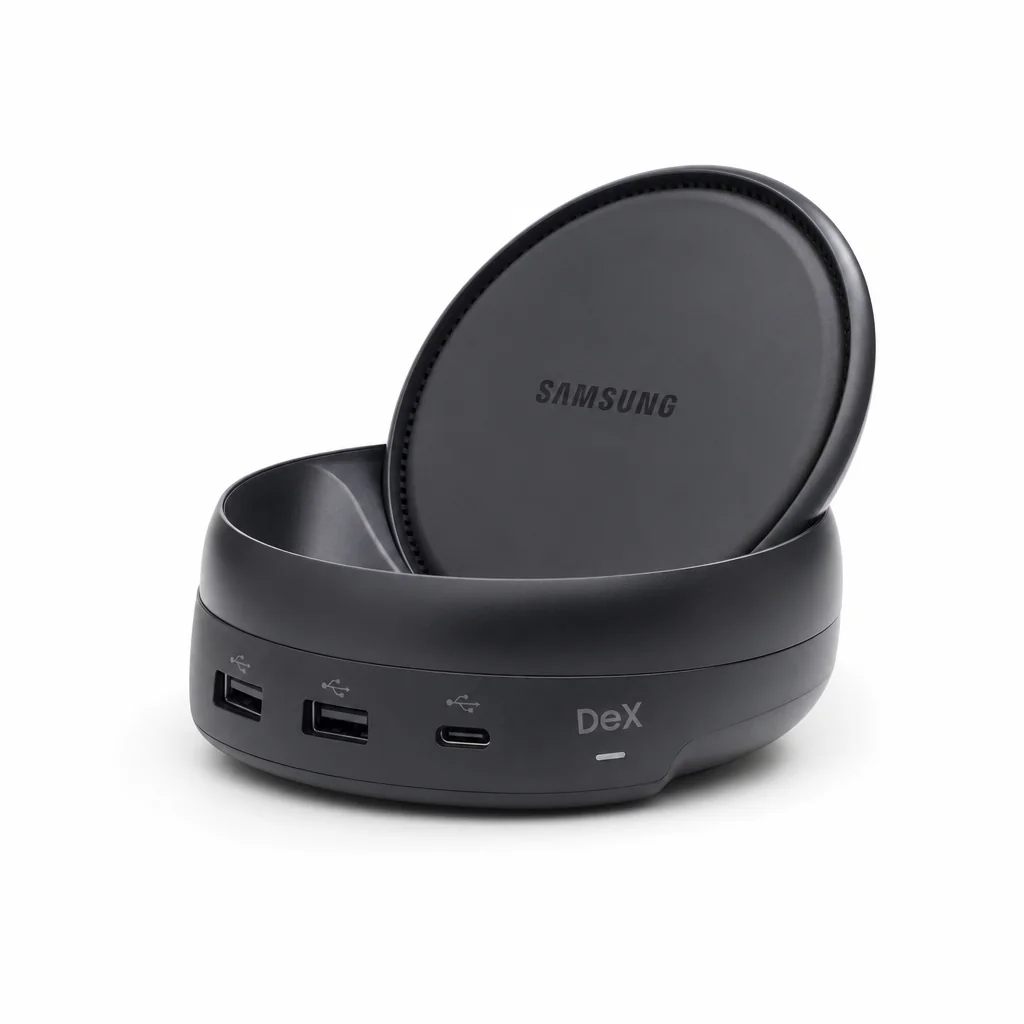
On tablets, Samsung offers New DeX mode, which retains the native tablet UI and tablet experience. That may sound like the less dramatic choice, but it is a thoughtful one. Not every productive session needs to pretend it is taking place on a traditional desktop. Some work is better when your device stays recognisably touch-first, direct and mobile.
This is particularly useful for people who like the feeling of a large touch interface but still want the broader multitasking framing that comes with DeX. It is a reminder that "productive" does not necessarily mean "desktop-looking". If you annotate, browse, check messages, make notes and shift between short tasks, retaining the tablet's familiar character can be the more comfortable route.
For foldable owners, the lesson is useful even where the mode itself is described for tablets: do not build your accessory setup around an imaginary office worker. Build around your actual habits. If you regularly reach for touch controls, value portability and prefer a workspace that feels native to a mobile device, a lighter accessory selection will generally serve you better than a grand docking ritual.
Strengths
- Retains the tablet's native UI experience.
- Well suited to people who prefer touch-first working.
- A flexible alternative to a wholly desktop-shaped setup.
Watch-outs
- Described as a tablet mode rather than a separate dock solution.
- Less suited to buyers who specifically want a familiar desktop environment.
- Requires a different mindset from a fixed monitor-and-peripherals desk.
4. Samsung Classic DeX mode — Best for a familiar desktop environment
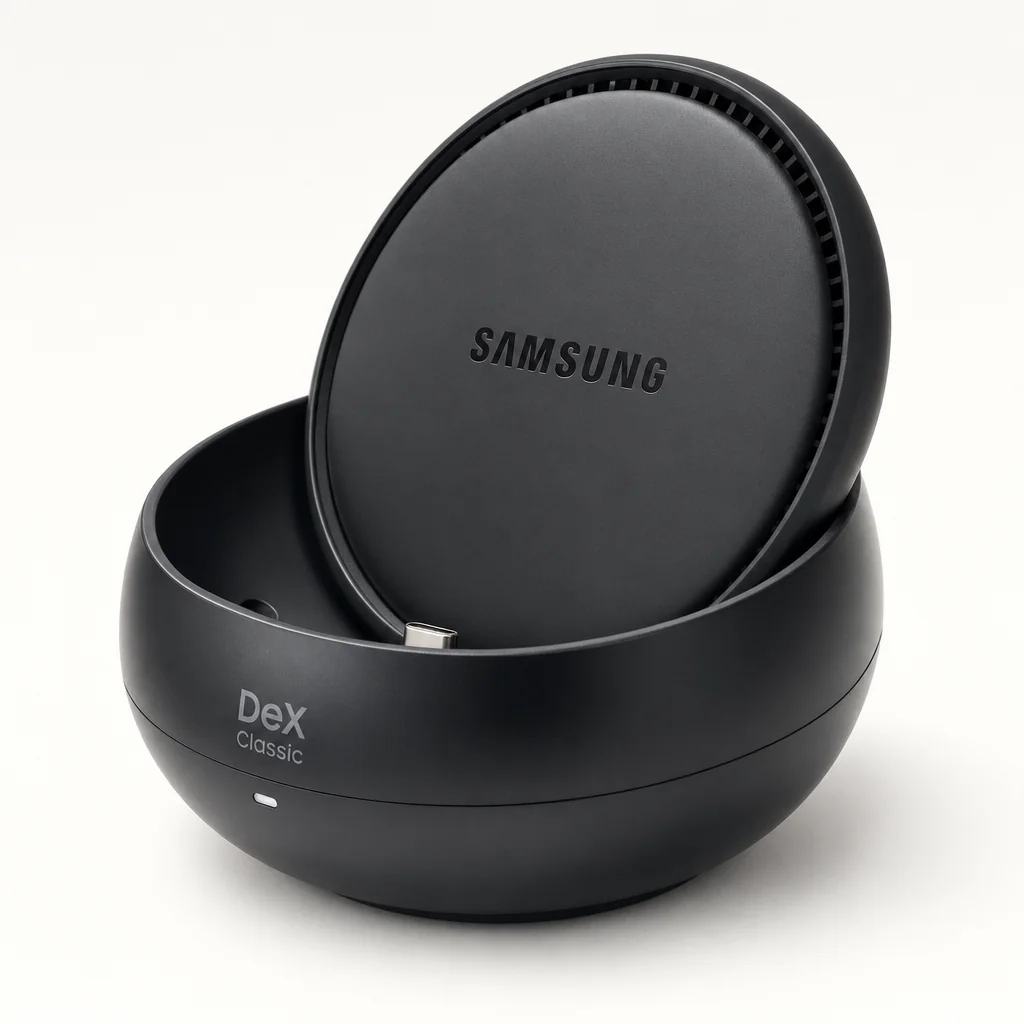
Classic DeX mode is the option for anyone who wants a tablet interface converted into a familiar desktop environment. If your muscle memory is built around a cursor, windows, a keyboard and the general logic of a computer desk, this is the reassuring route. You do not have to relearn your working habits simply because the computer happens to be a Galaxy device.
It is also the clearest match for the "foldable as desktop" idea. Pair a larger screen with dependable input accessories and the experience can feel properly purposeful: messages in one area, a presentation in another, and enough room to keep the day moving without continually hopping between full-screen apps. That is the core DeX proposition, really. Less pinching. Less constant app-switching. More visible context.
The limitation is not a flaw so much as a buying cue: Classic DeX makes most sense when you are prepared to give it desktop-friendly companions. It deserves a stable screen, an easy-to-use keyboard and a mouse or pointing device you do not resent after twenty minutes. The software can create the desktop environment; only the peripherals can make it feel hospitable.
Strengths
- Converts the interface into a familiar desktop environment.
- Natural fit for keyboard-and-mouse habits.
- Strong choice for sustained multitasking sessions.
Watch-outs
- Described as a tablet mode.
- Works best with a considered desk setup around it.
- May be more than you need for quick, casual display sharing.
Samsung DeX modes compared
There is no single winner here because the four options are doing slightly different jobs. Wired Samsung DeX and Wireless DeX are connection choices. New DeX mode and Classic DeX mode are tablet interface choices. That distinction matters. Comparing them as though they were four different physical docks would be like comparing a steering wheel with a route planner. Related, certainly. The same thing, absolutely not.
| Experience | Samsung DeX | Samsung Wireless DeX | Samsung New DeX mode | Samsung Classic DeX mode |
|---|---|---|---|---|
| Connection framing | Wired connection | Without a wired connection | Tablet UI mode | Tablet UI mode |
| Desktop-like experience | Yes | Yes | New DeX retains the tablet experience | Converts to a familiar desktop environment |
| Best suited to | Deliberate desk working | Flexible, cable-light setups | Tablet-first flexibility | Traditional desktop habits |
| Large-screen multitasking | Supports the DeX use case | Supports the DeX use case | Tablet-focused DeX choice | Desktop-focused DeX choice |
The buying rule that saves the most regret
Choose your screen connection first, then choose input accessories second. It is tempting to start with a hub because hubs look technical and therefore important. In practice, a setup lives or dies by whether you can see clearly and type comfortably. The rest is supporting cast.
Classic DeX is the better mental fit when your ideal workspace looks and behaves like a conventional desktop, rather than a scaled-up mobile interface.
Build the right accessory kit around DeX
Accessories are where this category gets silly very quickly. There is always another adapter, stand, cable or gadget promising to transform your workflow. Resist the urge to buy an entire drawer at once. Start with the friction you actually have. If it is typing, solve typing. If it is viewing slides, solve the screen. If it is working from different rooms, solve portability.
Start with the larger screen
DeX is positioned around a desktop-like experience and large-screen multitasking. A screen is therefore the one accessory category that changes the basic experience most dramatically. Decide whether yours is a permanent desk display, an occasional shared display or a screen you encounter while travelling.
Use a keyboard for writing-heavy work
Messages, presentations and documents are all more realistic tasks when you are not relying entirely on the phone's on-screen keyboard. The best keyboard is not necessarily the smallest one; it is the one you will willingly use for a full afternoon.
Add a pointing device when windows become the norm
A mouse makes the most sense with a familiar desktop environment, where moving between multiple visible tasks is central to the appeal. If your DeX use is short and touch-led, it may be lower priority than the keyboard.
Keep the foldable visible
A stand is quietly useful. It keeps the handset accessible for calls, quick checks and authentication, while leaving the desk less chaotic. It is a small quality-of-life purchase, which is usually a polite way of saying you will miss it immediately once it is gone.
Split your kit into home and travel roles
A full desk setup should not dictate your travel setup. Keep the mobile kit lean: a compact input option and a way to make use of a larger available screen. Reserve the larger, more permanent accessories for the place where you work most often.
Productivity gains: where DeX earns its desk space
There are no meaningful productivity points awarded for merely seeing DeX on a monitor. The benefit arrives when you can keep context on screen. Samsung's own DeX framing is centred on doing things such as sending messages, watching movies and preparing presentations at the same time on a large screen. That blend is a useful clue to where the platform is strongest: not necessarily one monumental task, but several ordinary tasks that are easier when they stop fighting for a tiny display.
Think of those bars as a map of suitability, not laboratory scores. The important point is that DeX can improve workflow efficiency precisely because it gives familiar everyday tasks a broader canvas. A presentation can remain visible while you check a message. A video can occupy one part of the screen while you organise something else. You have room to breathe, which is surprisingly rare in mobile computing.
It is less compelling when your work is already perfectly happy on the unfolded phone display, or when you are moving constantly and never have access to a larger screen. In those cases, a great foldable remains a great foldable; forcing it into desktop duty can just create setup time without returning much value. This is why I would never describe DeX accessories as compulsory. They are force multipliers for the right routine.
Three setups that actually make sense
A good buying guide should leave you with fewer combinations to worry about, not more. These three setups cover most realistic DeX lives.
1. The home-office setup
Choose wired Samsung DeX with a dedicated larger display, keyboard, pointing device and foldable stand. This is the best route for long stretches of writing, presentation preparation and repeatable weekday work. It is also the setup least likely to make you think, "I will just use my laptop instead."
2. The flexible room-to-room setup
Choose Samsung Wireless DeX and keep your accessories deliberately simple. This is for people who move between a study, shared living room, client space or meeting room and want to use whichever larger screen is appropriate without building a permanent workstation in each location.
3. The tablet-minded setup
Choose the tablet experience that matches how you think. New DeX mode is the better fit if you want to retain the tablet's native feel. Classic DeX mode is the better fit if a familiar desktop environment helps you concentrate. Do not pick based on what sounds more advanced; pick based on what feels natural after an hour.
The best DeX setup is not necessarily the most elaborate one; it is the one you can begin using without rearranging the entire room first.
Best-for breakdown: which pick suits which buyer?
Here is the blunt version. Pick based on your working pattern, not the number of accessories you think a productive person ought to own. That person has probably also bought a cable organiser shaped like a tiny robot. We are trying to avoid that level of escalation.
Best all-rounder: Samsung DeX
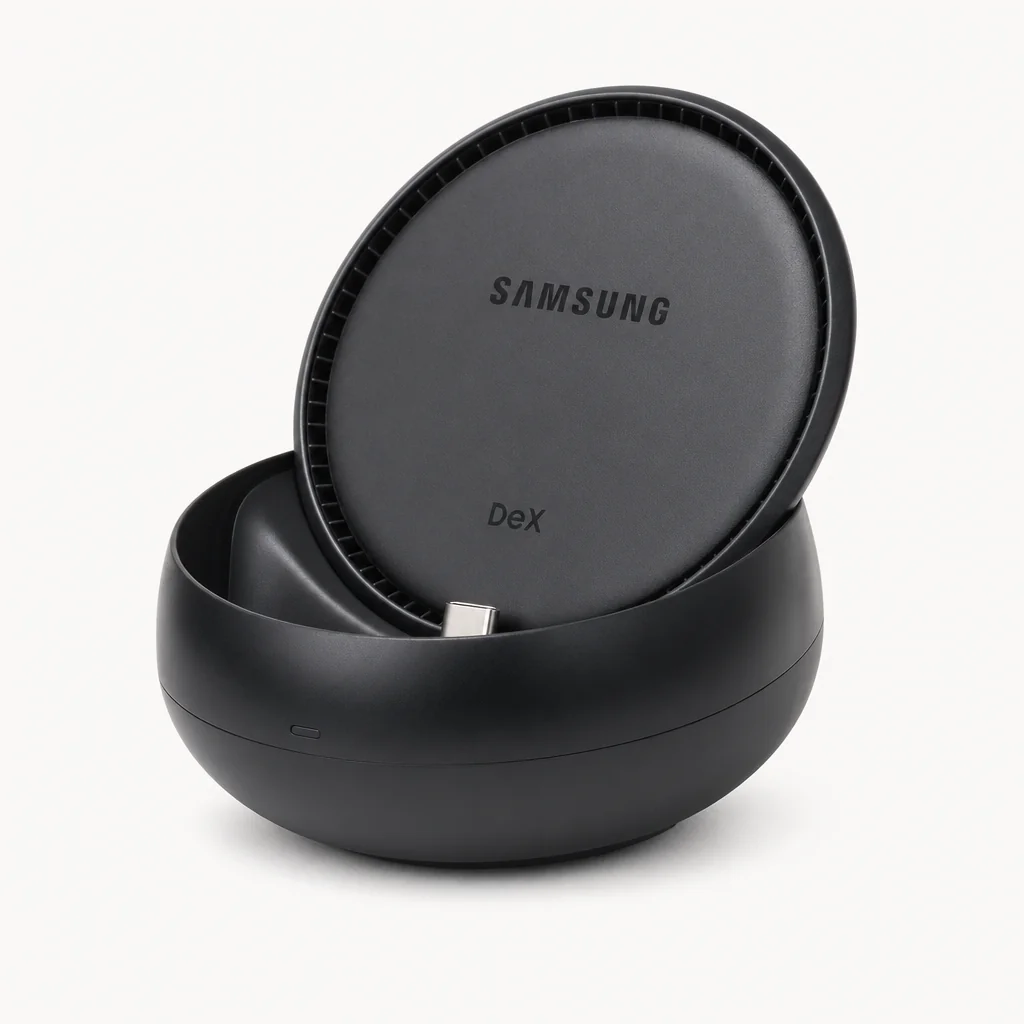
Best for a consistent, wired desktop-like workspace where the larger screen and proper input devices have a permanent home.
Best for travel: Samsung Wireless DeX
Best for people who value a cable-light route to a larger screen and do not want a desk setup following them everywhere.
Best touch-first choice: Samsung New DeX mode
Best for tablet users who want DeX flexibility whilst retaining the native tablet UI and experience.
Best for desktop habits: Samsung Classic DeX mode
Best for people who want the tablet interface to become a familiar desktop environment with conventional workflows.
Mistakes to avoid before you build a DeX desk
The biggest mistake is buying accessories before choosing a use case. A wired desk, a wireless meeting-room kit and a tablet-first arrangement each demand different priorities. If you buy for all three simultaneously, you can end up with a very impressive pile of equipment and no clear reason to use any of it.
The second mistake is treating the foldable display as irrelevant once an external screen enters the picture. Keep it accessible. Your handset is still a useful secondary surface for calls, quick controls, notes and the small bits of life that happen while you are working. A simple stand can make the whole workspace feel much calmer.
Third: do not assume every task needs the classic desktop treatment. Samsung offers both New DeX and Classic DeX modes on tablets for a reason. Some people will be more productive retaining the familiar tablet experience; others will focus better when the interface becomes a classic desktop. There is no moral virtue in preferring the more PC-like option. Use the one that stops you thinking about the interface.
A small desk rule with outsized impact
Leave one clear place for the foldable, one reliable place for input devices and one easy route to the larger screen. If setting up involves moving mugs, unplugging chargers and hunting for a keyboard under paperwork, you have designed a hobby rather than a workspace.
Is DeX right for your foldable workflow?
DeX makes the strongest case for itself if you frequently work across messages, presentations, browsing and media, and you often wish your foldable had just a little more room to show it all. It is especially attractive if you like the idea of carrying one primary personal device but still want a more desktop-shaped experience at home or when a larger display is available.
It makes less sense if your working day depends on a very specific desktop program or a set of specialist peripherals that define your job. In that situation, DeX can still be a useful supplementary environment, but it should not be purchased as a fantasy replacement for tools you genuinely need. Honest expectations are much better than a heroic cable setup followed by disappointment on a Tuesday morning.
For everyone else, DeX is best seen as a flexibility feature. Your foldable can remain brilliantly mobile most of the time, then become a desktop-like workspace when a larger screen and better inputs would make the next hour easier. That is a much more compelling idea than trying to make it impersonate every computer you have ever owned.
A foldable can remain your portable everyday device while DeX gives it a more spacious role whenever work needs more visible context.
Frequently asked questions
Samsung describes DeX as a desktop-like experience from a Galaxy mobile device. Its purpose is to make multitasking more practical on a larger screen, with use cases including sending messages, watching movies and preparing presentations at the same time.
Yes. Samsung confirms that DeX works with or without a wired connection, and Wireless DeX is the option aimed at that cable-light route. It is the better fit when flexibility and fast setup are more important than a fixed desk arrangement.
Neither is universally better. Wired DeX is the more natural foundation for a stable, repeatable home-office desk. Wireless DeX is the more natural choice when you want to use a larger available screen with less physical setup. Choose according to where and how often you work.
On tablets, New DeX mode retains the tablet's native UI and experience. Classic DeX mode converts the interface into a familiar desktop environment. New DeX is the touch-first option; Classic DeX is the option for people who prefer conventional desktop habits.
Prioritise the larger-screen experience first, then comfortable input. A keyboard matters most if you write regularly; a pointing device matters most if you work across multiple visible tasks; and a stand is a worthwhile practical addition for keeping the foldable accessible at the desk.
For messages, presentations, media and everyday multitasking, DeX can be a very useful desktop-like environment. Whether it can replace another computer depends on the particular software, workflows and peripherals your work requires. It is best approached as a flexible productivity option rather than a promise that every desktop task will disappear.
It can be. The foldable screen is excellent for portable work, but Wireless DeX can give you more room when a larger compatible display is available. That is particularly useful for presentations, keeping messages visible beside other tasks or simply reducing the amount of app switching you need to do.
Usually, no. A fixed desk can support a fuller set of accessories, while a travel kit should be ruthlessly simple. Separating the two makes both setups more pleasant: the home desk remains comfortable, and the bag remains something you can lift without developing a personal grievance against it.
The strongest DeX purchase is often a modest one: build around the screen and input method that remove the most friction from your ordinary day.
The bottom line
For a fixed foldable productivity desk, Samsung DeX is the best all-round starting point because it is built around the desktop-like experience itself. For a more flexible setup, Samsung Wireless DeX is the smarter choice: less cabling, less ceremony, more chance you will actually use it.
If your decision is about tablet workflow rather than screen connection, choose Samsung New DeX mode when you want to retain the native tablet experience, or Samsung Classic DeX mode when a familiar desktop environment helps you get on with the job. Buy the accessories that solve your real bottleneck, keep the foldable visible and useful, and you will have a workspace that feels clever for the right reason: because it gets out of your way.