
The SSD That Failed Without Any Warning Signs Whatsoever
I've seen drives limp along for months giving fair warning — this one just stopped, silently, overnight.
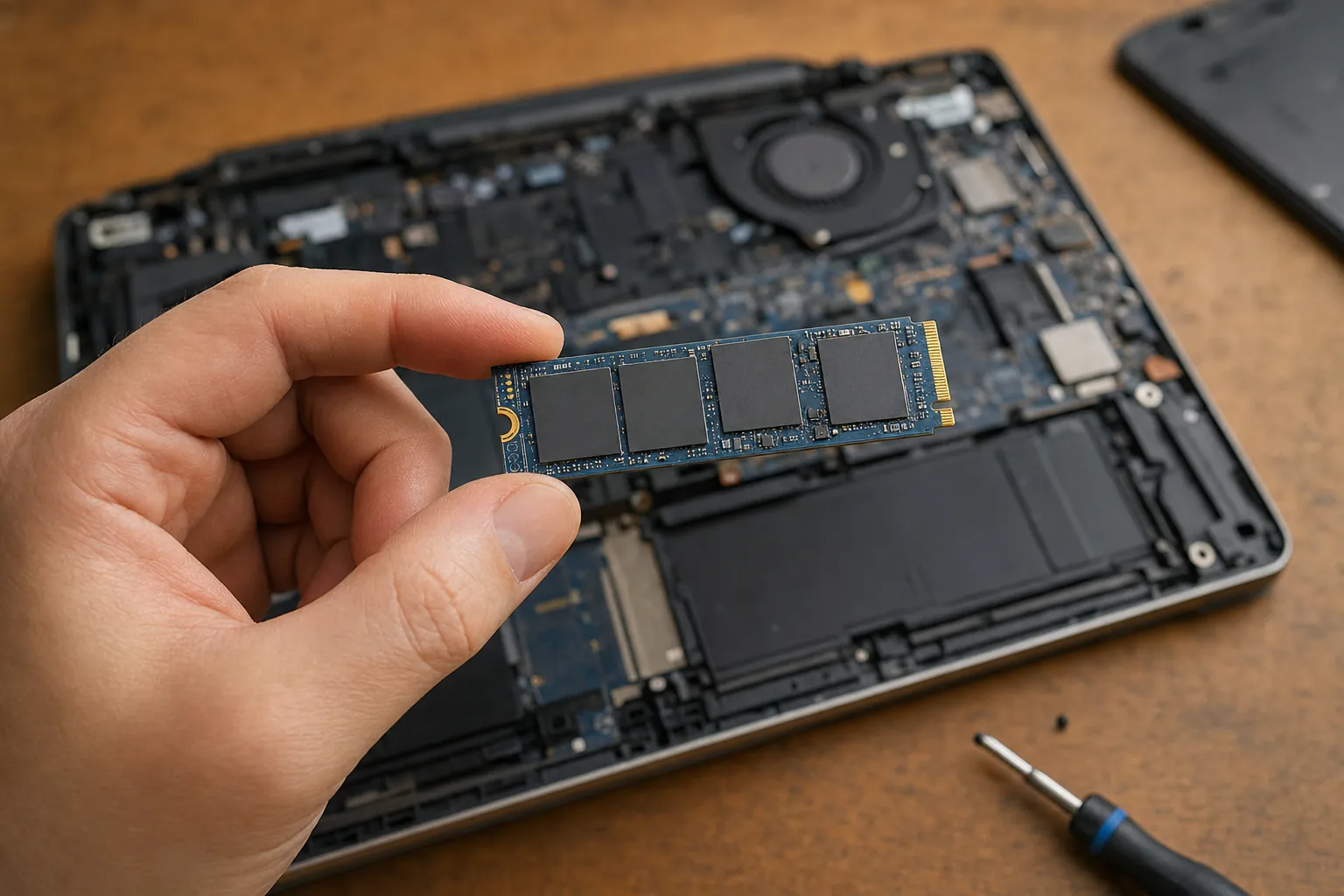

A customer brought in her laptop a few months back with a simple complaint: it wouldn't turn on. No crash the night before, no strange noises, no slowdown, no warning at all. She'd closed the lid at teatime, opened it the next morning, and the machine just sat there at a black screen. The SSD inside had failed completely, silently, and without a word of notice.
I hear a lot of people say SSDs are more reliable than mechanical hard drives. And broadly, yes, they are. They have no spinning platters to seize up, no read heads to crash. But they are not immortal, and the particular way they can fail is arguably worse than a traditional drive — because they often skip the warning signs entirely.
With a mechanical drive you usually get some clues. Clicking, slowdowns, bad sectors showing up in a scan. Enough time, often, to grab a backup. With an SSD, the NAND flash memory inside can simply stop accepting writes one day, or the controller chip can give up without ceremony. The drive either works or it doesn't.
Why this catches people out
The reason it catches people out is that SSDs have a well-deserved reputation for speed and reliability, so owners stop worrying about them. A drive that boots Windows in ten seconds and never plays up doesn't feel like something that needs watching. That trust is mostly earned — but it can make you complacent about backups.
There are a few things worth knowing:
- SSDs have a write endurance limit. Every cell can only be written to a finite number of times. Budget drives used heavily for years will eventually hit that limit.
- Age matters, not just usage. Flash memory degrades over time even sitting idle. A five- or six-year-old SSD deserves the same respect as an ageing hard drive.
- Controller failures are sudden. When the controller chip goes, there's usually no warning at all — the drive just disappears from the system.
What I'd recommend you do right now
You can check the health of your SSD using a free tool called CrystalDiskInfo. It reads the S.M.A.R.T. data from the drive and gives you a plain-English health status. A "Good" result is reassuring. A "Caution" result means act quickly. Download it, run it, and actually look at the result — it takes two minutes.
- Check reallocated sector counts and uncorrectable error counts in CrystalDiskInfo. Any number above zero in those rows deserves attention.
- Look at the drive's temperature. SSDs running consistently above 70°C are under stress, often because of poor airflow in the laptop.
- Back up regardless of the result. A healthy S.M.A.R.T. status is not a guarantee. My customer's drive showed no S.M.A.R.T. warnings at all before it died.
That last point is the one I keep coming back to. S.M.A.R.T. monitoring is useful, but it's not a crystal ball. The only real protection against silent SSD failure is a recent backup that lives somewhere other than the laptop itself — an external drive, or a cloud service you actually trust and have tested.
My customer lost about three weeks of work documents. Some of it she was able to piece back together from email attachments. Most of it was simply gone. The SSD itself cost forty pounds to replace. The data cost considerably more than that.
The Repair Bench verdict
Don't assume your SSD is fine: run CrystalDiskInfo every few months and take any "Caution" rating seriously — and remember that some drives fail without ever showing one.
Your real insurance is a backup: an automatic backup solution like Acronis Cyber Protect Home Office takes an image of your whole drive, so a sudden failure doesn't mean lost data.
Watch out for: SSDs aged five years or more, or any budget drive used heavily — these carry a higher risk of sudden, unannounced failure.