
The One Reason Your Phone Photos Could All Vanish Overnight
Your phone is an amazing camera — but it's a terrible photo archive, and most people only discover that after it's too late.
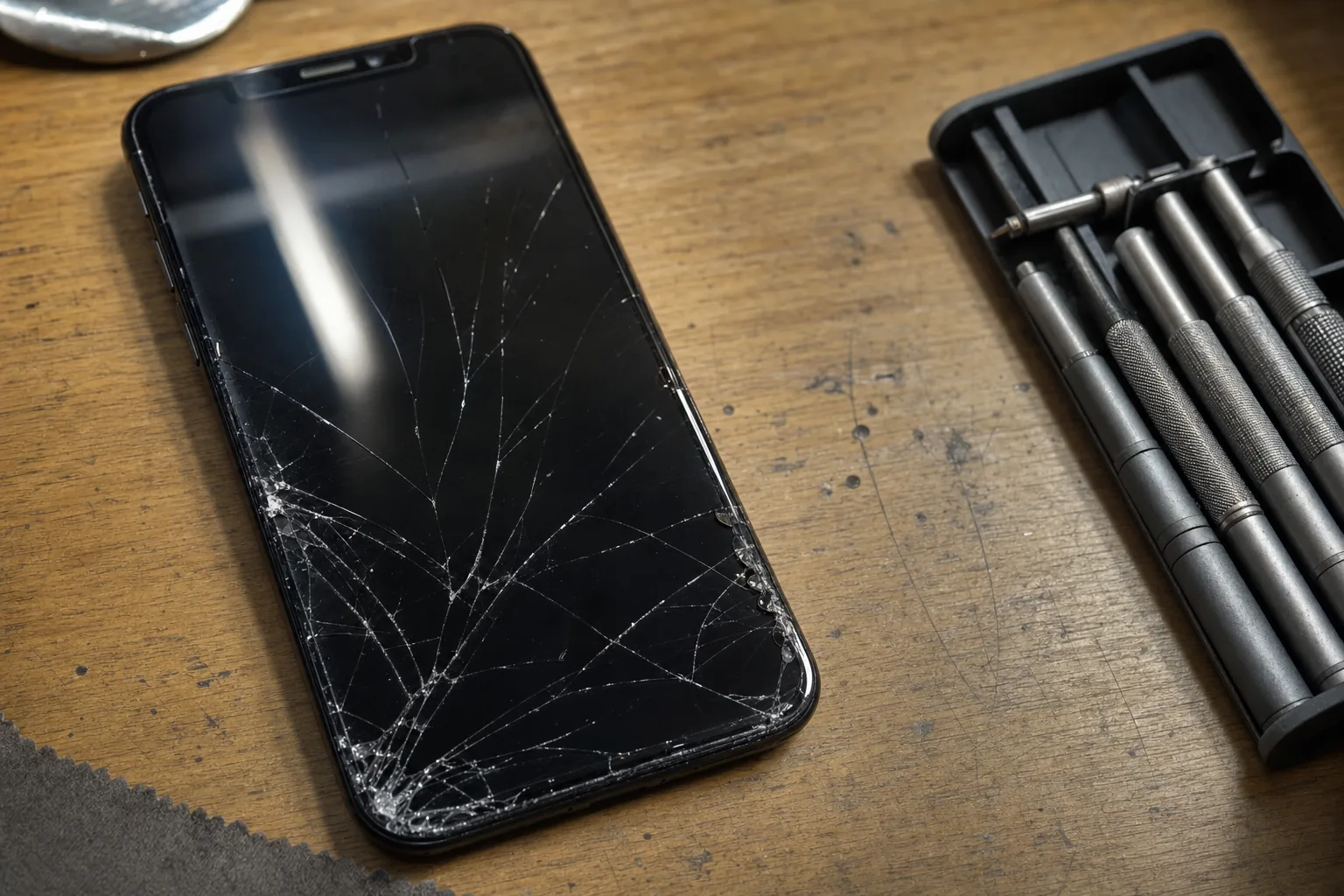

A woman came in last month holding her phone in both hands like it was an injured bird. She'd dropped it down the stairs — screen smashed, wouldn't power on. Her daughter's first three years were on that phone. No backup, no cloud sync, nothing. I managed to recover most of it, but I won't pretend I always can. Sometimes the answer is: "I'm sorry, it's gone."
I see this every few weeks and it never gets easier to say. The tragedy is that losing those photos is almost always entirely preventable. People assume that because a modern phone costs £800 and fits their whole life inside it, it must be looking after that life reliably. It isn't. The phone is a device. Keeping your memories safe is a separate job entirely, and the phone won't do it unless you tell it to.
What can actually go wrong
In over twenty years on the bench I've seen photos disappear in ways people never expected:
- Physical damage. Drops, water, a sat-upon back pocket. A cracked screen is often recoverable, but a broken storage chip inside usually isn't.
- Theft. If someone walks off with your phone, your photos go with them. Factory reset by the thief and they're gone permanently.
- A failed software update. It's rare, but a botched update or a restore gone wrong can wipe a phone completely. I've seen it happen.
- The phone simply dying. Batteries swell, charging ports fail, components give up. Age catches everything in the end.
None of these are exotic risks. They're just Tuesday.
How to check where your photos actually live right now
Before anything else, find out whether your phone is already backing up without you realising — and whether that backup is actually working.
- On an iPhone: go to Settings, tap your name, then iCloud, then Photos. If iCloud Photos is off, your pictures are on the device only. If it's on, check it shows "Backed Up" with a recent date — not a warning about storage being full.
- On Android: open Google Photos, tap your profile picture and choose "Photos settings", then "Backup". Confirm backup is on and that it says it's up to date. Many people have it switched off and never noticed.
- Check your iCloud or Google storage isn't full. When it fills up, backup silently stops. You think you're covered; you're not. This is the one that catches people out most often.
The other thing I'd strongly recommend is not relying on a single copy anywhere. Cloud storage is very good but it's not infallible — accounts get hacked, subscriptions lapse, services change. Having photos in two places is genuinely safe. Having them in one place, whether that's a phone or a cloud account, is a gamble.
A simple habit: once a month, connect your phone to a computer and copy new photos into a dated folder on an external hard drive. It takes five minutes and it's the kind of thing you'll only wish you'd done after you need it.
The Repair Bench verdict
Check today: open your phone's backup settings and confirm photos are actually syncing — not just switched on in theory, but up to date and not blocked by a full storage quota.
Best habit to build: keep photos in at least two places — cloud sync running and a monthly copy to an external drive. One backs up the other.
Watch out for: free cloud tiers that fill up quietly and stop backing up without any obvious warning. If you're near your limit, either pay for more space or sort through what you've got — but don't ignore it.