
The Office Version Your Business Is Still Running Could Land You In Trouble
I see it every month — a perfectly healthy PC running software that's quietly become a liability.
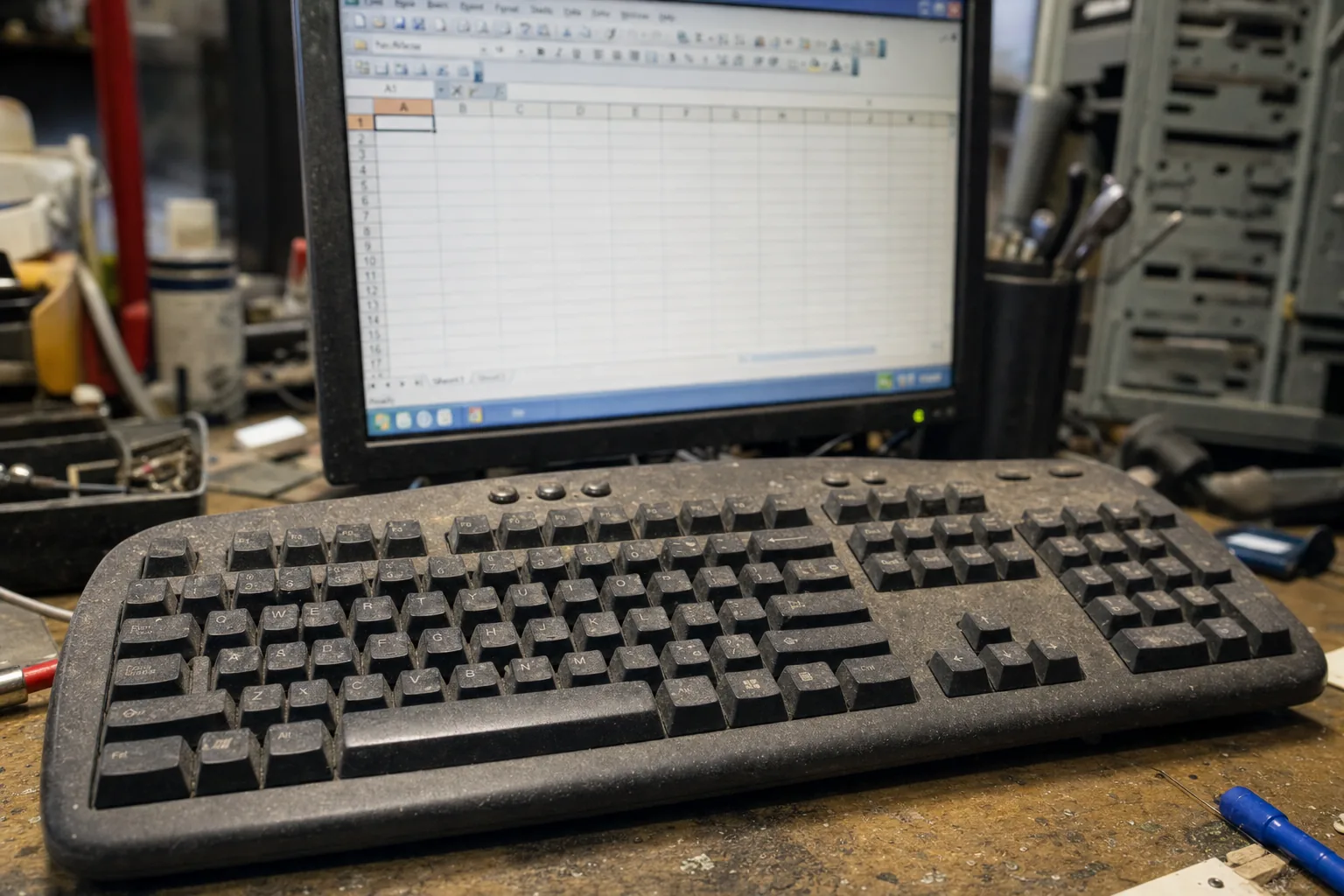

A customer brought in her office PC last month — nothing wrong with the hardware, she just wanted me to have a look over it. The machine was tidy, well-maintained, running nicely. Then I spotted she was still on Office 2013. She had no idea that Microsoft had ended all support for it back in April 2023. From that point on, it stopped receiving security patches entirely. She'd been processing invoices and client data on it for three years past that line.
This is something I see regularly. People assume that because the software still opens and saves files, everything is fine. And in a narrow sense, it is — until it isn't. Old Office versions don't explode on a deadline. They just quietly become a gap in your defences.
What "end of support" actually means day to day
Microsoft gives each Office version a support lifespan. When it ends, two things stop: mainstream fixes and, more importantly, security updates. Any vulnerability discovered after that date goes unpatched. Forever.
- Office 2013 reached end of support in April 2023. No more patches, full stop.
- Office 2016 and Office 2019 both hit end of support in October 2025. That date has now passed.
- Office 2021 is still within its support window — but that closes in October 2026, which is only a few months away from today.
The risk isn't abstract. Office files — Word documents, Excel spreadsheets, email attachments — are one of the most common delivery methods for malware. An unpatched version is a known, published weak point. Attackers actively target software they know won't be fixed.
How to check what you're actually running
It takes about thirty seconds to find out where you stand.
- Open any Office app — Word or Excel will do — then go to File > Account. The version and build number are listed right there under "About Word" or similar.
- Look for the year in the product name. "Microsoft Office 2016" or "2019" tells you immediately that support has already ended.
- Check whether updates are being offered. If the Update Options button is greyed out or absent, the version may be too old to update in the normal way.
If you're on a business network, your IT person can run a software inventory report that shows every machine's Office version in one go. Worth doing before assuming everyone is up to date.
What I actually recommend to customers
For most small businesses and home users, a Microsoft 365 subscription is now the sensible answer. It updates itself continuously, so you're never sitting on an unpatched version. For people who genuinely don't want a subscription, Office 2024 is available as a one-off purchase and carries support through 2029 — though that clock will start ticking eventually too.
What I tell every customer is this: the software working fine is not the same as the software being safe. The two things parted company the moment Microsoft stopped issuing patches for it.
The Repair Bench verdict
Check your version today: open any Office app, go to File > Account, and look at the product name. If it says 2016, 2013, or earlier, support has already ended.
Best move for most people: Microsoft 365 — it stays patched automatically and covers multiple devices, which makes it good value for a small business or family.
Watch out for: assuming "it still works" means "it's still safe" — with unsupported software, that gap between the two is exactly where problems creep in.