
How to Stop Your Laptop Overheating and Thermal Throttling
The practical fixes that actually work — plus the honest truth about when a cooling pad, a repaste or a laptop stand genuinely earns its place on your desk.
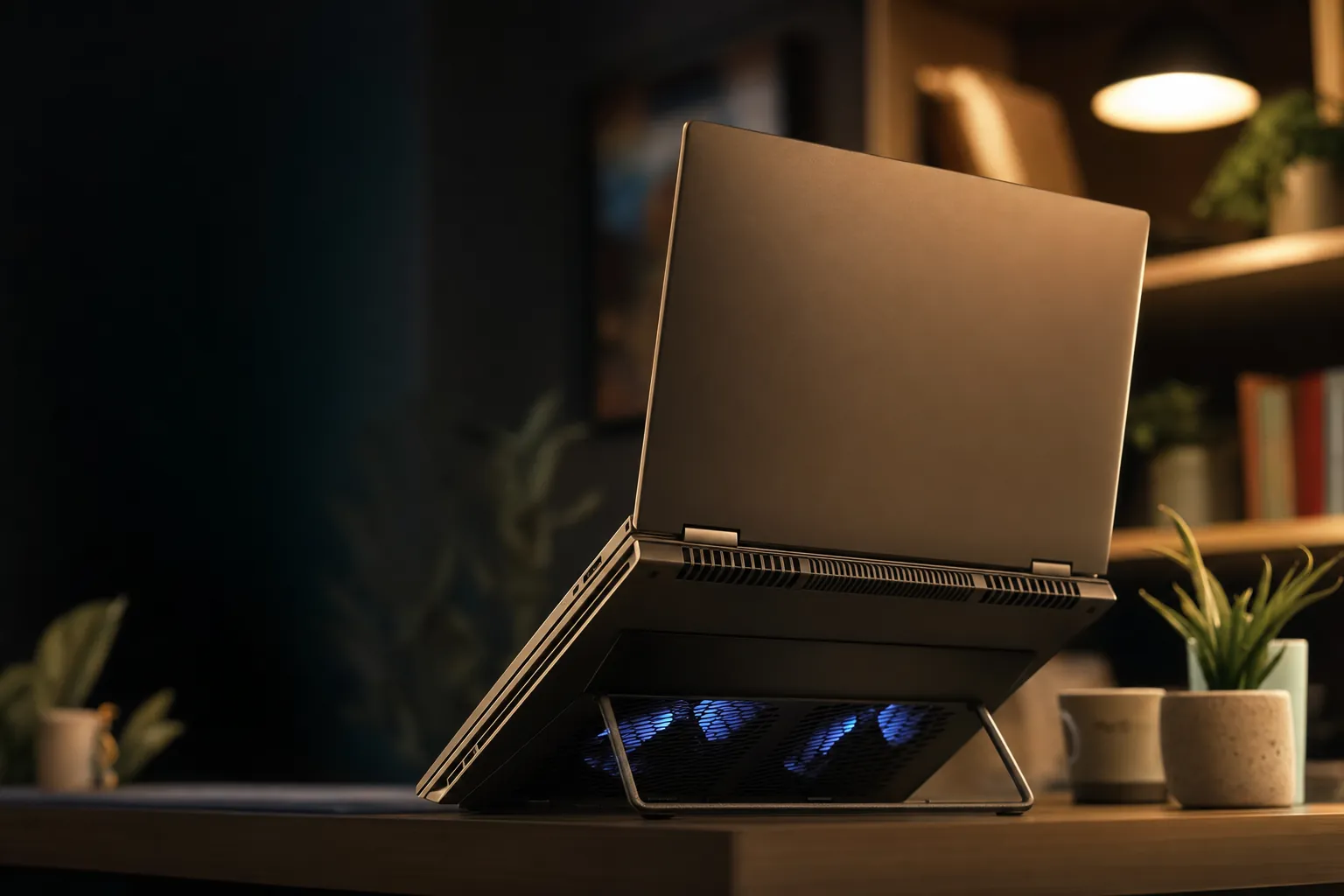
Thermal throttling quietly robs you of performance long before your laptop ever shuts down.
If your laptop sounds like it's preparing for take-off five minutes into a game, or your frame rate mysteriously halves after a few minutes of editing, you're almost certainly looking at thermal throttling. The good news is that most of it is fixable, and a surprising amount of it costs nothing at all. I've spent years cleaning, repasting and bolting fans onto laptops of every shape, and in this guide I'll walk you through the whole toolkit — from free software tweaks to whether a £40 cooling pad is worth your money. Crucially, I'll be honest about what helps and what's mostly marketing.
What Thermal Throttling Actually Is
Before we start fixing anything, it helps to understand what's going on inside the chassis. Thermal throttling is your laptop's self-preservation instinct. When the CPU or GPU climbs past a temperature it considers safe, it deliberately reduces its clock speed to generate less heat. The chip doesn't break — it just gets slower, sometimes dramatically so. That's the trade-off the manufacturer baked in: a slow laptop is better than a dead one.
The frustrating part is that throttling is invisible unless you go looking for it. There's no warning light. Your machine simply feels sluggish under sustained load, fans roar, and you assume the laptop is "just getting old". In reality, the silicon is perfectly capable — it's the cooling system that's waving the white flag.
In my experience, thermal throttling is almost never caused by a single thing. It's a stack of small problems compounding: a bit of dust here, slightly tired thermal paste there, a power profile that's far too aggressive for the chassis, and a habit of using the laptop on a duvet. Fix two or three of those and the difference can be transformative.
A handful of numbers worth memorising before you start diagnosing.
Diagnose First: Are You Actually Throttling?
Don't spend a penny until you've confirmed the problem. It's genuinely easy to do, and it saves you from "fixing" something that was never broken. My go-to tool is HWiNFO64 — it's free, it's exhaustive, and it shows you exactly what every sensor in the machine is reporting in real time.
Here's the test I run on every laptop that lands on my bench. Open HWiNFO64 in sensors-only mode, then put the machine under a sustained load — a demanding game, a CPU stress test, or a long video export. Watch the CPU clock speed closely. The tell-tale signature is unmistakable: if your laptop boosts to 4.5GHz in the first 30 seconds and then settles at 2.0–2.5GHz after 2–3 minutes, that sustained clock collapse is thermal throttling. The chip can sprint, but it can't keep running.
Pair that with the temperature reading. As a rule of thumb, keep your CPU below 85°C during normal use. Brief spikes are fine and entirely normal — silicon is designed to handle short bursts. But if it crosses 90°C often and parks there, it's time to act. That combination — high temperatures plus a clock speed that nosedives and refuses to recover — is your confirmation.
Run your diagnostic test before and after every change you make. It's the only way to know whether a fix actually worked rather than just feeling like it did. A 10-minute log tells you more than an afternoon of guesswork.
The 30-second sprint
Healthy laptops boost hard at first — that's expected. It's what happens after the heatsink saturates that matters.
The clock collapse
A drop from peak boost down to 2.0–2.5GHz that stays there is the smoking gun of a cooling system that can't keep up.
The temperature ceiling
Crossing 90°C regularly under load is the threshold where I stop watching and start intervening.
The Root Causes Worth Understanding
Throttling is the symptom. To stop it for good, you have to treat the cause, and there are three big ones that show up again and again. Modern hardware doesn't help matters either — manufacturers increasingly ship power profiles that push the chip beyond what the cooling system can realistically dissipate, betting that throttling will catch anything that gets too spicy. That's why even a brand-new laptop can throttle out of the box.
The first culprit is dust. Dust buildup inside the fans and vents blocks airflow and traps heat in the system, making it harder for the device to cool itself properly. It accumulates slowly, which is exactly why people don't notice their laptop getting hotter year on year — the change is gradual until suddenly it isn't.
The second is thermal paste. Thermal paste helps transfer heat from the CPU and GPU to the heatsink, but it can dry out or degrade over time. When it does, heat that should be racing into the heatsink instead lingers on the chip. This is the slow, invisible decline that turns a once-cool laptop into a throttling mess after a few years.
The third is the simplest and most common: placement. Using a laptop on soft surfaces like beds or sofas can block air vents, reducing airflow and leading to higher internal temperatures. The fans physically cannot pull air through a vent that's pressed into a duvet. No amount of software wizardry fixes a smothered intake.
The compounding effect
None of these problems exists in isolation. A dusty laptop with tired paste, run on a bed, can run 25°C hotter than the same machine cleaned, repasted and properly ventilated. That's the difference between full performance and a permanent throttle. Tackle the free fixes first — they often resolve the issue entirely.
Practical Fix 1: Cleaning and Maintenance
This is where everyone should start, because it's free and it's frequently the entire fix. Over months and years, fans accumulate a felt-like mat of dust on the heatsink fins, and air simply can't get through. Restoring that airflow restores your temperatures.
The proper method is to open the back panel and clean the fans and vents using compressed air. Once airflow is restored, temperatures usually drop — sometimes substantially. The key is to actually get inside the chassis rather than just blasting air at the external vents, which tends to drive dust deeper into the heatsink rather than clearing it out. Hold the fans still with a finger or a toothpick whilst you spray, otherwise the air can spin them faster than they're designed to go.
How often should you do this? Regular cleaning of vents and internal components every 3–6 months can prevent most heat-related issues and extend device lifespan. If you live somewhere dusty, have pets, or game heavily, lean towards the shorter end of that window. It's a ten-minute job that pays for itself many times over.
What you'll need
A can of compressed air, a small screwdriver to remove the back panel, and a few minutes. That's genuinely it. If opening the chassis voids a warranty you care about, check the terms first — but for most laptops out of warranty, this is the single highest-value thing you can do.
A heatsink choked with dust is the most common — and most fixable — cause of a hot laptop.
Practical Fix 2: Replacing the Thermal Paste
If cleaning doesn't get you there and your laptop is a few years old, the paste is the next suspect. Over time, the thermal paste that facilitates heat transfer from the CPU and GPU to the heatsink can degrade, and reapplying high-quality thermal paste can improve thermal performance and reduce throttling. As a guide, replacing thermal paste every 3–4 years is recommended — though heavy use can shorten that.
The results can be genuinely dramatic. Repasting a laptop whose original compound has degraded can produce a large drop — we have seen double-digit reductions — but the result depends entirely on how bad the old paste was, the cooler design and the workload. A machine with healthy paste may gain almost nothing. That's not a marginal improvement — that's the difference between a laptop that throttles constantly and one that holds its boost clocks comfortably.
But here's the part nobody tells you, and it's the single most important lesson I've learned: application technique matters more than which tube you buy. Thermal paste choice matters far less than application technique — a mediocre paste applied correctly will outperform a premium compound spread unevenly. The reason most laptops run hot after a repaste isn't inferior paste, but too much of it applied without accounting for the limited clamping pressure that laptop cooler mounting systems generate compared to desktop heatsinks.
That clamping-pressure point is crucial. Desktop coolers bolt down with serious force that squeezes excess paste out and leaves a thin, efficient layer. Laptop heatsinks use lighter spring-loaded screws. Pile on a generous blob like you might on a desktop, and it never spreads thin — it just sits there as an insulating layer, which is the exact opposite of what you want. Less is more.
When a repaste is worth it
- Laptop is 3+ years old and running hot
- Temperature drops of 15–20°C are realistically achievable
- Cleaning alone didn't solve the throttling
- You're comfortable opening the chassis carefully
- Cheap to do — paste costs a few pounds
Reasons to think twice
- It may void your warranty on a newer machine
- Over-application makes things worse, not better
- Some laptops are genuinely awkward to dismantle
- Limited clamping pressure punishes sloppy technique
- Newer laptops rarely need it yet
Pro Tip: thin and even wins
Forget the elaborate "X" and "five-dot" patterns people argue about online. On a laptop, your goal is a thin, even layer that fully covers the die without excess. Apply less than you think you need. Given the lighter mounting pressure, a small amount spread correctly will beat a premium paste slathered on thick every single time.
Practical Fix 3: Placement, Ventilation and Power Tweaks
Some of the most effective fixes require no tools whatsoever. The first is simply where and how you use the machine. Key solutions include maintaining a cool workspace below 75°F and ensuring proper airflow with laptop stands, plus regularly cleaning dust from vents with compressed air. Get the laptop off the bed, off the sofa cushion, and onto a hard, flat surface where the intake vents can breathe.
The second lever is software, and this is where you can claw back a lot of headroom without spending anything. There are three approaches worth knowing:
Cap the boost clock
If a laptop still overheats, limiting the CPU's maximum boost clock prevents it from reaching frequencies that the cooling system simply cannot handle. You lose a little peak performance but gain stable, sustained output.
Undervolt the CPU
Undervolting reduces CPU voltage without affecting performance, lowering heat generation. Tools like Intel XTU or ThrottleStop let you safely undervolt for better thermal management — it's the closest thing to a free lunch in cooling.
Limit CPU power
For immediate relief, limiting CPU power to 75% delivers a quick heat reduction. It's a blunt instrument, but it's instant and reversible — handy when you just need to get through a task without the fans screaming.
Undervolting is the one I reach for most often because, done correctly, it lowers temperatures with little to no performance loss. Take it in small steps, test for stability between each adjustment, and keep a note of what you changed so you can roll back if anything becomes unstable.
Cooling Pads: Do They Actually Work?
This is the question I get asked most, and the honest answer is: it depends enormously on the pad. There's a vast gulf between a cheap RGB-lit plastic tray and a properly engineered cooling solution, and the marketing rarely makes the difference clear.
Let's start with realistic expectations. Quality cooling pads typically reduce temperatures by 5–12°C during moderate workloads, though results vary based on your laptop's bottom vent placement and the pad's fan configuration. That's a meaningful range — enough to pull a borderline-throttling laptop back into safe territory.
But the single biggest variable isn't fan count or RGB or price. It's the seal. Pads without a seal typically manage only a small drop, while a well-sealed pad can achieve a much larger one. The figures vary enormously by laptop, so treat any specific temperature range as illustrative of the principle rather than a result you should expect. That's an enormous difference, and it comes down to physics: a foam gasket creates an airtight seal around your laptop's intake vents and forces cool air directly into your system rather than dispersing it. Without that seal, most of the airflow just spills out around the edges and never reaches the components that need it.
Based on testing across pad categories — the seal is the difference between a gimmick and a genuine fix.
Real-world results I've seen
Numbers in a table are one thing; results under an actual load are another. Here are three examples that show the spread. With a Razer cooling pad fitted with a foam seal, a CPU that hit 88°C during Cyberpunk 2077 without the pad peaked at just 71°C with it — a 17-degree drop, and exactly the kind of result a proper seal delivers. On an 18-inch flagship laptop with a high-end sealed pad, GPU temperatures dropped from 87°C to 66°C under sustained load — a reduction of over 20°C, which is genuinely repaste-tier territory.
At the other end, a low-cost active pad tested on an MSI GL63-9SDK produced a reduction of about 8–10°C. Still worthwhile, and a clear win over doing nothing, but a world away from what the sealed designs achieve.
A foam gasket forcing air straight into the intake vents is what separates a 5°C novelty from a 20°C fix.
What to look for in the specs
Fan speed tells you a lot. Traditional pads run 1000–1500 RPM, while effective sealed pads run 2500–4200 RPM. For a gaming laptop, look for 2000+ RPM as a minimum — anything slower simply can't move enough air to matter under serious load.
Ignore the fan-count arms race. One large, high-pressure fan properly positioned under the heat source is more effective than an array of small, low-pressure fans scattered across the base. Focus on static pressure and seal design rather than fan count — many premium pads use a single high-quality fan and outperform multi-fan budget options. Those six-fan RGB monsters look impressive but spread thin, low-pressure airflow across an area that mostly isn't where the heat is.
And do consider noise. Some multi-fan RGB pads can hit 45–50 dB at max speed, which is genuinely intrusive, whilst single large fan designs are quieter than multi-fan designs. If you work in a quiet room, that single-fan, high-pressure approach wins on two fronts at once.
Check the latest price and any current bundles on Amazon.
Cooling Pad vs Repaste vs Laptop Stand
So which intervention should you actually reach for? They're not really competing — they solve slightly different problems and often stack beautifully. But if you're weighing them up, here's how they compare on the things that matter.
| Factor | Sealed Cooling Pad | Thermal Repaste | Laptop Stand |
|---|---|---|---|
| Typical temperature drop | 15–25°C (sealed) / 5–12°C (typical) | 15–20°C | Modest — improves airflow only |
| Effort required | Plug in and go | Opening the chassis, careful work | None — just place it |
| Risk | None | May void warranty; technique-sensitive | None |
| Reversible? | Fully | Yes, but it's a job | Fully |
| Adds noise? | Yes — up to 45–50 dB on multi-fan | No | No |
| Best for | Sustained gaming/rendering loads | Older laptops with degraded paste | Everyday airflow and posture |
The laptop stand deserves a fair mention here. On its own it won't rescue a badly throttling gaming laptop, but it ensures proper airflow by lifting the chassis off the desk so the intake vents can breathe — and it does the same job whether you're gaming or just answering emails. As a permanent, zero-noise, zero-risk improvement, it's a sensible baseline for almost anyone. Think of it as the foundation the other fixes build on rather than a fix in itself.
The Order I'd Tackle Things In
If you're staring at a hot laptop wondering where to start, follow the path of least cost and risk first. You'll often solve the problem before you reach the bottom of the list.
- Diagnose with HWiNFO64. Confirm you're actually throttling before changing anything.
- Sort placement. Get it off soft surfaces, onto a hard flat surface or a stand, in a room below 75°F.
- Clean the fans and vents. Compressed air, every 3–6 months. Free and frequently the whole fix.
- Try software tweaks. Undervolt, cap the boost clock, or limit power to 75% for instant relief.
- Add a sealed cooling pad. For sustained heavy loads, this is where you'll see the biggest plug-and-play gains.
- Repaste. If the laptop's a few years old and still hot, this is your 15–20°C heavy hitter.
Don't skip steps
It's tempting to jump straight to a repaste because the temperature drops are so impressive. But if your real problem is a dust-clogged heatsink or a smothered intake, fresh paste won't save you. Work through the list in order and you'll spend the least money for the biggest result — and you'll know exactly which fix did the heavy lifting.
Which Approach Suits You?
The gamer
Sustained high loads punish cooling hardest. A sealed cooling pad running 2000+ RPM, plus an undervolt, will keep your clocks high through long sessions. If the machine's a few years old, add a repaste.
The content creator
Long renders and exports saturate the heatsink fast. Undervolting and a high static-pressure pad keep things stable. A clean every three months is non-negotiable here.
The everyday user
If you're not pushing the hardware hard, a laptop stand and a regular clean are usually all you'll ever need. Don't overthink it — and definitely don't open the chassis if you don't have to.
The tinkerer
Comfortable inside a chassis? A careful repaste with thin, even application is your highest-value move on any older laptop — 15–20°C for the price of a small tube of compound.
Match the fix to how you actually use your laptop — there's no single right answer.
How These Solutions Stack Up
Taken together, this toolkit is one of the most rewarding bits of DIY tech maintenance there is. The gains are real, measurable, and often achievable for next to nothing. Here's how I'd rate the overall approach across the factors that matter.
The only thing dragging the score down is that the most powerful single fix — the repaste — carries a little risk and demands decent technique. Everything else is close to foolproof.
Frequently Asked Questions
A combination of free fixes and the right accessory usually beats any single silver-bullet solution.
The Verdict
Thermal throttling feels like a death sentence for your laptop's performance, but it's one of the most fixable problems in all of consumer tech. Start free: confirm the issue with HWiNFO64, get the machine off soft surfaces and onto a stand, and clean the fans and vents with compressed air every few months. For many people, that's the whole story.
If you need more, the software route is where the savvy gains hide — undervolting can shave temperatures with little to no performance cost, and capping boost clocks or limiting power to 75% offers instant relief. When you genuinely need hardware, buy a cooling pad with a proper foam seal and a high-pressure fan running 2000+ RPM, because that's the difference between a 5°C novelty and a 20°C transformation. And on an older laptop, a careful repaste — thin, even, mindful of that limited clamping pressure — remains the single most powerful 15–20°C fix you can perform for the price of a small tube of compound.
The smartest approach isn't choosing one of these — it's layering them in order of cost and risk. Do that, and a laptop that once roared and crawled its way through every demanding task can hold its clocks, stay cool, and feel years younger. That's about as satisfying as DIY tech gets.