
Why Does My Phone Battery Die So Fast? A Practical Fix Guide
From rogue background apps and 5G to ageing cells and bright OLED panels — here's how I diagnose, fix and (when it's actually worth it) hardware my way out of a phone that won't hold a charge.
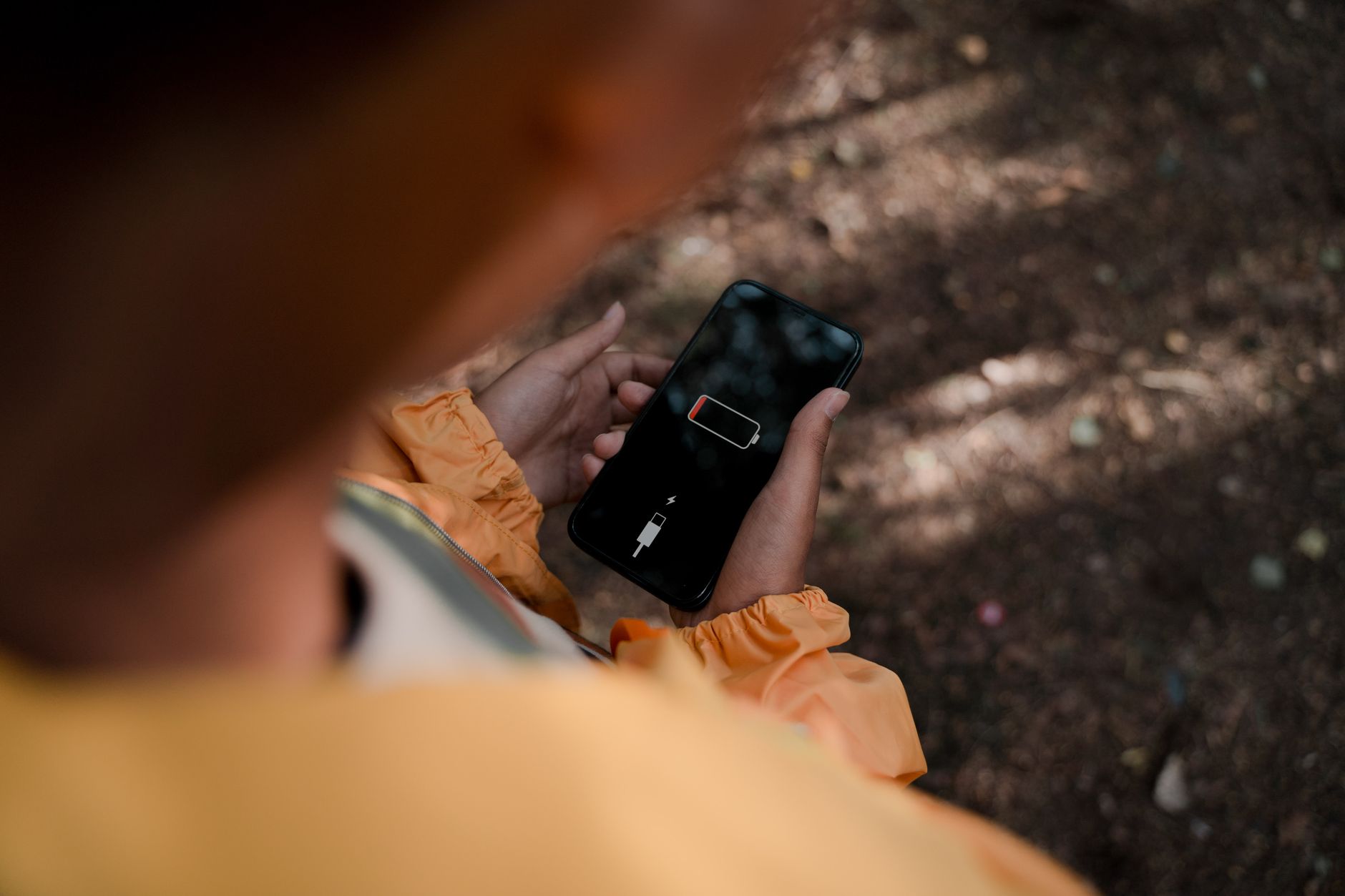
A flat battery by lunchtime is rarely one big problem — it's usually three or four small ones stacked together.
What we'll cover
- How phone batteries actually age
- The background-app problem
- 5G, mobile data and signal drain
- Screen tech and brightness
- Reading your battery health figures
- Software-side quick fixes
- When a power bank wins
- When to replace the battery
- Power bank vs replacement compared
- FAQs and final verdict
First, Understand Why Batteries Fade
Before you start blaming apps, it helps to know what's going on chemically. Every modern phone uses a lithium-ion (or lithium-polymer) battery, and these cells degrade with every full charge cycle. A "cycle" is one complete 0–100% worth of charge, whether that happens in a single sitting or across several top-ups. Manufacturers generally rate their cells to retain around 80% of original capacity after roughly 500 to 1,000 cycles — which, for most people, lands somewhere between 18 months and a couple of years of daily use.
That 80% figure matters more than it sounds. A phone that left the factory promising "all-day battery" was designed around 100% capacity. Drop to 80% and you've quietly lost a fifth of your runtime — that's the difference between making it to bedtime and scrabbling for a charger at the bus stop. So if your phone is two years old and the drain feels sudden, some of it is genuinely the chemistry, not your imagination.
Pro Tip
Heat is the single biggest accelerant of battery ageing. Charging your phone under a pillow, leaving it on a sunny dashboard, or gaming whilst it's plugged in all cook the cell. If you do one thing differently after reading this guide, keep your phone cool while it charges.
Culprit One: Background Apps
This is where I always start, because it's the most common cause and the easiest to fix for free. Modern apps don't politely sit still when you close them. Social media, messaging, email, fitness trackers and shopping apps all "refresh in the background" — quietly waking the phone to fetch new content, check your location, or sync data. Multiply that across thirty installed apps and you've got a phone that never truly rests.
The worst offenders tend to be the ones that combine location tracking with constant content updates: navigation, ride-hailing, food delivery and big social platforms. A single chatty app sitting in a poor signal area can flatten a noticeable chunk of your battery in an afternoon without you ever opening it.
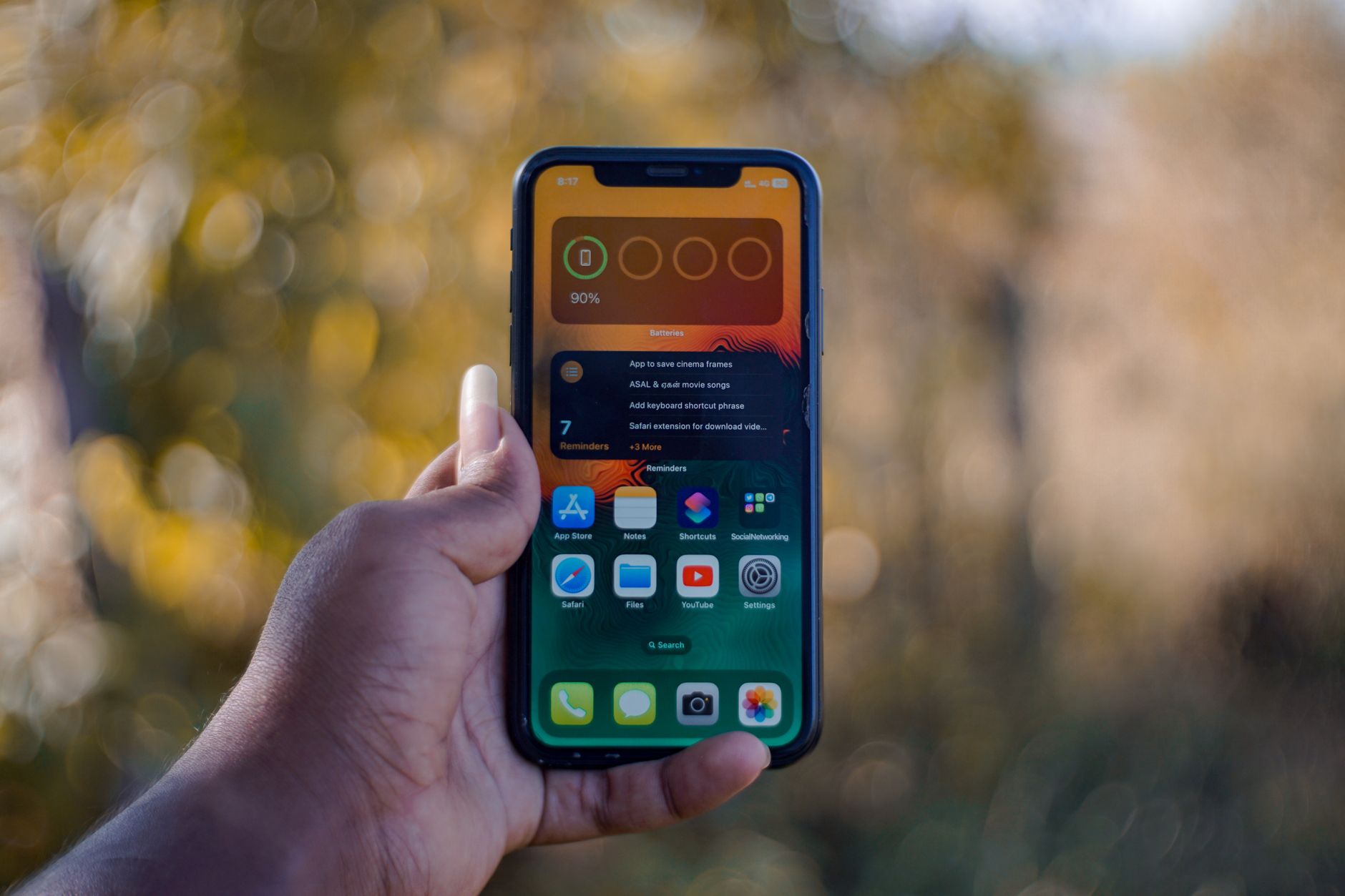
Your phone's built-in battery usage screen is the honest snitch — it ranks exactly which apps are eating the most charge.
Disable Background App Refresh selectively
On both iPhone and Android you can turn off background refresh per app. Push notifications generally do not require Background App Refresh, though some apps may refresh content less often when it is disabled; switch it off for shopping, news and games you only open occasionally.
Set location to "While Using"
Very few apps genuinely need your location all the time. Switching apps from "Always" to "While Using" stops them pinging GPS in the background — one of the quietest battery drains there is.
Trim push notifications
Every notification wakes the screen and the radios. Pruning the apps allowed to nag you reduces wake-ups across the whole day.
Uninstall what you don't use
The cleanest fix of all. If you haven't opened an app in three months, it has no business sipping your battery in the background.
Ignore claims that aggressively "killing" all your apps from the recent-apps tray saves battery. On both major platforms, force-closing apps you'll reopen soon usually costs more energy when they cold-start again. Manage refresh settings instead of swiping everything away.
Culprit Two: 5G, Mobile Data and Signal
5G is brilliant when you've got strong coverage, but it has a sting. When signal is weak, your phone's radio ramps up transmit power to stay connected, and it constantly hunts between 5G and 4G bands. That hunting is genuinely expensive in battery terms. If you spend your day in a building or area with patchy 5G, you may actually get better battery life by pinning the phone to 4G/LTE.
The same logic applies to any radio that's straining. A phone clinging to one bar of mobile data in a basement will drain far faster than the same phone on solid Wi-Fi. The fix isn't dramatic, it's just about not making your radios work harder than they need to.
Where 5G helps
- Strong, dense coverage areas where the connection is stable
- Heavy downloads finished quickly, letting the radio idle sooner
- Modern phones with efficient 5G modems in good signal
Where 5G hurts
- Weak or patchy coverage forcing constant band-hunting
- Rural and indoor spots with one or two bars
- Phones left on 5G all day for mostly idle, light tasks
Pro Tip
Switch to Wi-Fi whenever you can and prefer it for big downloads. If your area has flaky 5G, try a week pinned to 4G/LTE and watch your screen-on time — many people quietly gain an hour or more and never notice the speed difference for everyday browsing.
Culprit Three: The Screen
The display is almost always the single biggest battery consumer on a modern phone, and it's the one we control most directly. Two factors dominate here: brightness and refresh rate. A screen blazing at maximum brightness can comfortably double the power draw of the same panel at a sensible level, and high refresh rate modes — 90Hz, 120Hz and above — redraw the screen far more often than the classic 60Hz, which feels gorgeously smooth but costs energy.
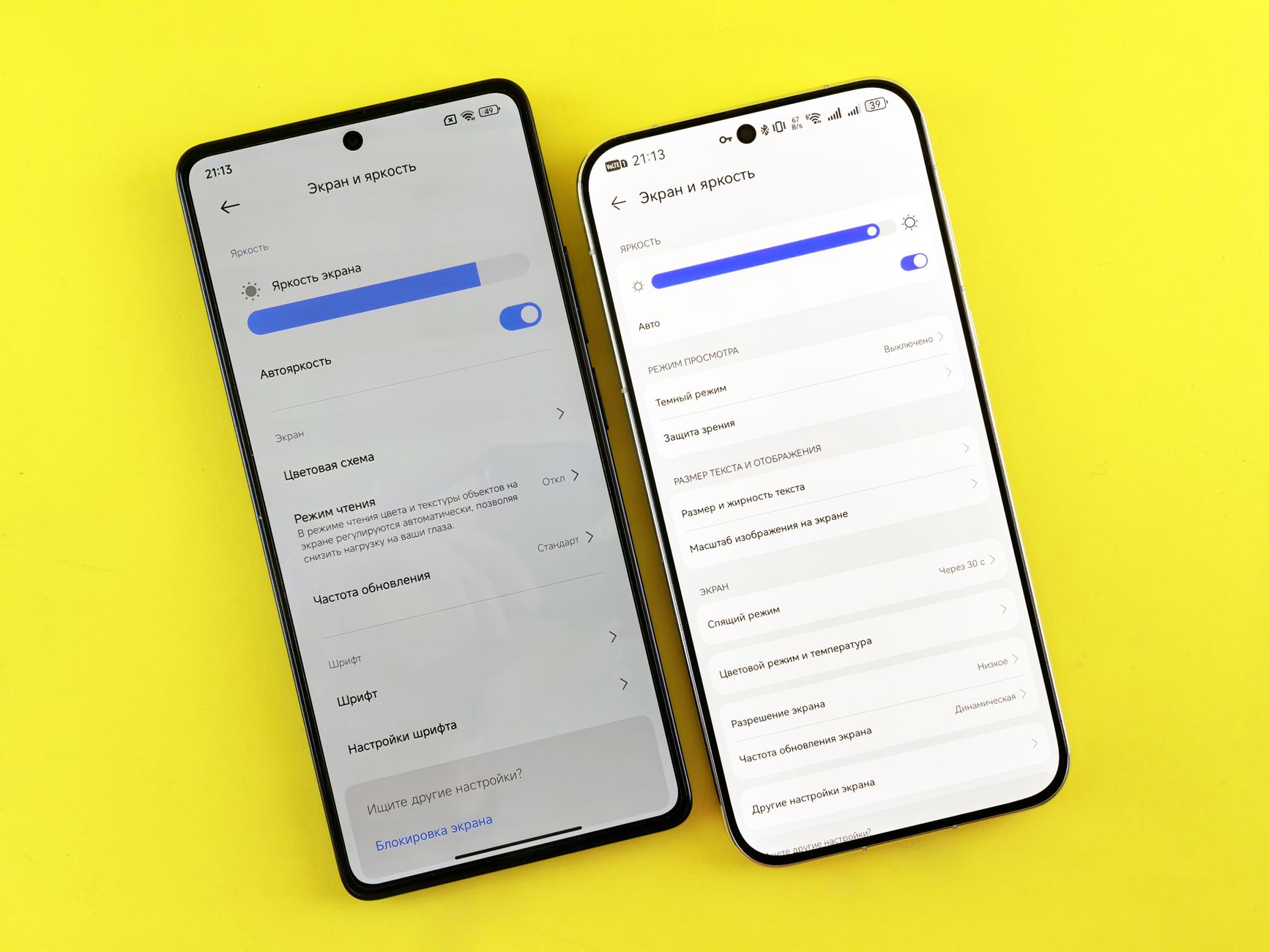
OLED panels sip almost nothing to show true black — which is exactly why dark mode genuinely helps on these screens.
There's an interesting wrinkle with screen technology. OLED and AMOLED panels light each pixel individually, so a black pixel draws virtually no power. That means dark mode and dark wallpapers offer a real, measurable saving on OLED phones — far less so on older LCD screens, where the whole backlight stays lit regardless of what's on screen. Knowing which panel you've got tells you whether dark mode is a genuine fix or just a cosmetic preference.
Indicative draw, not lab figures — the takeaway is the ranking, not the exact percentages.
Use adaptive brightness, but cap it
Let the phone dim itself indoors. If you can read the screen comfortably, it's almost certainly brighter than it needs to be.
Drop high refresh rate when you don't need it
If your phone offers a 60Hz or "standard" mode, switching to it — or to an adaptive refresh setting — claws back power for everyday tasks.
Embrace dark mode on OLED
On an OLED or AMOLED phone, a dark theme and dark wallpaper genuinely cut power. On older LCD phones it's mostly about comfort.
Shorten screen timeout
Setting the auto-lock to 30 seconds instead of a few minutes means the screen isn't quietly glowing in your pocket.
Check Your Battery Health Before You Spend
Here's the step most people skip and shouldn't. Before you buy anything, find out whether your battery is genuinely worn out or just badly managed. On an iPhone, head to Settings then Battery then Battery Health & Charging — you'll see a "Maximum Capacity" percentage. On many Android phones the figure lives in Settings under Battery or Device Care, and where it isn't shown directly, free diagnostic apps can estimate it.
That percentage is your decision-maker. Battery health in the 90s does not prove a software cause; radio conditions, temperature, load, calibration and hardware faults remain possible, and you can fix it for free with the tips above. If it's dipped to or below that 80% threshold, you've got real physical wear — and no amount of app-trimming will fully bring it back.
If your phone suddenly shuts down at 30% in cold weather, or throttles its performance to avoid crashing, those are classic signs of a worn cell that can no longer deliver peak current — a strong hint that capacity has dropped well below that threshold.
The Free Software Fixes, In Order
If your battery health is fine, run through these in sequence. I deliberately put them in priority order — work top to bottom and stop when you're happy with the result.
1. Read the battery usage breakdown
Your phone's battery screen ranks apps by consumption. Whatever sits at the top of that list is your prime suspect — start there rather than guessing.
2. Rein in background refresh and location
Tackle the worst offenders from that list first. This single step fixes the majority of "it died so fast" cases I see.
3. Sort your connectivity
Prefer Wi-Fi, try 4G in weak-5G areas, and turn off Bluetooth or hotspot when you're not using them.
4. Tune the screen
Adaptive brightness, shorter timeout, standard refresh and dark mode on OLED.
5. Update your software
OS and app updates frequently include efficiency fixes. A rogue app update is sometimes the exact thing that broke your battery overnight.
6. Use the built-in battery saver
Low Power Mode on iPhone and Battery Saver on Android automatically throttle background activity and visual flourishes. Handy as a daily habit, not just an emergency.
When a Power Bank Is the Smarter Buy
Sometimes the battery isn't broken and the settings are fine — you just use your phone a lot, and no amount of tinkering will stretch a single charge across a 14-hour festival day, a long-haul flight or a weekend of navigation. This is exactly the situation a power bank is built for, and it's often the better spend than a repair.
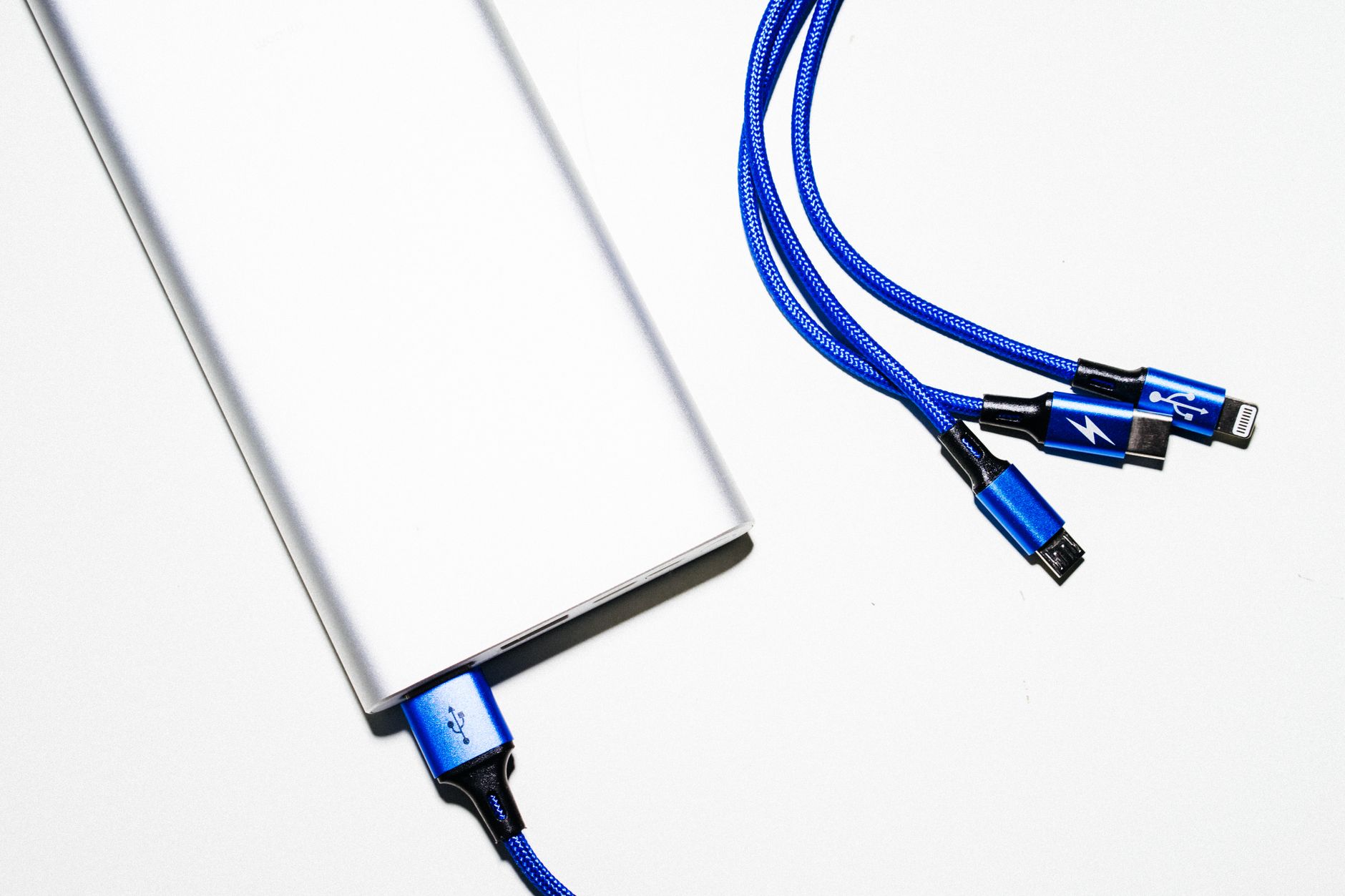
A pocketable power bank turns "I'm at 8% and panicking" into a non-event — sometimes the simplest answer is just more capacity in your bag.
The appeal is simple: a power bank costs less than a battery replacement on most phones, requires zero technical fiddling, and works with every device you own — including the next phone you buy. Brands like Anker and EcoFlow have built whole ranges around this, from slim cards that top up a phone once to chunky units that recharge a laptop. The right pick depends entirely on how much spare juice you actually need.
Slim everyday top-ups
Lightweight packs designed to deliver roughly one extra full charge. Ideal for commuters and anyone who just wants insurance against a flat phone by evening.
Travel and festival capacity
Higher-capacity units that recharge a phone several times over, for days off-grid or away from a wall socket.
Fast charging support
Look for USB-C Power Delivery so the power bank can refill your phone quickly rather than trickling it for hours.
Airline-friendly sizes
Many cabin rules cap the capacity you can carry on board, so check that before buying if you fly often — a smaller pack is usually the safer travel choice.
Shopping for a power bank?
Check the latest price and any current bundles on Amazon.
When a Battery Replacement Wins Instead
A power bank is a brilliant patch, but it doesn't fix a fundamentally worn-out phone — it just hides the symptom. If your battery health has dropped below that 80% mark, if the phone shuts down unexpectedly, or if it's physically swelling (which you'll spot as a screen lifting at the edges or a phone that no longer sits flat on a table), then replacement is the proper fix.
A swollen battery is a safety issue, not just an inconvenience. Stop charging it, don't press on the bulge, and get it replaced or recycled promptly by a professional. Never puncture a lithium cell.
The case for replacement is strongest when you genuinely like your phone and want to keep it for another couple of years. A fresh cell restores that factory all-day runtime, costs far less than a new handset, and is the more sustainable choice — you keep a perfectly good device out of a drawer or a landfill. On phones with an official service programme, a manufacturer or authorised repair is the safest route; independent repair shops are a cheaper alternative, just check their reputation and warranty terms first.
Replace the battery when
- Battery health has fallen below ~80%
- The phone shuts down early or throttles performance
- You love the phone and plan to keep it for years
- It's still cheaper than a new handset
- You spot any swelling or physical bulging
Hold off when
- Battery health is still in the 90s — fix software first
- You were already planning to upgrade soon anyway
- The phone has other failing parts that make repair poor value
- You only need extra runtime for occasional big days out
Power Bank vs Battery Replacement, Head to Head
Two different jobs: one carries spare energy with you, the other restores the energy your phone is supposed to hold.
| Consideration | Power Bank | Battery Replacement |
|---|---|---|
| Best for | Heavy use days, travel, no socket nearby | A worn cell on a phone you want to keep |
| Fixes worn battery? | No — hides the symptom | Yes — restores capacity |
| Technical effort | None, plug and go | Professional repair recommended |
| Works with future phones | Yes, any device | No, tied to that handset |
| Portability | Extra item to carry | Nothing extra to carry |
| Sustainability angle | Adds a device | Extends current phone's life |
| Handles swollen battery | No | Yes — the correct fix |
My rule of thumb
If your battery health is healthy and you just run out on big days, buy a power bank. If your battery health is below 80% and you want to keep the phone, replace the cell. There's no shame in doing both — a fresh battery for daily life, a power bank for the occasional marathon day.
Frequently Asked Questions
Who Should Do What
The tinkerer
Battery health still healthy? Spend an evening on the free fixes — background apps, connectivity and screen settings will likely solve it for nothing.
The heavy user / traveller
Phone is fine but your days are long. A power bank is the cleanest answer — portable insurance that works with every device you own.
The keep-it-longer owner
Older phone you love with sub-80% health? A battery replacement restores all-day life for a fraction of a new handset, and keeps a good phone in use.
Diagnose first, spend second — most "dead by lunchtime" phones are fixable before you reach for your wallet.
The Verdict
Fast battery drain feels mysterious, but it usually isn't. More often than not it's a stack of small, fixable things: a background app that won't sit still, 5G grinding away in weak signal, a screen brighter than it needs to be — layered on top of a cell that's slowly ageing. Work through it in order. Read your battery usage, check your battery health, then tune your settings before you spend a penny.
When you do reach for your wallet, match the spend to the problem. A power bank is the smart buy when the phone is healthy and your demands are simply heavy — it's cheap, effortless, and follows you to your next phone. A battery replacement is the smart buy when health has slipped below 80%, the phone shuts down early, or you spot any swelling. Get the diagnosis right and you'll either fix the drain for free or spend exactly once, on exactly the right thing — and that's the whole point of this guide.