
The Complete UK Guide to Recovering Lost Data
Deleted the wrong folder? Formatted the wrong drive? Here's exactly what to do first, which free and paid tools actually work, and when a professional lab in the UK is your only sensible option.
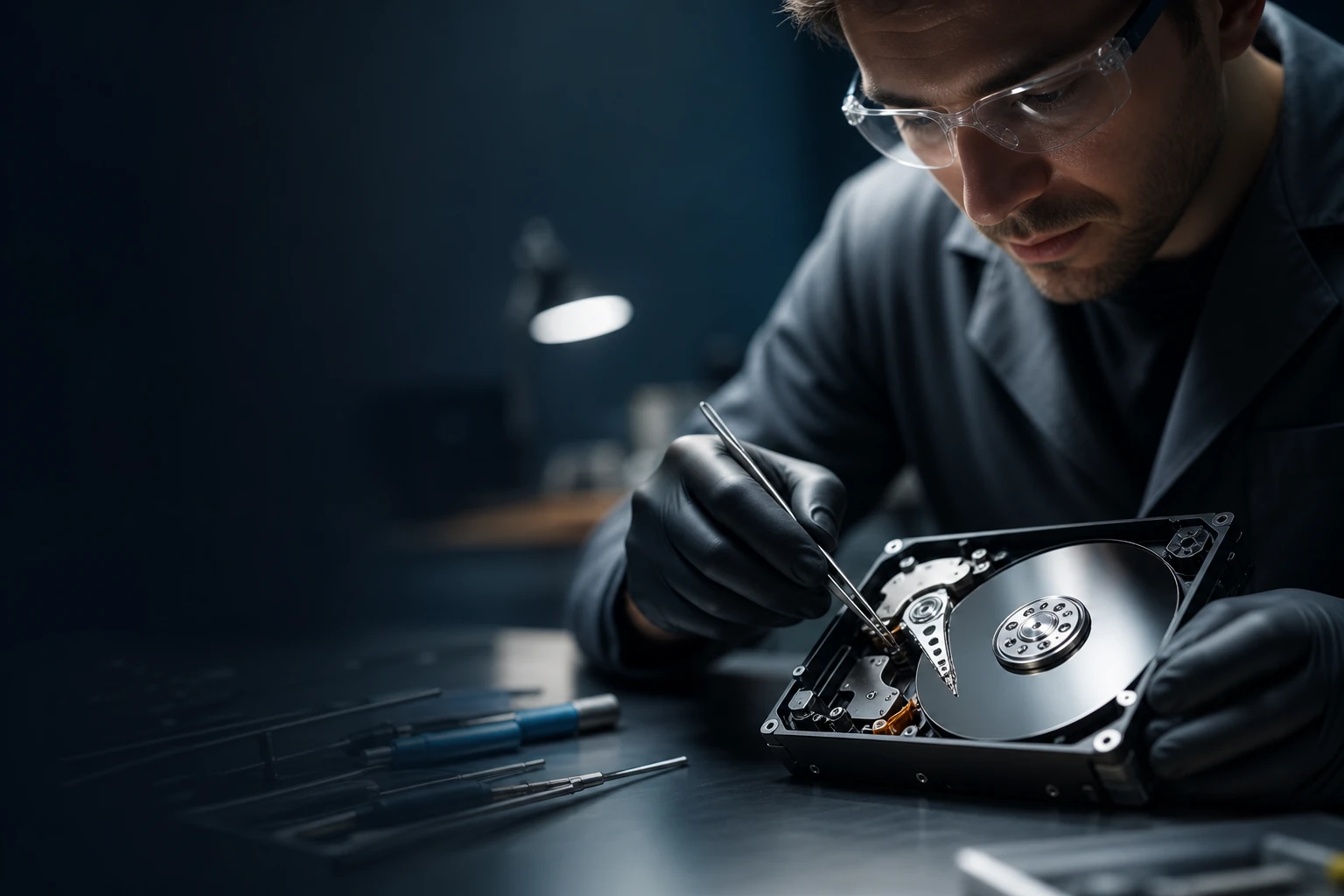
Losing data is gut-wrenching — but in many cases the files are still sitting on your drive, waiting to be rescued.
What this guide covers
- The single most important first step
- Free tool: Recuva
- Free tool: PhotoRec
- Free tool: Windows File Recovery
- Paid software — when it's worth it
- Professional recovery services & UK costs
- Mac, Windows & phone scenarios
- When to give up
- FAQs
- Final verdict
First, What Kind of Storage Is It?
This is the question that decides whether anything below will work, and most guides skip it. The reassuring "deleted files are still there until they are overwritten" story is a hard drive story. It is not universally true.
| Storage | What happens when you delete | Realistic outlook |
|---|---|---|
| Hard disk (HDD) | The space is marked free; the data itself sits there untouched until something writes over it. | Good. This is where free tools genuinely shine — act before the space is reused. |
| SSD / NVMe | The operating system sends a TRIM command telling the drive the blocks are free. The controller's garbage collection then erases them on its own schedule, often within minutes. | Poor, and it gets worse by the minute. Once a block is garbage-collected the data is gone — no tool recovers it. |
| SD card / USB stick | Usually no TRIM, so it behaves much more like a hard disk. | Often good, which is why photo recovery from cameras succeeds so often. |
| Phone (iPhone / modern Android) | Encrypted, soldered storage. There is no free space to scan from outside the phone. | Effectively nil without a backup. Check iCloud or Google One first. |
What to do differently on an SSD. Stop writing to it now — that means shutting the machine down rather than installing a recovery tool onto the same drive. If the data genuinely matters, do not run scan after scan hoping for a different answer; each attempt is more running time for garbage collection. Recuva and PhotoRec are still worth one careful attempt from a separate drive or a live USB, but treat a blank result as final rather than a reason to buy a paid tool.
And a limit worth stating plainly, because recovery firms are not always keen to: a professional lab can work wonders with failed heads, dead PCBs and water damage. It cannot recover data whose encryption key is gone, and it cannot rebuild flash cells a controller has already erased. If someone promises otherwise for an encrypted phone or a trimmed SSD, be sceptical.
The One Rule That Matters Most: Stop Using The Drive
If you read nothing else in this guide, read this. The moment you realise data has been lost, the most powerful thing you can do is stop writing to that drive. This isn't superstition — it's how file systems actually work.
As Microsoft's own official documentation explains, in the Windows file system the space used by a deleted file is simply marked as free space. The file data can still physically exist on the disk and remain recoverable — but any use of the computer can create new files that may overwrite that free space at any time. In other words, your deleted file is sitting there in limbo, and every download, every saved document, every Windows update is a potential bullet aimed straight at it.
The same principle applies to memory cards and SD cards. Deleted files aren't erased from the card — they're just made "unlisted." They remain on the media until new files are written over them. That's precisely why you should never carry on shooting photos on a card after a mishap, or keep installing software on a drive you're trying to rescue.
The golden practical rule: if the lost data is on your system drive (usually C:), shut down and recover the files using a different computer or a bootable/portable tool. If it's on a secondary drive, SD card or USB stick, unplug it immediately and don't touch it until you have a recovery plan ready.
Free Tool #1: Recuva (Windows Only)
Recuva is the tool most people meet first, and for good reason — it's free, friendly, and has been around since 2007. It was originally developed by Piriform, the team behind CCleaner. Piriform was later acquired by Avast, and today the Recuva brand sits under Gen Digital alongside CCleaner. The latest version is v1.53.2096, released on 13 June 2023.
The standout feature is that Recuva Free has no recovery limit. That's genuinely unusual — most free data recovery tools cap you at 100MB or 2GB before demanding payment. Recuva just lets you recover as much as it can find. There's also a Recuva Professional edition priced at £19.95, which adds priority support, automatic updates, and virtual hard drive recovery.
Recuva's colour-coded results make it beginner-friendly: green means excellent recovery odds, red means the file's likely a write-off.
Deep Scan Mode
Thoroughly searches for lost files even after a drive has been formatted — slower than Quick Scan, but far more thorough.
Preview Feature
Lets you preview recoverable files before restoring them, so you don't waste time on corrupted junk.
Colour-Coded Confidence
Results appear in a list marked green (excellent), orange (poor) or red (unrecoverable) so you know what's realistically salvageable.
Portable Version
Runs straight from a USB stick with no installation — ideal for emergency recovery without writing anything to the affected drive.
How well does it actually work?
In one independent test using roughly 100MB of mixed data — videos, images, text, JSON and TXT files totalling 67 files — Recuva recovered 59 out of 67. All recovered files were intact with no corruption, though some images and an audio file went missing entirely. That's a solid result for a free tool, but it illustrates the pattern: Recuva is good, not flawless.
Speed-wise, a Quick Scan completed in under two minutes in testing — impressively fast — but it failed to detect some recently deleted files, which is exactly when you'd reach for the slower Deep Scan instead.
TechRadar awards Recuva 4 out of 5 stars, praising its fast scanning and low system impact. PCMag rates it around 3.5 out of 5, highlighting its strong value as a free option. One reviewer was less impressed, giving it 3 out of 5 for recovery performance and noting results were inconsistent and often unreliable — particularly the key letdown that Recuva cannot detect a drive with a corrupted volume header.
Pros
- Unlimited free recovery — no size cap, unlike most rivals
- Beginner-friendly interface with a step-by-step recovery wizard
- Easy install with minimal disk space; portable version runs from USB
- Fast Quick Scan and low system impact
Cons
- In tests, some recovered data was damaged or incomplete
- Folder structures were often lost and uncommon file types were hit-or-miss
- No macOS version at all
- No partition recovery, no RAID support, no bootable recovery media
- Development has slowed since the Avast acquisition; support is minimal for free users
Free Tool #2: PhotoRec (Windows, Mac, Linux)
If Recuva is the friendly beginner's choice, PhotoRec is the grizzled power-user's secret weapon. It's developed by CGSecurity — the same team behind TestDisk, the well-known partition recovery utility — and it's distributed under the GNU General Public License. It is completely free, open-source, and cross-platform, running on macOS, Windows and Linux.
Despite the name, PhotoRec is far from photos-only. It can recover an astonishing 480 file extensions, which makes it remarkably versatile when you're dealing with mixed file types or unusual formats. The official download page currently lists two builds: the stable TestDisk & PhotoRec 7.2, and a work-in-progress build, 7.3-WIP, for those who want the bleeding edge.
Pro Tip
PhotoRec uses a text-based interface that looks intimidating, but it's actually very forgiving — it only ever reads from the damaged drive and writes recovered files to a destination you choose. That makes it one of the safest free tools you can run, provided you point the output at a different disk. The trade-off is that it ignores the original file system, so recovered files often come out with generic names and no folder structure. Brilliant for "get my files back at any cost," less so for tidiness.
The big advantage of PhotoRec over Recuva is cross-platform support and that vast file-format catalogue. Where it falls down is friendliness — there's no preview pane, no colour-coded confidence ratings, and no hand-holding wizard. It's the tool I reach for when the easy options have failed and I just need raw files back regardless of how they're labelled.
Free Tool #3: Windows File Recovery (Microsoft)
Microsoft's own Windows File Recovery is worth knowing about because it comes straight from the source, and Microsoft's documentation is itself the authority on how deletion actually works. The key takeaway from Microsoft is the philosophy already covered above: because deleted file space is merely marked as free, recovery is possible — but only if you act before new files overwrite it. That makes Microsoft's official advice to minimise computer use after data loss the single most valuable piece of guidance in this entire guide, free of charge.
Whichever free tool you choose, the same rule applies: never install or run it onto the drive you're trying to rescue. Run it from a USB stick or a second drive, and always recover files to a different disk than the one they were lost from.
Free Tools Head-To-Head
Each free tool has a sweet spot — choosing the right one for your scenario saves time and improves your odds.
| Feature | Recuva | PhotoRec | Windows File Recovery |
|---|---|---|---|
| Cost | Free (Pro £19.95) | Free, open-source | Free (Microsoft) |
| Platforms | Windows only | Windows, Mac, Linux | Windows |
| Interface | Beginner-friendly wizard | Text-based, advanced | Command-line |
| File preview | Yes | No | No |
| Recovery limit | Unlimited | Unlimited | Unlimited |
| File-format breadth | Common types | 480 extensions | Common types |
| Best for | Quick everyday deletes | Mixed/unusual formats | Microsoft purists |
When To Pay For Recovery Software
Free tools are wonderful, but they have a ceiling. They tend to struggle with formatted partitions, corrupted volume headers, RAID arrays and bootable recovery scenarios — all things Recuva explicitly doesn't handle, for example. Paid recovery suites exist precisely to plug these gaps, typically offering partition recovery, RAID support, bootable rescue media and more reliable reconstruction of folder structures.
My honest advice: try the free route first. If your files are sitting in a recently emptied Recycle Bin or were deleted from a healthy, working drive, Recuva or PhotoRec will very often do the job for nothing. Reach for paid software only when those tools come back empty-handed, or when you're dealing with a formatted partition or a drive that won't mount properly. Even Recuva offers a paid Professional tier at £19.95 with virtual hard drive recovery and automatic updates if you want to stay within a familiar interface.
Pro Tip
Before paying for any recovery software, check whether it offers a free scan-and-preview mode. The best paid tools let you scan and see exactly which files are recoverable before you part with a penny — so you only pay once you've confirmed your data is genuinely retrievable.
Professional Recovery Services & UK Costs
There's a hard line that software simply cannot cross: physical damage. If your drive is making clicking or grinding noises, has suffered water or fire damage, or has had a head crash, no amount of software will help — and continuing to power it on can make things catastrophically worse. This is where professional UK data recovery labs come in.
Professional labs work in cleanroom conditions to open and repair physically failed drives — something no software can replicate.
These specialists work in controlled cleanroom environments, opening drives, swapping failed heads, and reading platters directly. It's painstaking, skilled work, which is reflected in the cost. The trade-off is that for a one-off, irreplaceable loss — family photos, a business's only copy of its accounts — a professional service may be the only realistic path back.
Clicking or grinding drive
A classic sign of mechanical failure. Power it off immediately and consult a professional — software cannot fix hardware.
Water or liquid damage
Don't try to dry it out and power it on yourself. Bag it and get it to a lab; corrosion is the enemy here.
Failed RAID arrays
Multi-disk arrays require specialist reconstruction. This is firmly professional territory, not a DIY job.
Most reputable UK labs operate a "no recovery, no fee" or diagnostic-first model — they assess the drive and quote before any chargeable work begins. Always confirm this policy up front, and ask for the quote in writing before authorising any work.
Mac, Windows & Phone Scenarios
Windows
You're spoilt for choice. Recuva is the natural first port of call for its unlimited free recovery and friendly wizard, with PhotoRec as a powerful backup for awkward file types. Microsoft's own documentation underpins the whole approach — stop writing, then scan.
Mac
This is where Recuva drops out entirely, because there's no macOS version. PhotoRec, however, runs natively on macOS, so it becomes your go-to free option. Its 480-extension support and cross-platform design make it genuinely useful for Mac users who'd otherwise be left out in the cold.
Phones
Phones are a different beast — modern handsets use encrypted, soldered storage that desktop recovery tools generally can't read directly. The realistic best practice here is prevention and cloud sync: ensuring your phone backs up photos and files automatically so a deletion is just a restore away. For genuinely lost phone data with no backup, professional services are usually the only avenue.
Windows users
Start with Recuva's free unlimited recovery, then escalate to PhotoRec for unusual formats or formatted drives.
Mac users
Skip Recuva entirely — PhotoRec is your free, native, cross-platform friend with 480-format support.
Physical failures
Clicking, water-damaged or RAID-failed drives need a professional UK cleanroom lab — don't risk DIY.
When To Give Up (Or Hand It Over)
Knowing when to stop is a genuine skill. Here's my honest rule of thumb:
The free tools found nothing — twice
If both Recuva (or PhotoRec on Mac) and a Deep Scan come back empty, the data may already be overwritten. Stop and reassess rather than running more scans that write to the drive.
The drive is physically failing
Clicking, grinding, repeated disconnects or refusal to mount mean it's a hardware problem. Every extra power-on risks permanent loss — hand it to professionals.
The data is truly irreplaceable
If losing it would be genuinely devastating and you've exhausted software, the cost of a professional lab is usually justified. Don't keep gambling with DIY attempts.
How These Tools Rate Overall
The headline is that for free software, this is an excellent toolkit. Recuva's beginner-friendliness and PhotoRec's raw versatility complement each other beautifully. The reliability score is dragged down only because no free tool guarantees a clean recovery — results are genuinely inconsistent, and corrupted volume headers or physical damage will defeat all of them.
Frequently Asked Questions
The Verdict
Data loss feels like a disaster, but in most everyday cases it's a recoverable one — if you keep a cool head and follow the order of operations. Step one, always: stop writing to the drive. Microsoft's own guidance makes this the most important free action you can take, because deleted data lingers as "free space" only until something overwrites it.
From there, work up the ladder. On Windows, Recuva's unlimited free recovery and friendly wizard make it the obvious first attempt, with TechRadar's 4/5 and PCMag's 3.5/5 reflecting strong real-world value — just don't expect miracles on formatted or corrupted drives. On Mac, or for unusual file types, PhotoRec's open-source 480-format engine picks up the slack. And when the drive is physically failing — clicking, water-damaged, or a downed RAID — that's the moment to stop tinkering and hand it to a professional UK lab.
The smartest data recovery, of course, is the one you never need: a solid backup routine. But until that day comes, this toolkit will rescue more files than you'd ever expect — for free.