
Why Your Files Have Vanished Behind a Lock You Don't Remember Setting
Every few months someone brings me a laptop they can't get into — and the culprit is a security feature that Windows switched on quietly, years ago.
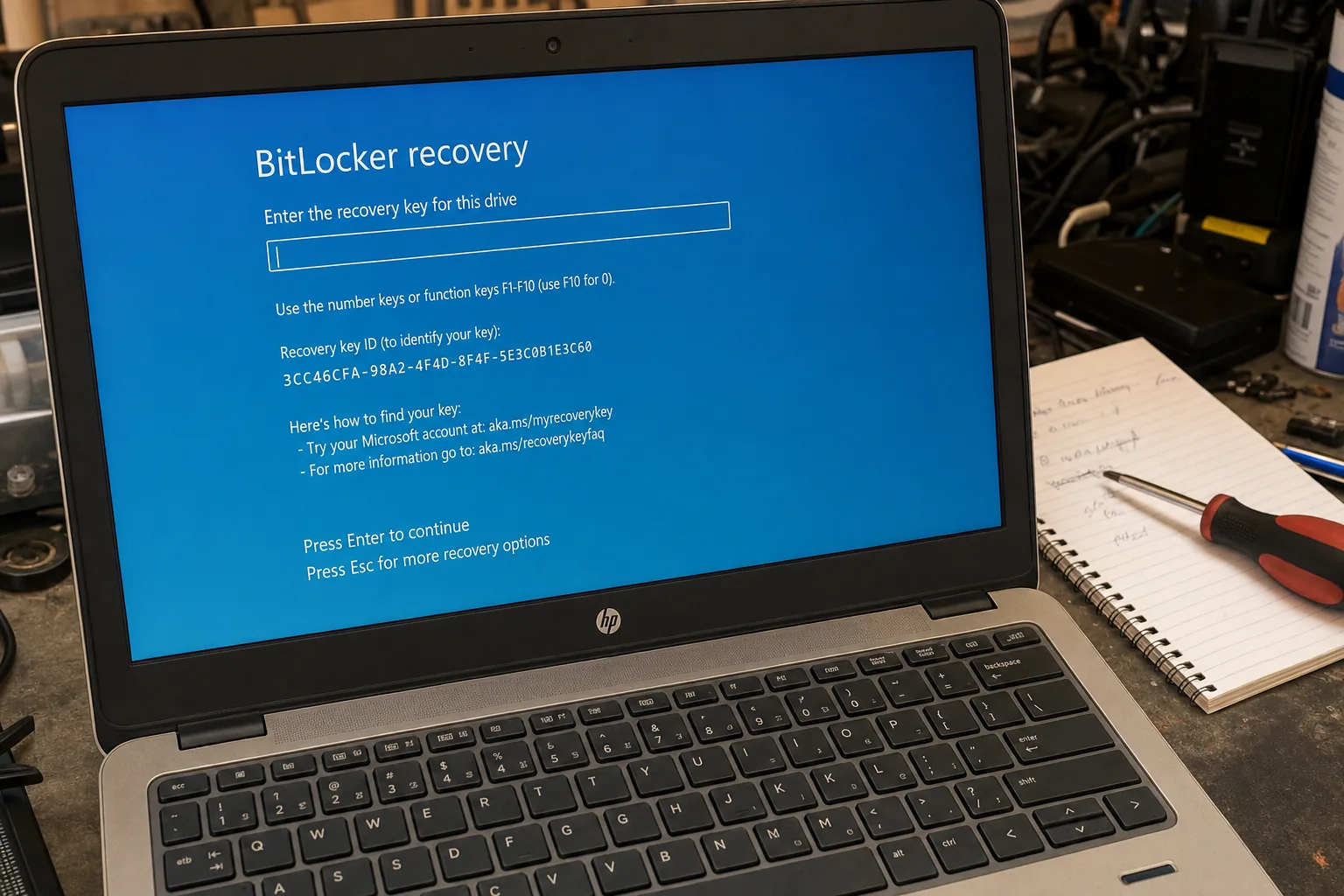

A woman came in last autumn with a laptop and a look I recognise immediately — equal parts embarrassed and desperate. She'd restarted her machine after a Windows update and it was asking for a "BitLocker recovery key." She had no idea what that was. Everything she owned was on that drive: twenty years of family photos, her late husband's documents. She hadn't done anything wrong. Windows had just quietly locked the door and pocketed the key.
This happens more often than most people realise. BitLocker is Microsoft's built-in encryption tool, and on many modern Windows 10 and 11 machines it switches itself on automatically when you first sign in with a Microsoft account. No fanfare, no obvious warning. Then one day — after an update, a hardware change, or sometimes for no clear reason at all — the machine demands a 48-digit recovery key before it'll let you in.
The BitLocker recovery key: where it actually is
If BitLocker activated automatically, the recovery key was almost certainly backed up to your Microsoft account at the time. That's the first place to look, and it's free to check right now on another device.
- Go to account.microsoft.com/devices/recoverykey on any phone or computer and sign in with the same Microsoft account you use on the locked laptop.
- Look for your device name in the list. If the key is there, write it down carefully — all 48 digits — and type it into the locked machine.
- If you see no key listed, it means BitLocker was set up under a different account, or the key was never uploaded. That's a harder situation, but not always hopeless.
I've watched customers' faces change the moment that key appears on screen. Pure relief. The whole job takes about four minutes.
What about a forgotten Windows password?
A forgotten login password is a separate problem and usually a simpler one — unless BitLocker is also active underneath it, which increasingly it is. If your machine uses a Microsoft account to log in, you can reset the password at account.microsoft.com from another device, then sign back in normally. If it's a local account with no reset disk made, the options narrow considerably without specialist tools.
- Microsoft account login: reset online, sign in fresh. Straightforward.
- Local account, no reset disk: bring it to a repair shop — there are legitimate recovery approaches, but they require care and the right environment.
- Both problems at once — BitLocker and forgotten password: sort the BitLocker key first, always. Without that, nothing else matters.
The one thing I tell every customer before they leave
Once we've resolved the immediate crisis, I sit people down for two minutes and show them where their BitLocker key lives. Then I ask when they last backed up. The answer is nearly always "not recently." Encryption protects your data from thieves, which is genuinely useful — but it also means a forgotten key or a failed drive can make your files permanently unreadable. A simple external drive or a cloud backup changes that equation completely. It's the dullest advice I give and the most important.
The Repair Bench verdict
Locked out by BitLocker: check account.microsoft.com/devices/recoverykey first — if the key is there, you can be back in within minutes at no cost.
Forgotten Windows password: a Microsoft account login can be reset online; a local account with no recovery options needs hands-on help from a repair shop.
Watch out for: assuming a locked machine means data loss — in most cases I see, the files are still intact and recoverable once you have the right key.