
How to Fix Bluetooth Pairing Problems on Windows and Phones
A complete, step-by-step troubleshooting walkthrough for dropped connections, stubborn pairing failures and that maddening "connected but no sound" moment — across Windows, Android, iPhone, macOS and beyond.
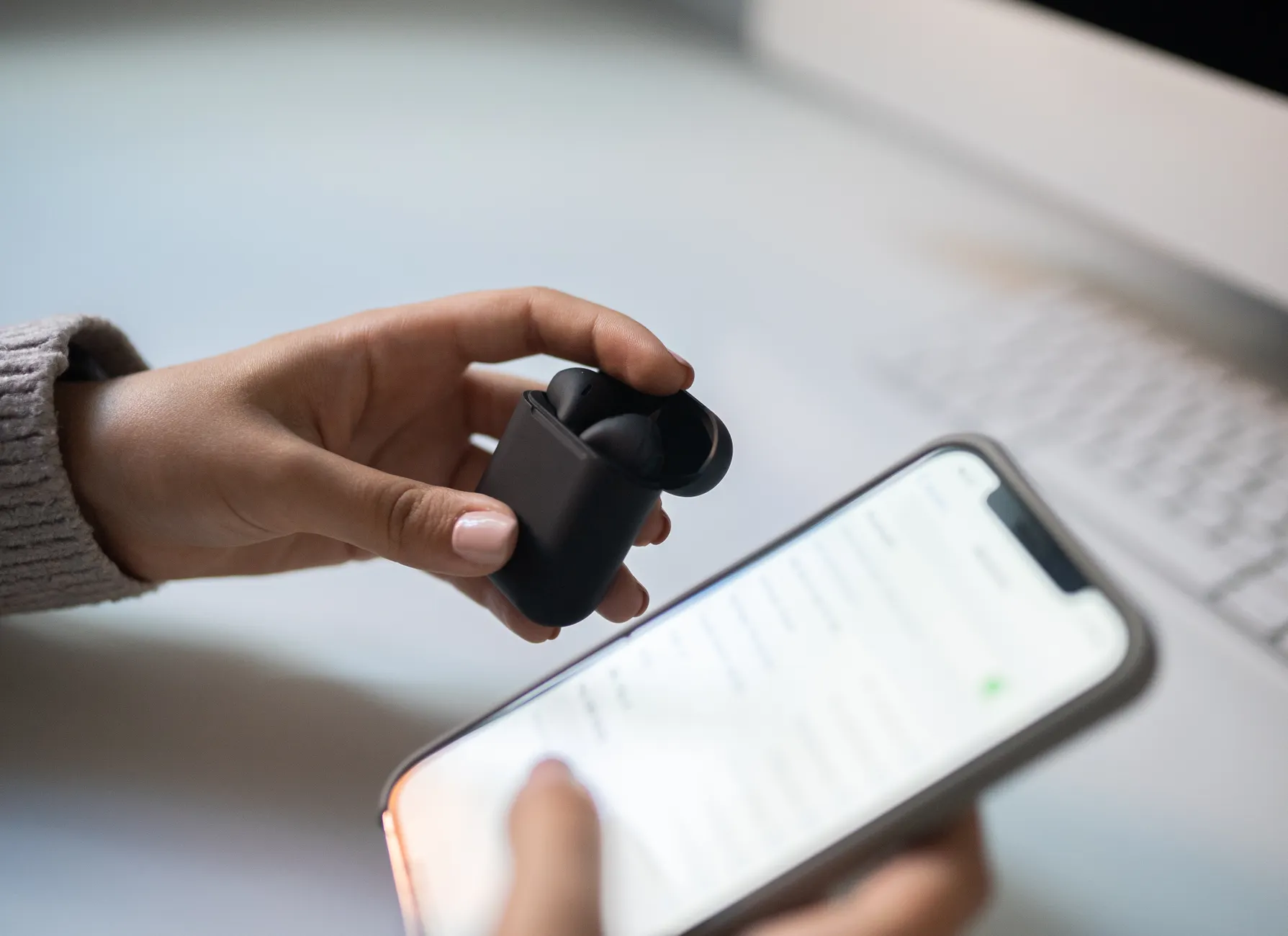
Bluetooth pairing failures are among the most common gadget frustrations — and most of them are fixable in minutes.
Whether you're wrestling with a greyed-out "Allow a device to connect" option on Windows, a Bluetooth icon that has vanished entirely, or earbuds that keep cutting out mid-podcast, I've tried to structure this so you can either work through it methodically from top to bottom, or jump straight to the bit that matches your symptom. Throughout, I'll be honest about where a fix is a quick win and where it's a bit more involved — because nothing's worse than being promised a one-tap miracle that turns into an hour of driver wrangling.
The Most Common Bluetooth Problems (and What They Mean)
Before we start fixing things, it pays to correctly identify what's actually going wrong. Bluetooth issues tend to fall into a handful of recognisable patterns, and the symptom usually points fairly directly at the likely cause. In my experience, getting the diagnosis right is genuinely half the battle — far too many people uninstall drivers when all they needed to do was charge their headphones.
Here's a breakdown of the problems I see most often, the tell-tale symptoms, and the usual culprits behind them.
Let's unpack each of these briefly, because understanding the "why" makes the fixes that follow far more intuitive.
Device not found. When the device you want to pair simply doesn't appear in the list, the usual suspects are that it's out of range, its visibility (pairing mode) is disabled, or there's radio frequency interference drowning it out. Most peripherals only stay in pairing mode for a minute or two before giving up, so timing matters.
Pairing fails. This one's particularly irritating: the device shows up, you tap to connect, and it repeatedly refuses. The most common cause is corrupted pairing data left over from a previous connection, with outdated firmware running a close second.
Intermittent connection. Audio that cuts in and out, or a connection that drops at random, almost always traces back to a low battery, interference, or a weak signal because you've drifted too far from the source.
Connected but no sound. Here the Bluetooth link is genuinely fine — almost always your device is routing audio to the wrong output. A codec problem is a much less likely cause of total silence than people assume, because SBC is the mandatory baseline codec in classic Bluetooth audio, so two working devices should fall back to it. It's a settings problem masquerading as a connection problem.
Audio lag and latency. When sound lags behind video, you're typically dealing with bandwidth congestion or a low-quality codec doing the heavy lifting. This is the bane of anyone trying to watch video over cheaper wireless earbuds.
Frequent disconnects. If everything works for a few minutes and then drops, suspect aggressive power-saving settings putting the Bluetooth radio to sleep, or unstable drivers.
"Allow a device to connect" greyed out. On Windows specifically, when you can't even initiate pairing, the cause is usually driver issues, Group Policy restrictions on a managed work device, or an actual hardware fault.
Bluetooth icon missing entirely. The most alarming-looking symptom but often not the worst — it generally means a driver has failed or the hardware isn't being detected by the system.
The Root Causes Behind Almost Every Failure
If you take just one thing away from this article, let it be this principle: most Bluetooth failures stem from outdated drivers, incorrect settings, radio interference, or corrupted pairing memory. Updating drivers, restarting services and re-pairing the device resolves the lion's share of problems. Keep that in mind and you'll save yourself an enormous amount of wheel-spinning.
That said, it's worth knowing the full list of underlying culprits so you can recognise the less obvious ones when they crop up.
Outdated or incompatible drivers
The single most frequent cause of Bluetooth misbehaviour on Windows. Drivers fall out of step with OS updates surprisingly often.
Incorrect settings
From disabled visibility to the wrong audio output, a great many "faults" are simply a toggle in the wrong position.
Radio frequency interference
Bluetooth shares the crowded 2.4GHz band with Wi-Fi, microwaves and USB 3.0 ports, all of which can stamp on the signal.
Range limitations exceeded
Wander too far from the source and the connection degrades or drops entirely.
Low battery on the peripheral
Headphones and speakers running low frequently produce unstable, drop-prone connections.
Physical damage to the module
Less common, but a damaged Bluetooth module will obviously refuse to cooperate.
Corrupted pairing memory
Stale or broken pairing data is a classic cause of repeated pairing failures — fixed by forgetting and re-pairing.
Wrong Bluetooth version pairing
When devices negotiate down to an older version, they inherit that version's limitations and quirks.
Group Policy restrictions
On managed or enterprise Windows machines, IT policy can block Bluetooth access entirely.
Pro Tip
Before you dive into anything technical, ask yourself two questions: "When did this last work?" and "What changed?" A recent Windows update, a newly flat battery, or moving to a new room with a Wi-Fi router right next to your laptop will point you straight at the cause. Diagnosis first, fixes second.
Universal Quick Fixes — Try These First
Regardless of which device or platform you're on, there's a set of basic steps that resolve a startling proportion of Bluetooth issues. I always run through these before touching drivers or anything more involved, because they take seconds and frequently make everything else unnecessary. Think of this as the digital equivalent of "have you tried turning it off and on again" — except it genuinely works far more often than you'd expect.
The quick-fix routine: restart Bluetooth, charge the peripheral, move closer, and clear the line of sight.
The five-second resets
- Restart Bluetooth. Turn it off, wait a full five seconds, then turn it back on. That short pause matters — it lets the radio fully reset rather than just toggling state.
- Restart the device itself. A proper reboot clears the temporary software glitches that accumulate over days of uptime. It's dull advice, but it's effective.
- Hard reset the peripheral. For headphones, speakers and earbuds, hold the power button for 10 or more seconds to force a hardware reset. Check the device manual, as the exact button combination varies between brands.
- Check the battery levels. Low battery is a leading cause of unstable connections. Charge your headphones or speaker before you start blaming drivers — I've lost count of how often this alone fixes things.
- Move closer. Bluetooth's optimal range sits at roughly 10–30 ft (3–10 m). If you're at the far edge of that, or pushing beyond it, drift back towards the source.
Interference matters more than people think. Walls, microwaves, USB 3.0 ports and Wi-Fi routers all interfere with Bluetooth, which lives on the same congested 2.4GHz band. If your laptop has a USB 3.0 hard drive plugged in right next to the Bluetooth adapter, that alone can wreck a connection. Try removing nearby obstructions and electronics before going any further.
Forget and re-pair the device
If the quick resets don't do it, the next universal fix is to forget the device entirely and pair it fresh. Corrupted pairings are one of the most frequent causes of persistent issues, and wiping the slate clean resolves them remarkably reliably. The exact steps differ by platform, so here's how to do it everywhere that matters.
| Platform | How to Forget & Re-Pair |
|---|---|
| Android | Settings → Bluetooth → tap the gear icon next to the device → "Forget" or "Unpair" → then re-pair |
| iPhone | Settings → Bluetooth → tap the "i" icon → "Forget This Device" → then reconnect |
| Windows | Settings → Bluetooth & devices → click the device → "Remove device" → then re-pair |
| macOS | System Settings → Bluetooth → hover over the device → click "X" → then reconnect |
| Cars & smart devices | Check the manual — usually under Bluetooth settings → "Delete device", then pair afresh |
One small but important note on re-pairing: when you remove a device, make sure you put the peripheral back into pairing mode before you try to reconnect. Many people forget this step and then wonder why the freshly-forgotten headphones won't reappear. The peripheral needs to be discoverable, which usually means holding its pairing button until the LED flashes in its distinctive pattern.
Windows-Specific Troubleshooting
Windows is where Bluetooth tends to throw its most baffling tantrums, partly because of the driver layer sitting between the hardware and the operating system. If the universal fixes haven't worked on a Windows PC, this is your detailed playbook. I've ordered it from least to most invasive, so start at the top and only progress if you need to.
Windows hides several Bluetooth controls across Quick Settings, the Settings app and Device Manager — knowing where each lives saves a lot of time.
Step 1: Confirm Bluetooth is actually turned on
It sounds obvious, but Windows has a habit of silently disabling Bluetooth, and there are several places it can be switched off. Check all of them:
- Via Quick Settings: Select the Network, Sound or Battery icons on the taskbar, look for the Bluetooth quick setting, and select it to turn it on. If no accessories are paired it'll show "Not connected" — that's normal and not an error.
- Via Settings: Go to Start → Settings → Bluetooth & devices and verify the Bluetooth toggle is switched on.
- On laptops: Check for a physical Bluetooth switch or function-key combination on the body of the device. Some laptops still have a hardware toggle that overrides the software setting entirely.
Step 2: Run the Bluetooth troubleshooter
Windows includes an automated troubleshooter that runs diagnostics and attempts fixes for you, and it's genuinely worth running before you start poking at drivers. There are two routes depending on your version.
Method 1 — The Get Help app (Windows 11)
On Windows 11, run the automated Bluetooth troubleshooter within the Get Help app. It automatically runs diagnostics and attempts fixes, and it's the recommended first step for Windows 11 users. It's a tidy, guided experience that often resolves the problem without you needing to understand what it did.
Method 2 — The Settings troubleshooter
On current Windows 11 builds, use the automated Bluetooth troubleshooter in the Get Help app.
Step 3: Update or roll back the Bluetooth driver
This is where the real fixes usually live. Drivers are the most common cause of Windows Bluetooth woes, and the trick is knowing whether to update or to roll back — because, counter-intuitively, a newer driver isn't always better. If your Bluetooth broke shortly after a driver or Windows update, rolling back to the previous driver is often the cleanest fix.
To roll back the driver:
- Press the Windows key + X and open Device Manager.
- Expand the Bluetooth section.
- Right-click your Bluetooth adapter and choose Properties.
- Click the Driver tab, then click "Roll back driver".
If the "Roll back driver" button is greyed out — which it will be if there's no previous driver stored — you can instead manually select an older driver that Windows already has on file:
- Press the Windows key + X and open Device Manager.
- Expand the Bluetooth section.
- Right-click your Bluetooth adapter and choose "Update driver".
- Choose "Browse my computer for driver software".
- Click "Let me pick from a list of available drivers on my computer".
- Select an older driver from the list and click Next.
- Follow the on-screen instructions, then restart your computer.
Why rolling back works
It feels backwards, but newer Bluetooth drivers sometimes introduce compatibility regressions with specific adapters or peripherals. If your Bluetooth was rock-solid until a recent update, the new driver is the prime suspect. Rolling back to the version that previously worked is frequently the fastest path back to a stable connection.
Step 4: Uninstall and reinstall the Bluetooth driver
If updating and rolling back haven't helped, a clean reinstall forces Windows to rebuild the driver from scratch, which clears out corrupted driver state.
- Press the Windows key + X and open Device Manager.
- Expand the Bluetooth section.
- Right-click your Bluetooth adapter and choose "Uninstall Device".
- Crucially, ensure "Delete driver software for this device" is ticked before confirming.
- Restart your computer — Windows will attempt to reinstall the driver automatically on boot.
- Test Bluetooth once you're back at the desktop.
If Windows doesn't reinstall a working driver automatically, the most reliable alternative is to download and install the Bluetooth driver directly from your PC manufacturer's website, then restart. Manufacturer-supplied drivers are tailored to your exact hardware, which often makes them more dependable than the generic version Windows pulls in.
A real-world heads-up from a mini PC user: one owner of an ACE MAGICIAN MINI PC AM06PRO downloaded the Bluetooth driver from the manufacturer's site and found it arrived as a zipped folder containing multiple files. Don't panic if that happens — extract the folder first, then either run the included installer, or in Device Manager point "Browse my computer for driver software" at the extracted folder so Windows can find the correct file.
Step 5: Check Group Policy settings (work and managed devices)
If you're using a work laptop or any device managed by an IT department, Group Policy may be restricting Bluetooth access entirely. This is a deliberate security measure and isn't something you can — or should — override yourself. If you suspect this is the cause, the right move is to contact your IT administrator and ask them to check the Bluetooth-related Group Policy settings. No amount of driver fiddling will help if policy is blocking it at a higher level.
Step 6: Check for hardware issues
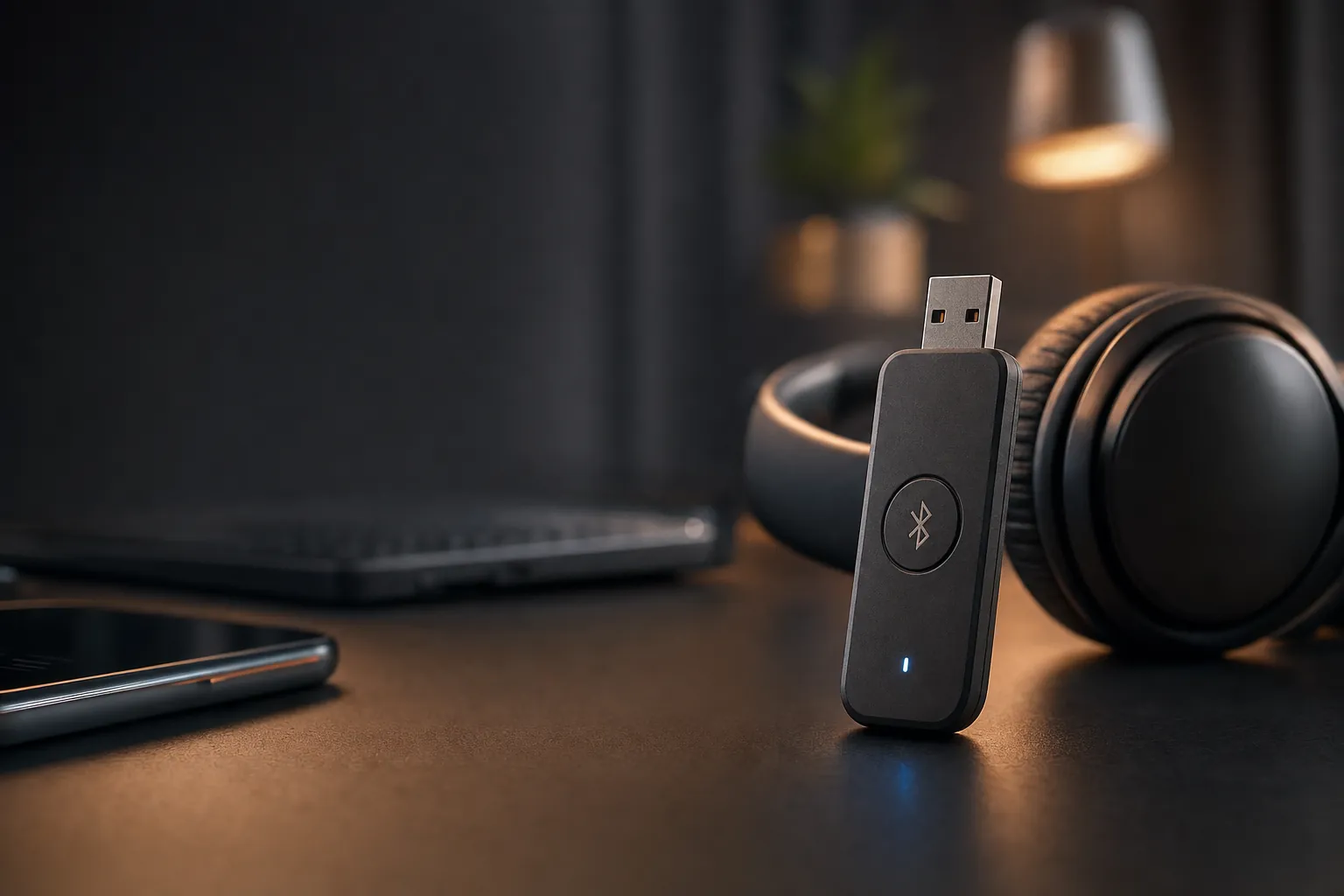
Finally, if nothing software-based has worked, it's worth confirming the hardware itself is healthy. Open Device Manager and look at the Bluetooth adapter entry for any visible hardware errors — a yellow warning triangle, an error code, or the adapter failing to appear at all. If the adapter shows a hardware fault or is missing despite a clean driver install, you may be looking at a genuine hardware problem rather than a software one, at which point an external USB Bluetooth adapter becomes a sensible, inexpensive workaround.
Need a reliable USB Bluetooth adapter as a backup?
A plug-in adapter is a cheap insurance policy against flaky built-in hardware. Check the latest price and any current bundles on Amazon.
Phone-Specific Troubleshooting (Android & iPhone)
Phones are generally less troublesome than Windows PCs when it comes to Bluetooth, largely because there's no exposed driver layer for users to break. That said, they have their own quirks, and the fixes lean heavily on settings and re-pairing rather than anything deep in the system.
On phones, the fix is almost always in the settings: forget the device, toggle Bluetooth, restart, and re-pair from scratch.
Android
The forget-and-re-pair routine I covered earlier is the workhorse fix on Android: Settings → Bluetooth → the gear icon next to the device → "Forget" or "Unpair", then pair afresh. Beyond that, the universal quick fixes apply in full — restart the phone, charge the peripheral, move closer, and clear interference. If a particular device pairs but routes audio oddly, check that the phone hasn't defaulted to using only the call audio or only the media profile for that connection; both need to be enabled for full functionality.
iPhone
On iPhone, the equivalent path is Settings → Bluetooth → the "i" icon next to the device → "Forget This Device", followed by reconnecting. iPhones are particularly prone to the "connected but no sound" scenario when audio gets routed to the wrong destination, so if a device shows as connected but you can't hear anything, check where your audio output is actually pointing before assuming the pairing itself is broken.
The cross-device trap
If you own several Apple or Android devices, your headphones may be silently grabbing onto a different gadget than the one you're holding. A pair of earbuds that "won't connect" to your phone is often perfectly happily connected to your laptop or tablet in the next room. Disconnect them from the other device first, and the phone will usually pick them up immediately.
Solving "Connected But No Sound" and Audio Lag
These two deserve their own section because they're so frequently misdiagnosed. Both look like connection problems but are usually nothing of the sort.
Connected but no sound is, nine times out of ten, an audio output problem. The Bluetooth link is fine; your device is simply sending the audio somewhere else. On Windows, click the speaker icon and check which output device is selected — it should be your Bluetooth headphones, not the built-in speakers. A codec problem is possible but much rarer — SBC is mandatory in classic Bluetooth audio, so devices normally have a common format to fall back on. It is also worth separating three things people tend to merge: audio quality, bandwidth and latency are not the same property, and a codec that improves one may not improve the others. Re-pairing often forces a fresh codec negotiation and clears this.
Audio lag and latency — where sound trails behind video — comes down to bandwidth congestion or a low-quality codec handling the stream. There's less you can do here without better hardware, but reducing interference (that 2.4GHz congestion again) and moving closer to the source both help. If you're regularly watching video over Bluetooth, a peripheral that supports a higher-quality, lower-latency codec is the real long-term fix.
What usually fixes audio issues
- Selecting the correct audio output device manually
- Re-pairing to force fresh codec negotiation
- Removing 2.4GHz interference sources nearby
- Moving within the optimal 10–30 ft range
- Charging the peripheral fully
What rarely helps
- Repeatedly toggling Bluetooth without re-pairing
- Reinstalling drivers for an output-routing problem
- Blaming the peripheral when it's a codec mismatch
- Trying to fix latency without addressing interference
- Ignoring a low battery warning
How Often Does Each Fix Actually Work?
Across the troubleshooting I've done, a clear hierarchy emerges in terms of which fixes resolve the most problems. The figures below reflect the general pattern I've observed — the simple stuff genuinely does the heavy lifting, which is exactly why the guiding principle is to update drivers, restart services and re-pair before anything more drastic.
The takeaway is plain: the cheaper and quicker a fix is, the more likely it is to work. That's unusual in tech and worth celebrating. Start at the top, work down, and you'll resolve the vast majority of issues long before you reach the bottom of the list.
Platform Comparison: Where Each One Helps (and Hurts)
Different platforms handle Bluetooth troubleshooting in noticeably different ways. Here's how Windows, Android and iPhone stack up across the dimensions that matter when something goes wrong.
Each platform exposes a different amount of control — Windows offers the most knobs to turn, but also the most ways to break things.
| Aspect | Windows | Android | iPhone |
|---|---|---|---|
| Driver-level control | Full (Device Manager) | None exposed | None exposed |
| Automated troubleshooter | Yes (Get Help & Settings) | Limited | None built-in |
| Forget & re-pair | Remove device | Forget / Unpair | Forget This Device |
| Most common cause of issues | Outdated / bad drivers | Corrupted pairing | Wrong audio routing |
| Policy restrictions possible | Yes (Group Policy) | Rare | Rare |
| Ease of fixing | More steps, more power | Straightforward | Straightforward |
The pattern is clear: phones trade away deep control for simplicity, which means fewer things break but also fewer levers to pull when they do. Windows is the opposite — more capable of getting properly stuck, but also more capable of being properly fixed once you know where the controls live.
How I Rate This Troubleshooting Approach
Having worked through this methodology across all three platforms repeatedly, here's my honest assessment of how effective the overall approach is — not any single fix, but the structured top-to-bottom process described in this guide.
The only real weak spot is genuine hardware failure — no troubleshooting routine can fix a physically damaged Bluetooth module, and at that point you're into replacement territory. For everything short of that, this approach is about as reliable as troubleshooting gets.
Who Each Fix Is Really For
The "just make it work" user
Stick to the universal quick fixes and the forget-and-re-pair routine. That alone resolves the majority of everyday problems, and you'll never need to open Device Manager.
The Windows power user
You'll get the most mileage from the driver section — rolling back, manually selecting older drivers, and clean reinstalls from the manufacturer's site.
The work-laptop owner
If you're on a managed device, check for Group Policy restrictions early and loop in IT, rather than burning time on fixes that policy will simply override.
The audio-quality seeker
Focus on the output-routing and codec sections, and consider hardware that supports higher-quality, lower-latency audio if lag is your recurring problem.
Frequently Asked Questions
The Verdict
Work the process top to bottom and the overwhelming majority of Bluetooth problems resolve themselves within a few minutes.
Final Thoughts
Bluetooth troubleshooting has a reputation for being a black art, but in truth it's remarkably systematic once you understand the underlying causes. The vast majority of problems trace back to just four things: outdated drivers, incorrect settings, radio interference, and corrupted pairing memory — and the corresponding fixes (update drivers, restart services, re-pair the device) handle nearly everything.
My advice is always to start with the cheap, fast, universal fixes: restart Bluetooth, reboot, charge the peripheral, move closer, clear interference, and forget-and-re-pair. On Windows, escalate through the troubleshooter, driver rollback, manual driver selection and clean reinstall only as far as you need to go. On phones, the forget-and-re-pair routine plus a quick check of audio routing solves most of what crops up. And if you've genuinely exhausted the software side, an inexpensive USB Bluetooth adapter is a tidy escape hatch from a failing built-in module.
Get into the habit of diagnosing before fixing, work the list in order, and you'll spend far less time fighting with your gadgets — and a great deal more time actually using them.
If there's a single sentence to pin to your noticeboard, it's this: most Bluetooth failures are cheap, quick and entirely fixable. Resist the urge to assume the worst, work calmly through the steps above, and the odds are firmly in your favour. Happy pairing.