
Best password managers: a careful guide for UK users
Passkeys are taking over, but passwords aren't going anywhere fast. Here are the password managers worth using in 2026 - tested for real UK use, with honest takes on the trade-offs.
We link to the exact model on Amazon UK. Prices change often, so check the live price before you buy. As an Amazon Associate we earn from qualifying purchases.

YubiKey 5C NFC on Amazon
Check today's price & availability on Amazon UK
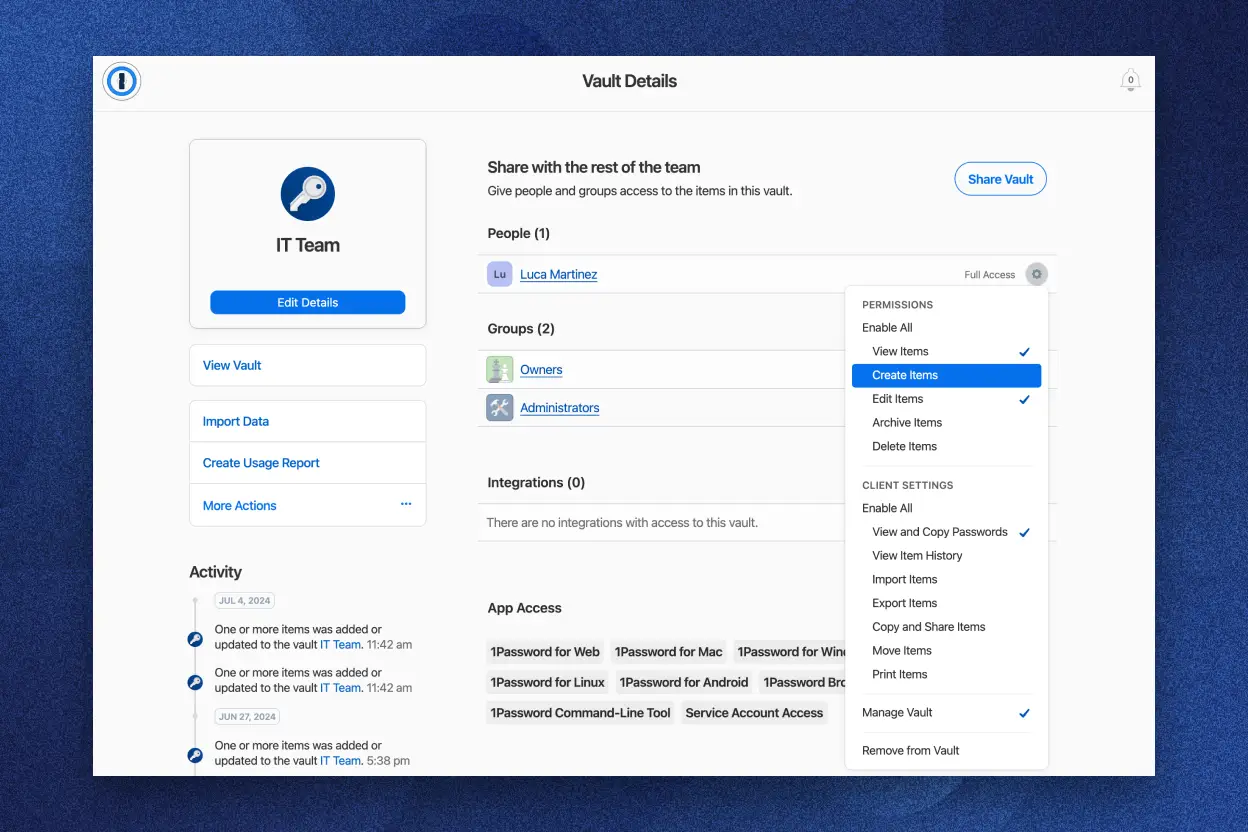
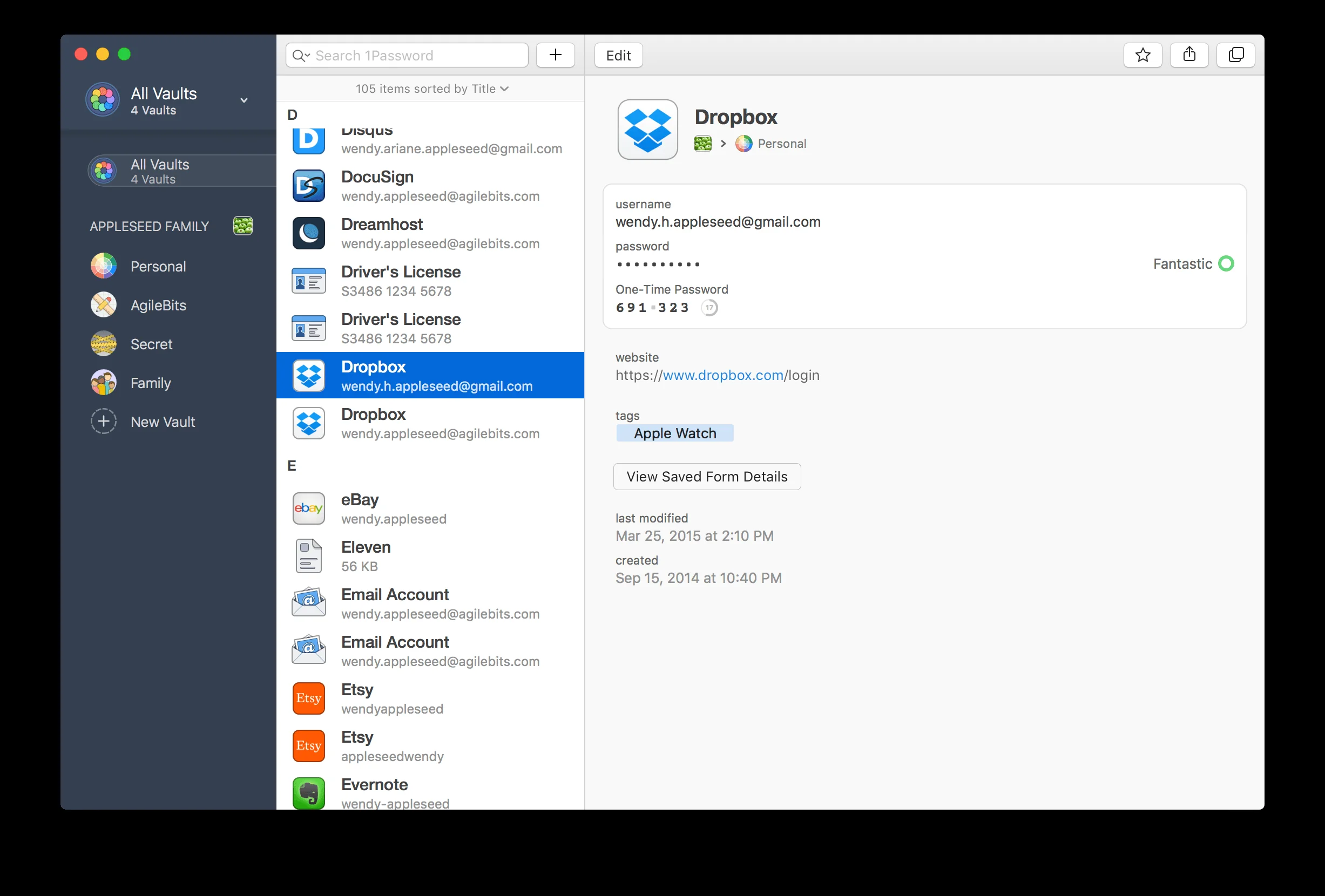
A 1Password vault and sharing panel - the kind of central control a good password manager gives you in 2026.
1. Why use a password manager in 2026?
Three reasons, all stronger in 2026 than they were a few years ago.
Passkeys still need a manager
Passkeys are the future, but the present is messy. Some sites support them, most don't. Some apps work with iCloud Keychain or Google Password Manager only, leaving Windows or cross-platform users behind. A modern password manager handles passkeys, traditional passwords, and the long list of sites that still send you a one-time code over email - all in one place.
Breaches keep happening
Major password leaks are still routine. Every reused password is a ticking time bomb - if one site is breached, every site sharing that password is compromised. A password manager generates and stores a unique password per site, and shows you which of your existing accounts are weak or reused.
Two-factor authentication needs a place to live
TOTP codes (the rotating 6-digit numbers from Google Authenticator or Authy) are the strongest mainstream second factor outside of hardware keys. Most modern password managers store TOTP codes alongside passwords, autofill them with a click, and back them up when you change phone. That alone justifies switching from a notes app or a piece of paper.
The honest scope
A password manager doesn't make you immune to phishing, doesn't cover every edge-case site (some banks still block autofill), and isn't a replacement for a hardware security key for your most critical accounts. It is, however, the single biggest security upgrade the average UK user can make.
A modern password manager handles passwords, passkeys, TOTP codes and breach monitoring in one place - the foundation of personal digital security.
2. Best password manager overall
1Password
1Password remains the easy recommendation for most UK buyers in 2026. Mature, well-designed apps on every platform, excellent passkey handling, family plans that include up to 5 users, business plans that scale, regular independent audits, and a track record of transparent communication around any minor incidents. Unique 'Travel Mode' lets you remove sensitive vaults before crossing borders.
Why it wins
- Best apps in the category - native iOS, Android, macOS, Windows, Linux clients all feel polished.
- Excellent passkey support - works as a passkey provider on iOS, Android, Chrome and Safari.
- Watchtower - flags reused, weak, or compromised passwords proactively.
- Family sharing done right - per-vault permissions, shared logins for streaming services, separate private vaults for each member.
- Secret Key + master password - you can't decrypt the vault with the master password alone, which makes server-side breaches far less catastrophic.
What you give up
It's a paid-only service. The free tier (a 14-day trial) ends and you're either a subscriber or you're not. There's no free 'lite' forever-tier. For most people the value is worth the £3-5/month; budget-conscious users can do better elsewhere.
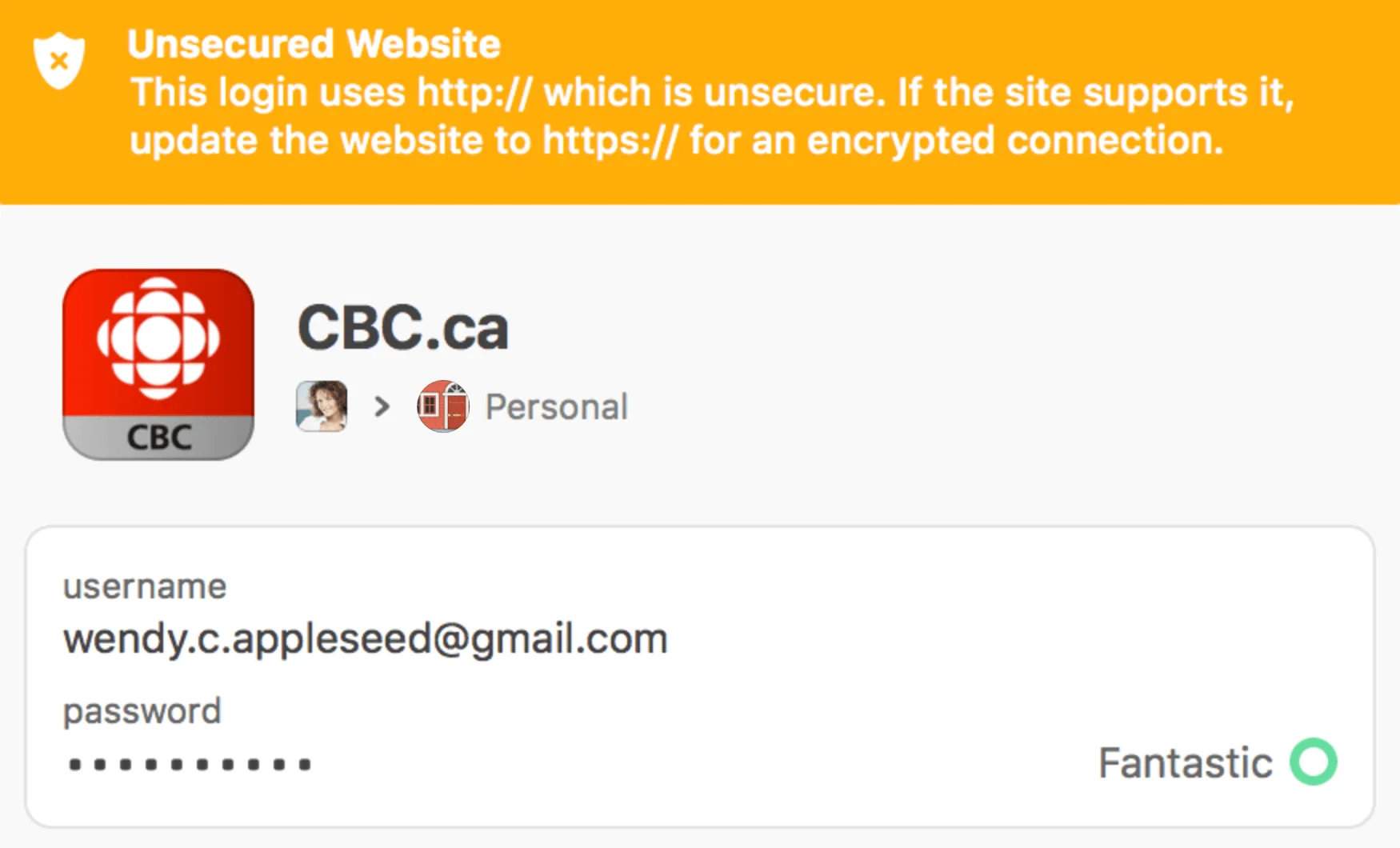
1Password's Watchtower flags reused, weak and compromised passwords proactively, with one-tap remediation.
3. Best free / open source
Bitwarden
Bitwarden is the best free password manager that exists, and the paid tier (£10/year) is the cheapest serious option. Open source on every platform (server and clients), independently audited, self-hosting option for technical users, and a free tier that includes unlimited devices and unlimited passwords - a rare combination.
Free tier vs paid (Bitwarden Premium)
Free includes:
- Unlimited password storage
- Sync across all devices
- Password sharing with one other user
- Basic 2FA support
Premium ($19.80/year at the checked official price) adds:
- Built-in TOTP code generation
- 1GB encrypted file attachments
- Advanced 2FA options (YubiKey, Duo, FIDO2)
- Vault health reports
- Emergency access for trusted contacts
What you give up vs 1Password
- The apps are functional but less polished.
- No equivalent of 1Password's Secret Key - the master password is the only line of defence (use a strong one).
- Family plans aren't quite as well thought out (shared vaults rather than per-user vaults with permissions).
Honourable mention: KeePass
If you want a fully local, open source solution with no cloud sync at all, KeePass (or KeePassXC, the modern fork) is the answer. You manage your own database file, sync it manually via Dropbox/iCloud/SyncThing. Powerful and private, but the UX is heavily DIY. Recommended only for technical users who specifically want to avoid the cloud.
4. Best privacy-focused option
Proton Pass
Proton Pass launched in 2023 and matured fast. Same company as Proton Mail, Proton VPN and Proton Drive - Swiss-based, with a consistent privacy-first stance. Open source clients on every platform, end-to-end encryption with extensive metadata protection, aliases for sign-up email addresses, integrated 2FA, and a free tier that's genuinely usable. The whole Proton ecosystem appeals if you care about keeping your data away from US-based providers.
Why it stands out
- Hide-my-email aliases - generate a unique random email per signup, all forwarding to your real inbox. Cuts spam dramatically and limits data brokers' ability to correlate identities.
- Email-on-disposable-domain protection - aliases live on your own Proton domain (paid tier) or passmail.net / aleeas.com / SimpleLogin domains.
- End-to-end encryption with metadata protection - even Proton can't see which sites you have logins for.
- Family plan bundles - Pass + Mail + VPN + Drive together cheaper than buying separately.
- Swiss jurisdiction - outside US/EU/UK data-sharing arrangements.
Limitations
Less mature than 1Password or Bitwarden in some edge cases - autofill on certain Android apps occasionally needs manual triggering, and the desktop app feels newer. Not a deal-breaker, but worth knowing if you have a complex setup.
5. Best for families and shared households
Family plans are where password managers earn their keep - one subscription, everyone in the household, plus shared logins for streaming services and family accounts.
1Password Families (5 users)
Per-user vaults with their own master password, shared family vaults for things like Netflix and Disney+, an organiser/admin role so one person manages billing, and Travel Mode that lets each user hide sensitive vaults independently. The family plan costs roughly the same as two individual plans, so anyone in a 3+ person household saves real money. Well-designed for blended households where adults have separate work logins.
Alternative: Bitwarden Families
Cheaper than 1Password Families and supports up to 6 users. Less polished (single shared 'Organisation' rather than 1Password's clean per-user vault model), but the price/feature ratio is excellent. Worth considering if you want the cheapest sensible family option.
Alternative: Proton Pass Family
Comes bundled with Proton Mail Family, Proton VPN Family, Proton Drive Family in the Visionary plan. If you're already considering multiple Proton services, the family bundle pricing is hard to beat.
What 'family sharing' actually does
Each member has their own private vault that nobody else can see - even the family admin. Shared vaults exist explicitly: 'Streaming services', 'Council tax login', etc. Family members can be granted access to specific shared vaults. It's collaborative without being invasive.
6. Best for small businesses and freelancers
1Password Business / Teams
1Password's business tiers add proper SSO integration (Okta, Microsoft Entra), provisioning from your identity provider, advanced reporting, and per-team vault management. Pricing is per-user-per- month with discounts on annual billing. The free 'Families' add-on for every employee is a thoughtful touch.
Alternative: Bitwarden Teams / Enterprise
Bitwarden's business tiers are dramatically cheaper than 1Password's, and the self-hosting option is unique in the category. If your small business has technical staff and wants to host the password manager on its own infrastructure (for compliance or sovereignty reasons), Bitwarden is the only mainstream choice.
Alternative: Dashlane Business
Dashlane has carved out a niche in the SMB space with a slightly more polished admin console than Bitwarden and integrated dark-web monitoring. The included VPN feature is nice but not a substitute for a dedicated VPN service.
What to set up on day one of any business deployment
- SSO integration with your identity provider
- Per-team vaults (not 'one big company vault')
- Mandatory 2FA for all users (TOTP minimum, FIDO2 if possible)
- Quarterly password health reports
- Offboarding process that immediately removes the user from all vaults
7. Why not just use iCloud or Google's built-in?
Apple's iCloud Keychain and Google Password Manager have got better in the last two years. They're not enough for most people. Two clear reasons.
Cross-platform reality
iCloud Keychain works perfectly on iPhone, iPad and Mac, and acceptably on Chrome on Windows. It does not work on Android. Google Password Manager is strongest on Android and Chrome and also works in Chrome/on the web on macOS, although it is not a system-wide macOS credential manager. Most UK households have a mix - iPhone owner with a Windows PC, Android owner with an iPad, kids on Chromebooks. A proper cross-platform password manager covers all of them.
Family sharing is harder
iCloud Keychain has 'Shared Password Groups' (introduced in iOS 17), which works for 2-5 family members on iCloud. Google's equivalent is limited. Neither offers the per-vault, per-permission flexibility of a real family plan.
What the built-in managers are good for
If your entire household lives in one ecosystem and you don't need shared vaults, iCloud Keychain or Google Password Manager are acceptable. They're free, they autofill, they sync. Use them if a dedicated password manager genuinely doesn't fit your life.
Migrating is painless in 2026
All major password managers offer one-click import from iCloud Keychain, Google Password Manager, Chrome, Safari, Firefox, LastPass and 1Password (between each other). The friction of migration is no longer a real barrier.
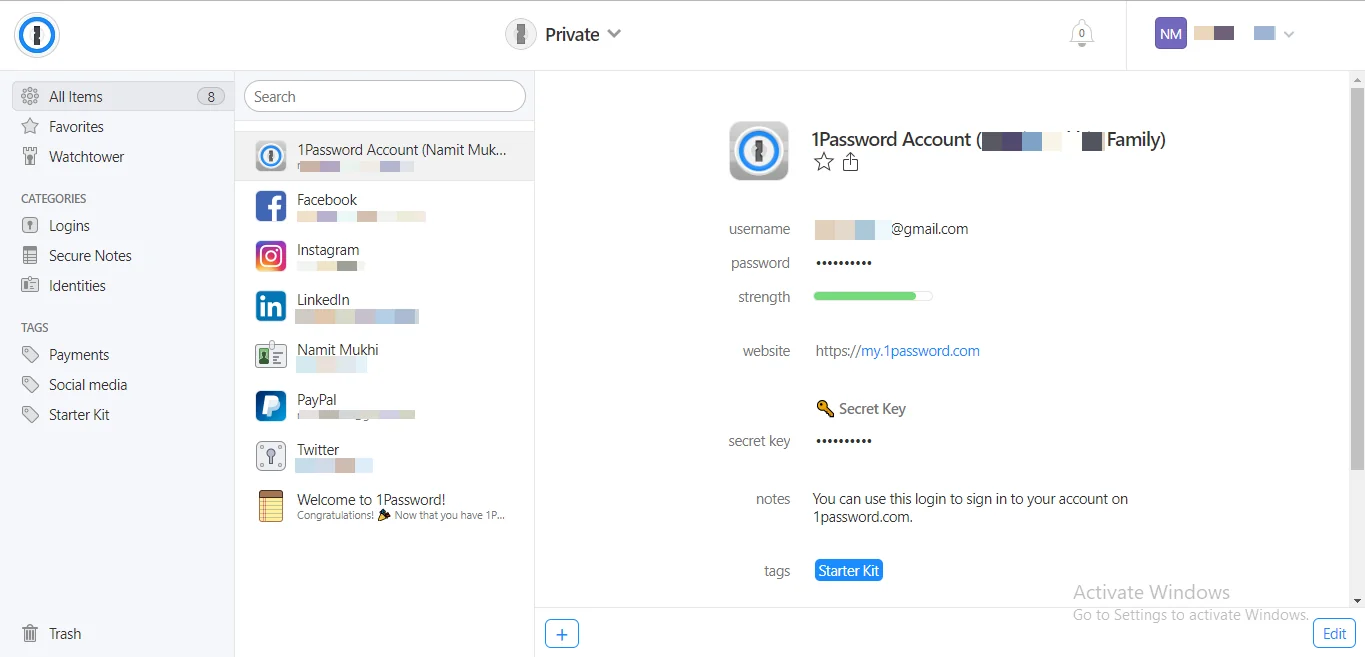
Built-in keychains work well within one ecosystem - cross-platform households really benefit from a dedicated password manager
8. Migrating safely from another manager
If you're switching - especially if you're leaving LastPass after the 2022 breach - there's a clean way to do it.
Export and import
- Export your existing vault to CSV (every major manager supports this).
- Import the CSV into your new manager.
- Verify a few critical logins work in the new manager.
- Don't immediately delete the old account - keep it for a week as a backup.
- After a week of confirmed working, delete the old account and securely shred the CSV.
Rotate weak and reused passwords during migration
Migration is the perfect time to rotate the worst passwords. The new manager will tell you which are reused or compromised. Spend 30 minutes changing the top 20 most important ones - banking, primary email, payment services, employer login. The rest can rotate as you naturally log in to each site.
Move TOTP codes carefully
Some authenticator apps make TOTP migration awkward. Google Authenticator has an export feature; Authy and Microsoft Authenticator do not. The cleanest approach: when you migrate to your new password manager, re-enrol each 2FA login one at a time (most banks let you remove and re-add a TOTP authenticator from your security settings). Tedious for the first hour, peace of mind forever after.
If you're leaving LastPass
The 2022 LastPass breach exposed encrypted vaults. The current consensus is that any password stored in LastPass before 2023 should be considered potentially compromised. Don't just import and forget; rotate every important password as part of the migration. Painful, but necessary.
9. Setting up a password manager from scratch
If you've never used a password manager, the first 30 minutes matter more than the next year. A bad setup leaks passwords through weak master credentials or missing 2FA. Here's how to do it properly.
Step 1: Pick a strong master password
The master password is the only password you ever need to memorise, and it's the only thing standing between an attacker and every other password you have. Get it right.
- Length matters more than complexity. A 16-character password is meaningfully harder to crack than a 12-character one, even if the longer password has 'easier' characters.
- Use a passphrase - 4-6 random words like 'lemon-coffee-window-glacier-rabbit' is far easier to remember and cryptographically stronger than 'P@ssw0rd123!'.
- Don't reuse this password anywhere. Ever.
- Don't write it on a sticky note on your monitor. A safe place at home is fine; a public-facing visible spot is not.
Step 2: Enable 2FA on the manager itself
Almost every modern password manager supports two-factor authentication on the manager's own login. This is non-negotiable. Use an authenticator app (Aegis, Authy, Google Authenticator) or a hardware security key (YubiKey, NitroKey). SMS-based 2FA is acceptable but markedly weaker.
Step 3: Set up recovery and legacy access
Bitwarden Premium provides delayed trusted-contact Emergency Access. 1Password Families instead uses family organisers and account recovery; it is not the same delayed-access feature. Document the exact recovery route and store recovery codes securely outside the vault.
Step 4: Import existing passwords
Export from your current keychain (browser, iCloud, Google) as CSV, import into the new manager, then verify a few critical sites work before deleting the source export.
Step 5: Run the password health check
Every modern password manager has a 'Watchtower'-style feature that flags reused, weak or compromised passwords. Run it. Spend 30 minutes rotating the worst offenders - prioritise primary email, banking, payment services, employer systems, social media. The rest can rotate gradually as you log in.
Step 6: Install on every device
Phone, laptop, tablet, work computer if allowed. Browser extensions on every browser you use. Autofill needs to be enabled in iOS and Android settings (it's not on by default).
Step 7: Print the recovery codes
Most managers let you generate one-time recovery codes that can unlock your account if you lose access to 2FA. Print them, put them somewhere safe, never store them in the password manager itself (circular dependency).
The 'fire safe' approach
Print: master password, 2FA recovery codes, and emergency-access nominee instructions. Put in a small fireproof safe at home, or in a sealed envelope at a parent or sibling's house. This is the only 'paper backup' worth keeping; everything else lives digitally.
A correctly set up password manager has master password + 2FA + emergency access + recovery codes - all done in the first 30 minutes
10. UK-specific service compatibility
Most password managers work everywhere. A handful of UK-specific services have quirks worth knowing about.
Banks and building societies
Autofill behaviour varies by bank, app, browser and security policy; do not promise blanket compatibility. Test the exact service and keep its separate recovery route current.
HMRC, government services and the NHS
- HMRC uses Government Gateway and can work with password-manager autofill.
- NHS services use NHS login, not Government Gateway.
- GOV.UK Verify has closed; follow the current sign-in route shown by each service.
Streaming and entertainment
- BBC iPlayer, ITVX, Channel 4, My5: Standard email/password, all supported.
- Sky Go, Now TV: Some account-merging quirks but autofill works.
- Netflix, Disney+, Amazon Prime: Standard.
- Apple TV+, Apple Music: Apple ID, which Apple's own keychain handles best - your password manager can store it but the OS-level handoff is smoother.
Utilities and council services
British Gas, Octopus Energy, Thames Water, Severn Trent, council tax portals - all standard email/password setups, all autofill- friendly. Octopus Energy in particular has excellent password manager support and uses passkeys for new logins.
Where things get weird
- Some legacy work intranets: Custom Single Sign-On flows that don't match the autofill heuristics. You may need to manually paste.
- Older trade and professional bodies: RICS, CIArb, etc. sometimes use bespoke login flows that confuse browser extensions.
- Pension providers (Aviva, Legal & General): Multi-step login often needs autofill enabled per-step rather than as one flow.
If autofill doesn't work on a UK site
Almost always one of three causes: (1) the site uses a custom login form the manager hasn't learned yet - try saving the login manually after typing it once; (2) the site loads the password field via JavaScript after the page renders, which some extensions miss; (3) the site has a multi-step flow (email, then password on the next page) - just save them as separate fields. Almost never the password manager's fault long-term.
Frequently asked questions
Are passkeys replacing passwords entirely in 2026?
Slowly. Major sites (Apple, Google, GitHub, Amazon, banks) support passkeys, but plenty don't. The transition will take years. A password manager that handles both is the practical answer for the next 3-5 years - everything our recommended picks do.
What happens if I forget my master password?
It depends on the service. 1Password requires both your master password and a Secret Key (printed during setup), so losing one but not both has a recovery path. Bitwarden, Proton Pass and Dashlane have no master-password recovery - if you forget it, your vault is unrecoverable. Print or write down your master password somewhere safe (not on your phone), and consider setting up emergency-access trustees if your manager supports it.
Is it really safe to put all my passwords in one place?
More than the alternative (re-using passwords or storing them in a notes app). All major password managers use end-to-end encryption with your master password as the key - even the company itself can't read your vault. The risk is your master password, not the manager. Make it strong, never re-use it, and use 2FA on the manager itself.
Should I pay or use a free option?
Bitwarden's free tier is genuinely good and covers most needs. If you have a family or want polished apps, paid is worth the £3-5/month. The free options are not 'worse' versions - they just have fewer features.
Can password managers handle UK banking apps?
Mostly yes. Most UK high-street banks support autofill from password managers in their apps. A few (notably some legacy building societies) still don't. The major password managers all have specific UK bank support pages.
What about hardware security keys?
A YubiKey or similar is the strongest second factor available. For your most critical accounts (primary email, password manager itself, banking) it's worth pairing your password manager with a hardware key. 1Password, Bitwarden, Dashlane and Proton Pass all support hardware-key 2FA on their own login.
Will a password manager work with my legacy work email like Lotus Notes or older Outlook?
Probably yes - all major password managers integrate with Windows credential storage, which most legacy email clients use. Worst case, you can manually paste the password from the manager. The Outlook 365 web interface is fully autofill-supported.
What if I lose my phone?
If you have multiple devices set up (phone + laptop + tablet), losing one device is mostly an inconvenience - you log in from another device, remove the lost device from the manager, and re-pair when replaced. If your phone is your only device, you need either: (a) recovery codes printed, (b) emergency access nominee, or (c) Apple's iCloud Keychain or Google Password Manager fallback. Plan for this in advance.
Are passkeys more secure than passwords stored in a manager?
In some ways yes (passkeys can't be phished and aren't reusable across sites), but they need a manager too. The passkey is stored on a device or in the cloud. A password manager that handles passkeys gives you the same secure storage as built-in keychains, with cross-platform portability.
How do I share passwords with family members safely?
Use a family plan with shared vaults rather than emailing passwords. Each family member has their own private vault that nobody else (including admins) can see, plus shared vaults for streaming services, family Wi-Fi password, etc. 1Password Families and Bitwarden Families both do this well.
Are biometric logins to the manager (Face ID, Touch ID) secure?
Yes - they unlock the manager locally on a device that already has your master password stored. The biometric never replaces the master password; it just speeds up unlocking. If biometrics fail (cold finger on Touch ID, mask on Face ID), the manager falls back to typing the master password.
Should I store credit card details in the password manager?
Yes - all major password managers have a separate 'Card' entry type that fills card details on checkout pages. It's significantly safer than letting browsers remember card details, and it lets you carry the card numbers between devices. Add the CVV separately if you want; some managers prompt for it on each use.
Quick recommendations for UK buyers
Best overall: 1Password. Polished apps, excellent family plan, Secret Key adds a meaningful layer of breach protection.
Best free / open source: Bitwarden. Genuinely usable free tier, the cheapest paid plan, fully open source on every platform.
Most privacy-focused: Proton Pass. Swiss-based, end-to-end encrypted with metadata protection, integrated email aliases.
Best for families: 1Password Families - per-user vaults plus shared family vaults, Travel Mode, and clean billing.
Best for small business: 1Password Business if you want polish, Bitwarden Teams if you want the lowest cost or self-hosting.
Whichever you pick, set a strong master password, enable 2FA on the manager itself, set up emergency access for a trusted person, and start rotating any reused or weak passwords immediately. A password manager is the most valuable security upgrade the average UK user can make - and the only one that pays back the time investment within a week.
YubiKey 5C NFC on Amazon
Check today's price & availability on Amazon UK
- YubiKey 5C NFCView on Amazon