
Best Laptops for Kids' Homework and Schoolwork in the UK
Looking for the best laptop for kids' homework in the UK? Whether you need a cheap laptop for a child starting Year 5 or a proper machine for GCSE coursework, here are the picks that actually work in real schools - from a UK IT shop owner who fixes them every week.


We link to the exact model on Amazon UK. Prices change often, so check the live price before you buy. As an Amazon Associate we earn from qualifying purchases.
See Acer Chromebook Spin 311 / 314 on Amazon UK
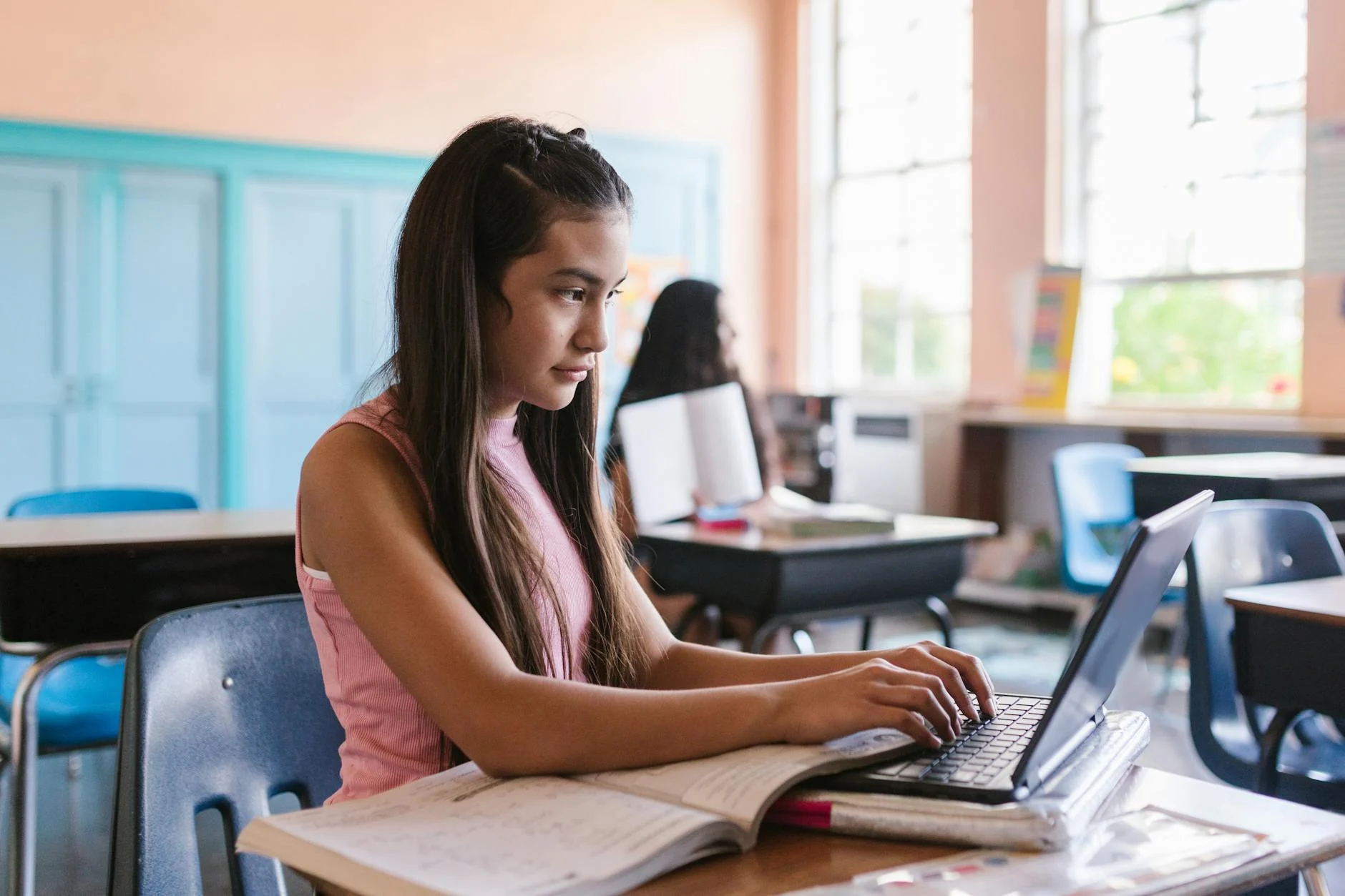
A school-age student working through homework on a laptop - what most UK kids actually need from their first machine.
School Microsoft licences: a school login does not automatically include desktop Office on five PCs. Web apps may be available on lower tiers; desktop installs require the institution to assign an eligible licence such as A3/A5. Ask the school what is included.
1. What kids actually need a laptop for in 2026
Schoolwork in 2026 is mostly online. UK schools have largely standardised on Microsoft 365 Education or Google Workspace for Education, so a kid's laptop primarily needs to handle:
- Microsoft Word, Excel, PowerPoint - either the web versions or, increasingly often, the desktop apps if the school has provided Microsoft 365 Education accounts (and most have).
- Google Docs, Sheets, Slides - if the school runs on Google Workspace instead.
- Microsoft Teams for class meetings, virtual homework drop-off, and class chats.
- BBC Bitesize, Seneca, Sparx Maths, MyMaths and the various other browser-based revision sites.
- Reading on screen - PDF textbooks, online reading platforms (Accelerated Reader, Bug Club).
- Watching educational video - YouTube (school-approved), school-provided video libraries.
- Light coding for older kids - Scratch (browser-based), Python in the browser via repl.it or Codepen.
- The occasional creative work - Canva for presentations, GarageBand on Macs, basic photo editing.
- Microsoft OneNote or Google Keep for note-taking.
What kids' laptops genuinely don't need
- Heavy creative software (Photoshop, video editing) until A-level.
- Gaming-grade graphics cards.
- 32GB RAM or more.
- Cellular / 5G connectivity.
- 4K touchscreens.
Schools' typical recommendations
When schools issue 'recommended specs', they usually require:
- A modern processor (Intel or AMD, any recent generation, or Apple Silicon).
- 8GB+ RAM.
- A keyboard that's full-sized.
- A webcam and microphone for live lessons.
- A reasonable screen (11-inch+ recommended).
- A working battery for the school day.
That's the floor. We'd push it slightly higher in 2026 - 16GB RAM is becoming the new minimum for genuinely smooth multi-tab browser work. But the floor is genuinely modest.
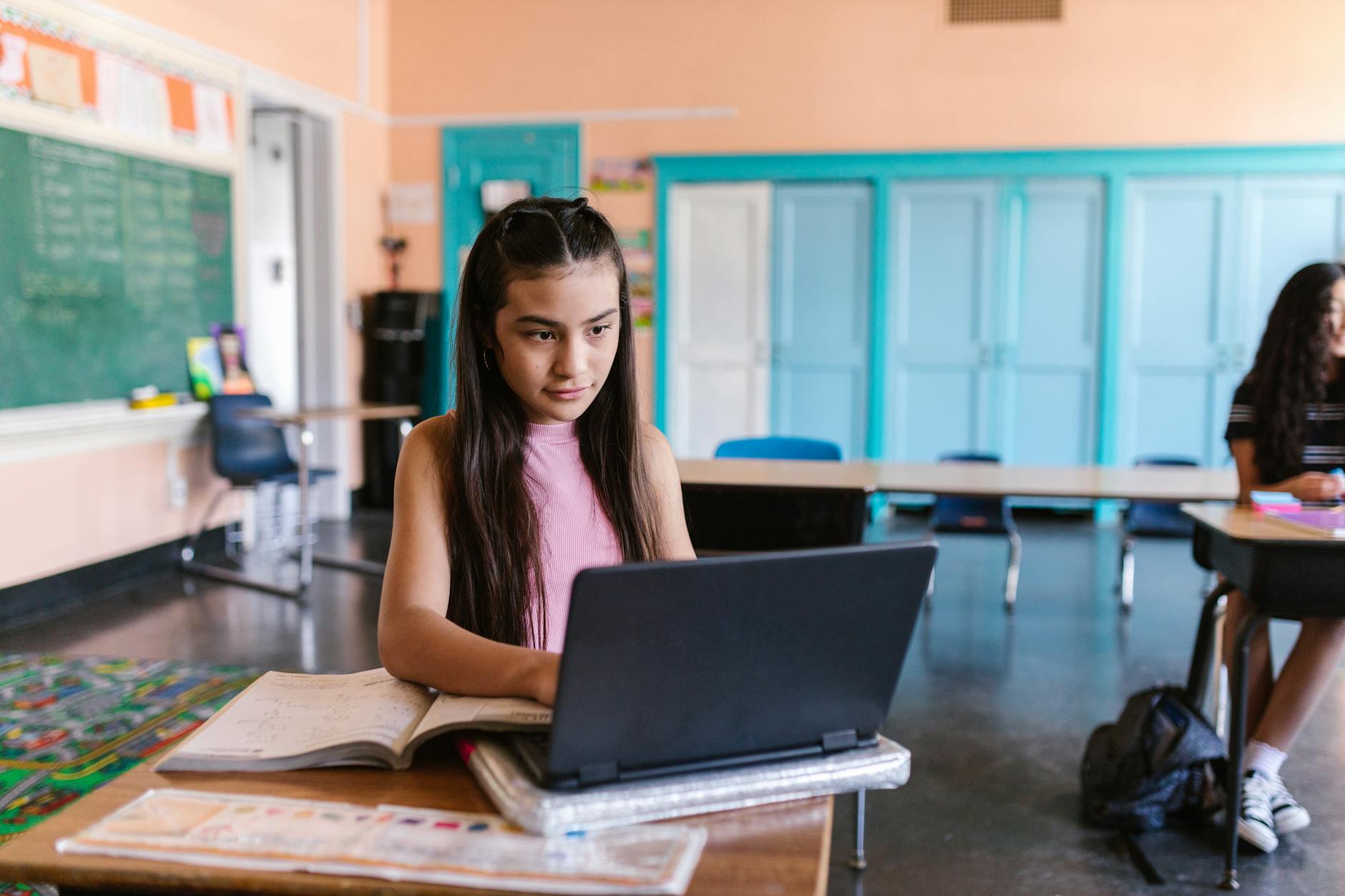
Most UK school work is browser-based or runs in Microsoft 365 - the laptop spec doesn't need to be huge, but it does need to be reliable
2. Windows vs Chromebook - the real decision
For a kid's school laptop, the biggest question isn't which brand - it's which operating system. Windows or Chromebook. Both have real strengths and real limitations.
The case for a Chromebook
- Cheaper - decent Chromebooks start around £180-£250.
- Boots in seconds. Genuinely fast on/off.
- Battery lasts longer - often 10-12 hours real use.
- Less malware - ChromeOS is locked-down by design; far harder for kids to accidentally install dodgy software.
- Auto-updates - the OS updates itself in the background.
- Lighter and cooler - less powerful chips run quietly without fans.
- Many UK schools standardise on Google Workspace - Chromebooks are designed for this exact stack.
The case against a Chromebook
- Microsoft 365 desktop apps don't work - only web versions. Most schools accept this; some don't.
- Specialist software won't run - Sibelius (music), AutoCAD (DT), specific GCSE / A-level programs are usually Windows-only.
- Limited offline use - works offline, but slightly awkwardly.
- Coding lessons can be limited - some IDEs are Windows-only.
The case for Windows
- Universal compatibility - everything UK schools use works.
- Microsoft 365 desktop apps - Word, Excel, PowerPoint as proper installed software.
- Specialist software for GCSE/A-level coursework.
- Future-proof - works for college, university, employment.
The case against Windows for kids
- More expensive for similar performance.
- Slower boot on cheaper hardware.
- Shorter battery life on cheap models.
- More complex parental controls.
- Easier to download dodgy software on Windows.
The 30-second decision rule
- Primary school (5-11): Chromebook. Cheaper, simpler, harder to break, plenty for the workload.
- KS3 (11-14): Chromebook still works for most schools. Switch to Windows if your school uses specific Windows-only software.
- GCSE (14-16): Windows is usually the safer bet. GCSE coursework often requires specific desktop software.
- A-level (16-18): Windows almost certainly. University ahead - they'll need to be familiar with desktop Microsoft 365.
What about iPads or MacBooks for kids?
iPads with a keyboard cover are popular for younger kids - durable, intuitive, the camera is great for projects, and Microsoft 365 apps work well on iPad. The downside is that some schools specifically require Windows or Chrome, and serious typing on an iPad keyboard is awkward. MacBooks are excellent but expensive for a kid; genuinely worth considering at GCSE/A-level if budget allows, but overkill before then.
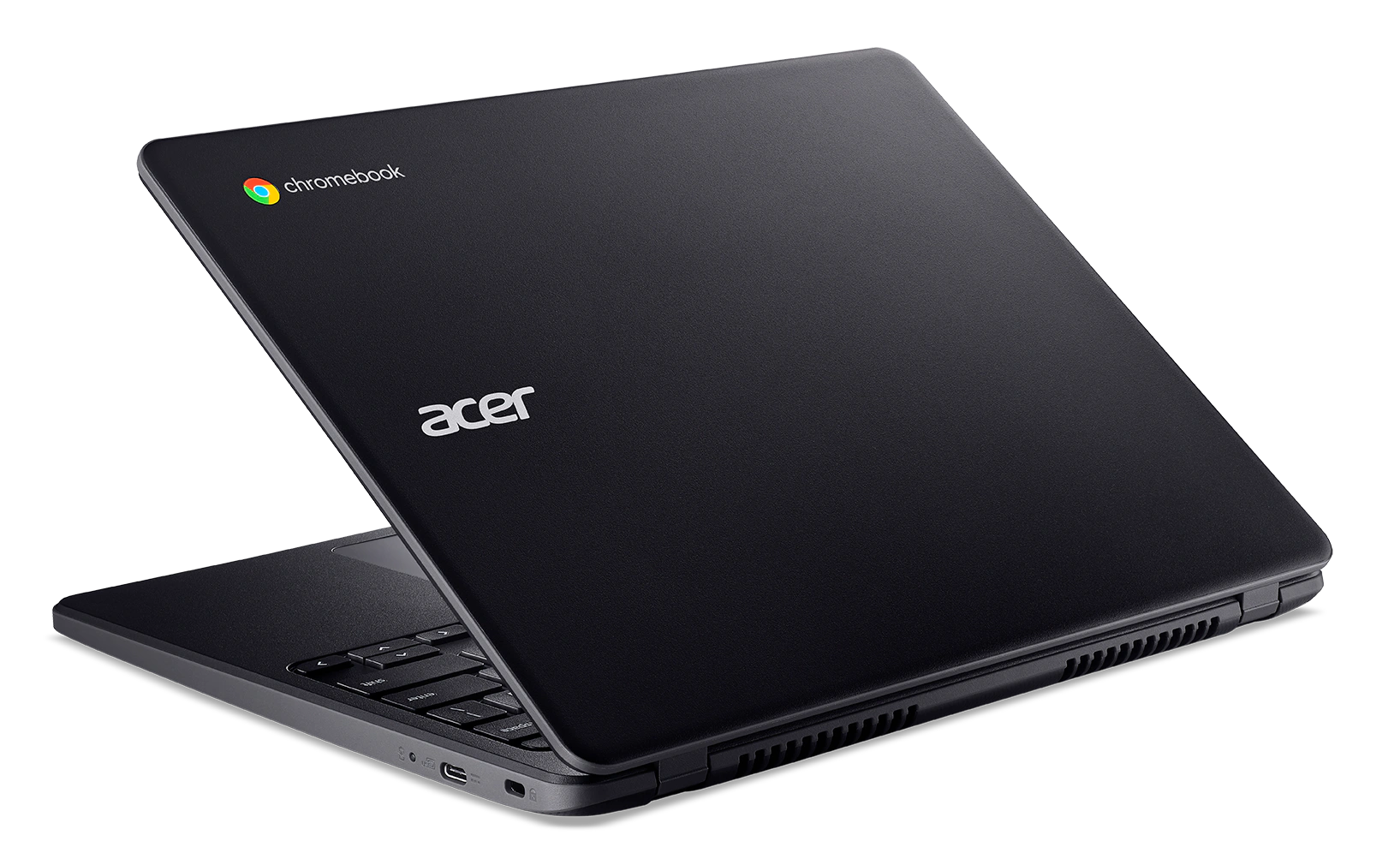
For most UK primary and KS3 kids, a Chromebook is the smart starting point - simpler, cheaper, more durable.
3. Age-based recommendations - what fits which child
Different ages need different things from a laptop. Here are the realistic recommendations by school year.
Reception to Year 4 (ages 4-9)
Realistically, kids this age don't need a personal laptop. Schools provide them. If you want one for home use:
- A Chromebook is plenty - typing skills are still developing, workloads are simple.
- A used iPad with a Logitech Crayon and a basic keyboard cover works equally well.
- Don't spend £400+. They'll outgrow it before they need more.
- Focus on durability - kids this age drop things.
Year 5-6 (ages 9-11) - end of primary
Genuine homework starts. Online learning platforms become daily routines. A first 'proper' laptop is reasonable.
- Chromebook from a reputable brand (HP, Acer, Lenovo, Asus).
- 11-14 inch screen.
- 4-8GB RAM is fine at this age.
- 64-128GB storage.
- A protective sleeve and a case.
Year 7-9 (ages 11-14) - KS3
Secondary school workloads pick up. Microsoft 365 or Google Workspace is usually mandatory. Multiple browser tabs become normal.
- Chromebook or budget Windows laptop, depending on school.
- 13-14 inch screen.
- 8GB RAM minimum (Chromebook), 8-16GB if Windows.
- 128GB+ storage on Windows.
- Webcam and microphone for video lessons.
- Protective sleeve essential.
Year 10-11 (ages 14-16) - GCSE
This is where the laptop actually matters. GCSE coursework, mock exams, revision websites, school-issued software.
- Windows laptop is the safer bet (specialist software for some GCSEs).
- 13-15 inch screen.
- 16GB RAM strongly recommended.
- 256GB+ NVMe SSD.
- Decent keyboard - they'll be typing essays for hours.
- This laptop should last through A-levels too.
Year 12-13 (ages 16-18) - A-level / college
Serious essay writing, EPQ projects, university preparation. This laptop will likely also be the first-year-uni laptop.
- Windows or MacBook (MacBook Air M3 / M4 is excellent for this age).
- 14-16 inch screen for productivity.
- 16GB+ RAM.
- 512GB+ SSD.
- 10+ hour real battery life for college days.
- Full-size keyboard with comfortable layout.
- Full Microsoft 365 access (often free via school's licence).
The 'will it last to GCSEs' question
If you're buying for a Year 7 child and want the laptop to serve through to Year 11, spend more upfront on a 16GB Windows laptop. A £180 Chromebook bought for Year 7 will be unusably underspec'd by Year 11. Spending £550-£700 once at Year 7 is almost always cheaper than £180 + £180 + £550 across the secondary years.
4. Durability - what actually matters
Kids drop things. Kids spill drinks. Kids close laptops on rulers. Kids leave laptops in school bags that get sat on. The most expensive mistake is buying a great laptop and replacing the screen six months later.
Build features that genuinely help
- MIL-STD-810 testing - some 'school' Chromebooks (Acer Chromebook Spin 511, Lenovo 100e/300e/500e Chromebooks, HP Chromebook 11) are MIL-STD certified for drop and shock resistance. Built for fleets of school kids and meaningfully tougher than consumer models.
- Reinforced corners and rubber bumpers - usually only on 'rugged' or 'education' versions of laptops.
- Spill-resistant keyboards - drainage channels under the keyboard mean a small spill won't kill the laptop. ThinkPads and Education-class HP/Acer/Lenovo Chromebooks have this.
- Reinforced hinges - 360-degree convertible hinges on education laptops are designed to survive being closed on objects, repeated use, etc.
- Webcam shutter - a physical slider over the camera. Kids and adults both benefit from privacy.
Protection accessories you should buy
- Hard-shell case for the laptop body - reduces drop damage. Tomtoc, NIDOO, Fintie are the well-reviewed UK options.
- Padded sleeve for transport in school bags. EVA foam is the standard.
- Tempered glass screen protector if the laptop has a touchscreen.
- Cleaning kit - microfibre cloth, screen-safe spray. Sounds trivial; saves the screen long-term.
Insurance and accidental damage cover
For laptops bought primarily for kids:
- Check your home insurance - many UK home contents policies cover laptops in the home; some include accidental damage as standard or as an add-on.
- Manufacturer accidental damage protection - Lenovo, HP, Dell all offer 'Accidental Damage Protection' add-ons (£40-100/year typical) that specifically cover drops and spills. Genuinely worth the money for a kid's laptop.
- Square Trade / Currys Care & Repair - third-party plans, sometimes cheaper, varying quality.
- Don't rely on extended warranty alone - standard warranty rarely covers accidental damage.
The realistic damage rate
From what we see in our shop: about 1 in 5 kids' laptops come in for repair within 2 years. The most common faults:
- Cracked screen from drop or laptop closed on object - 40% of cases.
- Liquid damage (spilled drink) - 20%.
- Hinge failure from rough use - 15%.
- USB port damage - 10%.
- Keyboard damage / missing keys - 10%.
- Battery failure - 5%.
Each of these is preventable or insurable. Plan for it.
5. Best Chromebook for kids' homework UK
Acer Chromebook Spin 311 / 314
See Acer Chromebook Spin 311 / 314 on Amazon UK
The Acer Chromebook Spin range has been the go-to UK school Chromebook for years. 11.6-inch (Spin 311) or 14-inch (Spin 314) convertible touchscreen, Intel or MediaTek processors, 4-8GB RAM, 32-128GB storage. MIL-STD certified for drop resistance, durable plastic chassis with rubber bumpers, spill-resistant keyboard. Battery typically 10+ hours. Updates supported by Google for 8+ years from initial release.
HP Chromebook 14 / Lenovo IdeaPad Slim 3 Chromebook

See HP Chromebook Plus 14 on Amazon UK
Check today's price & availability on Amazon UK
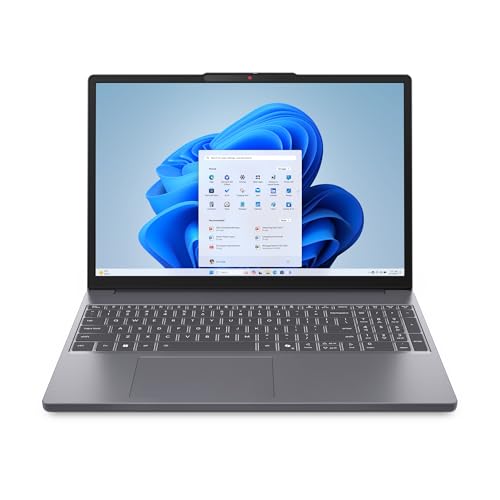
See Lenovo IdeaPad Slim 3 on Amazon UK
Check today's price & availability on Amazon UK
Larger 14-inch Chromebooks for kids who do a lot of reading and typing. 8GB RAM, 128GB storage, full keyboard, comfortable for long homework sessions. Less ruggedised than the Spin 311 but still solid build. Excellent value at the £250-£350 mark.
Acer Chromebook Plus 514 / Lenovo IdeaPad Pro Chromebook
See Acer Chromebook Plus 514 / Lenovo IdeaPad Pro Chromebook on Amazon UK
Check today's price & availability on Amazon UK
'Chromebook Plus' is a Google certification for higher-spec Chromebooks (8GB+ RAM, FHD+ display, fast SSD). The Acer Plus 514 runs Google's AI features (Gemini, Magic Eraser, Help Me Write). Genuinely capable for older kids and overlap with a parent's secondary computer. £400-£550.
What to avoid in the Chromebook range
- Sub-£150 Chromebooks - typically have 4GB RAM and 16-32GB storage. Run out of headroom fast.
- Old generation Chromebooks - check the Auto Update Expiration (AUE) date. ChromeOS support is model/platform-specific and eligible platforms now receive up to 10 years of updates. Check Google's exact Auto Update Expiration date for the model before buying; it is not counted from your retail purchase date.
- 'Chromebook tablet' devices without keyboards. Kids typing essays on touchscreens isn't fun.
Setting up a Chromebook for school
- Sign in with the child's school Google Workspace account if they have one - the school's policies, content filters and apps apply automatically.
- If no school account, create a Google account for the child (legally must be 13+ to set up alone; under-13 needs parent's account using Google Family Link).
- Enable Family Link supervision in Settings > Account > Add child.
- Configure school websites as 'Allowed' bookmarks.
- Install a few key extensions: Grammarly (essay writing aid), uBlock Origin (ad-blocker, useful and safer browsing).
6. Best Windows laptop for kids' homework UK
Lenovo IdeaPad Slim 3 (15-inch, AMD Ryzen 5)

See Lenovo IdeaPad Slim 3 on Amazon UK
Check today's price & availability on Amazon UK
The Lenovo IdeaPad Slim 3 in the AMD Ryzen 5 / 16GB RAM / 512GB SSD configuration is the sensible Windows pick for kids in 2026. Big 15-inch Full HD screen for spreadsheets and essays, comfortable keyboard, excellent battery life, sturdy plastic chassis. Around £550-£650 typical UK price. Will easily handle GCSE workloads.
Acer Aspire Vero (eco-friendly)
Shop Acer Aspire Vero (eco-friendly) on Amazon UK
The Aspire Vero is built from recycled plastics, has a slightly more durable chassis than the standard Aspire range, and surprisingly good build for the price. Intel Core 5/7 options, 16GB RAM, 512GB SSD, 15-inch screen. Good value at £600-£750. The eco angle is genuine - the chassis is 30% post-consumer recycled plastic.
HP ProBook 445 G11 / Lenovo ThinkPad E14 Gen 6
For a 16-18 year old preparing for university, a business-grade laptop is genuinely worth considering. Better keyboards, more durable chassis, longer manufacturer support. The same models we'd recommend to a small business owner work brilliantly for an A-level student. £700-£900.
Search Lenovo ThinkPad E14 Gen 6 configurations under £900What to avoid in the Windows range
- Sub-£400 Windows laptops - typically 4-8GB RAM and slow eMMC storage. Will be unusably slow within a year of school workload.
- Intel Pentium Silver / N100 / Celeron processors - same as our small business advice. They're fine for browsing but choke on Microsoft 365 plus Teams plus 10 browser tabs.
- 2-in-1 convertibles aimed at teenagers - the convertible mode is rarely used, the hinges add cost and a failure point.
- 'Gaming laptops' marketed for kids - they're heavy, hot, noisy and have shorter battery life. Inappropriate for daily school use.
7. Best refurbished pick for kids' schoolwork
For families on a tighter budget, a refurbished business laptop is often a better buy than a new consumer laptop at the same price. We covered this in detail in our refurbished laptop buying guide; the short version for kids:
Refurbished Lenovo ThinkPad T480 / T490 / T14
See Refurbished Lenovo ThinkPad T480 / T490 / T14 on Amazon UK
Check today's price & availability on Amazon UK
3-4 year old business ThinkPads at £350-£500 with a fresh battery. Better keyboard than any consumer laptop at this price. More repairable. Tougher build. The chassis can survive being sat on in a school bag. Genuine Windows 11 Pro from a reputable UK refurbisher (Bargain Hardware, Tier1, Lenovo Outlet). Will easily last through GCSEs.
Refurbished risks specific to kids' use
- Battery health matters more for a kid - they need it to last the school day. Insist on 70%+ battery health.
- Cosmetic wear matters less - kids will add their own scratches anyway. Grade B refurbs are excellent value.
- Get the 12-month warranty - kids will accidentally break things in the first year.
- Buy a laptop case immediately - the refurb is bare; fresh battery + fresh case + reputable refurbisher = best £400-£500 you'll spend on a school laptop.
What to read next
For a deeper guide to checking a refurbished laptop before buying - especially if you're considering eBay or Facebook Marketplace - see our 'Refurbished Laptop Buying Guide UK' for the full inspection checklist.
8. Microsoft Office in schools (and free alternatives)
UK schools mostly use Microsoft 365 Education or Google Workspace for Education. Both are usually free to students through their school account. Here's how to make sure your child can use Word, Excel and PowerPoint at home.
Microsoft 365 Education (free via school)
Check Microsoft 365 Education eligibility
If your child's school uses Microsoft 365, they'll have a school email like firstname.surname@schoolname.org.uk. With this they can:
- Install Microsoft 365 desktop apps (Word, Excel, PowerPoint, Teams, OneNote) on up to 5 home devices.
- Get 1TB of OneDrive cloud storage.
- Use Outlook for school email.
Sign in to office.com with the school account. If the option to install desktop apps appears, the school has the right licence tier. If only web apps are available, the school's licence is more limited.
Google Workspace for Education (free via school)
If the school uses Google Workspace, your child has a school Google account. Google Docs / Sheets / Slides / Classroom are all available in any browser, on any device. Google Workspace for Education starts with 100TB pooled storage for the institution; the amount available to an individual student is set by the school.
If the school doesn't include Microsoft Office at home
Three options:
- Microsoft 365 Family subscription - £80/year for up to 6 family members, full desktop apps on every device. The household plan that covers multiple kids and parents.
- Microsoft 365 Personal - £60/year for one person.
- One-off Office 2024 Home & Student - around £130 once for a single device, no cloud, no Outlook. Decent if you only need basic Word and Excel forever and don't want subscriptions.
Free alternatives that work well enough
- LibreOffice - free, mostly compatible with Word/Excel/PowerPoint. Some formatting differences in complex documents. Fine for KS3 essays; less ideal for GCSE coursework where exact formatting matters.
- Google Docs / Sheets / Slides - free with any Google account. Excellent for collaborative work; saves automatically to Google Drive.
- Microsoft 365 web apps - free with any Microsoft account. Word, Excel, PowerPoint in the browser. Slightly less feature-rich than desktop apps but cover 90% of school needs.
- WPS Office - free with ads, paid premium tier. Visually very Microsoft-like. Some teenagers prefer it.
What about Apple Pages / Numbers / Keynote?
Free on Macs and iPads. They can open and save .docx and .xlsx files. Excellent for Apple-using households. Not the best choice if the school exclusively uses Word formatting (footnotes, comments, track changes can occasionally render differently).
9. Parental controls - what's actually useful
Parental controls on a kid's laptop split into three areas: content filtering (what websites they can see), time limits (how long they can use it), and activity reporting (what they did).
On a Chromebook
Google Family Link is the standard. Free, works well, integrates with the Chromebook tightly:
- App approvals - apps from the Google Play Store require parental approval before installing.
- Website filtering - block specific sites or whole categories.
- Time limits - daily screen-time caps, bedtime locks.
- Activity reports - sites and apps used, time spent.
- Bedtime mode - device locks at a set time.
On a Windows laptop
Microsoft Family Safety is the equivalent. Free with any Microsoft account:
- Web filtering via Microsoft Edge - blocks adult content automatically.
- App / game filtering via Microsoft Store ratings.
- Screen time limits per device and per app.
- Activity reports emailed weekly.
- Spending controls on Microsoft Store / Xbox purchases.
Third-party options
- Qustodio - cross-platform, more features than the built-in tools, paid (£40-80/year).
- Norton Family - similar; included with some Norton subscriptions.
- Bark - focuses on monitoring messages and social media for harm signals (cyberbullying, eating disorders, etc.).
- Mobicip - cross-platform with strong web filtering.
What schools usually do
Most UK schools issue a school account and apply their own content filtering at the network and account level. When the kid is on the school's Wi-Fi or signed in to school accounts, the school's filters apply automatically. At home, your home Wi-Fi has no filtering unless you've set it up.
Network-level filtering at home
Some Wi-Fi 7 routers (and the Eero family) include parental controls at the router level - block specific sites for specific devices, schedule internet off-times. This catches devices that parental software doesn't cover (the kid's phone, the games console, visiting friends' devices). For multi-device households, network- level filtering is genuinely useful.
The conversation matters more than the controls
Technical controls slow problems down; they don't fix them. The most useful thing a parent can do is talk openly with kids about what's online, what to do if they see something disturbing, and that they can come to you without consequences. Family Link and Family Safety help. They don't replace the conversation.
10. Webcams, microphones and video lessons
Live video lessons are a normal part of UK schooling now. The laptop's webcam, microphone and speakers matter more than they used to.
Built-in webcam quality
Cheap laptops often have 720p webcams that look grainy. Better laptops have 1080p webcams with HDR and noise-reduction. For a kid's school laptop, 720p is acceptable; 1080p is better. Most modern Chromebooks and Windows laptops at the £400+ tier have 1080p webcams.
External webcam upgrade
For older kids doing serious video work or remote tutoring, a £30-£50 external webcam (Logitech C270, Logitech C920, Razer Kiyo Mini) is a worthwhile upgrade. Plugs into USB, works on every laptop, gives significantly better image quality.
Microphone quality
Built-in microphones on cheap laptops are often poor. The other person on a Teams call hears tinny, distant audio. Upgrades:
- Wired earphones with mic (Apple EarPods, basic Sony headset) - £10-20 - dramatically better than laptop microphones.
- USB microphone for desk use - Razer Seiren Mini, Blue Yeti Nano - £40-90 - studio-quality, useful for older teens making content.
- Bluetooth headset - Jabra, Logitech - £30-80 - convenient if your kid moves around during calls.
Speakers
Most laptop speakers are barely adequate for school video lessons. A cheap pair of headphones is genuinely better - better audio and doesn't disturb the rest of the household. £15-30 wired headphones work fine.
Webcam privacy
A physical webcam shutter is worth the laptop having. If the laptop doesn't have one, a £3 sliding camera cover from Amazon is a sensible addition. Don't rely on tape - it leaves residue.
Video lessons - bandwidth and Wi-Fi
HD video calls use about 1.5-3 Mbps. A modern UK home internet connection handles this comfortably. The bigger issue is Wi-Fi reliability inside the home - kid in the back bedroom on a 30-year-old router setup drops calls. If video lessons are frequent and call quality is poor, the fix is usually moving the laptop to a stronger Wi-Fi spot or upgrading the router. See our Wi-Fi 7 router buyer's guide if this is an issue.
11. Battery, screen size and what to skip
Three more practical considerations that affect how a kid's laptop fits into daily school life.
Battery - what's enough?
- Primary school: 6+ hours real use is fine. Most use happens at home with a charger.
- Secondary school: 8+ hours real use - they may bring it to school for full days.
- Sixth form / college: 10+ hours real use to comfortably last a college day without panic-charging in lessons.
Manufacturer claims are typically 30-40% optimistic - 'up to 12 hours' is usually 7-8 hours of real use. Adjust accordingly.
Screen size - the trade-off
- 11-inch: Lightest, most portable, smallest battery. Good for primary school. Cramped for older kids doing essays.
- 13-14 inch: Sweet spot for most ages. Big enough for spreadsheets and essays, small enough to carry.
- 15-16 inch: Comfortable for typing, larger window for multi-tasking. Heavier - less ideal if the laptop travels daily.
- 17-inch: Desktop replacement. Probably overkill for school; very heavy in a school bag.
What to skip on a kid's laptop
- 4K screens - costs more, drains battery, kids won't notice the difference.
- Discrete graphics cards - drains battery, runs hotter, almost never used for school work.
- Numpads on 15-inch laptops - the keyboard layout is offset awkwardly, not great for touch typing.
- Cellular / 5G models - rarely used, big upfront cost, monthly data plan needed.
- 'AI Copilot' marketing premiums - the AI features in Windows 11 are useful but don't justify a £200 price premium for a kid's laptop.
- Premium aluminium chassis on a primary-school laptop - kids will dent it. Plastic is fine and survives drops better.
What to spend the saved money on
- Hard-shell case (£15-25)
- Padded sleeve (£10-20)
- Decent wired headphones with mic (£15-30)
- External wireless mouse - kids who haven't learned the trackpad yet are massively faster with one (£10-20)
- One-year accidental damage protection (£40-80)
Total accessories under £100 is the difference between a laptop that survives 4 years and one that's in our shop in 6 months for repair.
Frequently asked questions
What's the cheapest laptop that's actually good enough for a UK schoolchild?
For primary school, a £200-£280 Chromebook from Acer, Lenovo or HP is genuinely fine. For secondary school, push to £350-£450 for either a higher-tier Chromebook or a budget Windows laptop with 8GB+ RAM. Avoid Windows laptops under £350 - they're typically too underspec'd for real school workloads in 2026.
Should I buy my child a Chromebook or a Windows laptop?
Chromebook for primary school and most KS3 - cheaper, simpler, more durable, plenty for browser-based schoolwork and Microsoft 365 web apps. Windows for GCSE and A-level - specialist software for some subjects requires Windows, and it's the OS they'll use in further education and most workplaces.
Will my child's school provide a laptop?
Some do, most don't. Most UK secondary schools recommend laptops without providing them. A few private schools and a small number of state schools include laptops in fees or as a 1-1 device scheme. Check with your school before buying anything significant - some have specific recommended models.
Can my child use a parent's old laptop instead of buying a new one?
Often yes, if it has 8GB+ RAM, a working battery, an SSD (not an old hard drive), and Windows 11 (or can run ChromeOS Flex - free conversion of an old Windows laptop into a Chromebook-like environment). A 6-year-old laptop with 4GB RAM and a hard drive will be too slow.
How long should a kid's laptop last?
A decent £400-£550 laptop bought in Year 5 should last to GCSEs (Year 11) - 6 years - if treated reasonably. A budget £200 laptop might only last 3 years before performance becomes painful. Spending more upfront often costs less per year of use.
Is a touchscreen worth it for school work?
For primary school, often yes - kids interact more naturally with touchscreens, and many education apps are touch-first. For secondary school, less important. The added cost (£50-100) and weight rarely earn their keep for typing-heavy work.
Should I get accidental damage protection?
Strongly recommended for kids' laptops. £40-80/year typically. The first single repair (cracked screen, liquid damage) often costs more than several years of cover. Manufacturer schemes (Lenovo Premium Care, HP Care Pack, Dell ProSupport Plus) are typically the most reliable.
Can my child use Microsoft Office for free?
If their school has Microsoft 365 Education licences, yes - they can install full desktop Word, Excel, PowerPoint and Teams on up to 5 home devices using their school account at office.com. If the school doesn't include this, Microsoft 365 Family at £80/year covers up to 6 household members.
What about an iPad for kids' homework?
iPads work well for younger kids and for browsing, reading, and quick note-taking. They're less good for serious typing of long essays without a separate keyboard, and some schools require Windows or Chrome. iPads with the Apple Pencil are excellent for handwritten notes and sketching.
Do I need antivirus on a kid's laptop?
On Windows: Microsoft Defender (built in) is excellent in 2026. Don't pay for Norton, McAfee, AVG. On Chromebook: not needed; ChromeOS sandboxes apps. The bigger risk is what kids accidentally install or click - parental controls help more than antivirus does.
Should I get a new or refurbished laptop for my child?
Refurbished business-grade (ThinkPad, EliteBook, Latitude) at £350-£500 is a strong choice for a school laptop, especially for older kids - better keyboard, more durable, more repairable than a new £400 consumer laptop. For younger kids who might be rougher with it, a sturdy new education-grade Chromebook is often safer.
What size laptop is best for school bags?
13-14 inch laptops fit most school bags comfortably. 15-inch laptops fit but feel chunky. 11-inch laptops are very portable but cramped for older kids. Measure your child's school bag before buying anything 15+ inches.
Quick picks by age and budget
Year 5-6 (primary school finishing): Acer Chromebook Spin 311. Around £200-£280. Tough, simple, plenty for the workload.
Year 7-9 (KS3): Acer Chromebook Spin 314 or HP Chromebook 14. Around £280-£380. Bigger screen, more comfortable for longer typing sessions.
Year 10-11 (GCSE): Lenovo IdeaPad Slim 3 (16GB RAM Ryzen 5 model). Around £550-£650. Will handle every realistic GCSE workload and last through A-levels.
Year 12-13 (A-level / college): Lenovo ThinkPad E14 Gen 6 or HP ProBook 445 G11. £650-£900. Business-grade build, durable enough for daily college life, ready for university.
On a tighter budget at any age: Refurbished Lenovo ThinkPad T480/T490/T14 with fresh battery. £350-£500. Outperforms most new £500 consumer laptops; lasts longer.
Always include in the budget: A hard-shell case, a padded sleeve, decent wired headphones with mic, and one-year accidental damage protection. Total £100 in accessories that turn a laptop investment into a laptop that survives.
The right laptop for a UK schoolchild depends on age, school requirements and budget. Don't over-spec a primary-school laptop; don't under-spec a GCSE laptop. Buy with the assumption that something will get spilled, dropped or sat on - the best laptop for kids isn't the most expensive one, it's the one that survives.
- HP Chromebook Plus 14Best Chromebook for kids' homework UKView on Amazon
- Lenovo IdeaPad Slim 3Best Chromebook for kids' homework UKView on Amazon
- Acer Chromebook Plus 514 / Lenovo IdeaPad Pro ChromebookBest Chromebook for kids' homework UKView on Amazon
- Lenovo IdeaPad Slim 3Best Windows laptop for kids' homework UKView on Amazon
- Refurbished Lenovo ThinkPad T480 / T490 / T14Best refurbished pick for kids' schoolworkView on Amazon
 Logitech MX Anywhere 3SView on Amazon